1. Wprowadzenie
This manual provides detailed instructions for the setup, operation, and maintenance of your SANSUI 15.6 Inch Portable Monitor. Please read this manual thoroughly before using the product to ensure proper functionality and to prevent damage.
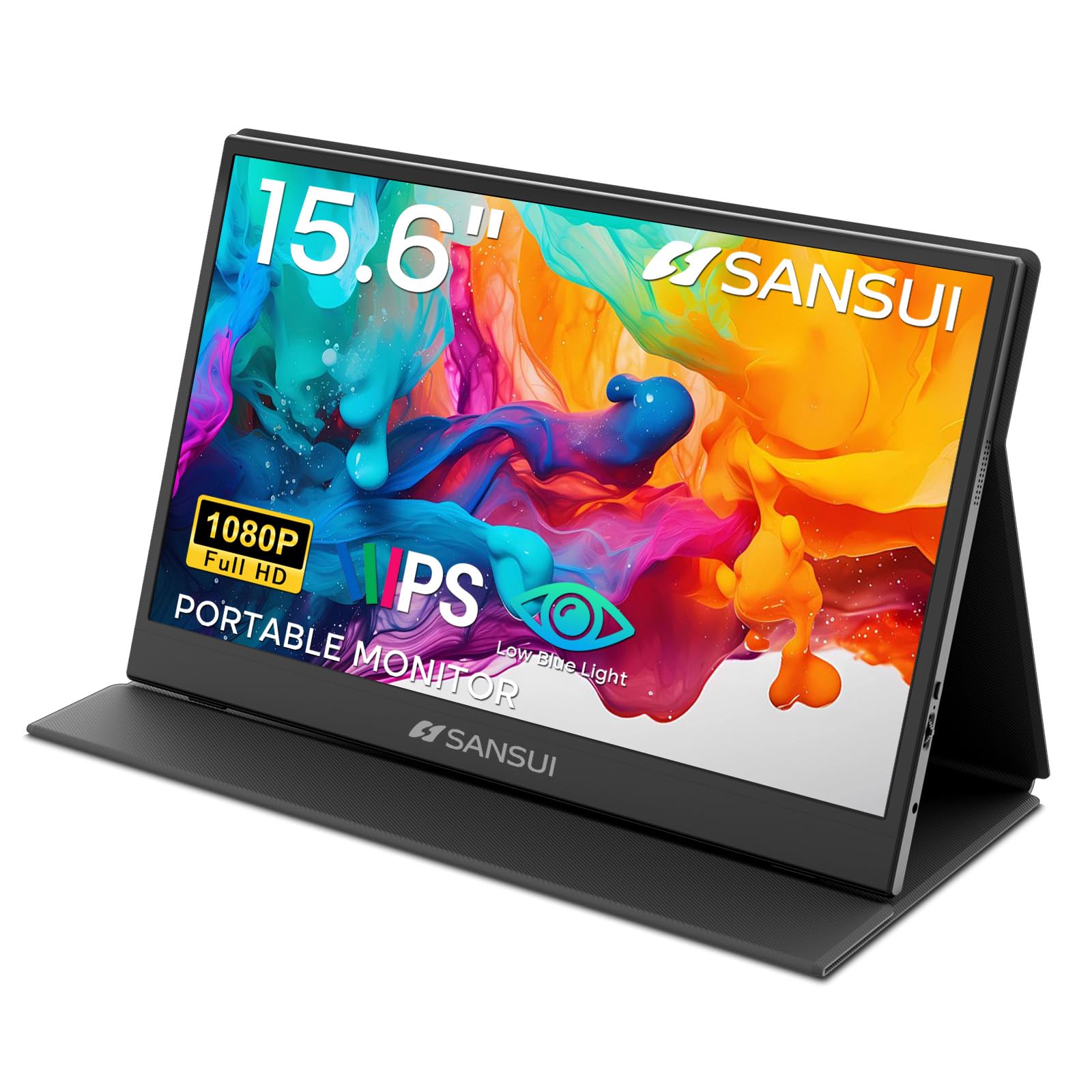
Image: The SANSUI 15.6 Inch Portable Monitor, showcasindzięki eleganckiemu wzornictwu i żywemu wyświetlaczowi.
2. Zawartość opakowania
Verify that all items listed below are included in your product package. If any items are missing or damaged, please contact SANSUI customer support.
- SANSUI 15.6 Inch Portable Monitor with PU Leather Cover
- HDMI to Mini HDMI Cable (1.2m)
- Type-C to Type-C Cable (30V5A, 1m)
- Quick Start Guide (QSG Card)
- Instrukcja obsługi (ten dokument)
- Karta gwarancyjna

Image: All included accessories laid out next to the portable monitor.
Wideo z rozpakowywania
Video: An unboxing demonstration of the SANSUI 15.6 Inch Portable Monitor, showing how to unpack the device and its accessories.
3. Funkcje produktu
- Wyświetlacz: 15.6-inch IPS panel with FHD 1920x1080 resolution.
- Jakość wizualna: 1200:1 high contrast ratio and 250 nits brightness for clear images.
- Viewkąt ing: 178° szerokości viewkąt.
- Komfort oczu: Features low blue light and flicker-free technology to reduce eye strain.
- Projekt: Ultra-thin (0.43 inches) and lightweight (2.1 lbs without cover) for portability.
- Pokrowiec ochronny: Includes a PU leather stand cover that offers 24°/37° tilt angles.
- Audio: Built-in dual speakers and a 3.5mm audio jack.
- Łączność: Two USB Type-C ports and one Mini HDMI port.

Image: Visual representation of the monitor's display specifications and features.

Image: Illustration of the monitor's eye-care features, including low blue light and flicker-free technology.
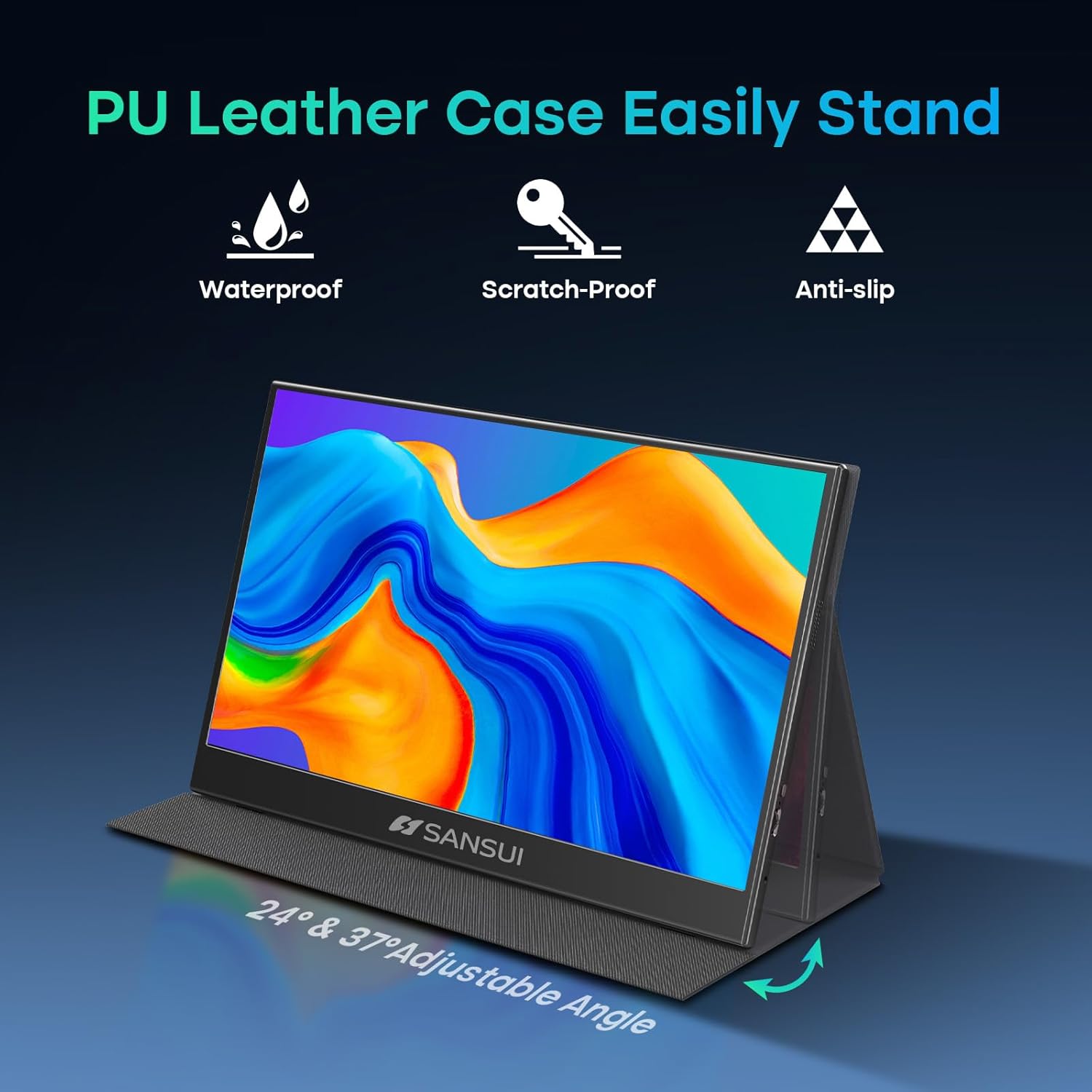
Image: The monitor's PU leather cover functioning as a stand, illustrating its adjustable angles and protective qualities.
4. Przekroczenie fizyczneview
Familiarize yourself with the ports and controls on your SANSUI portable monitor.
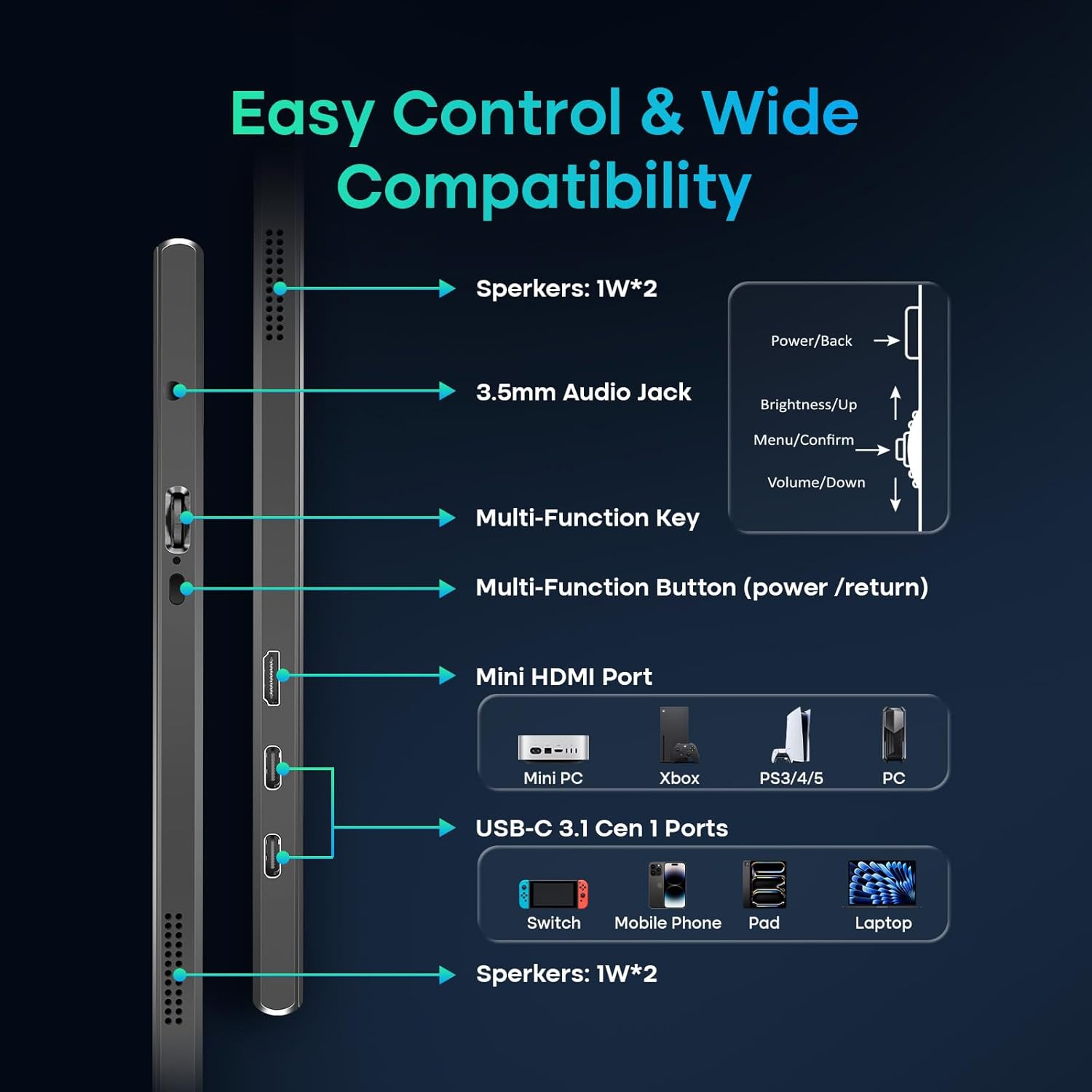
Image: A detailed diagram showing the location and function of all ports and control buttons on the monitor.
Porty i przyciski:
- Porty USB typu C (x2): For power, video, and data transmission (requires full-function USB-C port on host device).
- Port mini HDMI (x1): For video input from devices like laptops, PCs, gaming consoles.
- Gniazdo audio 3.5 mm: Do podłączenia zewnętrznych słuchawek lub głośników.
- Multi-Function Key: Controls power, menu navigation, brightness, and volume.
- Wbudowane głośniki: Dual 1W speakers for audio output.
5. Konfiguracja i połączenie
The SANSUI portable monitor offers flexible connection options for various devices.
Wymagania dotyczące zasilania:
- The monitor can be powered directly by a compatible full-function USB-C port on your device (e.g., laptop, phone).
- For independent power supply or when using the Mini HDMI connection, a dedicated PD adapter (45W or higher, not included) and a USB-C cable supporting 45W+ power transmission are required.
Metody połączenia:
- USB Type-C Connection (Single Cable Solution):
- Connect one end of the provided Type-C to Type-C cable to a full-function USB-C port on your device (which supports DisplayPort Alt Mode).
- Connect the other end to one of the USB Type-C ports on the monitor.
- This connection provides power, video, and data through a single cable. Ensure your device's USB-C port supports video output.
- HDMI Connection (Video Only):
- Connect one end of the provided HDMI to Mini HDMI cable to your device's HDMI port.
- Connect the Mini HDMI end to the Mini HDMI port on the monitor.
- When using HDMI, external power is required for the monitor via a USB Type-C port and a PD adapter (not included).
6. Obsługa monitora
Menu ekranowe (OSD):
Use the Multi-Function Key to access and navigate the OSD menu for display settings, audio adjustments, and other configurations.
- Press the Multi-Function Key to open the OSD menu.
- Move the key up/down to navigate through menu options.
- Press the key to confirm a selection.
- Press the Multi-Function Button (power/return) to go back or exit the menu.
Tryby wyświetlania:
The monitor supports various display modes depending on your connected device and operating system settings.
- Tryb lustrzany: Duplicates your primary screen's content.
- Tryb rozszerzony: Extends your desktop, allowing for multitasking across multiple screens.
- Tryb drugiego ekranu: Używa przenośnego monitora jako jedynego wyświetlacza.

Obraz: Byłyamples of the monitor used in Mirror, Extended, and Second Screen modes with various devices.
7. Konserwacja
- Czyszczenie ekranu: Użyj miękkiej, niestrzępiącej się ściereczki, lekko wyczyśćampPrzemyj wodą lub płynem do czyszczenia ekranów. Unikaj silnych środków chemicznych.
- Czyszczenie ciała: Przecierać miękką, suchą ściereczką.
- Składowanie: When not in use, store the monitor in its protective PU leather cover to prevent scratches and damage.
- Unikaj ekstremalnych warunków: Nie wystawiaj monitora na działanie ekstremalnych temperatur, wilgoci ani bezpośredniego światła słonecznego.
8. Rozwiązywanie Problemów
Jeśli masz problemy z monitorem, zapoznaj się z poniższymi typowymi problemami i ich rozwiązaniami:
- Brak sygnału / Czarny ekran:
- Sprawdź, czy wszystkie kable (USB-C, HDMI, zasilania) są prawidłowo podłączone.
- Verify that your device's USB-C port supports video output (DisplayPort Alt Mode).
- If using HDMI, ensure the monitor is receiving adequate power from a separate USB-C power source.
- Try connecting to a different port on your device or a different device to isolate the issue.
- Sprawdź ustawienia wyświetlania swojego urządzenia, aby upewnić się, że monitor zewnętrzny został wykryty i włączony.
- Brak zasilania:
- Ensure the USB-C power cable is connected to a power source (either your device's full-function USB-C port or a 45W+ PD adapter).
- Wypróbuj inny kabel USB-C lub zasilacz.
- Image Flickering / Unstable Display:
- Ensure the cables are not damaged and are properly connected.
- Zmniejsz rozdzielczość ekranu lub częstotliwość odświeżania w podłączonym urządzeniu.
- Upewnij się, że monitor jest zasilany stabilnie.
- Brak dźwięku z głośników:
- Check the volume settings on both the monitor (via OSD menu) and your connected device.
- Ensure the correct audio output device is selected on your computer/device.
- Jeśli używasz złącza HDMI, upewnij się, że urządzenie przesyła dźwięk przez złącze HDMI.
9. Specyfikacje
| Numer modelu | ES-P156T1F |
| Rozmiar ekranu | 15.6 cali |
| Typ panelu | IPS |
| Rezolucja | FHD 1920x1080 |
| Proporcje obrazu | 16:9 |
| Jasność | 250 nits (candela per square meter) |
| Współczynnik kontrastu | 1200:1 |
| Viewing kąt | 178° |
| Powierzchnia ekranu | Matowy |
| Łączność | 2x USB Type-C, 1x Mini HDMI, 1x 3.5mm Audio Jack |
| Głośniki | Dual 1W Built-in Speakers |
| Product Dimensions (with cover) | 14.33 x 9.21 x 0.59 cala |
| Product Dimensions (without cover) | 14.2 x 9.1 x 0.43 cala |
| Item Weight (with cover) | 2.99 funta |
| Item Weight (without cover) | 2.1 funta (w przybliżeniu) |
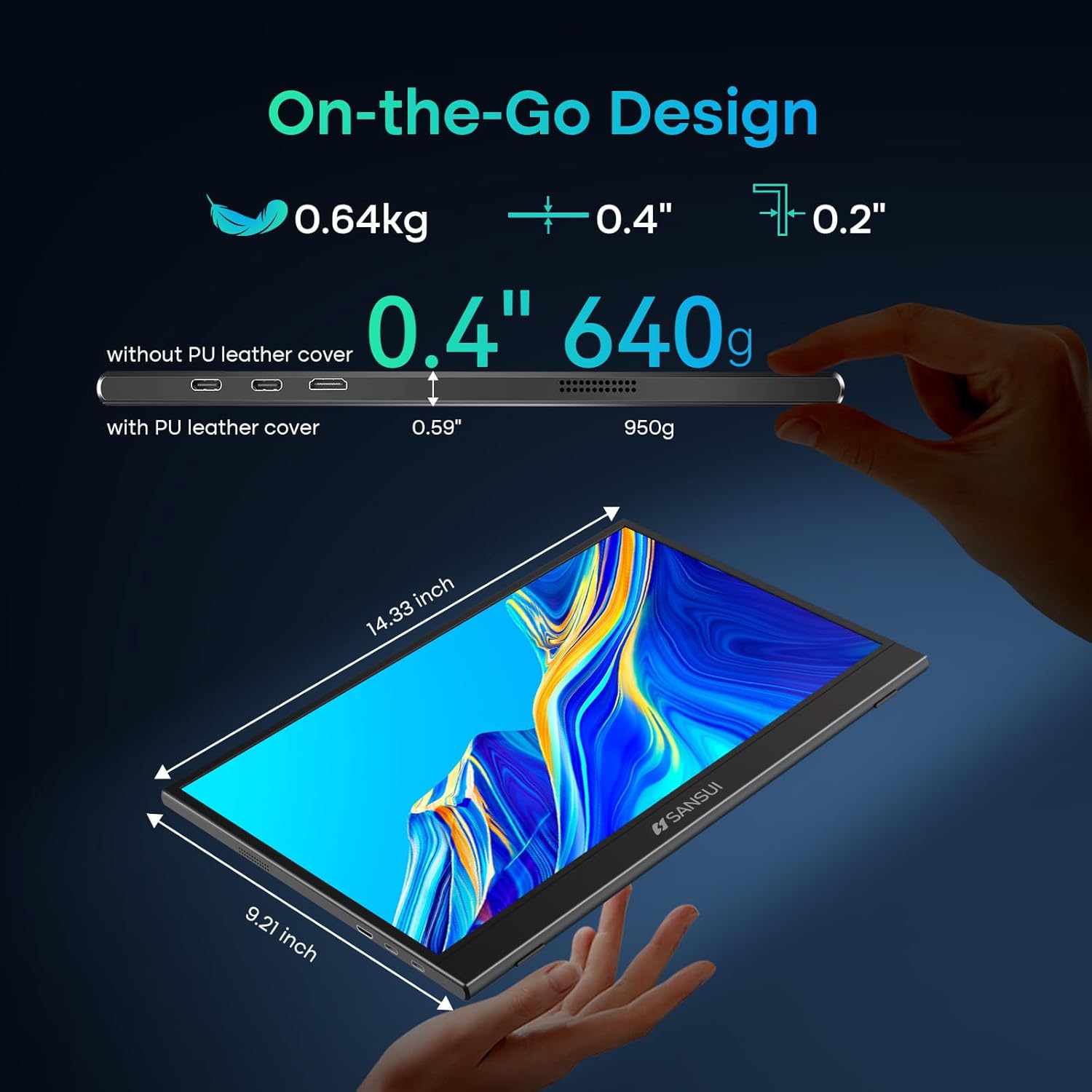
Image: Detailed dimensions and weight specifications of the portable monitor.
10. Gwarancja i wsparcie
Your SANSUI portable monitor comes with a manufacturer's warranty. Please refer to the included Warranty Card for specific terms and conditions, including warranty period and coverage details.
For technical support, troubleshooting assistance, or warranty claims, please contact SANSUI customer service. Contact information can typically be found on the Warranty Card, Quick Start Guide, or the official SANSUI webstrona.


