Wstęp
This manual provides essential information for setting up, operating, maintaining, and troubleshooting your HP ProDesk 600 G3 MT Desktop PC. Please read these instructions carefully before using your computer to ensure optimal performance and longevity.
The HP ProDesk 600 G3 MT is a renewed desktop computer featuring an Intel Pentium G4400 processor, 8GB DDR4 RAM, a 256GB SSD, and Windows 11 Pro operating system. It is designed for business, education, and everyday use.
Zawartość opakowania
Sprawdź, czy w opakowaniu znajdują się wszystkie elementy:
- HP ProDesk 600 G3 MT Desktop Computer
- Klawiatura RGB
- Mysz
- Zasilacz sieciowy (przewód zasilający)
- Wi-Fi/Bluetooth Adapter
Organizować coś
1. Rozpakowanie i ustawienie
Carefully remove the computer and all accessories from the packaging. Place the computer on a stable, flat surface with adequate ventilation. Avoid placing it near heat sources or in direct sunlight.
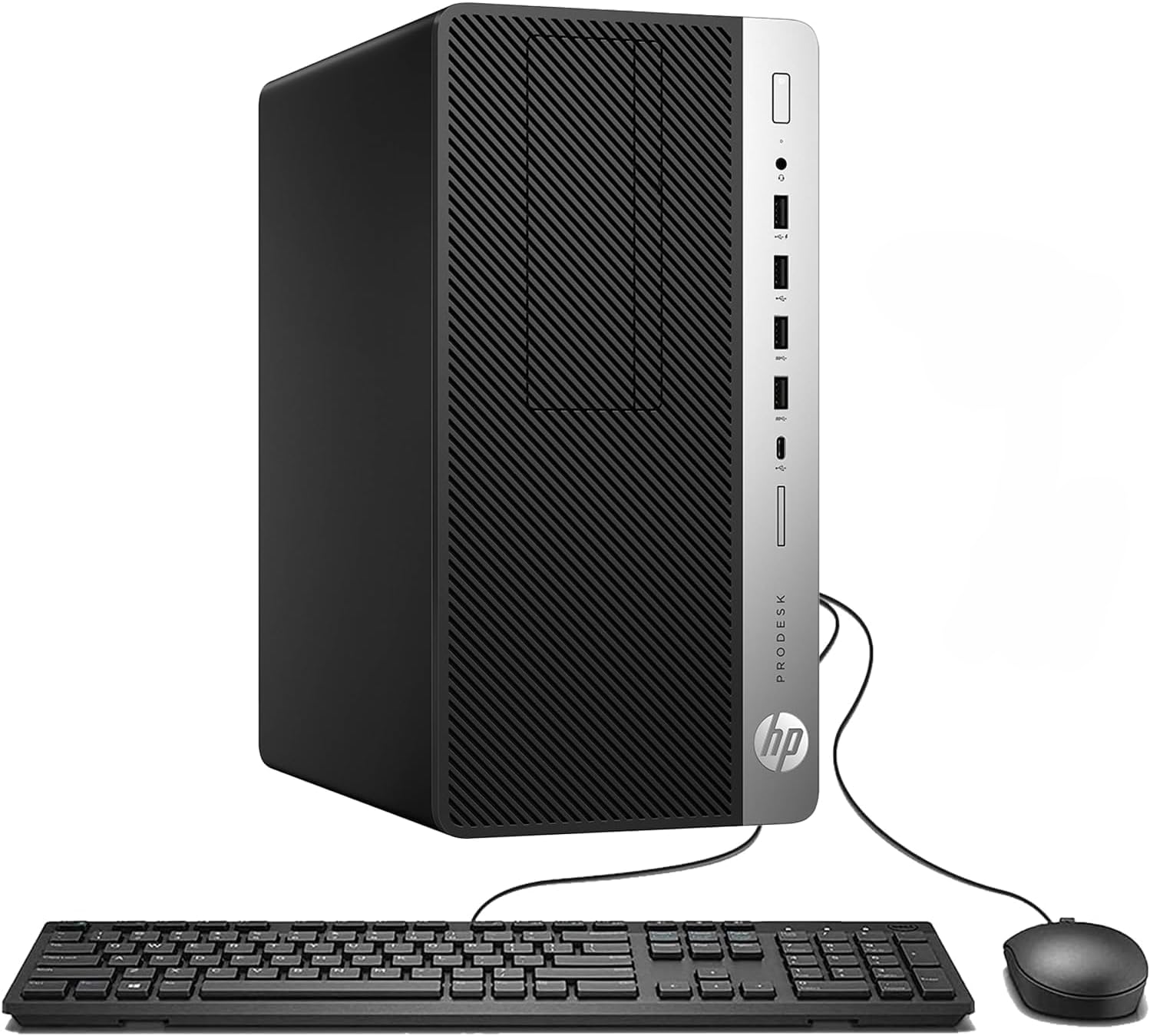
Obraz: Przód-lewo view of the HP ProDesk 600 G3 MT desktop tower, showcasindzięki kompaktowej konstrukcji i panelowi przedniemu.
2. Podłączanie urządzeń peryferyjnych
- Monitor: Connect your monitor to the appropriate video output port (e.g., DisplayPort, HDMI, VGA) on the back of the computer.
- Klawiatura i mysz: Connect the USB keyboard and mouse to any available USB ports on the front or back of the computer.
- Moc: Connect the AC adapter to the power input on the back of the computer, then plug the power cord into a wall outlet.
- Sieć (opcjonalnie): For a wired internet connection, connect an Ethernet cable from your router or modem to the LAN (RJ45) port on the back of the computer.
- Wi-Fi/Bluetooth Adapter: If using the included external Wi-Fi/Bluetooth adapter, plug it into an available USB port.

Obraz: Zbliżenie view of the front panel of the HP ProDesk 600 G3 MT, showing USB ports, audio jacks, and the power button.
3. Pierwsze włączenie zasilania
Press the power button located on the front of the computer. The system will boot up, and you will be guided through the initial Windows 11 Pro setup process. Follow the on-screen instructions to configure your language, region, network, and user account.
Instrukcja obsługi
Włączanie/wyłączanie i ponowne uruchomienie
- Włączanie: Press the power button on the front of the computer.
- Zamknięcie: Kliknij przycisk Start w systemie Windows, a następnie wybierz Zasilanie > Wyłącz.
- Uruchom ponownie: Kliknij przycisk Start w systemie Windows, a następnie wybierz Zasilanie > Uruchom ponownie.
Using the RGB Keyboard
The included RGB keyboard features customizable backlighting. To switch between different backlight modes, locate and press the Blokada przewijania button on the keyboard.

Image: An RGB keyboard and mouse. The image highlights the 'Scroll Lock' button on the keyboard, indicating its function to change backlight modes.
Łączenie z sieciami
- Sieci przewodowej: Upewnij się, że kabel Ethernet jest podłączony do portu LAN. System powinien automatycznie wykryć połączenie.
- Sieć bezprzewodowa: If using the Wi-Fi adapter, click the network icon in the Windows taskbar, select your Wi-Fi network, enter the password, and connect.
Korzystanie z portów USB
The computer is equipped with multiple USB ports (USB 2.0 and USB 3.0) for connecting external devices such as USB drives, printers, and other peripherals. USB 3.0 ports offer faster data transfer speeds.
Konserwacja
Cleaning the Computer
- Always power off the computer and disconnect the power cord before cleaning.
- Użyj miękkiej, niestrzępiącej się ściereczki, lekko wyczyśćampzwilż wodą lub łagodnym roztworem czyszczącym i wytrzyj powierzchnie zewnętrzne.
- Avoid spraying liquids directly onto the computer.
- Use compressed air to clear dust from vents and ports periodically to maintain proper airflow.
Aktualizacje oprogramowania
Regularly update your Windows operating system and drivers to ensure security, stability, and optimal performance. Windows Update can be accessed via the Settings menu.
Kopia zapasowa danych
Aby zapobiec utracie danych, zaleca się regularne tworzenie kopii zapasowych ważnych danych na dysku zewnętrznym lub w chmurze.
Rozwiązywanie problemów
W tej sekcji omówiono typowe problemy, na które możesz natrafić.
Brak zasilania
- Ensure the power cord is securely connected to both the computer and the wall outlet.
- Sprawdź, czy gniazdko ścienne działa prawidłowo, podłączając do niego inne urządzenie.
- Sprawdź przycisk zasilania pod kątem uszkodzeń.
Brak obrazu na monitorze
- Sprawdź, czy monitor jest włączony i czy jego kontrolka zasilania jest aktywna.
- Check that the video cable is securely connected to both the computer and the monitor.
- Ensure the monitor's input source is set correctly (e.g., DisplayPort, HDMI, VGA).
Niska wydajność
- Zamknij niepotrzebne aplikacje działające w tle.
- Uruchom czyszczenie dysku i jego defragmentację (w przypadku dysków HDD, zwykle nie jest to konieczne w przypadku dysków SSD).
- Sprawdź oprogramowanie antywirusowe pod kątem złośliwego oprogramowania i wirusów.
- Upewnij się, że system Windows i sterowniki są aktualne.
Problemy z łącznością sieciową
- wired: Verify the Ethernet cable is properly connected. Restart your router/modem.
- Bezprzewodowy: Ensure the Wi-Fi adapter is correctly installed. Check if Wi-Fi is enabled in Windows settings. Restart your router/modem.
- Confirm you are connecting to the correct network with the correct password.
Specyfikacje
| Funkcja | Szczegół |
|---|---|
| Model | HP ProDesk 600 G3 MT |
| Edytor | Intel Pentium G4400 (3.3 GHz, 2 Cores) |
| BARAN | 8 GB pamięci DDR4 SDRAM |
| Składowanie | Dysk SSD 256 GB |
| System operacyjny | Windows 11 Pro |
| Grafika | Karta graficzna Intel HD (zintegrowana) |
| Porty USB | 4x USB 2.0, 4x USB 3.0 (Total 10 USB ports including unspecified) |
| Porty audio | 1x Audio line-in, 1x Audio line-out |
| Sieć | Gigabit LAN (RJ45), Wi-Fi (via adapter), Bluetooth (via adapter) |
| Wymiary (szer. x gł. x wys.) | 338 x 274 x 170 mm (około 13.3 x 10.8 x 6.7 cala) |
| Waga | 7.14 kg (ok. 14.87 funta) |
| Maksymalna rozdzielczość ekranu | 1920x1080 |
Gwarancja i wsparcie
Stan produktu
This HP ProDesk 600 G3 MT Desktop PC is a renewed product. Renewed products undergo inspection and testing to ensure they function and look like new.
Zasady zwrotu
This product is eligible for a 90-day refund or replacement return policy from the date of purchase. Please refer to your retailer's specific return terms for detailed information.
Wsparcie techniczne
For technical assistance, driver downloads, or further product information, please visit the official HP support website or contact your product reseller. Have your product model number (ProDesk 600 G3 MT) and serial number ready when seeking support.