1. Wprowadzenie
Welcome to the XGIMI HORIZON 20 Pro User Manual. This document provides essential information for the safe and effective operation of your new 4K RGB Triple Laser Home Projector. Please read this manual thoroughly before using the product and retain it for future reference.
2. Informacje dotyczące bezpieczeństwa
- Zasilanie: Używaj wyłącznie określonego zasilacza. Upewnij się, że napięcietagodpowiada wymaganiom projektora.
- Wentylacja: Nie zasłaniaj otworów wentylacyjnych. Zapewnij odpowiedni przepływ powietrza wokół projektora, aby zapobiec przegrzaniu.
- Ekspozycja na płyny: Keep the projector away from water or other liquids. Do not operate with wet hands.
- Czyszczenie: Disconnect power before cleaning. Use a soft, dry cloth. Avoid abrasive cleaners.
- Bezpieczeństwo lasera: Do not look directly into the projector lens when the device is operating. The laser light can cause eye damage.
- Umieszczenie: Umieść projektor na stabilnej, równej powierzchni. Unikaj umieszczania go w bezpośrednim świetle słonecznym lub w pobliżu źródeł ciepła.
3. Koniec produktuview
The XGIMI HORIZON 20 Pro is a high-performance 4K RGB Triple Laser Home Projector designed for an immersive viewing experience. It features 4100 ISO Lumens brightness, a 20,000:1 contrast ratio, and integrated Google TV with licensed Netflix.

A front-right view of the XGIMI HORIZON 20 Pro 4K projector, highlighting its compact design and integrated Harman/Kardon speaker system.
A front-left view of the XGIMI HORIZON 20 Pro 4K projector, showcasing the IMAX Enhanced logo and the projector lens.
Główne cechy:
- RGB Triple Laser Engine: Delivers 4100 ISO lumens and a 20,000:1 contrast ratio for vibrant, lifelike visuals.
- Rozdzielczość 4K UHD: Native 4K display for sharp and detailed images.
- Integracja z Google TV: Built-in Google TV with licensed Netflix for direct access to streaming services.
- Optical Zoom & Lens Shift: Provides flexibility in projector placement without sacrificing image clarity.
- IMAX Enhanced & Dolby Vision: Supports premium content formats for an enhanced cinematic experience.
- Pro-Level Gaming: Features 1ms response time, 240Hz fluidity, VRR, and ALLM for smooth gaming.
- Gotowy do 3D: Compatible with 3D content and active 3D glasses.
- Flagship Processing: Equipped with MT9679 chipset and 4GB RAM for fast performance.
4. Konfiguracja
4.1 Rozpakowywanie i umieszczanie
- Ostrożnie wyjmij projektor i wszystkie akcesoria z opakowania.
- Place the projector on a stable, flat surface. Ensure there is sufficient space around the projector for ventilation.
- Consider the projection distance and screen size. The HORIZON 20 Pro offers flexible installation options.
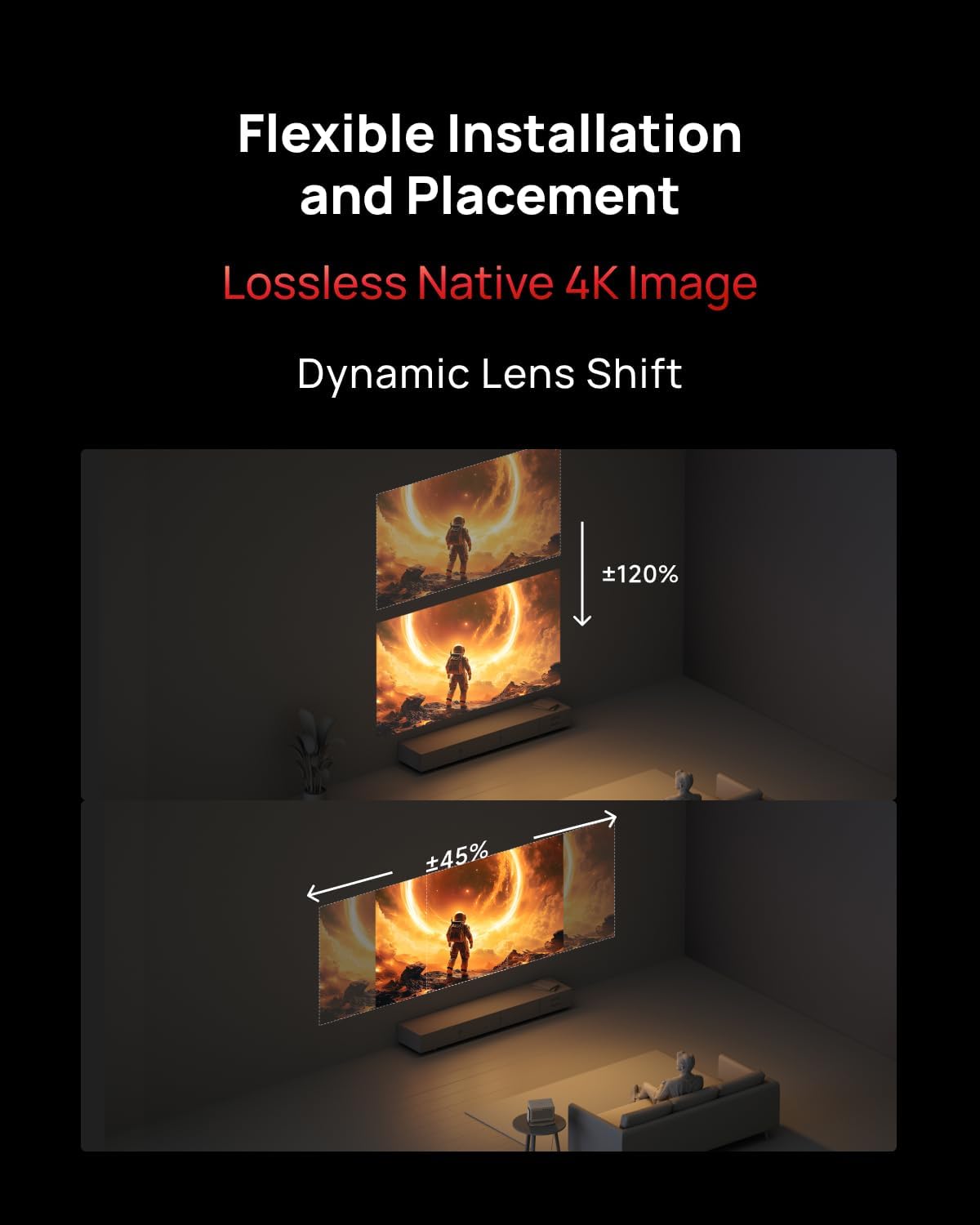
A diagram demonstrating the projector's dynamic lens shift capability, showing how the image can be adjusted vertically (up to ±120%) and horizontally (up to ±45%) without moving the projector, allowing for flexible installation.
4.2 Połączenie zasilania
Podłącz zasilacz do portu zasilania projektora, a następnie podłącz drugi koniec do gniazdka elektrycznego.
4.3 Initial Boot-up and Google TV Setup
- Naciśnij przycisk zasilania na projektorze lub pilocie, aby włączyć urządzenie.
- Follow the on-screen instructions to complete the initial setup, including language selection, network connection (Wi-Fi), and Google account login.
- The integrated Google TV interface will guide you through setting up streaming services, including licensed Netflix.

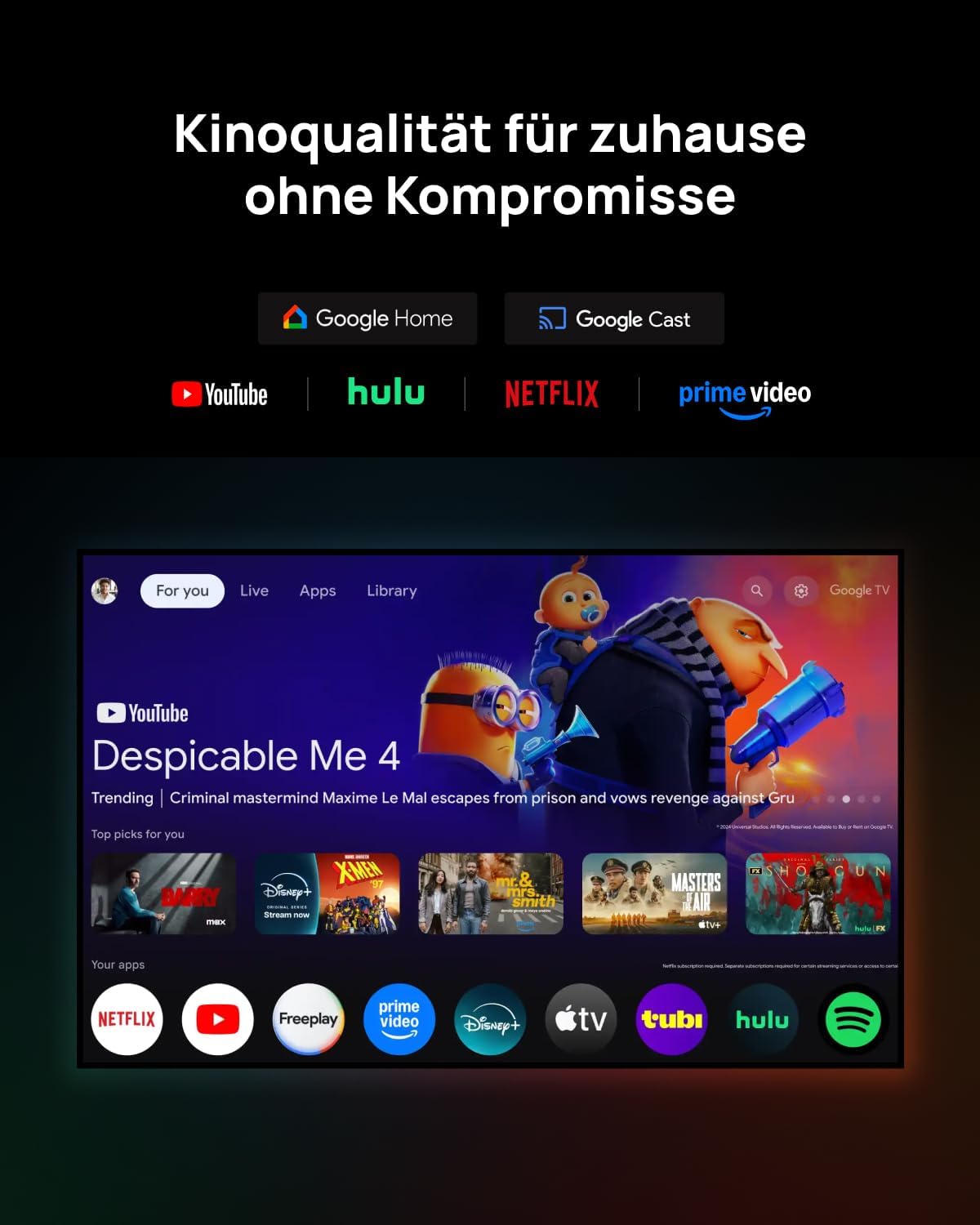
A projected image showing the Google TV home screen with applications like YouTube, Hulu, Netflix, and Prime Video, demonstrating the integrated smart TV functionality.
5. Instrukcja obsługi
5.1 Pilot zdalnego sterowania
Use the provided remote control to navigate the Google TV interface, adjust settings, and control playback. Familiarize yourself with the power, navigation, volume, and input selection buttons.
5.2 Podłączanie urządzeń zewnętrznych
- HDMI: Connect Blu-ray players, gaming consoles, or other HDMI-enabled devices to the HDMI input ports.
- USB: Use the USB port to connect external storage devices for media playback.
- Bluetooth: Pair Bluetooth audio devices like headphones or speakers for wireless sound.
5.3 Ustawienia obrazu i dźwięku
Access the projector's settings menu to customize picture modes (e.g., Standard, Vivid, Cinema), brightness, contrast, color temperature, and sound profiles. The projector supports IMAX Enhanced, Dolby Vision, Filmmaker Mode, and HDR10+ for optimized content display.
A vibrant projected image of a spaceship in space, illustrating the visual quality enhanced by IMAX Enhanced, Dolby Vision, Filmmaker Mode, and HDR10+ technologies, with Harman/Kardon sound.
5.4 Funkcje gier
For an optimal gaming experience, the HORIZON 20 Pro offers a 1ms response time, 240Hz fluidity, Variable Refresh Rate (VRR), and Auto Low Latency Mode (ALLM). Ensure your gaming console is connected via HDMI and activate Game Mode in the projector settings if available.

A projected image of the 'Assassin's Creed Shadows' game, demonstrating the projector's low 1ms input lag, VRR, and ALLM features for enhanced gaming performance.
5.5 Funkcjonalność 3D
The projector is 3D-ready. To enjoy 3D content, you will need compatible active 3D glasses (such as XGIMI Active 3D Glasses) and 3D source material. Refer to the 3D glasses manual for pairing and usage instructions.
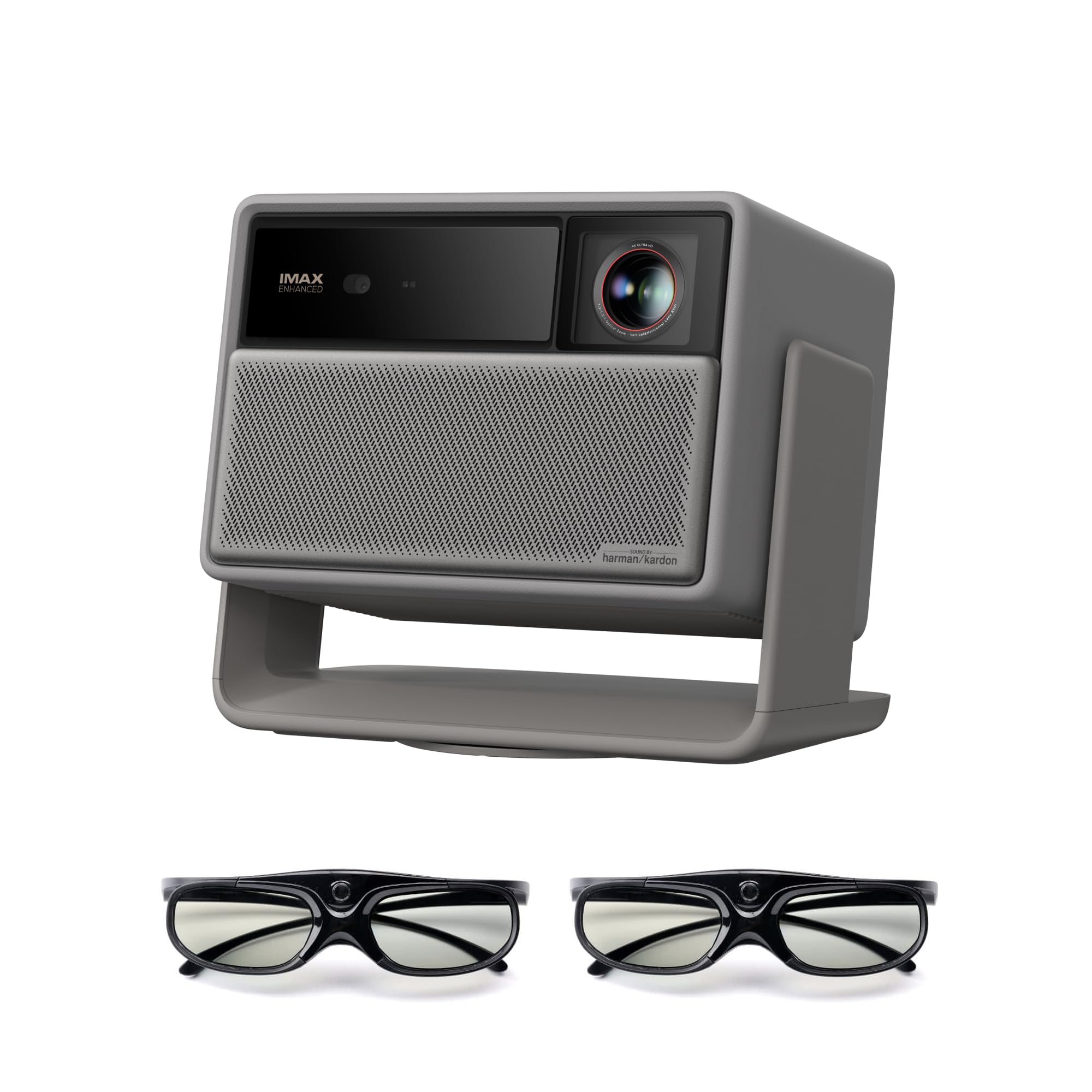
The XGIMI HORIZON 20 Pro 4K projector, shown from the front-right angle, featuring its speaker grille and lens. Two pairs of XGIMI active 3D glasses are displayed below the projector.
6. Konserwacja
6.1 Czyszczenie obiektywu
Gently wipe the projector lens with a soft, lint-free cloth specifically designed for optical lenses. Do not use abrasive materials or harsh chemicals.
6.2 Ogólna opieka
- Keep the projector free from dust by regularly wiping the exterior with a dry, soft cloth.
- Ensure the ventilation ports are clear of obstructions.
- Jeśli projektor nie będzie używany przez dłuższy czas, należy go przechowywać w chłodnym i suchym miejscu.
7. Rozwiązywanie Problemów
If you encounter issues with your XGIMI HORIZON 20 Pro, refer to the following common problems and solutions:
- Brak zasilania: Upewnij się, że kabel zasilający jest prawidłowo podłączony zarówno do projektora, jak i do gniazdka elektrycznego. Sprawdź gniazdko, podłączając je do innego urządzenia.
- Brak obrazka: Check the input source selection. Ensure external devices are powered on and connected correctly. Verify lens cap is removed.
- Rozmazany obraz: Adjust the focus using the remote control or on-screen menu. Ensure the projection surface is flat and the projector is stable. Utilize the lens shift feature if needed.
- Brak dźwięku: Check the volume level on the projector and any connected audio devices. Ensure the correct audio output is selected in the settings.
- Pilot nie działa: Replace the batteries in the remote control. Ensure there are no obstructions between the remote and the projector.
For further assistance, please contact XGIMI customer support.
8. Specyfikacje
| Funkcja | Specyfikacja |
|---|---|
| Marka | XGIMI |
| Model | HORIZON 20 Pro |
| Rozdzielczość wyświetlacza | 3840 x 2160 (4K UHD) |
| Jasność | 4100 lumenów ISO |
| Współczynnik kontrastu | 20,000:1 |
| Źródło światła | Potrójny laser RGB |
| Funkcja specjalna | 3D-Ready |
| Technologia łączności | Bluetooth |
| Edytor | MT9679 chipset |
| BARAN | 4 GB |
| System operacyjny | Google TV z licencjonowanym Netflixem |

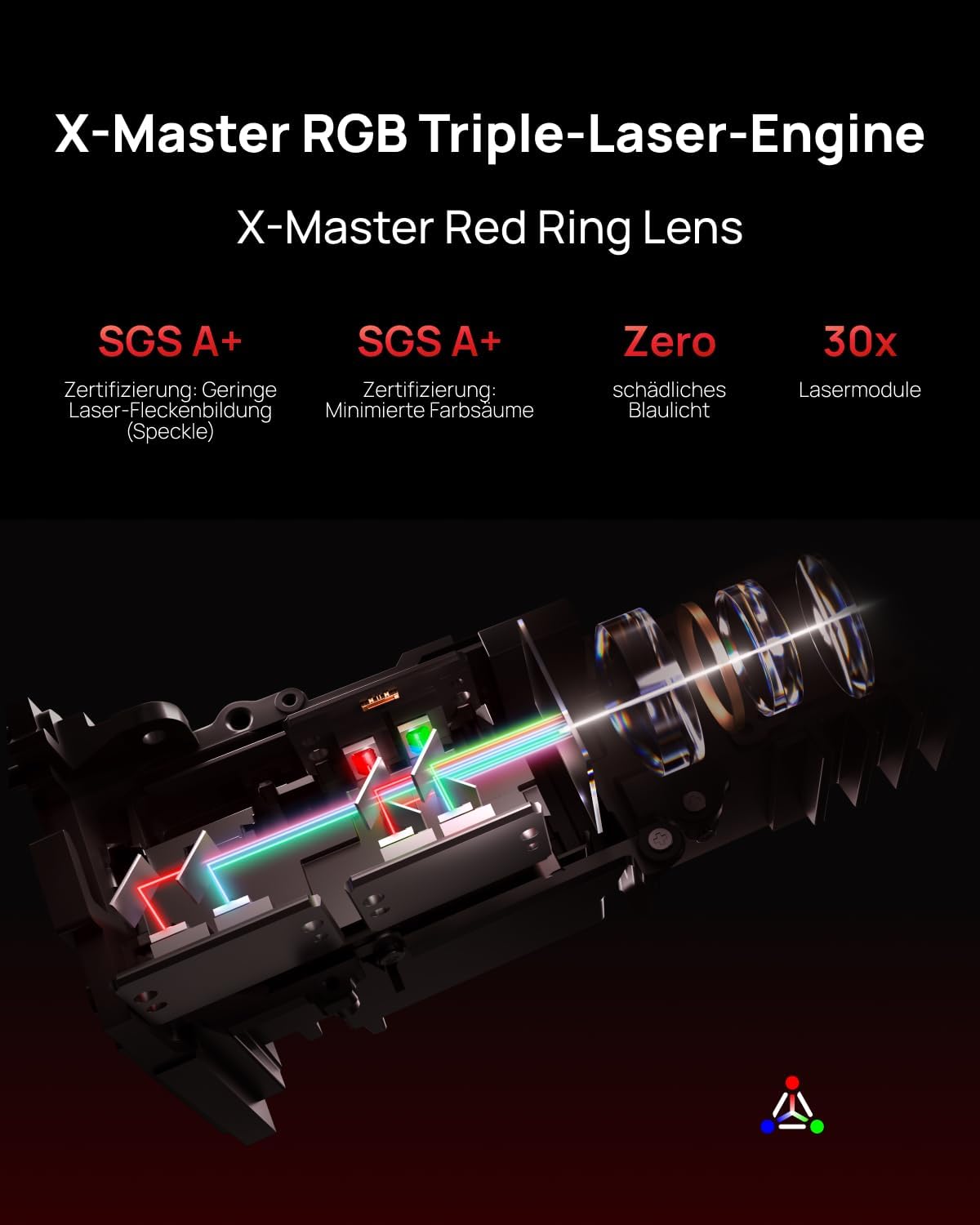
An internal diagram of the X-Master RGB Triple-Laser Engine, illustrating the path of the red, green, and blue laser light, highlighting its advanced optical design.
9. Gwarancja i wsparcie
XGIMI products are covered by a limited warranty. Please refer to the warranty card included with your product or visit the official XGIMI webSzczegółowe warunki gwarancji można znaleźć na naszej stronie.
For technical support, troubleshooting assistance, or service inquiries, please contact XGIMI customer support through their official channels. Keep your purchase receipt and product serial number handy when contacting support.


