1. Wprowadzenie
1.1 Produkt powyżejview
The DBIT AC1200 Dual Band Gigabit WiFi Router (Model T18-21K) is designed to provide wireless internet connectivity for home and small office environments. It supports dual-band operation (2.4GHz and 5GHz) and offers Gigabit Ethernet ports for wired connections. The router includes features such as MU-MIMO, Beamforming, and multiple operating modes to enhance network performance and coverage.
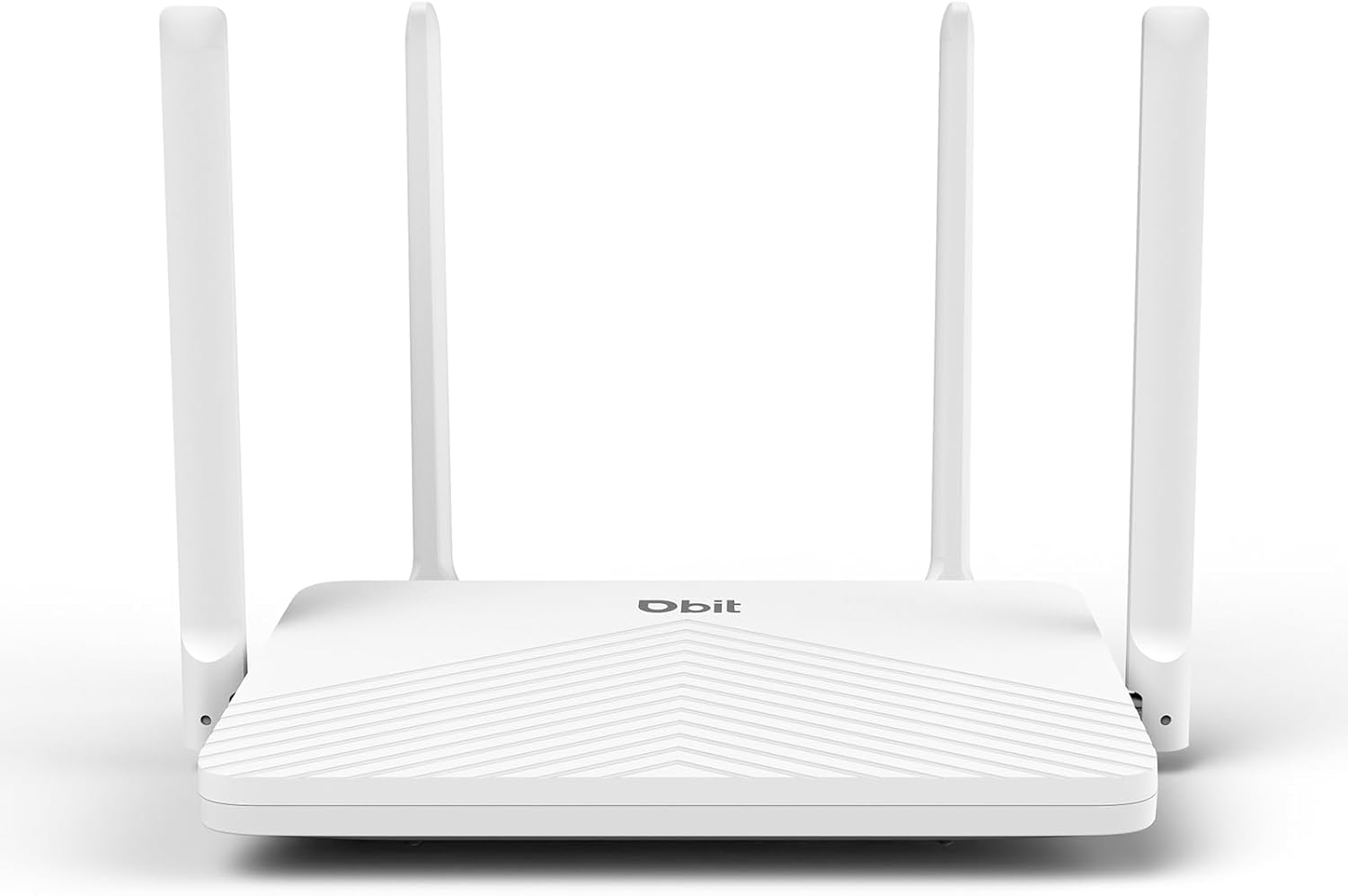
Figure 1: DBIT AC1200 WiFi Router
1.2 Główne cechy
- Dwuzakresowe WiFi AC1200: Provides wireless speeds up to 1200Mbps (300 Mbps on 2.4GHz and 867 Mbps on 5GHz). The 2.4GHz band handles general tasks, while the 5GHz band supports bandwidth-intensive activities like gaming or 4K video streaming.
- Pełne porty gigabitowe: Equipped with one Gigabit WAN port and three Gigabit LAN ports for high-speed internet plans and stable wired connections to devices such as smart TVs, gaming consoles, or PCs.
- Triple-Mode Flexibility: Functions as a Router, Repeater, or Bridge to suit various network requirements.
- Whole-Home Coverage with Beamforming: Four external 5dBi high-gain antennas and Beamforming technology focus Wi-Fi signals towards connected devices, improving coverage.
- Technologia MU MIMO: Enables simultaneous communication with multiple devices, reducing network latency.
- Solidne zabezpieczenia: Features WPA2-PSK encryption and access control to protect the network and connected devices.
- Łatwa konfiguracja: Configuration is managed through an intuitive web user interface. WPS button for quick device connection.
- Uniwersalna kompatybilność: Compatible with major internet service providers (requires a functioning modem).
2. Zawartość opakowania
Sprawdź, czy w przesyłce znajdują się wszystkie elementy:
- DBIT AC1200 WiFi Router
- Zasilacz
- Kabel Ethernet
- Szybki przewodnik
3. Koniec produktuview (Sprzęt komputerowy)
3.1 Panel przedni
The front panel of the router typically features LED indicators that display the status of the power, internet connection, and wireless networks (2.4GHz and 5GHz).
3.2 Rear Panel (Ports and Buttons)
The rear panel contains all the physical connection ports and control buttons:
- Przycisk reset: Used to restore the router to factory default settings. Press and hold for approximately 5-10 seconds while the router is powered on.
- Przycisk WPS: For quickly connecting WPS-compatible devices to the wireless network without entering a password.
- Porty LAN (LAN1, LAN2, LAN3): Three Gigabit Ethernet ports for connecting wired devices such as computers, gaming consoles, or smart TVs.
- Port WAN: One Gigabit Ethernet port for connecting to your modem or primary internet source.
- DC IN: Power input port for connecting the included power adapter.

Figure 2: Router Rear Panel with Ports and Buttons
4. Konfiguracja początkowa
4.1 Podłączanie sprzętu
- Wyłączone: Disconnect power from your modem and router (if replacing an old one).
- Podłącz port WAN: Connect one end of the provided Ethernet cable to the WAN port of the DBIT router and the other end to your modem's Ethernet port.
- Podłącz zasilanie: Connect the power adapter to the router's DC IN port and plug it into a power outlet.
- Włączanie: Najpierw włącz modem, poczekaj, aż się w pełni uruchomi (zazwyczaj oznacza to świecenie się kontrolek w sposób ciągły), a następnie włącz router DBIT.
- Regulacja anteny: Ustaw cztery zewnętrzne anteny tak, aby uzyskać optymalny odbiór sygnału.
4.2 Web Konfiguracja interfejsu
Po podłączeniu sprzętu należy skonfigurować router za pomocą jego web interfejs:
- Połącz się z siecią Wi-Fi routera: On your computer or mobile device, connect to the default Wi-Fi network broadcast by the router. The default SSID and password are usually found on a label on the bottom of the router or in the Quick Start Guide.
- Dostęp Web Interfejs: Otwórz web browser and enter the default login URL, typowo
192.168.10.1, w pasku adresu. - Postępuj zgodnie z instrukcjami kreatora konfiguracji: routera web interface will guide you through the initial setup process, including setting up your internet connection type, Wi-Fi network name (SSID), and password.
- Na nowo połączyć: After configuration, reconnect your devices to the new Wi-Fi network using the updated SSID and password.

Rysunek 3: Web Management Setup Steps
5. Tryby pracy
The DBIT AC1200 router supports multiple operating modes to adapt to different network setups.
5.1 Tryb routera
In Router Mode, the device acts as the primary internet gateway, connecting to your modem and distributing internet access to all connected wired and wireless devices. This is the default mode for most home networks.
5.2 Tryb wzmacniacza
Repeater Mode extends the coverage of an existing wireless network. The router connects wirelessly to your main router and re-broadcasts the signal, eliminating Wi-Fi dead zones.

Figure 4: Repeater Mode Configuration
5.3 Tryb mostu
Bridge Mode allows the router to convert a wired network connection into a wireless one, or to connect two separate networks. When configured as a bridge, the device can provide wireless access to devices connected to a wired network, or extend a network segment.
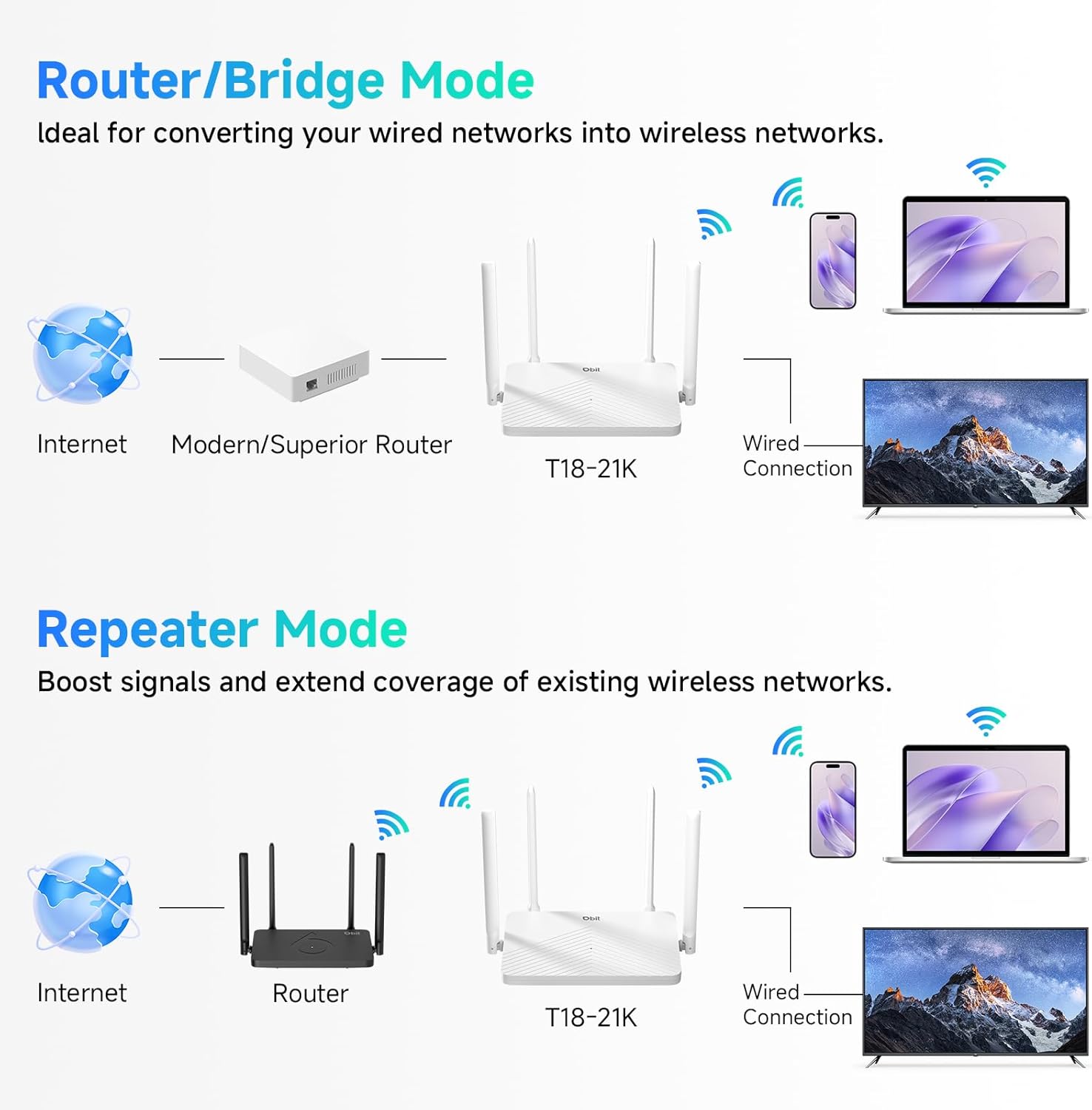
Figure 5: Router/Bridge Mode Setup
6. Zaawansowane funkcje
6.1 Dual-Band Wireless
The router operates on two distinct frequency bands: 2.4GHz and 5GHz. The 2.4GHz band offers broader coverage and better penetration through obstacles, suitable for general internet use. The 5GHz band provides higher speeds and lower latency, ideal for online gaming and high-definition video streaming.

Rysunek 6: Dystrybucja prędkości w dwóch pasmach
6.2 Technologia MU-MIMO
Multi-User, Multiple-Input, Multiple-Output (MU-MIMO) technology allows the router to transmit data to multiple devices simultaneously, rather than sequentially. This improves network efficiency and reduces buffering when multiple devices are active on the network.

Figure 7: MU-MIMO Operation
6.3 Beamforming and Antennas
The router is equipped with four 5dBi high-gain antennas and utilizes Beamforming technology. Beamforming directs the Wi-Fi signal directly towards connected devices, improving signal strength and coverage, particularly in areas further from the router.

Figure 8: Beamforming Coverage
6.4 EasyMesh Functionality
The EasyMesh function allows for the creation of a seamless whole-home network. When multiple EasyMesh-compatible devices are used, they automatically select the best connection as you move around your home, ensuring consistent Wi-Fi coverage.

Figure 9: EasyMesh Network Coverage
6.5 Bezpieczeństwo sieci
The router supports WPA2-PSK encryption to secure your wireless network. Access control features allow you to manage which devices can connect to your network, enhancing overall security.
6.6 Sieć gości
A guest network feature allows you to provide separate Wi-Fi access for visitors, keeping your main network private and secure.
6.7 Kontrola rodzicielska
Parental control features enable you to manage internet access times and block specific websites for connected devices, promoting a safer online environment.
7. Rozwiązywanie Problemów
- Brak dostępu do internetu:
- Ensure your modem is working correctly and its internet indicator light is stable.
- Check that the Ethernet cable is securely connected between the modem's LAN port and the router's WAN port.
- Uruchom ponownie modem i router.
- Sprawdź ustawienia połączenia internetowego w routerze web interfejs.
- Słaby sygnał Wi-Fi lub martwe strefy:
- Adjust the router's antennas for optimal positioning.
- Relocate the router to a central location in your home, away from obstructions and interference sources (e.g., microwaves, cordless phones).
- Rozważ użycie trybu Repeater lub dodanie kolejnego urządzenia zgodnego z EasyMesh w celu rozszerzenia zasięgu.
- Nie można uzyskać dostępu do routera Web Interfejs:
- Upewnij się, że urządzenie jest podłączone do sieci Wi-Fi routera lub podłączone do portu LAN za pomocą kabla Ethernet.
- Verify that you are entering the correct IP address (default is
192.168.10.1) w Twojej przeglądarce. - Wyczyść pamięć podręczną przeglądarki lub spróbuj użyć innej przeglądarki.
- If you have changed the router's IP address, use the new address. If forgotten, a factory reset may be necessary.
- Zapomniane hasło Wi-Fi lub hasło logowania:
- Perform a factory reset by pressing and holding the RESET button for 5-10 seconds while the router is powered on. This will revert all settings, including passwords, to their factory defaults.
8. Specyfikacje
| Funkcja | Szczegół |
|---|---|
| Nazwa modelu | Router Wi-Fi AC1200 |
| Numer modelu przedmiotu | T18-21K |
| Wymiary produktu | 8.99 x 5.78 x 6.89 cala |
| Waga przedmiotu | 1.12 funta |
| Marka | DBIT |
| Producent | Shenzhen Dbit Network Equipment Co., Ltd. |
| Klasa pasma częstotliwości | Dwuzakresowy (2.4 GHz, 5 GHz) |
| Standard komunikacji bezprzewodowej | 802.11a, 802.11ac, 802.11b, 802.11g, 802.11n |
| Technologia łączności | Ethernet, Wi-Fi |
| Porty Ethernet | 1 WAN, 3 LAN (Gigabit) |
| Anteny | 4 zewnętrzne anteny 5 dBi |
| Cechy specjalne | Beamforming, Guest Mode, Internet Security, MU-MIMO, Parental Control |
| Kompatybilne urządzenia | Konsola do gier, komputer osobisty, tablet, telewizor Smart TV, smartfon, drukarka, kamera bezpieczeństwa |
| Zalecane zastosowania | Biznes, Dom |
9. Gwarancja i wsparcie
9.1 Informacje o gwarancji
Please refer to the warranty card included in your product packaging for detailed warranty terms and conditions. The warranty typically covers manufacturing defects for a specified period from the date of purchase.
9.2 Wsparcie techniczne
For technical assistance, troubleshooting, or further inquiries, please contact DBIT customer support. Contact information can usually be found on the manufacturer's official webstronie lub w Przewodniku szybkiego startu.
Online resources, including FAQs and firmware updates, may also be available on the DBIT support page.


