1. Wprowadzenie
Thank you for choosing the GooDee AC321 Video Projector. This manual provides essential information for setting up, operating, and maintaining your device to ensure optimal performance and longevity. Please read this manual thoroughly before using the projector.

Image: The GooDee AC321 Video Projector, a compact device with a lens on the front, resting on its adjustable stand.
2. Co znajduje się w pudełku
Sprawdź, czy w opakowaniu znajdują się wszystkie elementy:
- GooDee AC321 Projector
- Przewód zasilający
- Kabel HDMI
- Zdalne sterowanie
- Instrukcja obsługi (ten dokument)

Image: A visual representation of the items included with the GooDee AC321 projector: the projector unit, remote control, power cable, lens cover, and a 90-degree HDMI cable.
3. Konfiguracja
3.1 Połączenie zasilania
- Podłącz przewód zasilający do portu wejściowego zasilania projektora.
- Podłącz drugi koniec przewodu zasilającego do odpowiedniego gniazdka elektrycznego.
- Naciśnij przycisk zasilania na projektorze lub pilocie, aby włączyć urządzenie.
3.2 Umiejscowienie i pozycjonowanie
The GooDee AC321 features a flexible hovering stand, allowing for versatile placement options:
- Projekcja stołowa: Place the projector on a flat surface and adjust the stand to direct the image onto a wall or screen.
- Projekcja sufitu: The projector can be tilted upwards to project onto a ceiling, ideal for comfortable viewleżąc.
- Montaż na statywie: Utilize the 1/4-inch screw holes at the bottom of the projector to mount it on a tripod for stable and precise positioning.

Image: The GooDee AC321 projector demonstrating its flexible stand, capable of adjusting the projection angle up to 120 degrees for various viewing positions, including ceiling projection.
3.3 Initial Power On and Focus
Upon powering on, the projector will automatically perform autofocus and keystone correction to provide a clear and rectangular image. Further adjustments can be made via the remote control.
Video: A demonstration of the GooDee Mini Projector's initial setup, showing the power-on sequence, automatic focus adjustment, and the main user interface with various streaming apps.
4. Instrukcja obsługi
4.1 Nawigacja i interfejs użytkownika
The GooDee AC321 runs on Movin 2.0 OS, providing a smart TV experience with pre-installed streaming applications. Use the included remote control to navigate the interface:
- Pad kierunkowy: Za pomocą przycisków strzałek możesz poruszać się między aplikacjami i opcjami menu.
- Przycisk OK: Wybierz element lub potwierdź czynność.
- Przycisk Home: Powrót do głównego ekranu głównego.
- Przycisk Wstecz: Wróć do poprzedniego ekranu.
- Przyciski głośności: Dostosuj poziom wyjściowy dźwięku.
- Dedykowane przyciski aplikacji: Quickly access Netflix, YouTube, and Prime Video.

Image: The GooDee AC321 projector's home screen, showcasing a variety of pre-installed streaming applications like Netflix, YouTube, and Prime Video, ready for selection.
4.2 App Access and Streaming
The projector comes pre-licensed with major streaming platforms. Connect to your Wi-Fi network to access over 10,000 streaming channels and a built-in app store for additional content.
4.3 Kopiowanie ekranu
The GooDee AC321 supports various casting protocols including DLNA, AirPlay, and Miracast, allowing seamless screen mirroring from iOS, Android, and Windows devices.

Image: The GooDee AC321 projector casting content from a mobile device to a large screen, illustrating its screen mirroring capabilities across different operating systems.
5. Łączność
Projektor oferuje wiele opcji łączności:
- HDMI: Connect to computers, gaming consoles, TV boxes, or DVD players.
- USB: Odtwarzaj multimedia bezpośrednio z urządzeń pamięci masowej USB.
- Gniazdo audio 3.5 mm: Podłącz zewnętrzne głośniki lub słuchawki.
- Wi-Fi 6: For high-speed wireless internet and streaming.
- Bluetooth 5.4: For stable connection to external audio devices like speakers or headphones.
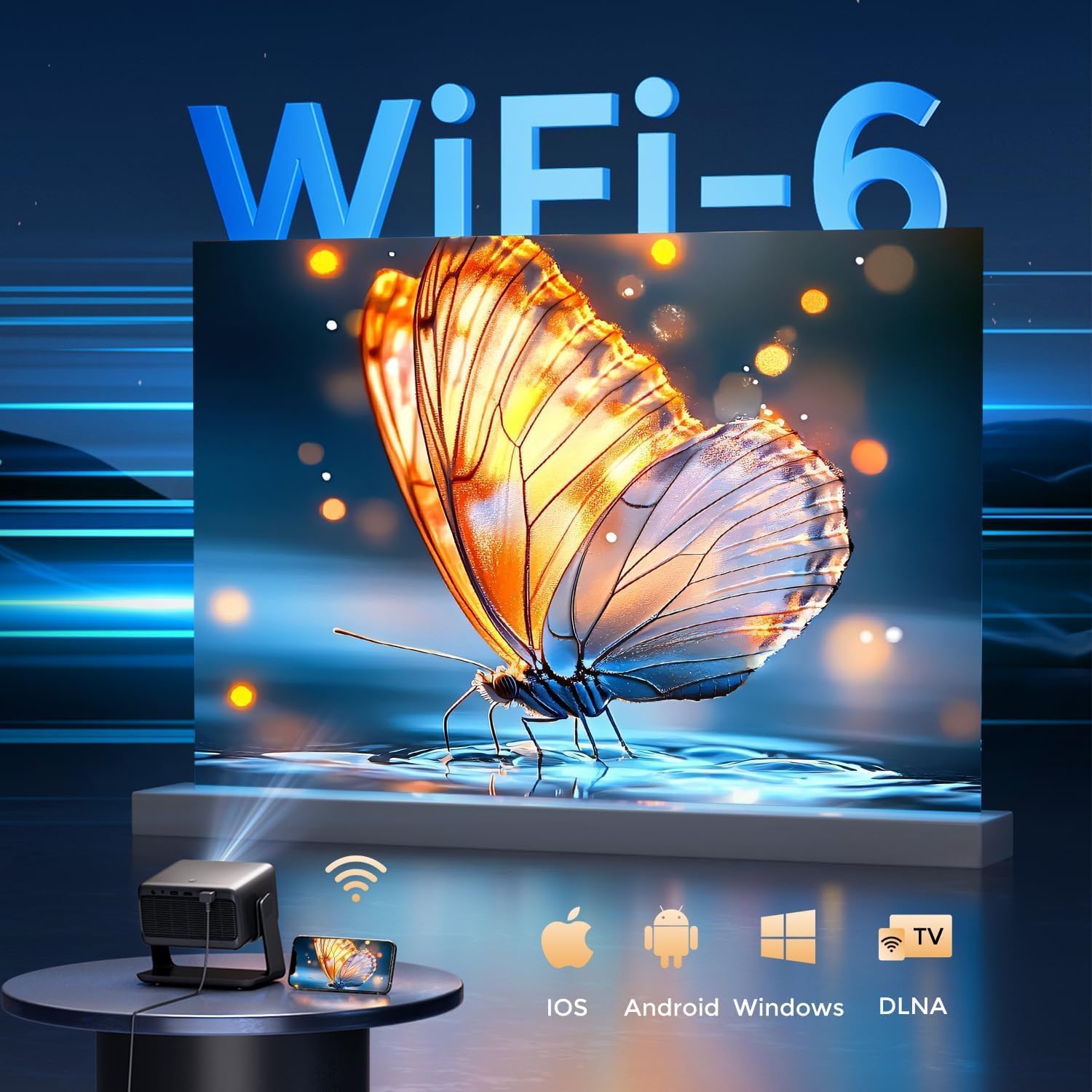
Image: The rear panel of the GooDee AC321 projector, highlighting its connectivity ports including a 3.5mm audio jack, USB port, HDMI input, and power connector.
6. Display & Audio Features
6.1 Wydajność wizualna
Experience an immersive visual feast with the following display capabilities:
- Rozdzielczość natywna: 1080p (1920 x 1080) for sharp and clear images.
- Dekodowanie wideo 4K: Supports 4K video input for smooth playback of high-definition content.
- Jasność: 1200 ANSI lumens ensures clear picture quality even in ambient light conditions.
- AI Image Quality Optimization: Utilizes deep learning algorithms to analyze and optimize picture pixels in real-time, enhancing HDR10+ color and 25000:1 contrast ratio.
- Large Screen Zooming: Project images from 60 to 200 inches, with adjustable zoom from 50-100%.
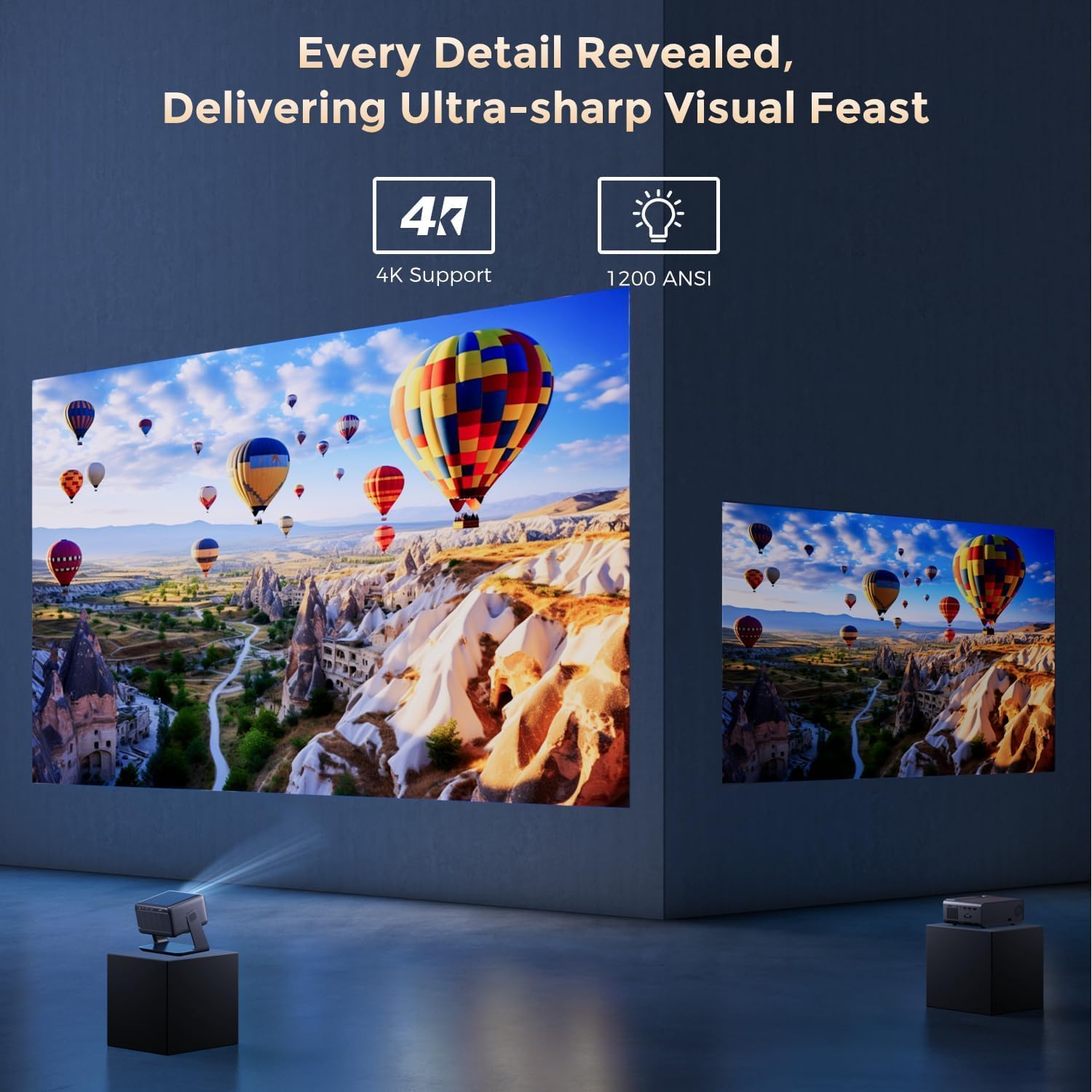
Image: The GooDee AC321 projector showcasing its visual capabilities with a bright, detailed image, emphasizing 4K support and 1200 ANSI lumens for superior clarity.
6.2 Doświadczenie dźwiękowe
The projector is equipped with built-in features for an immersive audio experience:
- Dźwięk Dolby: Integrated Dolby Audio speakers provide rich and immersive sound.
- Bluetooth 5.4: Connect wirelessly to external Bluetooth speakers or soundbars for enhanced audio.
7. Zaawansowane funkcje
The GooDee AC321 incorporates intelligent features for effortless setup and optimal viewing:
- Auto Focus: Automatically adjusts the image clarity in seconds.
- Automatyczna korekcja trapezu: Intelligently corrects vertical and horizontal trapezoidal distortion, ensuring a perfectly rectangular image even from an angled projection.
- Automatyczne wyrównanie ekranu: Automatically fits the projected image to your screen.
- Automatyczne omijanie przeszkód: Wykrywa i reguluje projekcję w celu uniknięcia przeszkód na ścieżce projekcji.

Obraz: Przezroczysty view of the GooDee AC321 projector, illustrating its AI 3D ToF Technology for automatic keystone correction, obstacle avoidance, focus, and screen fitting.
Video: A demonstration of the GooDee Mini Smart Projector's automatic keystone correction and focus features, showing how the image quickly adjusts to a perfect rectangle and sharp clarity.
8. Specyfikacje
| Funkcja | Opis |
|---|---|
| Numer modelu | AC321 |
| Marka | GooDee |
| Rozdzielczość wyświetlacza | 1920 x 1080 (natywna) |
| Dekodowanie wideo | Obsługiwane 4K |
| Jasność | 1200 ANSI Lumen |
| Technologia łączności | 3.5mm Jack, Bluetooth 5.4, HDMI, USB, Wi-Fi 6 |
| Cechy specjalne | Auto Focus, Auto Keystone, Auto Screen Alignment, Auto Obstacle Avoidance, Built-In Cooling System, Built-In Speaker, Smart TV OS (Movin 2.0), Dolby Audio |
| Waga przedmiotu | 4.66 funta |
| Wymiary produktu | 8.1 x 6.1 x 7.1 cala |
| Moc znamionowa | 65 W |
9. Konserwacja
To ensure the longevity and optimal performance of your GooDee AC321 projector, follow these maintenance guidelines:
- Czyszczenie obiektywu: Używaj miękkiej, niepozostawiającej włókien ściereczki przeznaczonej specjalnie do soczewek optycznych. Delikatnie przetrzyj soczewkę, aby usunąć kurz i smugi. Unikaj stosowania materiałów ściernych i silnych środków chemicznych.
- Czyszczenie otworów wentylacyjnych: Regularly check and clean the air intake and exhaust vents to prevent dust buildup, which can hinder cooling and affect performance. Use a soft brush or compressed air.
- Składowanie: When not in use for extended periods, store the projector in a cool, dry place, away from direct sunlight and extreme temperatures. Use the provided lens cover to protect the lens.
- Wyłącz prawidłowo: Zawsze wyłączaj projektor za pomocą przeznaczonego do tego celu przycisku zasilania i odczekaj, aż zakończy się cykl wyłączania, zanim odłączysz go od zasilania.
10. Rozwiązywanie Problemów
If you encounter any issues with your GooDee AC321 projector, refer to the following common troubleshooting steps:
- Brak obrazka:
- Sprawdź, czy przewód zasilający jest prawidłowo podłączony i czy projektor jest włączony.
- Check the input source (HDMI, USB) and ensure it is correctly selected.
- Sprawdź, czy podłączone urządzenie (laptop, konsola) jest włączone i wysyła sygnał.
- Brak dźwięku:
- Dostosuj głośność projektora i podłączonego urządzenia źródłowego.
- Jeśli używasz zewnętrznych głośników, upewnij się, że są prawidłowo podłączone przez Bluetooth lub gniazdo audio 3.5 mm.
- Check the audio output settings on the connected source device.
- Zamazany obraz:
- Allow the auto-focus function to complete its cycle.
- Sprawdź, czy obiektyw projektora jest czysty.
- Adjust the projector's distance from the screen/wall.
- Obraz jest zniekształcony (kształt trapezu):
- Allow the auto-keystone correction to complete.
- Manually adjust keystone settings via the remote control if needed.
- Problemy z połączeniem Wi-Fi/Bluetooth:
- Upewnij się, że projektor znajduje się w zasięgu routera Wi-Fi lub urządzenia Bluetooth.
- Uruchom ponownie projektor i router/urządzenie Bluetooth.
- Sprawdź hasło Wi-Fi i ustawienia sieciowe.
11. Gwarancja i pomoc techniczna
The GooDee AC321 Video Projector comes with a 12-miesięczna gwarancja. For any product-related inquiries, technical assistance, or warranty claims, please contact GooDee customer support.
GooDee offers Wsparcie czatu na żywo 24/7 to assist you with any issues. You can also visit the official GooDee website for more information and to register your product for warranty activation.
- Webstrona: www.top-goodee.com
- Obsługa klienta: Informacje kontaktowe znajdują się na oficjalnej stronie internetowej webmiejscu lub w opakowaniu produktu.