Wstęp
This manual provides detailed instructions for the setup, operation, maintenance, and troubleshooting of your Compaq Qtab PRO Tablet. Please read this manual thoroughly before using your device to ensure proper functionality and to maximize your user experience.
Zawartość opakowania
Po otwarciu opakowania należy sprawdzić, czy wszystkie wymienione poniżej elementy znajdują się w opakowaniu i są w dobrym stanie:
- Compaq Qtab PRO Tablet (10.95 inches)
- Etui ochronne
- Kabel ładujący USB-C
- User Manual / Quick Start Guide (this document)
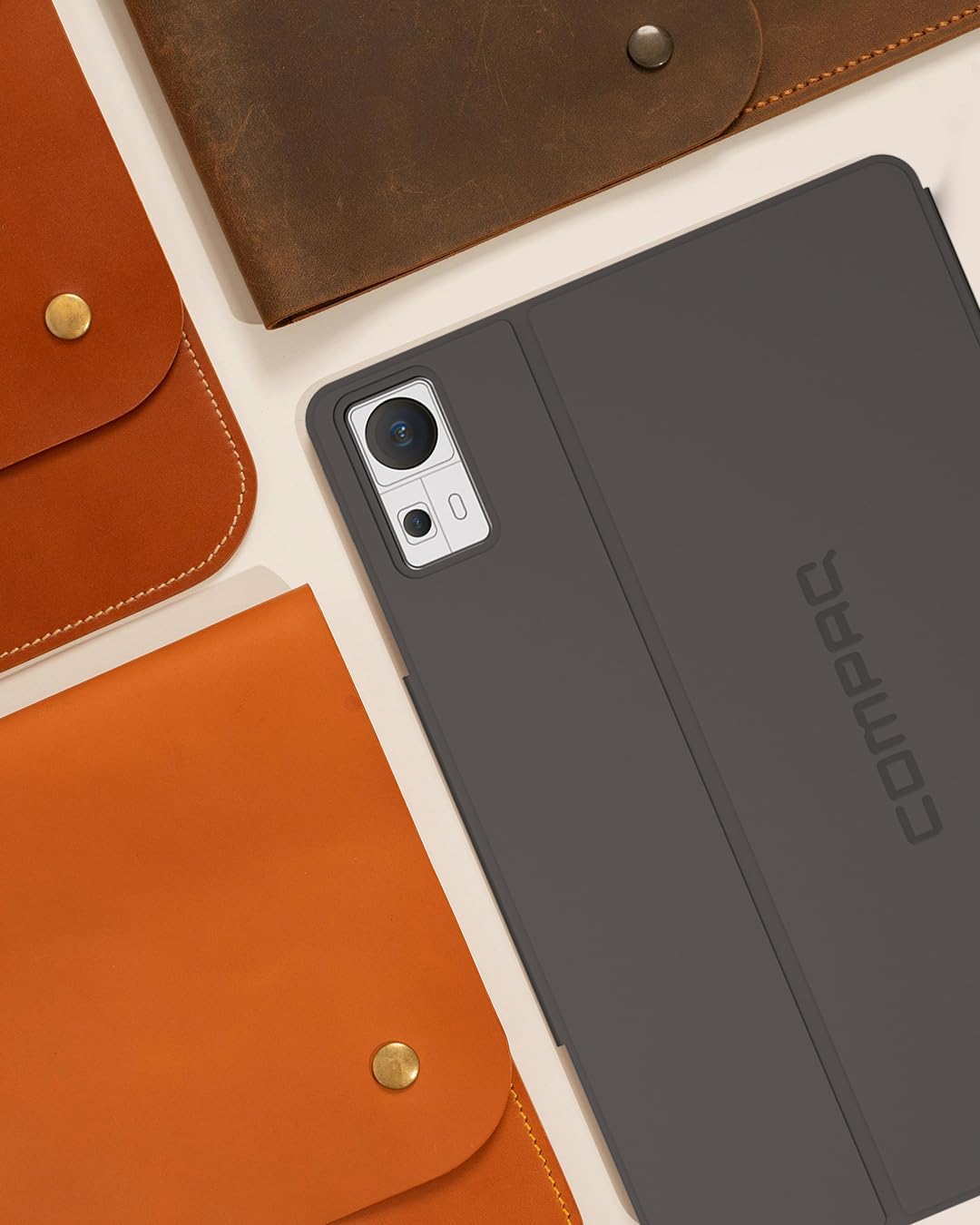
Image: The Compaq Qtab PRO Tablet shown with its protective case. The tablet is dark gray, and the case provides coverage for the back and edges, with a cutout for the camera module.
Organizować coś
1. Ładowanie początkowe
Before first use, fully charge the tablet using the provided USB-C charging cable and a compatible power adapter (not included). The tablet supports 18W PD fast charging. A full charge ensures optimal battery performance.
2. Włączanie/wyłączanie zasilania
- Włączanie: Press and hold the Power button located on the side of the tablet until the Compaq logo appears on the screen.
- Aby wyłączyć: Press and hold the Power button until a menu appears. Select "Power off" from the options.
- Zrestartować: Press and hold the Power button until a menu appears. Select "Restart" from the options.
3. Kreator konfiguracji początkowej
Po pierwszym uruchomieniu kreator konfiguracji systemu Android 15 przeprowadzi Cię przez najważniejsze czynności konfiguracyjne:
- Wybierz swój język.
- Połącz się z siecią Wi-Fi.
- Zaloguj się za pomocą konta Google lub utwórz nowe.
- Ustaw blokadę ekranu (PIN, wzór, hasło).
- Review i zaakceptuj regulamin.
4. Instalowanie kart SIM i MicroSD
The Compaq Qtab PRO supports Dual 4G LTE for cellular connectivity and expandable storage via a MicroSD card.
- Znajdź tackę na kartę SIM/MicroSD z boku tabletu.
- Włóż dołączone narzędzie do wyjmowania karty SIM do małego otworu obok tacki i delikatnie naciskaj, aż tacka wyskoczy.
- Umieść kartę(y) Nano-SIM i/lub kartę MicroSD w przeznaczonych do tego gniazdach na tacce, zwracając uwagę na prawidłową orientację.
- Ostrożnie włóż tackę z powrotem do tabletu, aż zatrzaśnie się na swoim miejscu.

Image: The back of the Compaq Qtab PRO Tablet, featuring the Compaq logo centrally and the camera module in the upper right corner. This view helps locate physical features like the SIM/MicroSD tray.
Instrukcja obsługi
1. Podstawowa nawigacja (Android 15)
Your tablet runs on Android 15. Common gestures include:
- Uzyskiwać: Wybierz element lub otwórz aplikację.
- Trzepnąć: Navigate between home screens, scroll through lists, or open notification/quick settings panels.
- Powiększanie za pomocą szczypania: Powiększ lub zmniejsz zawartość ekranu.
- Długie naciśnięcie: Uzyskaj dostęp do menu kontekstowych i przenieś ikony aplikacji.
2. Łączność
- Wi-Fi: Access 5G Wi-Fi by navigating to Ustawienia > Sieć i internet > Wi-Fi. Select your network and enter the password.
- Bluetooth: Pair with Bluetooth 5.0 devices (headphones, keyboards) via Ustawienia > Podłączone urządzenia > Bluetooth.
- 4G LTE: With a valid SIM card, cellular data can be enabled in Ustawienia > Sieć i internet > Sieć komórkowa.
- GPS: Location services are enabled by default. Manage GPS settings in Ustawienia > Lokalizacja.
3. Wyświetlacz i dźwięk
The 11-inch Full HD IPS display (1920x1080 pixels) provides clear visuals. Adjust brightness and display settings in Ustawienia > Wyświetlacz. The tablet features four stereo speakers for immersive audio. Volume controls are located on the side of the device.

Image: The Compaq Qtab PRO Tablet positioned in its protective case, displaying a video on its screen. This illustrates the tablet's display capabilities and how the case can function as a stand.
4. Funkcjonalność aparatu
The tablet is equipped with a 13MP triple camera system. Open the Camera app to capture photos and videos. Various modes and settings are available within the app interface.
5. Przechowywanie i wydajność
With 8GB RAM and 256GB internal storage, the tablet offers ample space and smooth multitasking. The Qualcomm Snapdragon 685 Octa-Core processor ensures efficient performance. Storage can be expanded using a MicroSD card (up to specified maximum, check product specifications for details).
Konserwacja
1. Czyszczenie tabletu
To clean the tablet, power it off and disconnect all cables. Use a soft, lint-free cloth slightly dampened with water or a screen cleaner. Avoid harsh chemicals, abrasive materials, or excessive moisture.
2. Aktualizacje oprogramowania
Regularnie sprawdzaj dostępność aktualizacji oprogramowania i instaluj je, aby zapewnić optymalną wydajność, bezpieczeństwo i dostęp do nowych funkcji. Przejdź do Ustawienia > System > Aktualizacja systemu.
3. Pielęgnacja baterii
- Unikaj ekstremalnych temperatur.
- Nie należy dopuszczać do zbyt częstego całkowitego rozładowania akumulatora.
- Należy używać wyłącznie dostarczonych lub certyfikowanych kabli ładujących i adapterów.
- W przypadku długotrwałego przechowywania naładuj baterię do około 50% i wyłącz urządzenie.
4. Zarządzanie magazynem
Okresowo ponownieview i zarządzaj pamięcią swojego tabletu. Usuń niepotrzebne fileodinstaluj nieużywane aplikacje i przenieś duże pliki multimedialne files to cloud storage or an external MicroSD card to maintain performance. Access storage information in Ustawienia > Pamięć.
Rozwiązywanie problemów
This section addresses common issues you might encounter with your Compaq Qtab PRO Tablet.
Urządzenie nie włącza się
- Upewnij się, że bateria jest naładowana. Podłącz tablet do ładowarki na co najmniej 30 minut.
- Perform a forced restart: Press and hold the Power button for 10-15 seconds.
Screen Unresponsive or Lagging
- Uruchom ponownie tablet.
- Close background applications that may be consuming resources.
- Upewnij się, że ekran jest czysty i wolny od zanieczyszczeń.
- If using a screen protector, ensure it is properly applied and not interfering with touch sensitivity.
Problemy z łącznością Wi-Fi lub Bluetooth
- Toggle Wi-Fi/Bluetooth off and on in Quick Settings or Ustawienia.
- W przypadku problemów z siecią Wi-Fi uruchom ponownie router/modem.
- Forget the network/device and reconnect/re-pair.
- Ensure the tablet is within range of the Wi-Fi network or Bluetooth device.
Aplikacje ulegają awarii lub nie odpowiadają
- Force close the app: Settings > Apps > See all apps > [App Name] > Force stop.
- Wyczyść pamięć podręczną aplikacji: Ustawienia > Aplikacje > Zobacz wszystkie aplikacje > [Nazwa aplikacji] > Pamięć i pamięć podręczna > Wyczyść pamięć podręczną.
- Zaktualizuj aplikację ze sklepu Google Play.
- Odinstaluj i ponownie zainstaluj aplikację.
Przywracanie ustawień fabrycznych
Jeśli problemy nadal występują, przywrócenie ustawień fabrycznych może je rozwiązać. Ostrzeżenie: Spowoduje to usunięcie wszystkich danych z tabletu. Przed kontynuacją wykonaj kopię zapasową ważnych danych.
- Idź do Ustawienia > System > Opcje resetowania.
- Wybierać Wymaż wszystkie dane (przywróć ustawienia fabryczne).
- Potwierdź swoją decyzję i wpisz swój PIN/hasło, jeśli zostaniesz o to poproszony.
- Tablet uruchomi się ponownie i rozpocznie się proces resetowania.
Specyfikacje
Key technical specifications for the Compaq Qtab PRO Tablet:
| Funkcja | Specyfikacja |
|---|---|
| Nazwa modelu | PRO LTE |
| System operacyjny | Android 15 |
| Edytor | Qualcomm Snapdragon 685 Octa-Core (up to 2 GHz) |
| BARAN | 8 GB |
| Pamięć wewnętrzna | 256 GB |
| Możliwość rozbudowy pamięci masowej | Obsługa kart MicroSD |
| Rozmiar ekranu | 11 cali |
| Rozdzielczość wyświetlacza | 1920 x 1080 pikseli (Full HD IPS) |
| Kamery | 13MP Triple Camera System (Rear), Front Camera (details not specified, assumed for video calls) |
| Pojemność baterii | 7000mAh |
| Ładowanie | 18W PD Fast Charging (USB-C) |
| Łączność | Dual 4G LTE, 5G Wi-Fi (802.11ax), Bluetooth 5.0, GPS |
| Wymiary (dł. x szer. x wys.) | 10.16 x 0.31 x 6.41 cala |
| Waga | 3.08 funta (około 493 gramów) |

Image: The screen of the Compaq Qtab PRO Tablet displaying a vibrant, abstract image with gradients of purple, orange, and yellow, highlighting the Full HD IPS display quality.
Informacje o gwarancji
The Compaq Qtab PRO Tablet comes with a standard manufacturer's warranty. For specific details regarding warranty coverage, duration, and terms, please refer to the warranty card included in your product packaging or visit the official Compaq webDodatkowe plany ochrony mogą być dostępne do zakupu osobno.
Wsparcie
Aby uzyskać dalszą pomoc, wsparcie techniczne lub view frequently asked questions, please visit the official Compaq support webodwiedź witrynę lub skontaktuj się z obsługą klienta. Możesz również odwiedzić Sklep Compaq na Amazonie Aby uzyskać informacje o produkcie i jego aktualizacjach.


