1. Wprowadzenie
This manual provides instructions for the proper setup, operation, and maintenance of your Doohoeek Ultra-Slim Wired Touchpad. Please read this manual thoroughly before using the device to ensure optimal performance and longevity.
2. Informacje dotyczące bezpieczeństwa
- Trzymaj urządzenie z dala od wody, wilgoci i ekstremalnych temperatur.
- Unikaj upuszczania i narażania urządzenia na silne uderzenia.
- Do not attempt to disassemble or repair the device yourself. Contact qualified service personnel if maintenance is required.
- Use only the provided USB-C cable for connection.
3. Zawartość opakowania
Sprawdź, czy w przesyłce znajdują się wszystkie elementy:
- Doohoeek Ultra-Slim Wired Touchpad
- USB-C Nylon Cable (integrated)
- Instrukcja obsługi (ten dokument)
4. Koniec produktuview
The Doohoeek Ultra-Slim Wired Touchpad is designed for enhanced navigation and control on Windows 10 and 11 operating systems. It features a large, smooth glide surface and supports multi-finger gestures.

Image 4.1: High Precision Tracking. The touchpad offers precise cursor control and supports various settings like cursor speed and touchpad sensibility.

Image 4.2: Product Features Overview. This image highlights the touchpad's key attributes including plug & play functionality, high precision, multi-touch control, and wide compatibility with Windows 10/11.

Image 4.3: Full-Sized Touchpad. The touchpad measures approximately 4.7 inches by 4.3 inches, offering a significantly larger surface area compared to typical laptop touchpads.
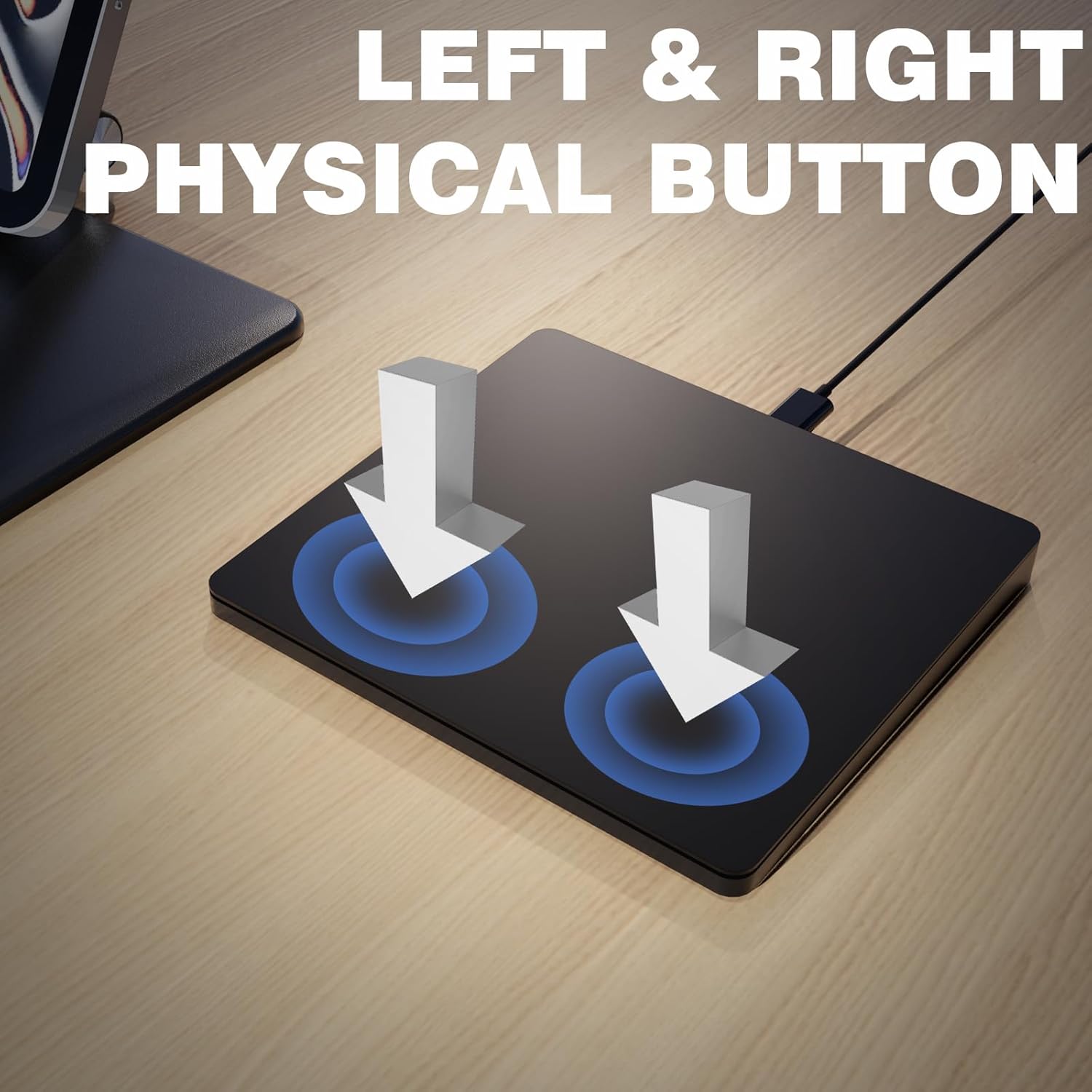
Image 4.4: Left & Right Physical Buttons. The touchpad includes dedicated physical buttons for left and right clicks, providing tactile feedback.
5. Konfiguracja
The Doohoeek Ultra-Slim Wired Touchpad is designed for plug-and-play compatibility with Windows 10 and 11 operating systems. No additional drivers are required for basic functionality.
5.1 Connecting the Touchpad
- Locate an available USB-A port on your computer (laptop or desktop).
- Connect the USB-C end of the integrated cable to the touchpad's USB-C port.
- Connect the USB-A end of the cable to your computer's USB-A port.
- The operating system will automatically detect and install the necessary drivers. The touchpad will be ready for use within a few seconds.

Image 5.1: Wired Connection. The touchpad connects directly to your computer via the integrated USB-C cable, ensuring a stable and lag-free connection.
6. Instrukcja obsługi
The touchpad supports standard cursor control and multi-touch gestures for Windows 10/11. Familiarize yourself with the following operations:
6.1 Podstawowe operacje
- Przesuń kursor: Slide one finger across the touchpad surface.
- Lewy przycisk myszy: Tap once with one finger on the touchpad surface, or press the physical left button.
- Kliknij prawym przyciskiem myszy: Tap once with two fingers on the touchpad surface, or press the physical right button.
- Przeciągnij i upuść: Double-tap and hold with one finger, then drag the item. Release to drop.
6.2 Multi-Touch Gestures (Windows 10/11)
The touchpad is optimized for Windows 10 and 11 multi-touch gestures:

Image 6.1: Multi-Touch Gestures. This diagram shows common gestures such as tap to click, smart zoom, secondary click, zoom in/out, scrolling, three-finger drag, control center, and mission control.
- Przewijanie dwoma palcami: Place two fingers on the touchpad and slide them up or down to scroll vertically, or left or right to scroll horizontally.
- Uszczypnij, aby powiększyć: Połóż dwa palce na panelu dotykowym i zsuń je lub rozsuń, aby powiększyć lub pomniejszyć obraz.
- Przesunięcie trzema palcami w górę: Otwiera zadanie View (Windows 10) or Task View/Widgets (Windows 11).
- Przesunięcie trzema palcami w dół: Pokazuje pulpit.
- Przesunięcie trzema palcami w lewo/prawo: Przełącza między otwartymi aplikacjami.
- Four-Finger Tap: Opens Action Center (Windows 10) or Notification Center/Quick Settings (Windows 11).

Image 6.2: Physical Left & Right Click. This image demonstrates the use of the physical buttons for precise selection, dragging, and dropping.
7. Konserwacja
To ensure the longevity and optimal performance of your touchpad, follow these maintenance guidelines:
- Czyszczenie: Use a soft, dry, lint-free cloth to wipe the touchpad surface. For stubborn smudges, slightly dampen the cloth with water or a mild screen cleaner. Avoid abrasive materials or harsh chemicals.
- Składowanie: When not in use, store the touchpad in a clean, dry environment.
- Pielęgnacja kabli: The integrated nylon USB-C cable is designed for durability. Avoid sharp bends or excessive pulling on the cable.
8. Rozwiązywanie Problemów
If you encounter issues with your Doohoeek Ultra-Slim Wired Touchpad, refer to the following common problems and solutions:
| Problem | Możliwa przyczyna | Rozwiązanie |
|---|---|---|
| Touchpad nie odpowiada | Luźne połączenie, nieprawidłowy port USB, problem ze sterownikiem. | Ensure the USB-C cable is securely connected to both the touchpad and the computer. Try a different USB port. Restart your computer. |
| Ruch kursora jest nieregularny | Dirty touchpad surface, interference. | Clean the touchpad surface with a soft cloth. Ensure no objects are obstructing the touchpad. |
| Gestures not working | Operating system settings, incompatible software. | Check your Windows Touchpad settings (Settings > Devices > Touchpad) to ensure gestures are enabled. Ensure your Windows OS is up to date. |
| Physical buttons not clicking | Physical obstruction, internal issue. | Ensure no debris is lodged around the buttons. If the issue persists, contact customer support. |
9. Specyfikacje
| Funkcja | Szczegół |
|---|---|
| Model | B0FNWHLQTF |
| Marka | Doohoeek |
| Łączność | Przewodowy (USB-C) |
| Zgodność | Windows 10, Windows 11 |
| Tworzywo | Aluminium |
| Wymiary (dł. x szer. x wys.) | 5.4 x 4 x 0.1 cala (w przybliżeniu) |
| Waga przedmiotu | 11.3 uncji |
| Funkcja specjalna | Lightweight, Multi-Touch Gestures |
10. Gwarancja i wsparcie
For warranty information and customer support, please refer to the product packaging or contact Doohoeek customer service through the retailer where the product was purchased. Keep your purchase receipt for warranty claims.

