1. Wprowadzenie
This manual provides essential information for setting up, operating, and maintaining your Samsung 27" Odyssey G5 G53F QHD Gaming Monitor. Designed for an immersive gaming experience, this monitor features QHD resolution, a 200Hz refresh rate, IPS panel technology, HDR10 support, AMD FreeSync™ Premium, Black Equalizer, and Auto Source Switch+ for optimal performance and visual clarity.
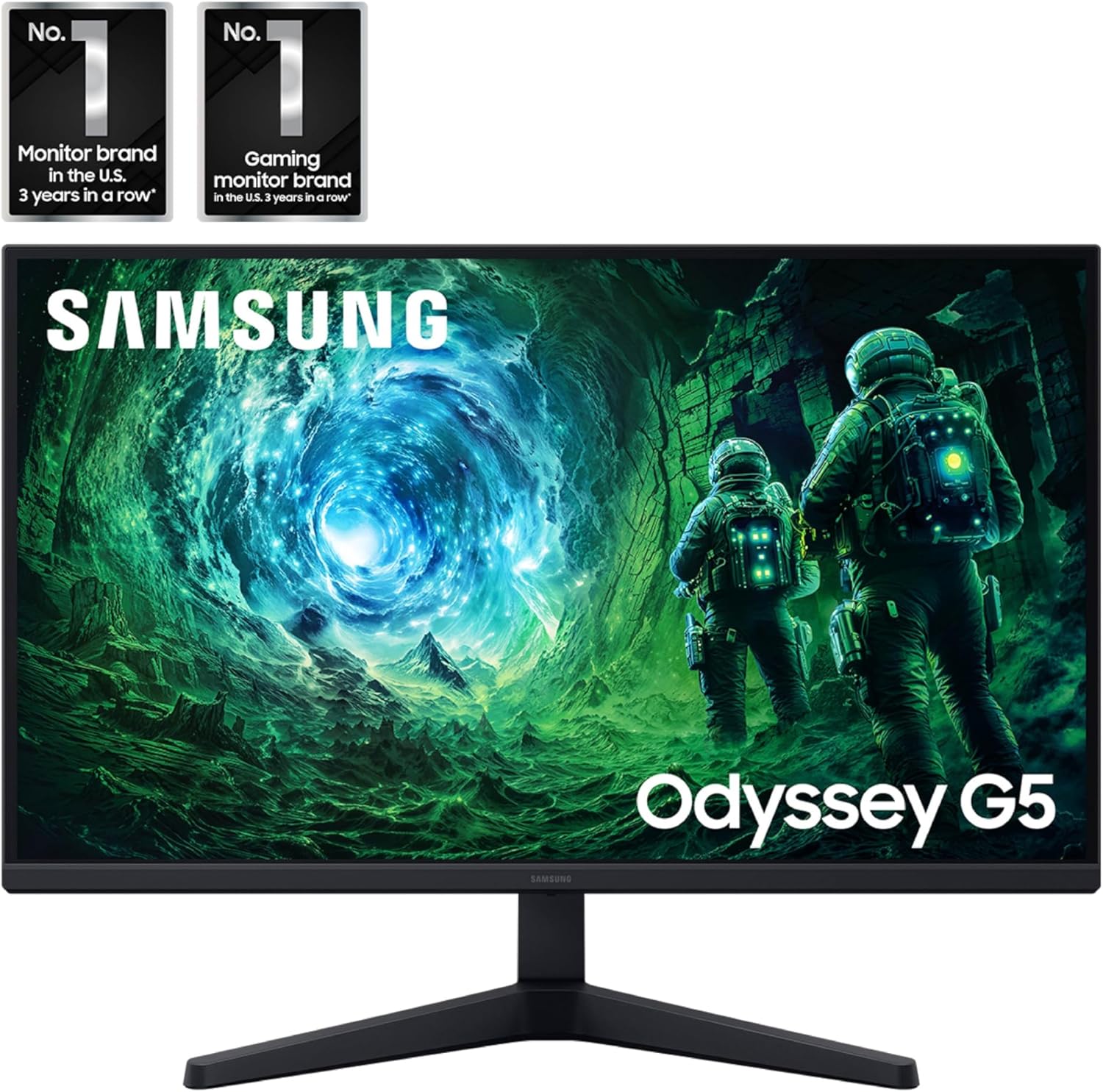
Obraz: Przód view of the Samsung 27" Odyssey G5 G53F QHD Gaming Monitor.
2. Co znajduje się w pudełku
Upon unboxing your Samsung Odyssey G5 monitor, please ensure all the following components are present:
- Samsung 27" Odyssey G5 G53F QHD Gaming Monitor
- Stojak na monitor (podstawa i szyjka)
- Kabel zasilający
- Kabel HDMI
- Kabel DisplayPort (DP)
- Instrukcja obsługi / Instrukcja obsługi
- Mounting Screws (for stand assembly)
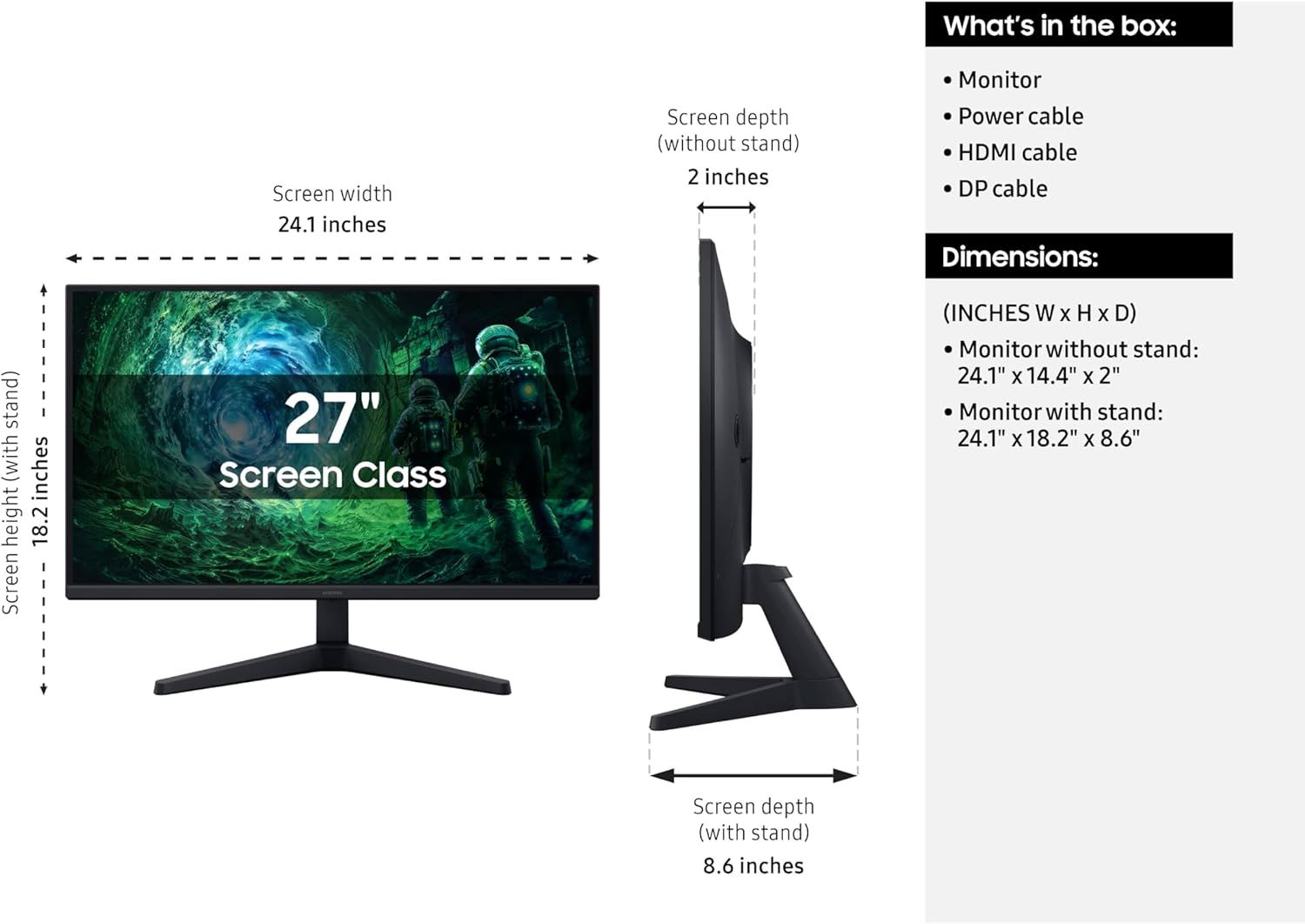
Image: Diagram showing the monitor, stand, and included cables, along with dimensions.
3. Konfiguracja
3.1 Montaż stojaka
- Ostrożnie wyjmij monitor i elementy stojaka z opakowania.
- Attach the stand neck to the stand base. Secure it with the provided screw, typically located at the bottom of the base.
- Dopasuj zmontowaną podstawę do miejsca montażu z tyłu monitora.
- Gently push the stand into the monitor until it clicks into place. Ensure it is securely fastened.
- Tighten any additional screws if provided, to further secure the stand to the monitor.
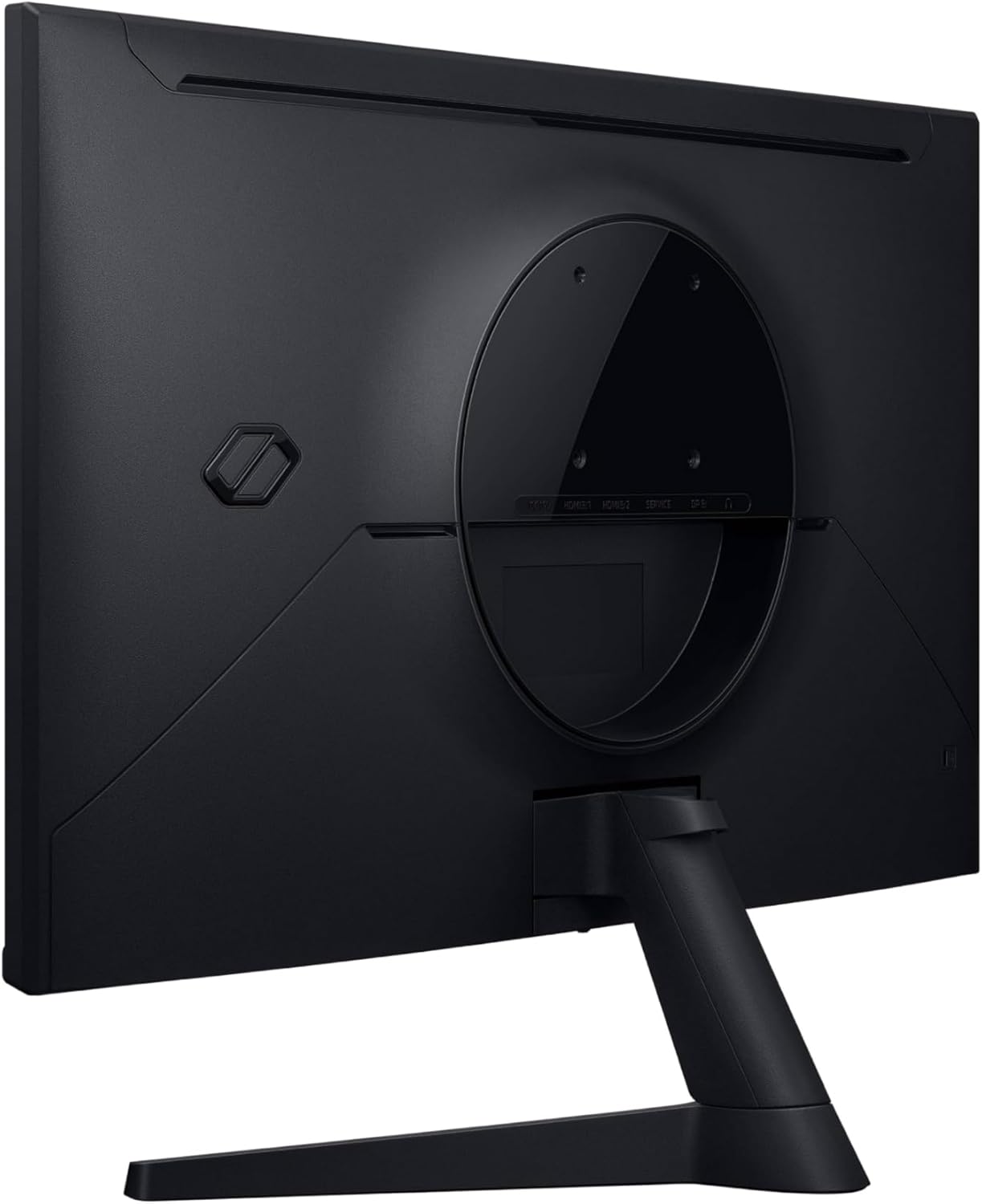
Obraz: Tył view monitora pokazujący punkt mocowania stojaka.
3.2 Kable połączeniowe
Connect the necessary cables to your monitor and computer/device.
- Przewód zasilający: Connect one end of the power cable to the monitor's power input (DC 19V) and the other end to a power outlet.
- Kabel wideo: Connect either an HDMI cable or a DisplayPort (DP) cable from your computer's graphics card to the corresponding input on the monitor (HDMI IN 1, HDMI IN 2, or DP IN). For optimal performance, especially for 200Hz refresh rate and QHD resolution, use the DisplayPort connection.
- Dźwięk (opcjonalnie): If you are using external speakers or headphones, connect them to the Headphone OUT port on the monitor.
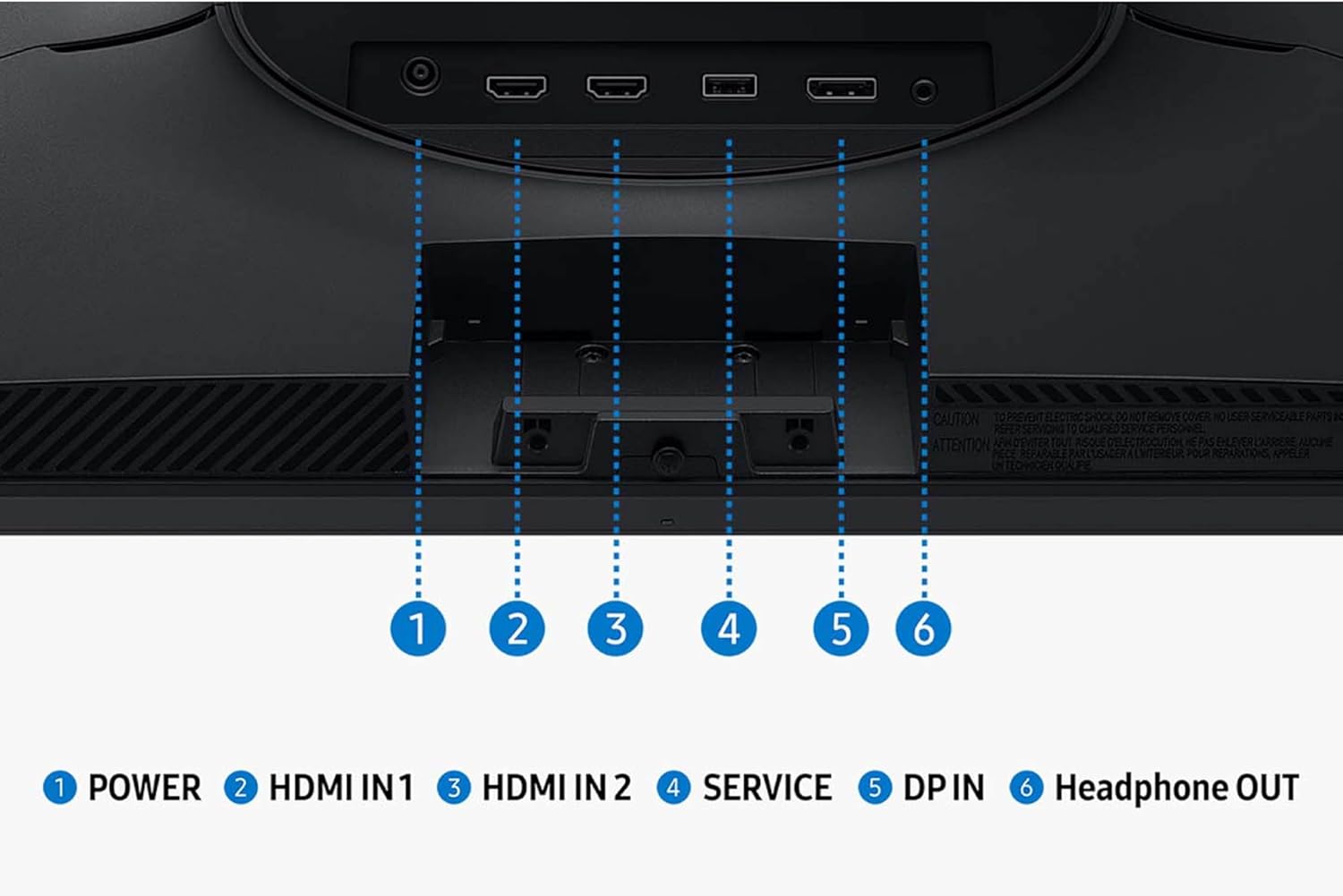
Obraz: Szczegółowy view portów wejściowych i wyjściowych monitora.
3.3 Pierwsze włączenie zasilania
Once all cables are connected, press the power button on the monitor to turn it on. The monitor should automatically detect the input signal. If not, you may need to manually select the input source using the monitor's OSD (On-Screen Display) menu.
4. Obsługa monitora
4.1 Nawigacja po menu ekranowym (OSD)
The monitor's settings can be adjusted using the OSD menu, typically accessed via a joystick or buttons located on the bottom or rear of the monitor. Navigate through the menu options to customize your viewzdobywania doświadczenia.
4.2 Główne funkcje i ustawienia
- Rozdzielczość QHD (2560x1440): Enjoy incredibly detailed and sharp images with 1.7 times the pixel density of Full HD.
- Częstotliwość odświeżania 200 Hz: Experience ultra-smooth gaming with fast reactions and reduced motion blur.
- Czas reakcji 1 ms (MPRT): Ensures movements are captured in real-time for precise gaming.
- IPS Panel with 178° Viewkąt ing: Consistently delivers precise and radiant colors across various viewzwrotnica.
- AMD FreeSync™ Premium: Reduces choppiness, screen lag, and image tearing during intense gaming sessions. Ensure your graphics card supports AMD FreeSync™ Premium for this feature to function.
- HDR10: Provides brighter highlights and nuanced shadows for added depth, making scenes feel more realistic.
- Korektor czerni: Improves visibility in the deepest shadows, allowing you to spot enemies or details in dark areas.
- Wirtualny punkt celowniczy: Increases the accuracy of the player’s aim by displaying crosshairs on the screen.
- Automatyczne przełączanie źródła+: Allows instantaneous switching between connected devices, automatically detecting and switching to a new signal source.
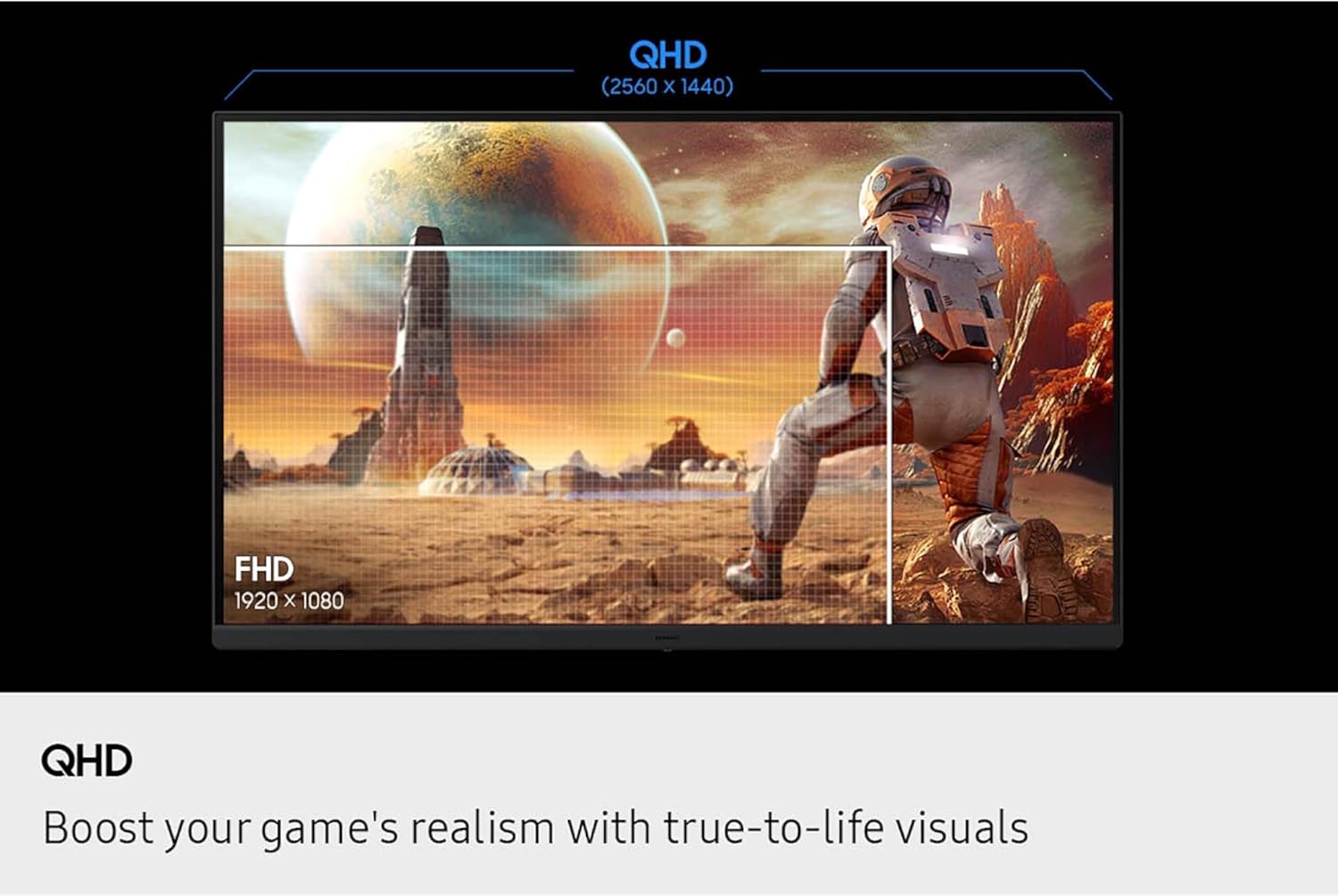
Image: Visual comparison of QHD vs. FHD resolution.

Image: Monitor displaying 200Hz refresh rate for swift and smooth gameplay.

Image: Illustration of the wide 178° viewing angle of the IPS panel.
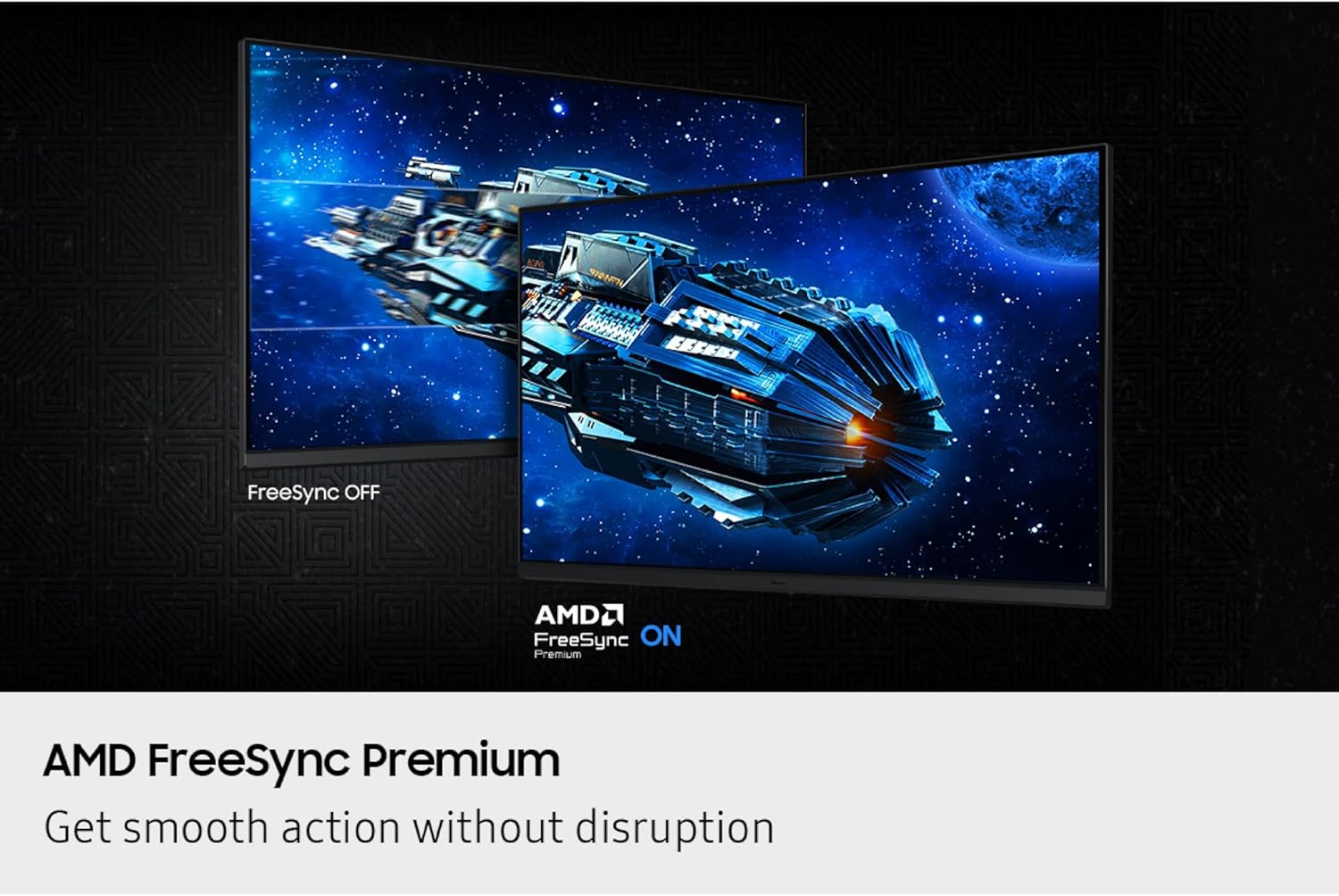
Image: Comparison of FreeSync OFF vs. FreeSync ON, demonstrating smooth action without disruption.
5. Konserwacja
To ensure the longevity and optimal performance of your Samsung Odyssey G5 monitor, follow these maintenance guidelines:
- Czyszczenie ekranu: Delikatnie przetrzyj ekran miękką, niepozostawiającą włókien ściereczką. W przypadku uporczywych plam delikatnie przetrzyj.ampen the cloth with water or a screen-safe cleaning solution. Avoid harsh chemicals, abrasive materials, or direct spraying onto the screen.
- Czyszczenie Casing: Do czyszczenia monitora należy używać miękkiej, suchej ściereczki.asing.
- Wentylacja: Aby zapobiec przegrzaniu, upewnij się, że otwory wentylacyjne monitora nie są zablokowane.
- Składowanie: Jeśli monitor nie będzie używany przez dłuższy czas, należy go przechowywać w chłodnym i suchym miejscu, najlepiej w oryginalnym opakowaniu, aby chronić go przed kurzem i uszkodzeniami fizycznymi.
6. Rozwiązywanie Problemów
Jeśli masz problemy z monitorem, zapoznaj się z poniższymi typowymi procedurami rozwiązywania problemów:
- Brak zasilania:
- Sprawdź, czy kabel zasilający jest prawidłowo podłączony do monitora i gniazdka elektrycznego.
- Sprawdź, czy gniazdko elektryczne jest sprawne.
- Naciśnij przycisk zasilania na monitorze.
- Brak sygnału / pusty ekran:
- Sprawdź, czy kabel wideo (HDMI lub DisplayPort) jest prawidłowo podłączony do monitora i komputera/urządzenia.
- Sprawdź, czy w menu OSD monitora wybrano właściwe źródło sygnału wejściowego.
- Check if your computer/device is powered on and outputting a signal.
- Spróbuj użyć innego kabla wideo lub portu.
- Problemy z jakością obrazu (rozmazany, zniekształcony, nieprawidłowe kolory):
- Ensure the monitor's resolution is set to its native QHD (2560x1440) in your computer's display settings.
- Adjust settings like brightness, contrast, and color balance through the OSD menu.
- Sprawdź, czy kabel wideo nie jest uszkodzony lub czy połączenia nie są luźne.
- Flickering or Tearing:
- Ensure AMD FreeSync™ Premium is enabled in both the monitor's OSD and your graphics card settings.
- Sprawdź, czy sterowniki Twojej karty graficznej są aktualne.
- Check the refresh rate setting in your computer's display settings to ensure it matches the monitor's capabilities (up to 200Hz).
7. Specyfikacje
| Funkcja | Szczegół |
|---|---|
| Marka | SAMSUNG |
| Nazwa modelu | Odyssey G5 G53F |
| Numer modelu przedmiotu | S27FG532EN |
| Rozmiar ekranu | 27 cali |
| Rozdzielczość ekranu | QHD 2560x1440 Pixels |
| Maksymalna rozdzielczość ekranu | 2560 x 1440 pikseli |
| Częstotliwość odświeżania | 200 Hz |
| Czas reakcji | 1 ms (MPRT) |
| Typ panelu | IPS |
| Viewing kąt | 178° (poziomo/pionowo) |
| Obsługa HDR | HDR10 |
| Technologia adaptacyjnej synchronizacji | Technologia AMD FreeSync™ Premium |
| Proporcje obrazu | 16:9 |
| Powierzchnia ekranu | Matowy |
| Kolor | Czarny |
| Waga przedmiotu | 8.59 funta |
| Wymiary produktu (dł. x szer. x wys.) | 8.55 x 24.14 x 18.23 cala |
| Łączność | 2x HDMI, 1x DisplayPort, 1x Headphone Out |
8. Gwarancja i pomoc techniczna
Aby uzyskać informacje dotyczące gwarancji, pomocy technicznej lub zapytań serwisowych, zapoznaj się z kartą gwarancyjną dołączoną do produktu lub odwiedź oficjalną stronę pomocy technicznej firmy Samsung webZachowaj paragon jako dowód zakupu na wypadek reklamacji.
Dodatkowe wsparcie i zasoby można znaleźć na stronie Sklep Samsung na Amazon.