Wstęp
This manual provides detailed instructions for the setup, operation, maintenance, and troubleshooting of your acer Wireless Gaming Mouse OMR279. Please read this manual thoroughly before using the product to ensure optimal performance and longevity.
Zawartość opakowania
- acer Wireless Gaming Mouse OMR279
- USB-A Receiver (stored inside the mouse)
- Kabel ładujący USB
- Instrukcja obsługi (ten dokument)
Produkt ponadview
The acer Wireless Gaming Mouse OMR279 is designed for precision and versatility, offering both wired and 2.4GHz wireless connectivity. It features a high-performance optical sensor, 8 programmable buttons, and dynamic RGB lighting.
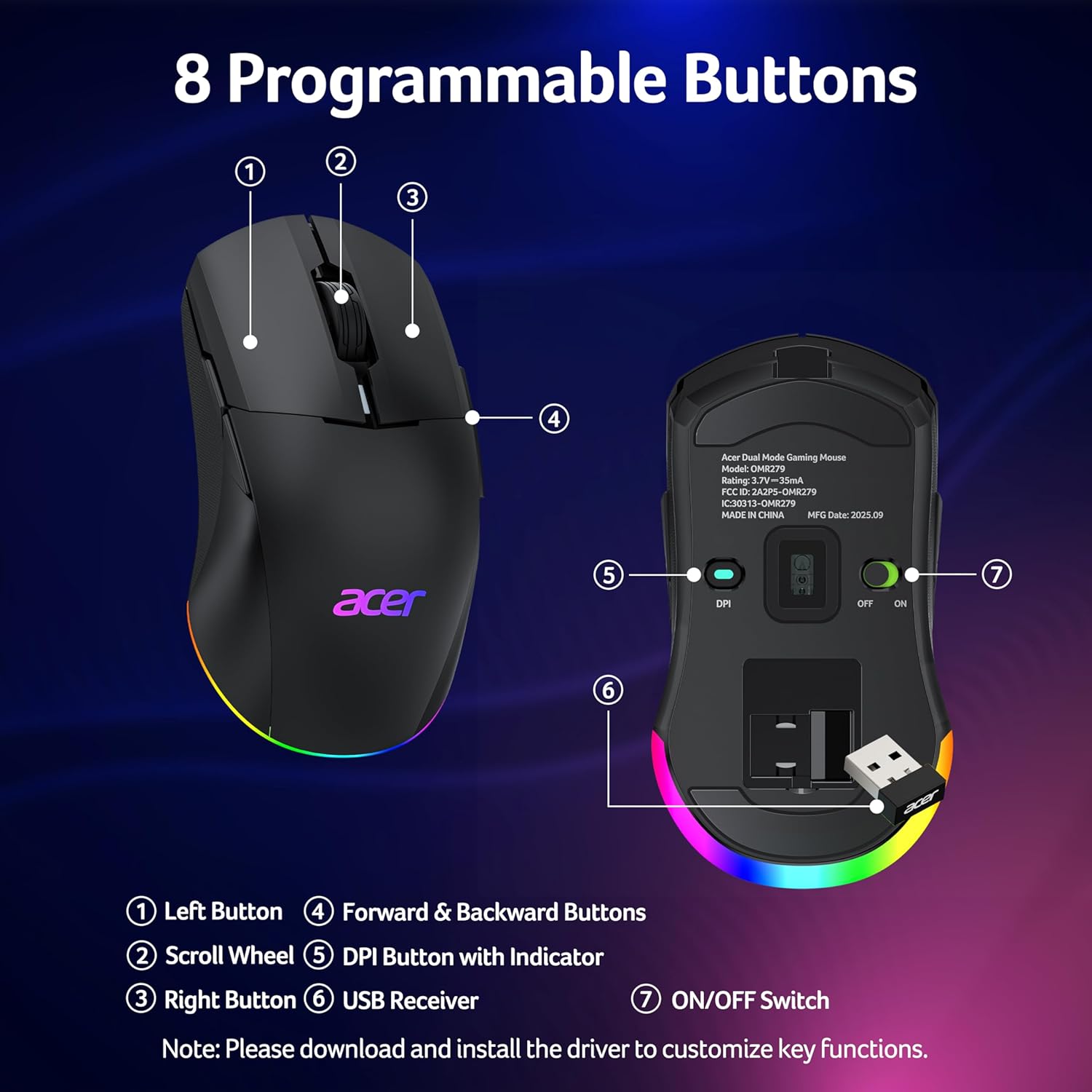
Rysunek 1: Góra view of the mouse highlighting the Left Button, Scroll Wheel, DPI Button with Indicator, Right Button, and Forward & Backward Buttons.

Rysunek 2: Dół view i boczne profile of the mouse, detailing the USB receiver storage, ON/OFF switch, and dimensions.
Główne cechy:
- Czujnik optyczny 24,000 DPI: High-performance sensor with 1000Hz polling rate and 35G acceleration for precise tracking.
- Łączność w dwóch trybach: Seamlessly switch between high-speed wired and lag-free 2.4GHz wireless modes.
- 8 programowalnych przycisków: Customize functions and macros via driver software.
- Oburęczna konstrukcja: Symmetrical shape for comfortable use by both left and right-handed users.
- Dynamiczne oświetlenie RGB: 9 customizable RGB modes with 16.8 million colors.
- Długa żywotność baterii: 650mAh rechargeable battery provides up to 40 hours of use per charge.
- Inteligentne zarządzanie energią: Features light sleep (30s idle) and deep sleep (180s idle) modes to conserve battery.
Organizować coś
1. Połączenie bezprzewodowe (2.4 GHz)
- Locate the USB-A receiver stored under the back cover of the mouse.
- Podłącz odbiornik USB-A do wolnego portu USB w komputerze.
- Włącz mysz za pomocą przełącznika ON/OFF znajdującego się na spodzie myszy.
- Mysz powinna automatycznie połączyć się z komputerem.

Figure 3: Dual-mode connectivity, showing wireless setup with a laptop and wired setup with a desktop.
2. Połączenie przewodowe
- Connect the provided USB charging cable to the front port of the mouse.
- Podłącz drugi koniec kabla USB do wolnego portu USB w komputerze.
- Mysz będzie działać jak mysz przewodowa i będzie również ładować swój wewnętrzny akumulator.
3. Instalacja sterownika
To unlock full customization options for DPI, programmable buttons, and RGB lighting, it is recommended to install the official driver software. Please visit the official acer support website for your region to download the latest driver for the OMR279 model. Follow the on-screen instructions for installation.

Figure 4: Driver software interface for customizing mouse settings.
Notatka: Some users have reported difficulties accessing the driver download page. If you encounter issues, please refer to the Troubleshooting section or contact acer support.
Instrukcja obsługi
1. Regulacja DPI
The mouse features 6 default DPI levels, which can be cycled through using the DPI button located on the bottom of the mouse. The default DPI values are 1200, 1600, 2400, 5000, 12000, and 24000. Each level is indicated by a specific LED color.

Figure 5: DPI levels and their corresponding LED indicators and polling rates.
Custom DPI values (max 24000, min 1200) and their associated LED colors can be configured using the driver software.
2. Programowalne przyciski
The mouse is equipped with 8 programmable buttons. These buttons can be remapped, and multi-step macros can be assigned using the driver software. After making changes in the driver, ensure you click "Apply" for the settings to take effect.
3. Sterowanie oświetleniem RGB
The mouse features dynamic RGB lighting with 9 modes and 16.8 million colors. You can adjust brightness, speed, and effects through the driver software. To cycle through RGB modes without the driver, hold the front side button and scroll the mouse wheel. The RGB auto-off feature can also be toggled in the driver.

Figure 6: Dynamic RGB lighting effects.
4. Ładowanie i zarządzanie baterią
The mouse has a built-in 650mAh rechargeable battery, providing up to 40 hours of use on a single charge. It fully charges in approximately 2 hours. The mouse can be used while charging via the USB cable.

Figure 7: Charging indicator and battery capacity.
To conserve power, the mouse enters a light sleep mode after 30 seconds of inactivity (wakes with movement) and a deep sleep mode after 180 seconds of inactivity (wakes with a click). This feature can be disabled in the driver software.

Figure 8: Adaptive sleep for power saving.
Konserwacja
- Czyszczenie: Do czyszczenia myszy używaj miękkiej, suchej ściereczki. W przypadku uporczywych zabrudzeń, delikatnie przetrzyjamp Można użyć ściereczki, aby mieć pewność, że do wnętrza myszy nie dostanie się żadna ciecz.
- Składowanie: When not in use for extended periods, turn off the mouse to conserve battery. Store the USB receiver inside the mouse's dedicated compartment to prevent loss.
- Pielęgnacja baterii: Unikaj częstego całkowitego rozładowywania baterii. Regularnie ładuj mysz, aby utrzymać baterię w dobrym stanie.
Rozwiązywanie problemów
| Problem | Możliwa przyczyna | Rozwiązanie |
|---|---|---|
| Mouse not responding (wireless) | Low battery, receiver not connected, mouse turned off, out of range. | Charge the mouse. Ensure USB receiver is securely plugged in. Turn on the mouse. Move mouse closer to the receiver (within 10m). |
| Mouse not responding (wired) | USB cable not connected properly, faulty USB port. | Ensure USB cable is securely connected to both mouse and computer. Try a different USB port. |
| Ustawienia DPI nie zmieniają się | Driver not installed or settings not applied. | Install the official driver software. After changing settings in the driver, click "Apply". |
| Oświetlenie RGB nie działa lub jest zablokowane | RGB auto-off enabled, incorrect mode selection, driver issue. | Check RGB auto-off setting in the driver. Cycle through modes by holding the front side button and scrolling the wheel. Reinstall driver if necessary. |
| Difficulty installing driver software | Błędny website, temporary server issue, firewall blocking. | Ensure you are visiting the official acer support website for your region. Try accessing the site from a different browser or device. Temporarily disable firewall/antivirus if necessary. Contact acer support if issues persist. |
| Unclear battery status indication | Limited visual indicator on the mouse. | The mouse's LED provides basic charging status (flashing while charging, off when full). For more detailed battery percentage, check the driver software if available and installed. |
Specyfikacje
| Funkcja | Szczegół |
|---|---|
| Numer modelu | OMR279 |
| Łączność | 2.4GHz Wireless, Wired (USB) |
| Zakres DPI | 1200 - 24,000 DPI (regulowana) |
| Współczynnik sondowania | 1000 Hz |
| Przyśpieszenie | 35G |
| Pikolak | 8 programowalne przyciski |
| Oświetlenie | Dynamic RGB (9 modes, 16.8M colors) |
| Bateria | 650mAh Rechargeable (Nonstandard Battery) |
| Żywotność baterii | Do 40 godzin |
| Czas ładowania | Około 2 godzin |
| Wymiary | 4.9 x 2.7 x 0.1 cala (124 mm x 67.5 mm x 39.5 mm) |
| Waga | 0.704 uncji (około 20 g) |
| Technologia wykrywania ruchu | Optyczny |
| Cechy specjalne | Ambidextrous Design, LED Lights, Programmable Buttons, Rechargeable |
Informacje dotyczące bezpieczeństwa
- Nie wystawiaj myszy na działanie ekstremalnych temperatur i wilgoci.
- Unikaj upuszczania myszy i narażania jej na silne uderzenia.
- Do not attempt to disassemble or modify the mouse, as this will void the warranty and may cause damage.
- Przechowywać w miejscu niedostępnym dla dzieci.
- Zutylizuj baterię zgodnie z lokalnymi przepisami.
Gwarancja i wsparcie
Your acer Wireless Gaming Mouse OMR279 is covered by a limited warranty. For detailed warranty terms and conditions, please refer to the warranty card included with your product or visit the official acer support website. For technical assistance or customer service, please contact acer support through their official channels.


