1. Wprowadzenie
The CarpodGo T3 Pro is a portable 8.9-inch wireless CarPlay and Android Auto display designed to enhance your in-car entertainment and navigation experience. Featuring a fully laminated 1920x720 IPS touch screen, it offers seamless integration with your smartphone, supporting both wireless CarPlay and Android Auto functionalities. Its innovative design includes a magnetic base for flexible mounting and a Display-Only Bluetooth Mode for optimized audio routing through your vehicle's existing sound system.

Figure 1.1: CarpodGo T3 Pro Portable Display with CarPlay Interface.
2. Informacje dotyczące bezpieczeństwa
- Zawsze upewnij się, że urządzenie jest bezpiecznie zamontowane i nie przeszkadza. view lub zakłócać sterowanie pojazdem.
- Nie należy podejmować prób demontażu ani modyfikacji urządzenia. Może to spowodować unieważnienie gwarancji i zagrożenie bezpieczeństwa.
- Unikaj wystawiania urządzenia na działanie ekstremalnych temperatur, długotrwałego bezpośredniego światła słonecznego i nadmiernej wilgoci.
- Aby uniknąć uszkodzeń lub zagrożenia pożarem, należy używać wyłącznie dołączonego zasilacza i kabli.
- Operate the device responsibly. Distracted driving can lead to accidents.
3. Co znajduje się w pudełku
Ostrożnie rozpakuj pudełko i upewnij się, że wszystkie elementy są obecne i w dobrym stanie. Jeśli któregokolwiek z nich brakuje lub jest uszkodzony, skontaktuj się z obsługą klienta.

Figure 3.1: Package Contents of CarpodGo T3 Pro.
- CarpodGo T3 Pro Portable Display Unit
- Baza magnetyczna
- Fixed Console Mount
- 9V Power Cord (Car Charger)
- Adapter OTG
- Instrukcja obsługi
- Central Control Seamless Mounts (complementary)
- Suction Cup Mount (for glass)
- Akcesoria opcjonalne (mogą być sprzedawane oddzielnie): Backup Camera, Bluetooth Aux Receiver
4. Konfiguracja
4.1 Montaż urządzenia
The CarpodGo T3 Pro features a strong magnetic base for secure attachment. It is compatible with a 17mm ball head mount and includes complementary central control seamless mounts and a suction cup mount for glass surfaces.
- Wybierz miejsce montażu: Wybierz miejsce na desce rozdzielczej lub przedniej szybie, które nie będzie Ci przeszkadzać. view of the road, airbags, or vehicle controls.
- Zamontuj uchwyt:
- For Dashboard (Seamless Mounts): Clean the dashboard surface thoroughly. Attach the central control seamless mount to the desired location.
- For Windshield (Suction Cup Mount): Clean the windshield surface. Press the suction cup firmly against the glass and engage the lever to secure it.
- For Fixed Console Mount: Secure the fixed console mount to a suitable flat surface using adhesive or screws (if applicable and safe).
- Zamontuj podstawę magnetyczną: Connect the magnetic base to the chosen mount (e.g., 17mm ball head).
- Secure the T3 Pro Display: Align the back of the T3 Pro display with the magnetic base. The strong magnets will firmly hold the display in place. Ensure it is stable and does not wobble.

Figure 4.1: Magnetic Base and Mount.
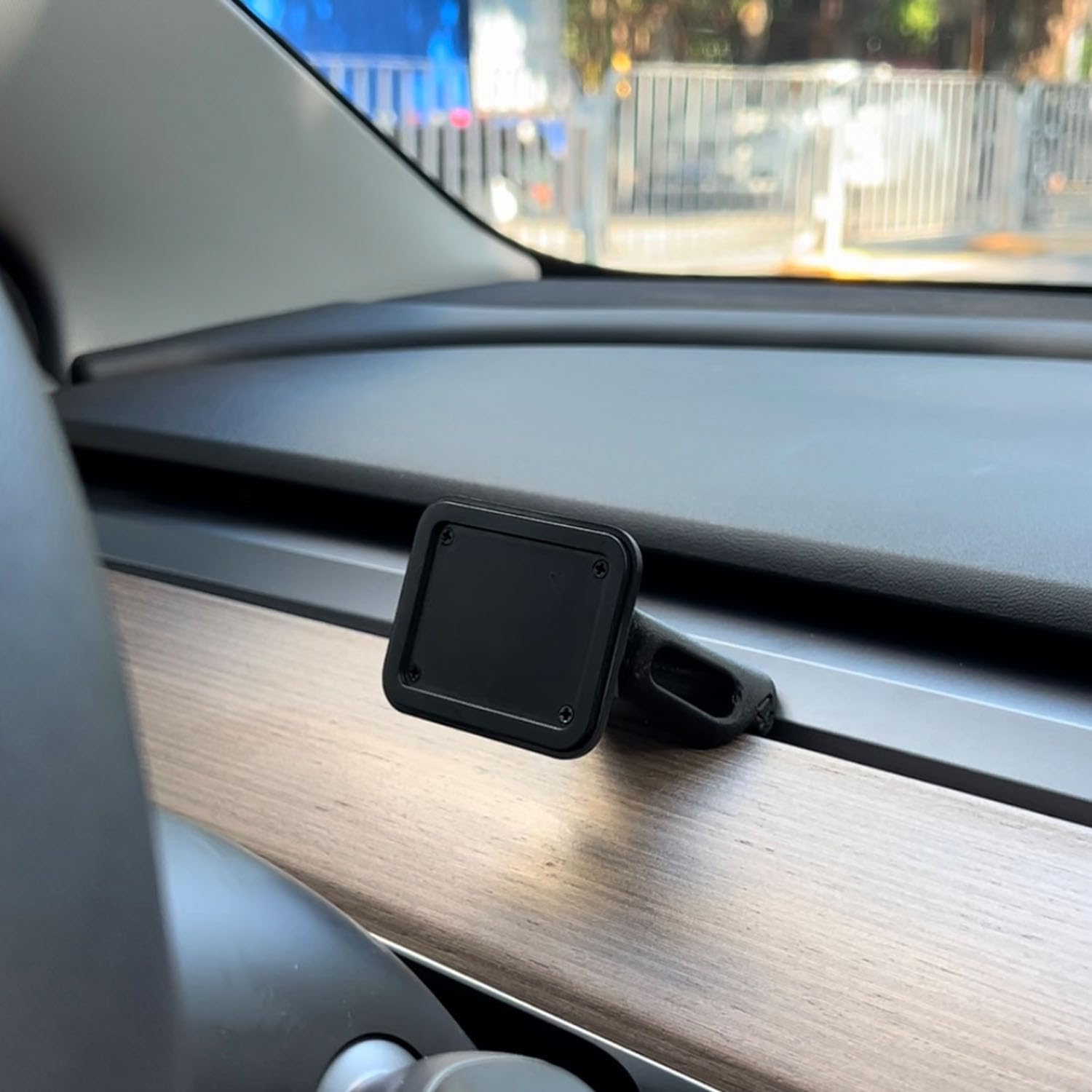
Figure 4.2: Magnetic Base Installed on Dashboard.
4.2 Połączenie zasilania
Connect the provided 9V power cord to the "Power" port on the side of the T3 Pro unit and plug the other end into your vehicle's 12V accessory outlet (cigarette lighter socket).
4.3 Pierwsze uruchomienie
Once powered, the device will automatically boot up. The multi-core Linux system is designed for fast startup, typically displaying the CarPlay interface within 12 seconds.

Figure 4.3: Fast Boot-Up and Connectivity.
5. Instrukcja obsługi
5.1 Bezprzewodowe połączenie CarPlay / Android Auto
The T3 Pro supports wireless CarPlay and Android Auto for seamless smartphone integration.
- On the T3 Pro, navigate to the CarPlay or Android Auto icon on the main screen.
- Włącz Bluetooth i Wi-Fi na swoim smartfonie.
- Szukaj the T3 Pro's Bluetooth name (usually "CarpodGo T3 Pro" or similar) on your phone and pair with it.
- Once paired via Bluetooth, your phone will automatically establish a Wi-Fi connection for CarPlay/Android Auto.
- The T3 Pro supports 60fps wireless CarPlay for smoother scrolling and responsiveness. This can typically be adjusted in the device settings if needed.
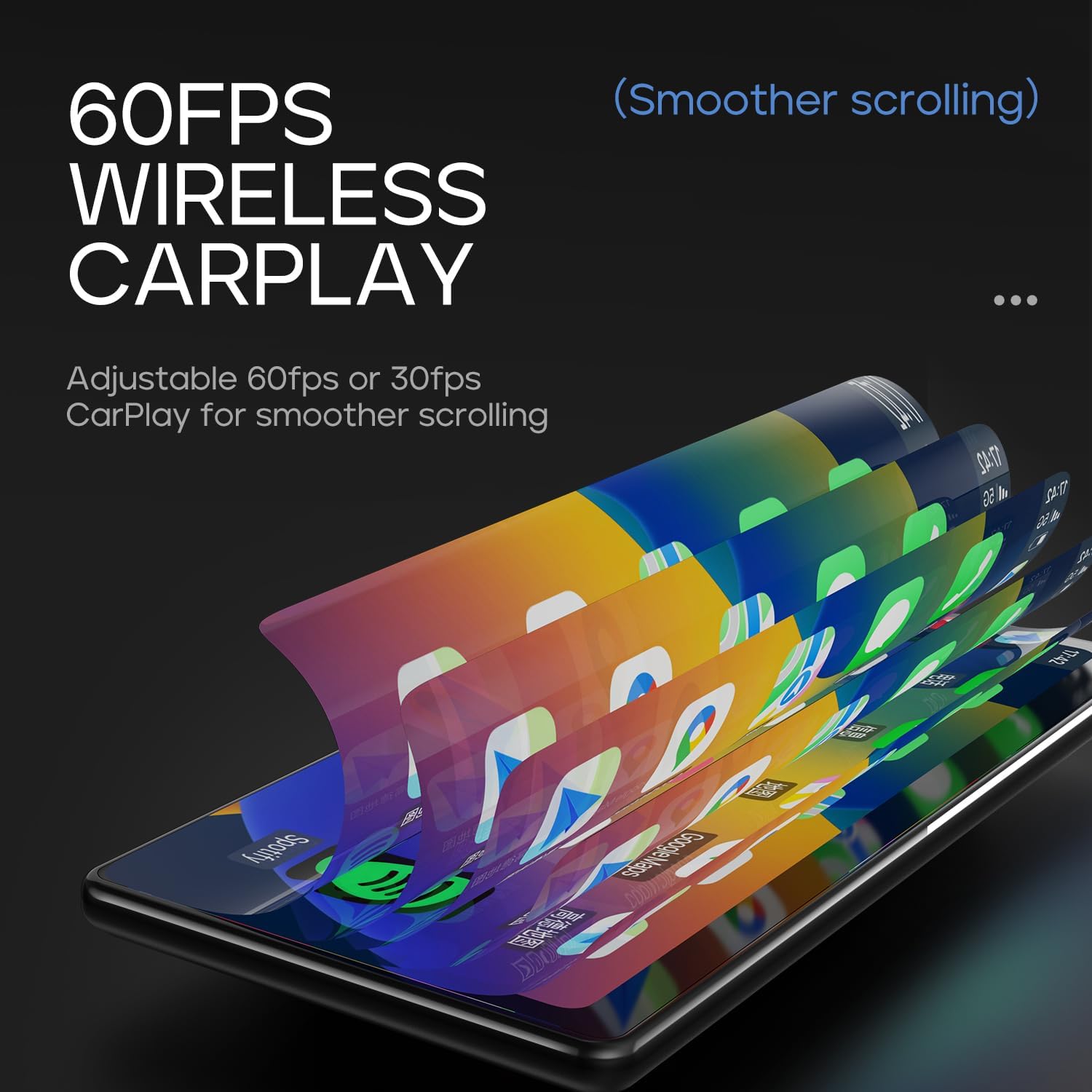
Figure 5.1: 60fps Wireless CarPlay for Smooth Operation.
5.2 Display-Only Bluetooth Mode
This mode allows you to route audio (maps, music, calls) through your car's existing Bluetooth system, utilizing your car's speakers and microphone, while the T3 Pro handles the display.
- On the T3 Pro, activate "Display-Only Bluetooth Mode" in the settings. Refer to the on-screen interface for the exact location of this setting.
- Connect your smartphone directly to your car's Bluetooth system.
- The T3 Pro will continue to display CarPlay/Android Auto, but all audio will be managed by your car's Bluetooth connection. This mode also supports steering wheel controls for audio and calls, provided your car's Bluetooth system is compatible.

Figure 5.2: Display-Only Bluetooth Mode Configuration.
5.3 Nawigacja w interfejsie użytkownika (UI)
The T3 Pro features a new Carpod interface UI with a line neomorphism style, designed for intuitive use. Navigate through menus and applications using the touch screen. Swipe gestures and taps are used for interaction.

Figure 5.3: CarpodGo T3 Pro User Interface Examples.
6. Konserwacja
- Czyszczenie: Use a soft, lint-free cloth to clean the screen and body of the device. Do not use abrasive cleaners, alcohol, or solvents.
- Składowanie: Jeśli przechowujesz urządzenie przez dłuższy czas, odłącz je od zasilania i przechowuj w chłodnym, suchym miejscu, z dala od bezpośredniego światła słonecznego.
- Aktualizacje oprogramowania: Okresowo sprawdzaj producenta website or the device settings for available firmware updates to ensure optimal performance and new features.
7. Rozwiązywanie Problemów
| Problem | Możliwa przyczyna | Rozwiązanie |
|---|---|---|
| Urządzenie nie włącza się. | No power connection or faulty power cord. | Ensure the 9V power cord is securely plugged into the device and the car's 12V outlet. Check if the car's outlet is functioning. |
| Brak połączenia bezprzewodowego CarPlay/Android Auto. | Bluetooth/Wi-Fi issues, phone settings. |
|
| Brak dźwięku lub słaba jakość dźwięku. | Audio routing issue, volume settings. |
|
| Ekran nie reaguje lub jest zablokowany. | Tymczasowy błąd oprogramowania. | Perform a soft reset by disconnecting and reconnecting the power. If the issue persists, contact customer support. |
8. Specyfikacje
| Funkcja | Szczegół |
|---|---|
| Numer modelu | T3 Pro |
| Rozmiar wyświetlacza | 8.9 cali |
| Rozdzielczość ekranu | 1920 x 720 IPS |
| Technologia wyświetlania | Fully Laminated Screen, 16.7 million colors, 700nit highlight |
| Łączność bezprzewodowa | Wireless CarPlay, Wireless Android Auto, Wi-Fi, Bluetooth |
| Tryb Bluetooth | Tryb Bluetooth tylko do wyświetlania |
| Szybkość klatek | Supports 60fps Wireless CarPlay |
| Montowanie | Magnetic design, compatible with 17mm ball head mount, central control seamless mounts, suction cup mount |
| Typ kontrolera | Push Button, Steering Wheel Controls (via Display-Only BT Mode) |
| Tryb wyjścia audio | Stereofoniczny |
| Typ złącza | Gniazdo 3.5 mm, HDMI, USB |
9. Gwarancja i wsparcie
CarpodGo products are designed for reliability and performance. For warranty information, technical support, or service inquiries, please refer to the warranty card included in your package or visit the official CarpodGo webZachowaj paragon jako dowód zakupu na wypadek reklamacji.
Informacje kontaktowe: Please refer to the contact details provided in your product packaging or on the official CarpodGo webwitryna zawierająca najbardziej aktualne informacje dotyczące pomocy technicznej.


