Wstęp
This manual provides detailed instructions for the installation, operation, and maintenance of your Thermalright Stream Vision 360 Black CPU Liquid Cooler. Please read this manual thoroughly before installation and use to ensure proper function and longevity of the product.

Image: Thermalright Stream Vision 360 Black CPU Liquid Cooler installed in a PC case, highlighting the LCD screen and radiator.
Informacje dotyczące bezpieczeństwa
Always follow these safety guidelines to prevent damage to the product or injury:
- Przed instalacją upewnij się, że komputer jest wyłączony i odłączony od gniazdka ściennego.
- Aby uniknąć uszkodzeń, należy obchodzić się z elementami ostrożnie.
- Do not attempt to disassemble the cooler's pump or radiator.
- Przechowywać w miejscu niedostępnym dla dzieci.
- Refer to the installation video or manual for specific steps.
Zawartość opakowania
Sprawdź, czy w opakowaniu znajdują się wszystkie komponenty:
- Thermalright Stream Vision 360 Black CPU Liquid Cooler (Radiator with pre-installed fans, pump/waterblock with LCD screen)
- Mounting fasteners for AMD (AM4/AM5) and Intel (LGA1150/1151/1155/1156/1200/2011/2066/1700/1851) platforms
- SS2 all-metal buckle
- Water guide clip
- USB-C to USB 2.0 connection cable (for LCD screen)
- Pasta termiczna

Image: Main components of the liquid cooler, showing the radiator, fans, and the waterblock with its detachable LCD module.
Konfiguracja i instalacja
The Thermalright Stream Vision 360 Black CPU Liquid Cooler is designed for straightforward installation. Ensure you have the correct mounting hardware for your CPU socket type (AMD AM4/AM5 or Intel LGA1150/1151/1155/1156/1200/2011/2066/1700/1851).
Ogólne kroki instalacji:
- Przygotuj procesor: Clean the CPU surface of any old thermal paste. Apply a thin, even layer of new thermal paste to the center of the CPU.
- Montaż chłodnicy i wentylatorów: Mount the radiator with its pre-installed fans to an available fan mounting location in your PC case (typically top or front). Ensure airflow direction is optimal for your case.
- Zainstaluj wspornik montażowy: Attach the appropriate mounting bracket (Intel or AMD) to the waterblock. The SS2 all-metal buckle provides secure compatibility.
- Mount Waterblock: Carefully place the waterblock onto the CPU, aligning the mounting holes. Secure it with the provided fasteners. For AMD platforms, use the original motherboard backplate.
- Podłącz kable:
- Connect the pump's 4-PIN PWM cable to the CPU_FAN or AIO_PUMP header on your motherboard.
- Connect the fan cables to appropriate fan headers on your motherboard or a fan controller.
- Connect the LCD screen via the USB-C to USB 2.0 cable to an available USB 2.0 header on your motherboard.
- Manage Tubing: Use the included water guide clips to route the water tubes neatly and prevent them from interfering with other components or fans.

Image: The magnetic LCD display module detaching from the waterblock, illustrating easy installation.
Software Installation (TRCC):
To customize the LCD screen and monitor system parameters, download and install the TRCC software from the official Thermalright website. The software allows for custom themes, static/dynamic picture switching, and video playback on the 3.5-inch IPS LCD screen.
Odniesienie do filmu instalacyjnego:
For a visual guide, refer to the official installation video. This video demonstrates the process for various CPU platforms.
Wideo: Produkt w całościview and installation guide for the Thermalright Stream Vision 360 Black CPU Liquid Cooler.
Instrukcja obsługi
LCD Screen Customization:
The 3.5-inch IPS LCD screen offers a 640x480 resolution for clear display. Use the TRCC software to:
- Display real-time system monitoring data (CPU/GPU temperature, clock frequencies, usage).
- Switch between various static and dynamic pictures.
- Upload and play custom GIFs and videos.
- Apply custom themes.

Image: The LCD screen showcasing various live system monitoring displays and customizable visual themes.
Active Motherboard Cooling:
The magnetic cold head pump features an integrated 60mm fan. This fan provides direct airflow to the motherboard's core power supply module (VRM) and memory, contributing to lower component temperatures and stable CPU power delivery.
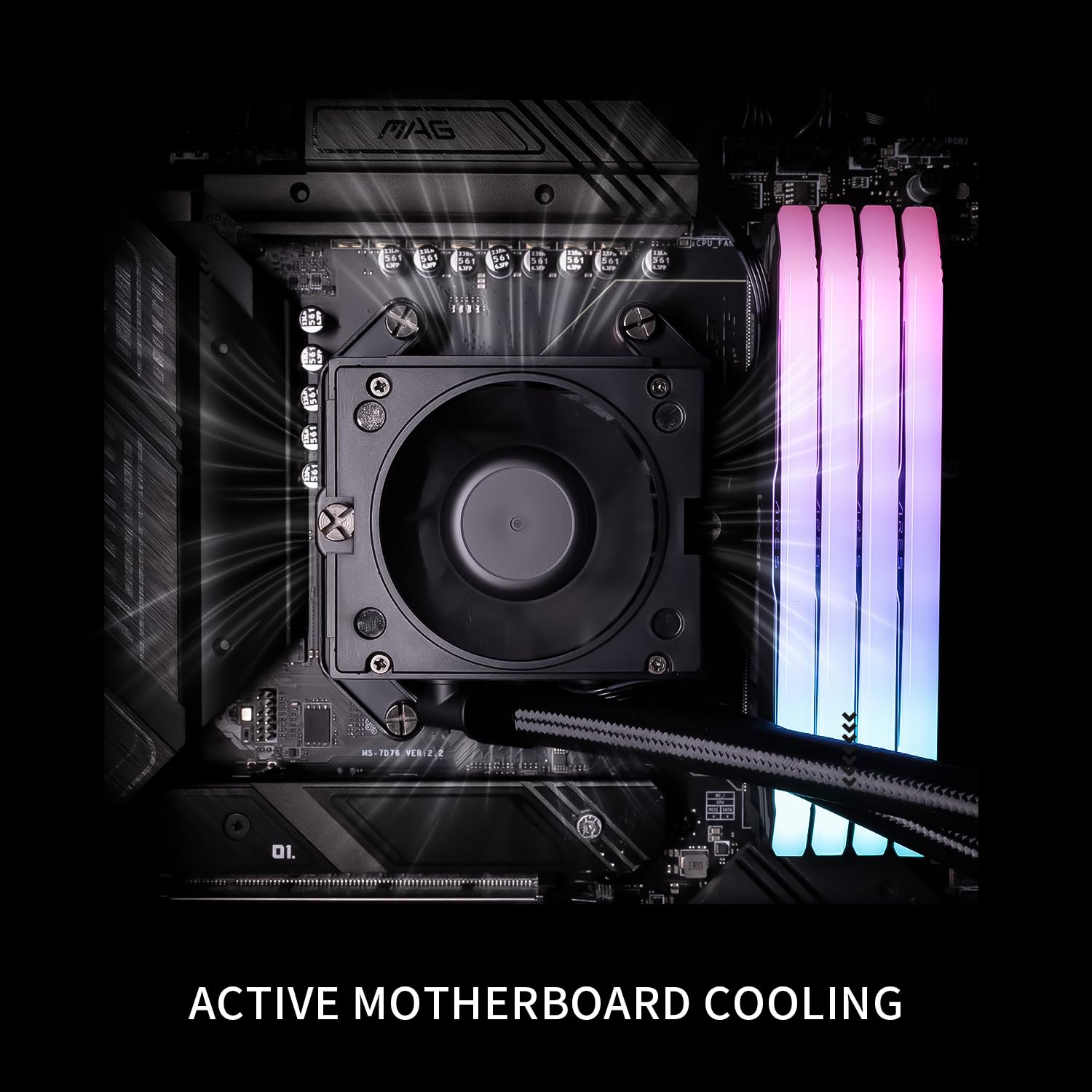
Image: The waterblock's integrated fan actively cooling the motherboard's voltage regulator modules (VRM) and RAM.
Konserwacja
- Czyszczenie kurzu: Okresowo czyść żeberka chłodnicy i łopatki wentylatora sprężonym powietrzem, aby zapobiec gromadzeniu się kurzu, który może mieć negatywny wpływ na wydajność chłodzenia.
- Zarządzanie kablami: Ensure all cables are securely connected and not obstructing airflow.
- Aktualizacje oprogramowania: Keep the TRCC software updated to access new features and performance improvements.
- Liquid Level Check: This is a closed-loop system and does not require regular liquid refills. However, monitor for any signs of leaks.
Rozwiązywanie problemów
| Problem | Możliwa przyczyna | Rozwiązanie |
|---|---|---|
| Wysokie temperatury procesora |
|
|
| Nie wyświetla się ekran LCD |
|
|
| Nietypowy hałas z chłodnicy |
|
|
Specyfikacje
| Część | Specyfikacja |
|---|---|
| Model | Stream Vision 360 Black |
| Wymiary grzejnika | 403mm x 120mm x 52mm |
| Waterblock Dimensions | 69mm x 76mm x 92mm (cold head) |
| Prędkość pompy | 6400 obr./min ±10% |
| Objętość pompytage | Prąd stały 12 V |
| Złącze pompy | 4-PINOWY PWM |
| Model wentylatora | TL-H12-X28-R7 |
| Wymiary wentylatora | 120mm x 120mm x 28mm |
| Prędkość wentylatora | 2400 obr./min ±10% |
| Ciśnienie powietrza wentylatora | 2.78 MM H2O |
| Objętość powietrza wentylatora | 95.4 stopy sześcienne na minutę |
| Hałas podczas pracy | ≤31.4 dBA |
| Typ łożyska wentylatora | S-FDB Bearing V2 |
| Rozmiar ekranu LCD | 3.5 cali |
| Rozdzielczość ekranu LCD | 640x480 IPS |
| Zgodność | AMD: AM4/AM5, Intel: LGA1150/1151/1155/1156/1200/2011/2066/1700/1851 |
| Tworzywo | Aluminium |
| Waga przedmiotu | 6.74 funta |

Image: Compatibility information for Intel and AMD platforms, alongside details of the radiator's internal water channels and polymer-sleeved tubes.

Image: Specifications and features of the TL-H12-X28-R7 fan, including its S-FDB V2 bearing and static pressure optimization.
Gwarancja i wsparcie
For warranty information, technical support, or further assistance, please visit the official Thermalright webOdwiedź stronę internetową lub skontaktuj się z działem obsługi klienta. Zachowaj paragon jako dowód zakupu.
Urzędnik Webstrona: www.thermalright.com


