1. Wprowadzenie
Thank you for choosing the TECKNET TK-KB005 Bluetooth Keyboard. This full-size wireless keyboard is designed for enhanced productivity and comfort across multiple devices. It features advanced connectivity options, a long-lasting rechargeable battery, and a quiet, ergonomic design for an optimal typing experience.
Główne cechy:
- Łączność 4-trybowa: Seamlessly switch between up to four devices (3 Bluetooth, 1 x 2.4G wireless).
- Akumulator: Built-in 500mAh battery provides up to 180 days of use on a single 2-hour charge.
- Ciche i płynne pisanie: 110 upgraded scissor-switch keys offer 90% noise reduction and comfortable 2mm key travel.
- Ergonomiczna konstrukcja: Crafted for all-day comfort with adjustable support buckles and anti-slip pads.
- Szeroka kompatybilność: Supports Windows, iOS, macOS, Android, Chrome OS, and Linux.
- Klucze multimedialne: 12 dedicated multimedia keys for enhanced productivity.
2. Zawartość opakowania
Please check that all items are included and undamaged upon arrival:
- 1 x TECKNET Multi-Device Keyboard (TK-KB005)
- Kabel ładujący 1 x USB-C
- 1 x odbiornik USB 2.4G (przechowywany w tylnej komorze klawiatury)
- 1 x Instrukcja obsługi (ten dokument)
3. Konfiguracja
3.1 Opłata początkowa
Before first use, ensure your keyboard is fully charged. Connect the provided USB-C cable to the charging port on the back of the keyboard and to a power source. The red indicator light will stay on during charging and turn green when fully charged.

Image: The TECKNET TK-KB005 keyboard connected to a USB-C charging cable, illustrating the charging port location.
3.2 Włączanie/wyłączanie zasilania
Locate the power switch on the back of the keyboard. Slide it to the 'ON' position to power on the keyboard.
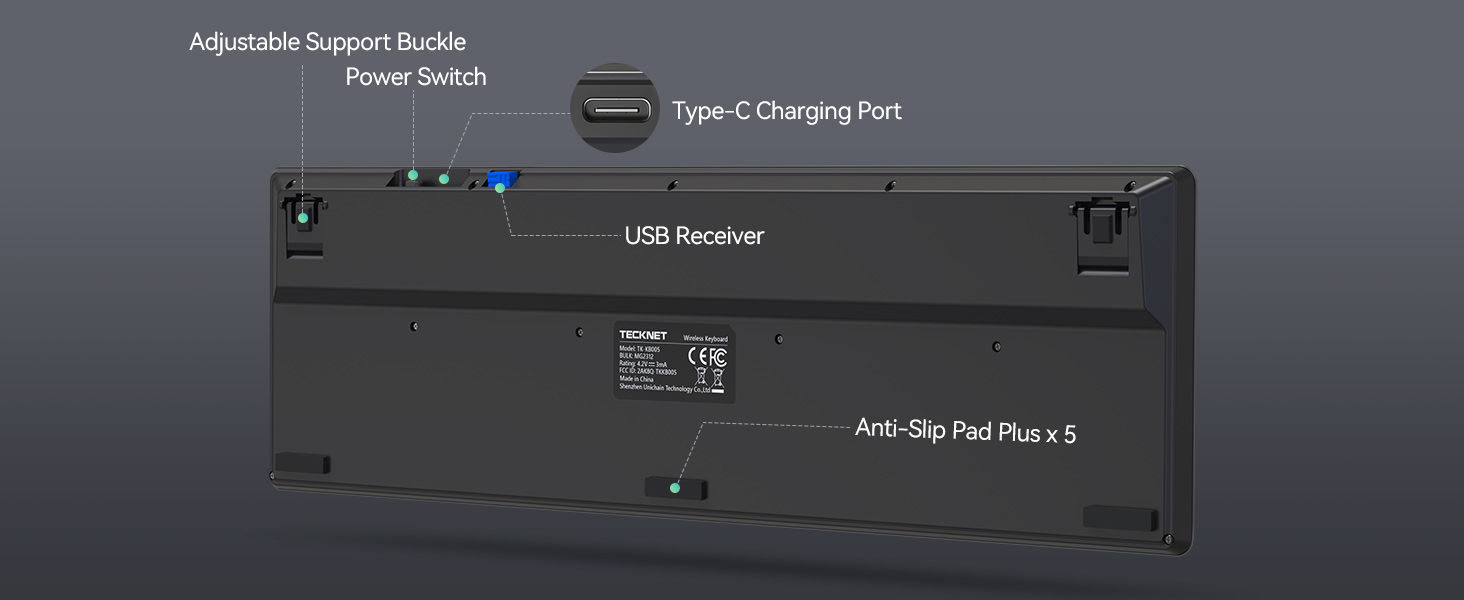
Image: The underside of the keyboard, highlighting the adjustable support buckle, power switch, USB-C charging port, USB receiver storage, and anti-slip pads.
3.3 Łączenie się przez sieć bezprzewodową 2.4G
- Remove the 2.4G USB receiver from its storage slot on the back of the keyboard.
- Podłącz odbiornik USB do wolnego portu USB-A w komputerze lub urządzeniu.
- Short press the 2.4G channel button (labeled with a wireless icon or '0') on the keyboard. The indicator light will illuminate.
- The keyboard should automatically connect. If not, refer to the troubleshooting section for forced pairing.
3.4 Łączenie przez Bluetooth
The keyboard supports three Bluetooth channels (BT1, BT2, BT3).
- Turn on Bluetooth on your device (e.g., computer, tablet, smartphone).
- On the keyboard, press and hold one of the Bluetooth channel buttons (BT1, BT2, or BT3) for more than 3 seconds. The corresponding indicator light will flash quickly, indicating pairing mode.
- On your device, search for Bluetooth devices and select "TK-KB005" from the list.
- Once paired, the indicator light will stay on briefly, then turn off to indicate a successful connection.
Video: An unboxing video for the TECKNET TK-KB005 Bluetooth Keyboard, demonstrating the contents and initial setup steps.
4. Instrukcja obsługi
4.1 Przełączanie między podłączonymi urządzeniami
The TECKNET TK-KB005 keyboard allows you to connect to up to four devices simultaneously (three via Bluetooth and one via 2.4G wireless). To switch between these devices, simply short press the corresponding channel button (BT1, BT2, BT3, or 2.4G wireless icon) on the keyboard.

Image: The keyboard shown with four different devices (tablet, smartphone, laptop, desktop) connected, illustrating its multi-device switching capability.
Video: A demonstration of the 4-device connectivity feature of the TECKNET Bluetooth Keyboard, showing seamless switching between devices.
4.2 Przełączanie zgodności systemu
The keyboard automatically detects and adapts to different operating systems. However, for optimal key functionality, you may need to manually switch the system mode using the following key combinations:
- Dla Android urządzenia: Naciśnij Fn + Q
- Dla Okna urządzenia: Naciśnij Fn + W
- Dla iOS urządzenia: Naciśnij Fn + E
Note: These system switching shortcuts are primarily for 2.4G mode. In Bluetooth mode, the system is usually detected automatically. If certain keys do not function as expected, use these shortcuts.
4.3 klawiszy multimedialnych
The keyboard features 12 multimedia keys (F1-F12) that provide quick access to various functions. These functions may vary slightly depending on your operating system.
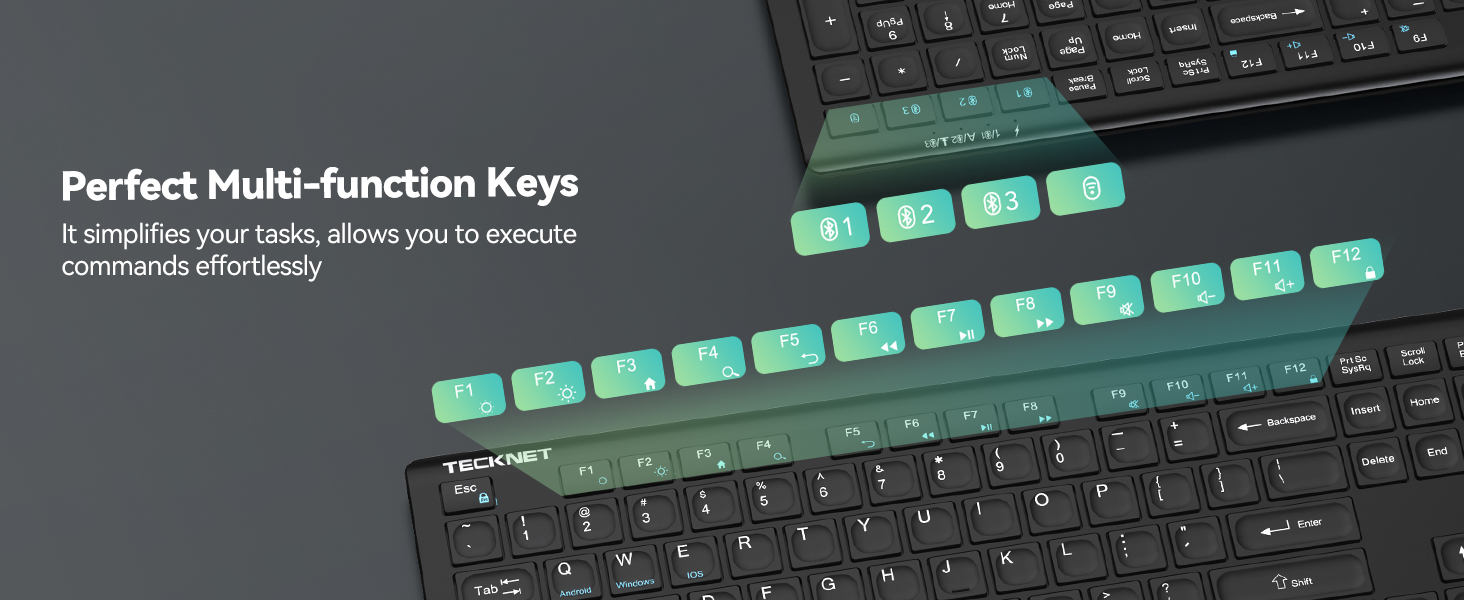
Obraz: szczegółowy view of the keyboard's multi-function keys, indicating their various shortcuts and commands.
5. Konserwacja
5.1 Czyszczenie
Aby wyczyścić klawiaturę, delikatnie przetrzyj jej powierzchnię miękką szmatką.amp cloth. Avoid using harsh chemicals or abrasive materials that could damage the finish or key legends.
5.2 Pielęgnacja baterii
The keyboard has a built-in rechargeable 500mAh Lithium-Ion battery. To prolong battery life:
- Charge the keyboard fully before its first use.
- Unikaj częstego całkowitego rozładowywania baterii.
- The keyboard features an auto-sleep mode after 30 minutes of inactivity to conserve power. It wakes instantly with any key press.

Image: An illustration highlighting the keyboard's 500mAh rechargeable battery, along with its auto-sleep and power-saving features.
6. Rozwiązywanie Problemów
6.1 Problemy z połączeniem
If you experience difficulty connecting your keyboard:
- Sprawdź, czy klawiatura jest w pełni naładowana.
- Remove/delete all previous Bluetooth connection records for the keyboard on your device, then turn off and re-enable Bluetooth on your device. Try reconnecting.
- Ensure the keyboard is within the effective working distance of 49 ft (15M) from your device.
- Avoid metal obstacles or other radio signals that may interfere with the keyboard signal.
Forced Pairing Method (Bluetooth):
- Bring the keyboard close to the device and ensure the device's Bluetooth is on.
- Short press the desired Bluetooth channel button (BT1, BT2, or BT3). The light will illuminate.
- Long press the same channel button for more than 3 seconds until the green LED light flashes quickly.
- Complete the pairing on your device within 2 minutes. The channel LED will turn off after 2 seconds upon successful pairing.
Forced Pairing Method (2.4G Wireless):
- Bring the keyboard close to the device.
- Short press the 2.4G channel button (labeled with a wireless icon or '0'). The light will illuminate.
- Long press the 2.4G channel button for more than 3 seconds until the red LED flashes quickly.
- Insert the USB receiver into your device within 20 seconds. The 2.4G channel LED will turn off after 2 seconds upon successful pairing.
6.2 Keyboard Not Responding / Lag
- Check if the battery is low and charge the keyboard.
- If caused by computer lag, restart your computer and reconnect the keyboard.
- If using 2.4G, try unplugging and re-inserting the USB receiver into your device.
If none of the above solutions resolve your issue, please contact our professional customer service team for additional support.
7. Specyfikacje
| Funkcja | Szczegół |
|---|---|
| Numer modelu | TK-KB005 |
| Technologia łączności | Bluetooth (3 channels), 2.4G Wireless (1 channel) |
| Kompatybilne urządzenia | Laptop, PC, Smart TV, Smartphone, Tablet, iPad |
| Systemy operacyjne | Windows, iOS, macOS, Android, Chrome OS, Linux |
| Bateria | 500mAh litowo-jonowy (w zestawie) |
| Żywotność baterii | Up to 180 days (based on 2 hours daily use) |
| Czas ładowania | Około 2 godzin |
| Zasięg bezprzewodowej | Do 49 stóp (15 m) |
| Typ klucza | Przełącznik nożycowy |
| Redukcja szumów | 90% |
| Kluczowa trwałość | Do 10 milionów naciśnięć klawiszy |
| Cechy specjalne | 12 Multimedia Keys, Ergonomic, Low-Profile Key, Rechargeable, Auto-Sleep |
| Wymiary produktu | 17.13 x 5.12 x 0.57 cala |
| Waga przedmiotu | 1.29 funta |
| Tworzywo | Plastikowy |
8. Gwarancja i pomoc techniczna
TECKNET provides up to 3 years of support for this product (registration may be required). If you encounter any problems or have questions regarding your TK-KB005 keyboard, please do not hesitate to contact our professional customer service team. We are committed to assisting you every step of the way.
For customer service inquiries, please refer to the contact information provided on the TECKNET official webwitryny lub opakowania produktu.