1. Wprowadzenie
Thank you for choosing the ZEUSLAP Z18W Dual Screen Portable Monitor. This device is designed to enhance your productivity and multimedia experience by providing two additional 18.5-inch displays for your compatible devices. This manual provides essential information for setting up, operating, and maintaining your monitor.
2. Koniec produktuview
2.1 Główne cechy
- Dual 18.5-inch Full HD IPS Displays: Ciesz się żywymi kolorami i szeroką gamą viewing angles with 1920x1080 resolution on each screen.
- Częstotliwość odświeżania 120 Hz: Experience smooth visuals, ideal for gaming and fast-paced multimedia.
- Łączność typu C: Single cable solution for power and video transmission with compatible devices.
- Gama kolorów 100% sRGB: Ensures accurate and rich color reproduction.
- 300 cd/m² Brightness: Zapewnia wyraźną widoczność w różnych warunkach oświetleniowych.
- Funkcjonalność ekranu dotykowego: Interact directly with the display for intuitive control.
- Szeroka kompatybilność: Connects to Laptops, Desktops, Gaming Consoles, and Smartphones.
2.2 Zawartość opakowania
Proszę sprawdzić, czy w paczce znajdują się następujące elementy:
- ZEUSLAP Z18W Dual Screen Portable Monitor
- USB-C to USB-C Cable (for video and power)
- USB-A to USB-C Power Cable (for additional power if needed)
- Instrukcja obsługi

This image shows the ZEUSLAP Z18W dual portable monitor set up next to a laptop, demonstrating its extended display capabilities for enhanced productivity.
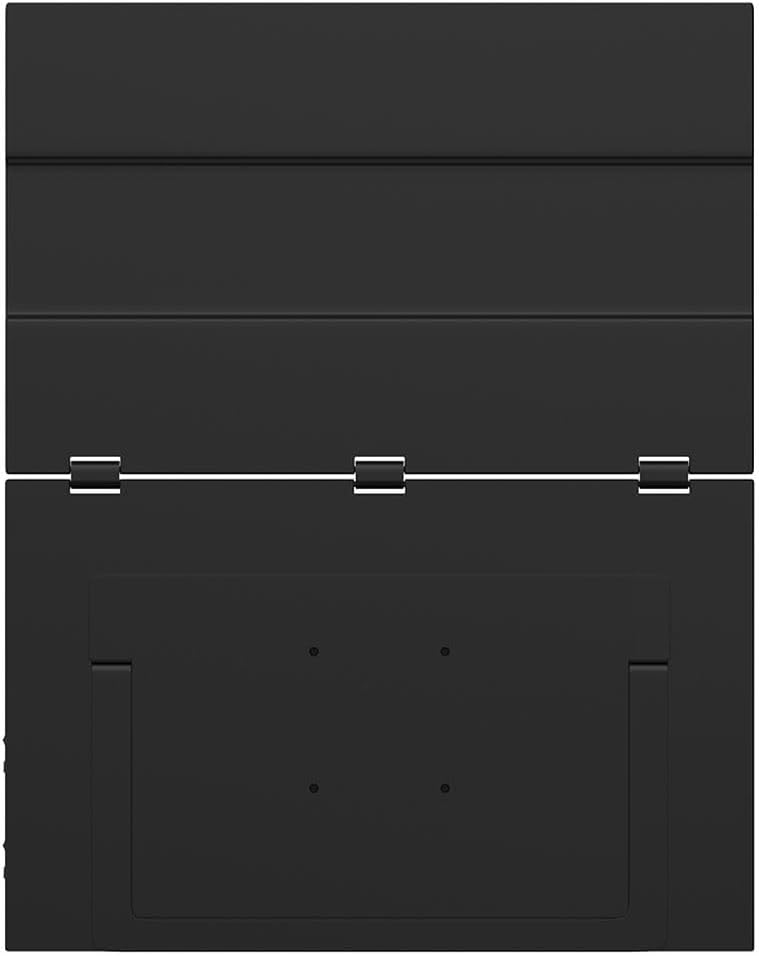
Tył view of the ZEUSLAP Z18W monitor highlights its robust hinge design and integrated stand, allowing for flexible positioning and stability.
3. Konfiguracja
3.1 Podłączanie do urządzenia
The ZEUSLAP Z18W monitor supports various connection methods. Ensure your device has the necessary ports.
- USB-C (Full-Featured): If your laptop, smartphone, or gaming console has a full-featured USB-C port (supporting DisplayPort Alternate Mode and power delivery), connect the monitor using the provided USB-C to USB-C cable. This single cable can transmit video, audio, and power to the monitor.
- USB-C (Power Only) + HDMI (Video): If your device's USB-C port does not support video output, or if you are connecting to a device with an HDMI port, you will need two cables:
- Connect an HDMI cable (not included) from your device to the monitor's HDMI input.
- Connect the provided USB-A to USB-C power cable from a USB power source (e.g., laptop USB port, wall adapter) to the monitor's USB-C power input.
3.2 Włączanie/wyłączanie
- Włączanie: Once connected to a compatible device and receiving power, the monitor should automatically power on. If not, press the Power button located on the side of the monitor.
- Wyłączone: Press and hold the Power button for a few seconds until the display turns off. Disconnect the cables when not in use.
4. Instrukcja obsługi
4.1 Menu ekranowe (OSD)
The OSD menu allows you to adjust various display settings. The monitor typically features a joystick or a set of buttons for navigation.
- Dostęp do OSD: Press the OSD button (or push the joystick) to open the menu.
- Nawigacja: Use the joystick or directional buttons to move through menu options.
- Wybór: Press the OSD button (or push the joystick in) to select an option.
- Wyjście: Navigate to the 'Exit' option or press the 'Back' button to close the OSD menu.
Common OSD settings include Brightness, Contrast, Color Temperature, Input Source, Aspect Ratio, and Volume.
4.2 Tryby wyświetlania
Po podłączeniu do komputera możesz skonfigurować tryb wyświetlania za pomocą ustawień wyświetlania systemu operacyjnego:
- Tryb rozszerzania: Each monitor displays a separate desktop, allowing for more screen space and multitasking.
- Tryb duplikacji: All monitors display the same content, useful for presentations or sharing your screen.
4.3 Funkcjonalność ekranu dotykowego
The ZEUSLAP Z18W features a touch screen. For touch functionality to work, ensure your device supports touch input over the connected interface (typically USB-C) and that the necessary drivers are installed (usually automatically by the operating system).
- Pojedynczy dotyk: Tap to select or open items.
- Gesty wielodotykowe: Use gestures like pinch-to-zoom, two-finger scroll, etc., as supported by your operating system.
5. Konserwacja
5.1 Czyszczenie monitora
- Always power off the monitor and disconnect all cables before cleaning.
- Delikatnie użyj miękkiej, niestrzępiącej się szmatki dampCzyścić wodą lub nieściernym środkiem do czyszczenia ekranów.
- Nie rozpylać środka czyszczącego bezpośrednio na ekran.
- Unikaj stosowania alkoholu, amoniaku i ściernych środków czyszczących, ponieważ mogą one uszkodzić powierzchnię ekranu.
5.2 Przechowywanie
- Przechowuj monitor w chłodnym, suchym miejscu, z dala od bezpośredniego światła słonecznego i ekstremalnych temperatur.
- Use the original packaging or a protective case to prevent damage during transport or storage.
6. Rozwiązywanie Problemów
| Problem | Możliwa przyczyna | Rozwiązanie |
|---|---|---|
| Brak wyświetlacza / komunikat „Brak sygnału” |
|
|
| Monitor powers on but no image |
|
|
| Ekran dotykowy nie reaguje |
|
|
| Migotanie lub zniekształcenie obrazu |
|
|
7. Specyfikacje
| Funkcja | Szczegół |
|---|---|
| Nazwa modelu | Z18W |
| Rozmiar ekranu | 2 x 18.5 cali |
| Rezolucja | 1920 x 1080 (Pełna rozdzielczość HD) |
| Częstotliwość odświeżania | 120 Hz |
| Typ panelu | IPS |
| Gama kolorów | 100% sRGB |
| Jasność | 300 cd/m² |
| Łączność | USB-C, USB |
| Cechy specjalne | Dual Screen, High Refresh Rate, Type-C Connection, Touch Screen |
| Kompatybilne urządzenia | Laptop, Desktop, Gaming Console, Smartphone |
8. Gwarancja i wsparcie
The ZEUSLAP Z18W Dual Screen Portable Monitor comes with a standard manufacturer's warranty. Please refer to the warranty card included in your package for specific terms and conditions, including the warranty period and coverage details.
For technical support, troubleshooting assistance, or warranty claims, please contact the retailer where you purchased the product or visit the official ZEUSLAP webstrona z informacjami kontaktowymi dotyczącymi obsługi klienta.