1. Wprowadzenie
Thank you for choosing the VENTION 15-in-1 Laptop Docking Station. This device is designed to expand the connectivity of your laptop, providing a comprehensive solution for multiple peripherals, external displays, network access, and power delivery through a single USB-C connection. Please read this manual carefully to ensure proper installation and operation.
2. Koniec produktuview
The VENTION 15-in-1 Docking Station offers a wide array of ports to enhance your workstation. Its rotatable design allows for flexible placement on your desk.
2.1. Docking Station Features
- Łączność 15 w 1: Comprehensive port selection for various devices.
- Dual/Triple Display Output: Supports up to three external monitors via 2 HDMI and 1 DisplayPort.
- Power Delivery (PD 100W): Charges your laptop while connected.
- Szybki transfer danych: USB 3.2 Gen 2 ports offer up to 10Gbps.
- Gigabit Ethernet: Zapewnia stabilne i szybkie przewodowe połączenie sieciowe.
- Czytnik kart: Integrated SD/TF card slots for quick data access.
- Wtyczka dźwiękowa: 3.5mm TRRS port for headphones or microphones.
- Obrotowa konstrukcja: Allows for optimal positioning and cable management.
- Trwała konstrukcja: Aluminum alloy shell for optimal heat dissipation.
2.2. Układ portów
Familiarize yourself with the ports on the docking station:

Obraz: przód i tył view of the VENTION 15-in-1 Docking Station, showcasing its compact design and port arrangement.

Image: A detailed diagram illustrating all 15 ports on the docking station, including their types and functions.
- Porty przednie: SD/TF Card Slot, USB 3.0 (5Gbps), 2x USB 3.2 Gen 2 Type-A (10Gbps), USB 3.2 Gen 2 Type-C (10Gbps), USB 3.2 Gen 1 Type-C (5Gbps), 3.5mm TRRS Audio Jack.
- Porty tylne: PD (Power Delivery 100W Max Input), PC HOST (USB-C connection to laptop), 2x USB 2.0 Type-A (480Mbps), 2x HDMI (4K@60Hz), 1x DisplayPort (4K@60Hz), RJ45 Gigabit Ethernet.
3. Przewodnik konfiguracji
Aby skonfigurować stację dokującą, wykonaj następujące czynności:
- Rozpakuj urządzenie: Carefully remove the docking station and included accessories from the packaging.
- Umiejscowienie stojaka: The docking station features a detachable and rotatable U-shaped stand. Attach the stand to the base of the docking station for vertical placement, ensuring stability. The anti-slip pads on the stand provide protection and grip.
- Podłącz zasilanie (opcjonalne, ale zalecane): For optimal performance and laptop charging, connect a USB-C power adapter (not included) to the PD (Power Delivery) port on the rear of the docking station. The docking station supports up to 100W power input.
- Połącz z laptopem: Use the provided USB-C to USB-C cable to connect your laptop to the PC HOST port on the rear of the docking station. Ensure your laptop's USB-C port is a full-featured port or Thunderbolt 3/4 compatible for full functionality.

Image: Visual guide to identify compatible Thunderbolt or full-featured USB-C ports on your laptop, essential for the docking station's functionality.
Once connected, your laptop should automatically detect the docking station and its connected peripherals. Drivers are typically installed automatically by your operating system.
4. Instrukcja obsługi
4.1. Połączenie wyświetlacza
The docking station supports single, dual, or triple external displays. Connect your monitors to the HDMI and DisplayPort outputs on the rear of the docking station.

Image: A laptop connected to a single external 4K monitor through the docking station, demonstrating high-resolution display capabilities.
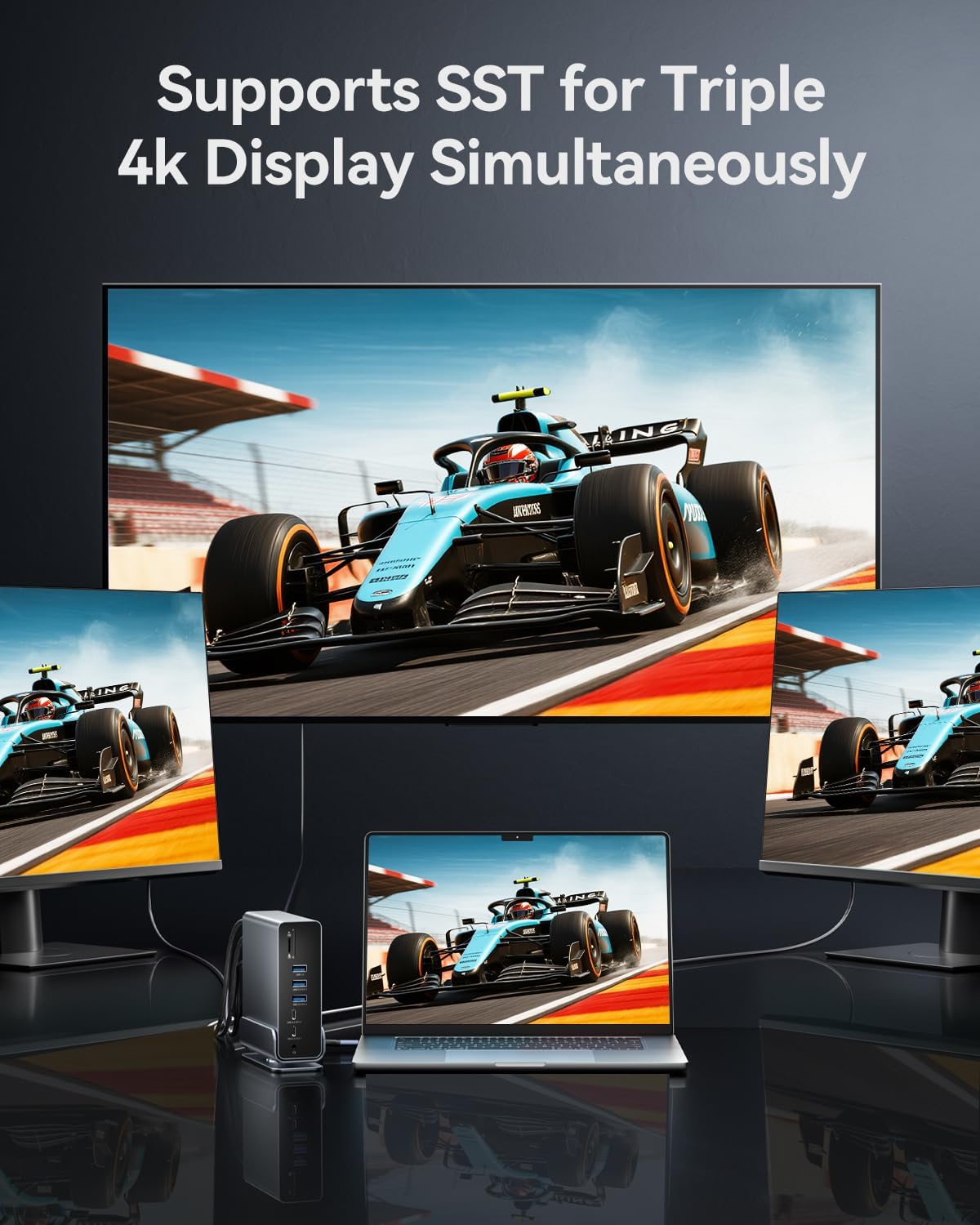
Image: A laptop connected to three external 4K monitors simultaneously, showcasing the triple display support of the docking station.
Tryby wyświetlania:
- Tryb lustrzany: Duplicates your laptop's screen on external monitors.
- Tryb rozszerzania: Rozszerza pulpit na kilka ekranów, zapewniając większą przestrzeń roboczą.
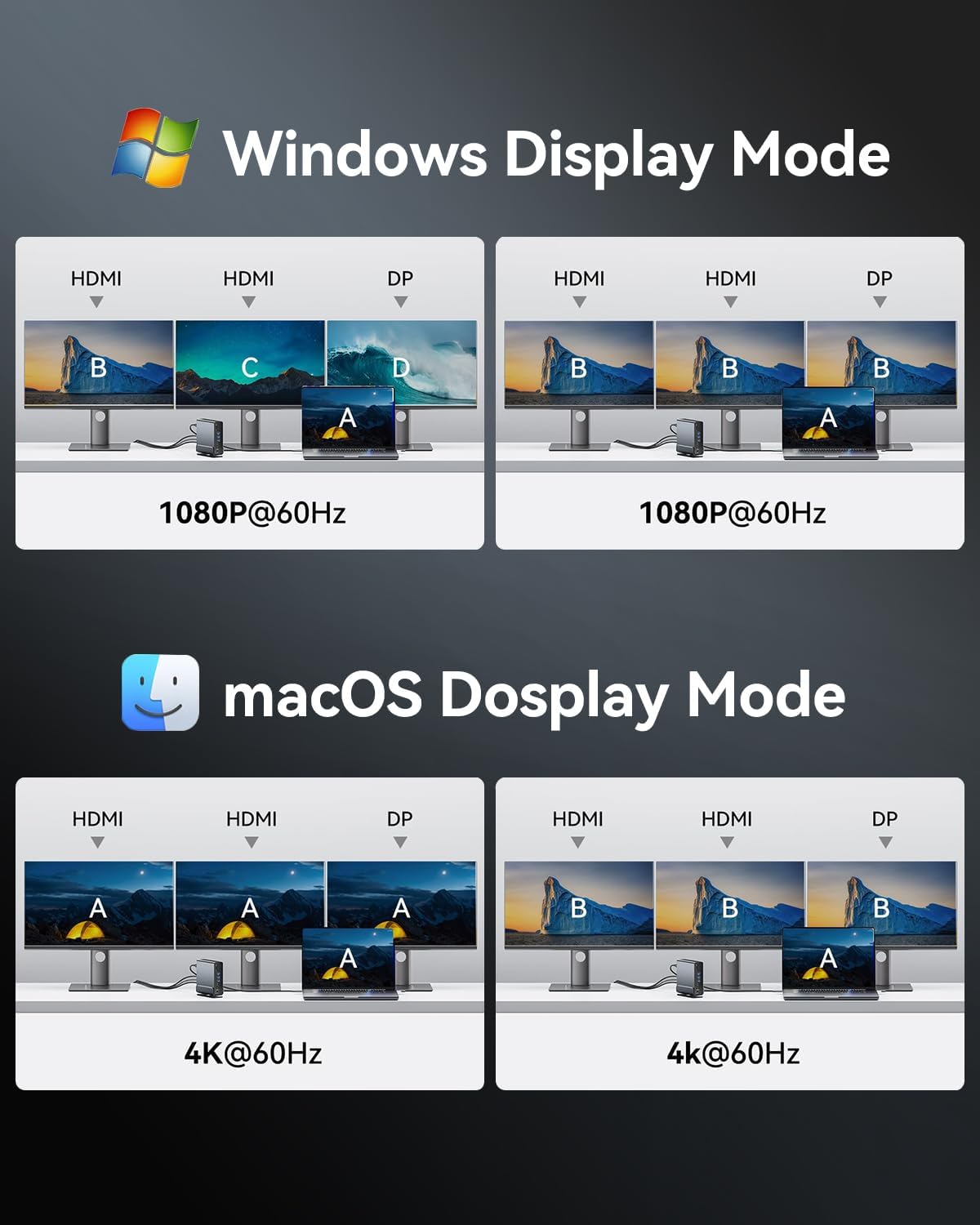
Image: Visual representations of various display configurations for Windows and macOS, including mirror and extend modes across multiple screens.

Image: A table detailing the highest supported resolutions and display modes for single, dual, and triple monitor setups on both Windows and macOS.
4.2. Dostarczanie mocy
Connect your laptop's power adapter to the PD port on the docking station to charge your laptop while using the dock. The docking station supports up to 100W power input, delivering up to 85W to your laptop.

Image: A laptop receiving power through the docking station's 100W Power Delivery port, illustrating the charging function.
4.3. Przesyłanie danych
Connect your USB devices (external hard drives, flash drives, keyboards, mice, etc.) to the available USB ports. The docking station features a mix of USB 3.2 Gen 2 (10Gbps), USB 3.0 (5Gbps), and USB 2.0 (480Mbps) ports.

Image: An illustration detailing the data transfer speeds of different USB ports (Type-A and Type-C) and SD/TF card slots on the docking station.
Insert SD or TF cards into the dedicated slots on the front of the docking station for quick access to photos and files. Both slots can be used simultaneously.

Image: A laptop connected to the docking station, demonstrating easy access to SD and TF memory cards for data transfer and backup.
4.4. Połączenie sieciowe
For a stable and fast internet connection, connect an Ethernet cable from your router or modem to the RJ45 Gigabit Ethernet port on the rear of the docking station.

Image: A laptop connected to the docking station, which is then connected to a network via the Gigabit Ethernet port, ensuring a fast and stable internet connection.
4.5. Połączenie audio
Connect your headphones, speakers, or microphone to the 3.5mm TRRS audio jack on the front of the docking station.

Image: A laptop connected to the docking station, with headphones plugged into the 3.5mm audio and microphone jack, facilitating audio input and output.
5. Zgodność
The VENTION 15-in-1 Docking Station is compatible with a wide range of devices and operating systems, provided your laptop has a full-featured USB-C port or Thunderbolt 3/4 interface.
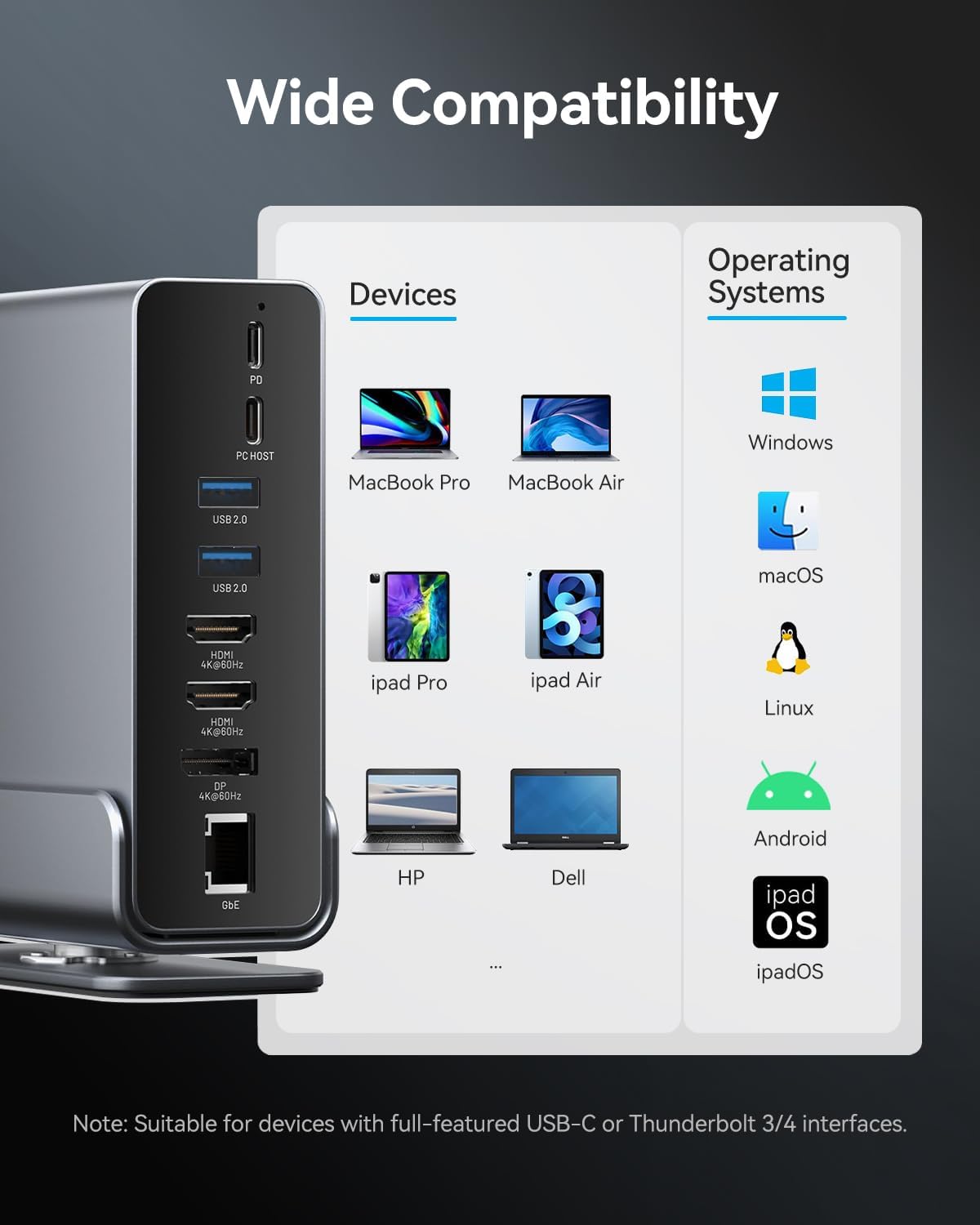
Image: A chart illustrating the wide compatibility of the docking station with various devices such as MacBook Pro/Air, iPad Pro/Air, HP, Dell, Surface, and operating systems including Windows, macOS, Linux, Android, and iPadOS.
Obsługiwane systemy operacyjne:
- Okna
- macOS
- Linux
- Android
- iPadOS
Notatka: Full functionality, especially for multiple displays and power delivery, requires a USB-C port that supports DisplayPort Alternate Mode (Alt Mode) and Power Delivery. Thunderbolt 3/4 ports are fully compatible.
6. Konserwacja
Aby zapewnić długą żywotność i optymalną wydajność stacji dokującej, należy przestrzegać poniższych wskazówek dotyczących konserwacji:
- Czyszczenie: Use a soft, dry cloth to wipe the exterior of the docking station. Avoid using liquid cleaners or abrasive materials.
- Składowanie: Przechowuj stację dokującą w chłodnym, suchym miejscu, z dala od bezpośredniego światła słonecznego i ekstremalnych temperatur.
- Obsługiwanie: Unikaj upuszczania i narażania urządzenia na silne uderzenia.
- Wentylacja: Ensure the docking station has adequate ventilation to prevent overheating. The aluminum alloy shell is designed for optimal heat dissipation.
7. Rozwiązywanie Problemów
If you encounter issues with your docking station, refer to the following common solutions:
- Brak wyjścia wyświetlacza:
- Upewnij się, że port USB-C Twojego laptopa obsługuje tryb DisplayPort Alt Mode.
- Sprawdź wszystkie połączenia kablowe (USB-C do laptopa, HDMI/DP do monitora).
- Sprawdź, czy ustawienia wejściowe monitora są prawidłowe.
- Spróbuj zaktualizować sterowniki graficzne laptopa.
- Uruchom ponownie laptopa i podłącz stację dokującą.
- Laptop się nie ładuje:
- Ensure a compatible USB-C power adapter is connected to the PD port.
- Verify the power adapter provides sufficient wattage (up to 100W recommended).
- Check the connection between the power adapter and the docking station.
- Urządzenia USB nie są rozpoznawane:
- Ensure the USB device is properly inserted into the port.
- Try connecting the device to a different USB port on the docking station or directly to your laptop.
- Uruchom ponownie laptopa.
- Połączenia przerywane:
- Upewnij się, że wszystkie kable są bezpiecznie podłączone.
- Avoid excessive bending or strain on the USB-C cable connecting to your laptop.
- Ensure the docking station is placed on a stable surface and not subject to movement.
- Ethernet nie działa:
- Sprawdź połączenie kabla Ethernet zarówno ze stacją dokującą, jak i z routerem/modemem.
- Sprawdź ustawienia sieciowe na swoim laptopie.
- Uruchom ponownie router/modem.
If the issue persists, please contact VENTION customer support for further assistance.
8. Specyfikacje
| Funkcja | Specyfikacja |
|---|---|
| Model | B0F5PTZTCP |
| Porty | 15 (2x HDMI, 1x DP, 1x RJ45, 1x PD, 1x PC Host, 2x USB 3.2 Gen 2 Type-A, 1x USB 3.0 Type-A, 2x USB 2.0 Type-A, 1x USB 3.2 Gen 2 Type-C, 1x USB 3.2 Gen 1 Type-C, 1x SD, 1x TF, 1x 3.5mm Audio) |
| Wyjście wideo | 2x HDMI (4K@60Hz), 1x DisplayPort (4K@60Hz) |
| Dostarczanie mocy | PD 100W Input (Max), 85W Output to Host (Max) |
| Transfer danych USB | USB 3.2 Gen 2: 10Gbps, USB 3.0: 5Gbps, USB 2.0: 480Mbps |
| Sieć Ethernetowa | Gigabitowy Ethernet (10/100/1000 Mb/s) |
| Czytnik kart | SD/TF (Read & Write 2 cards simultaneously) |
| Audio | 3.5mm TRRS Audio/Microphone Jack |
| Tworzywo | Stop aluminium |
| Wymiary | 7.9 x 6.7 x 2.34 cala |
| Waga | 1.76 funtów (0.8 kg) |
9. Co znajduje się w pudełku
W skład pakietu wchodzą następujące elementy:
- VENTION 15-in-1 Laptop Docking Station
- 1.5-stopowy kabel USB-C do USB-C
- Instrukcja obsługi (ten dokument)

Image: An illustration showing the contents included in the product package: the docking station, a USB-C cable, and the user manual.
10. Gwarancja i wsparcie
VENTION products are designed for reliability and performance. For warranty information or technical support, please refer to the contact details provided on the product packaging or visit the official VENTION webZachowaj paragon jako dowód zakupu na wypadek reklamacji.


