1. Wprowadzenie
This manual provides essential information for setting up, operating, and maintaining your HP OMEN 31.5 inch UHD 144Hz Smart Gaming Monitor. This monitor is designed to deliver an immersive visual experience with its 4K UHD display, high refresh rate, and smart features.
Key features include a 4K UHD (3840 x 2160) IPS panel, 144Hz refresh rate, VESA DisplayHDR 400, 1ms GtG response time with Overdrive, and NVIDIA G-SYNC compatibility. It also offers smart functionalities for streaming and multi-device connectivity.
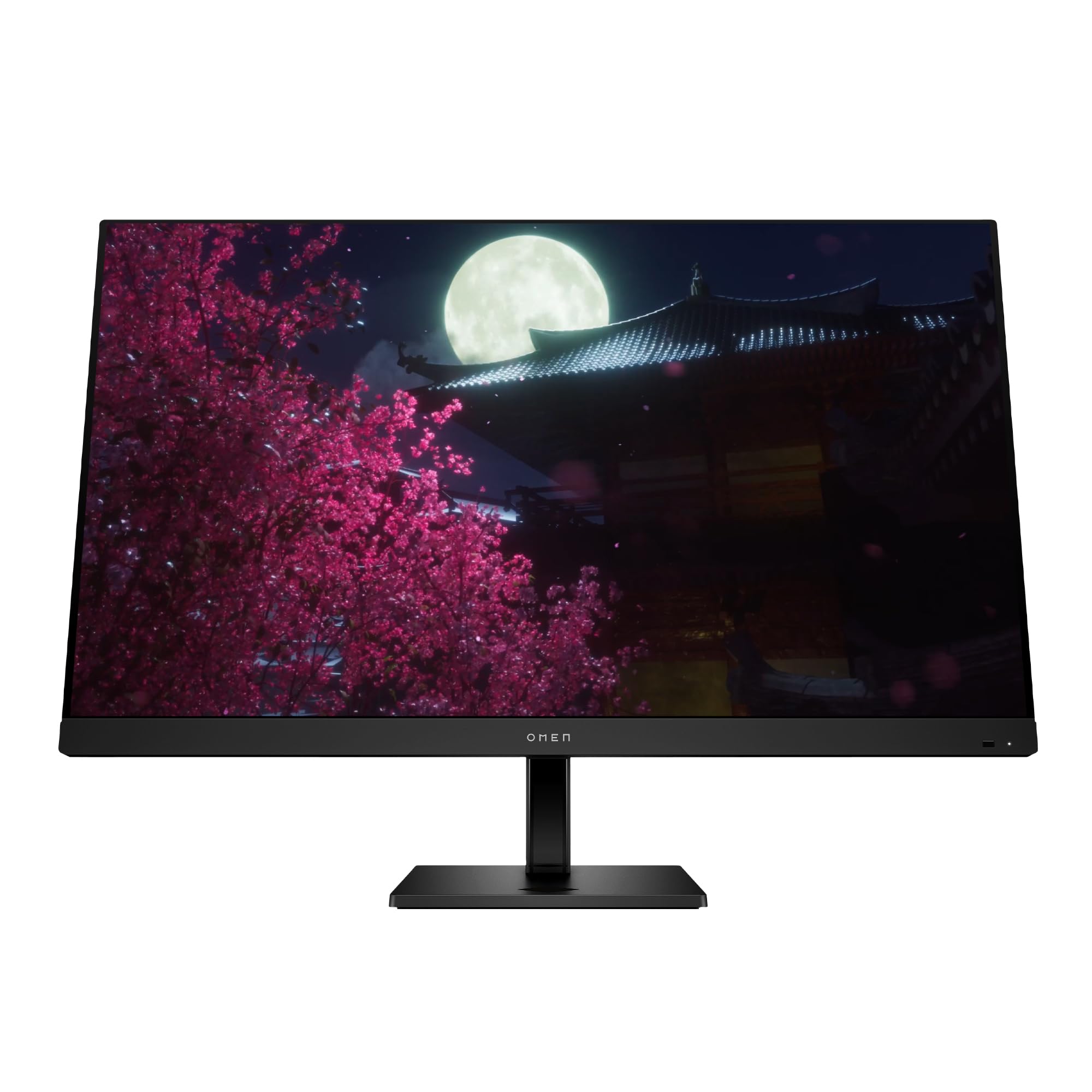
Image 1.1: The HP OMEN 31.5 inch UHD 144Hz Smart Gaming Monitor, highlighting its 4K UHD display, VESA DisplayHDR 400, integrated 3W speakers, and NVIDIA G-SYNC compatibility.
2. Co znajduje się w pudełku
Przed przystąpieniem do instalacji sprawdź, czy w opakowaniu znajdują się wszystkie elementy.
- HP OMEN 31.5 inch UHD 144Hz Smart Gaming Monitor
- Stojak na monitor (podstawa i szyjka)
- Kabel DisplayPort
- Kabel HDMI
- Kabel USB typu C do typu C
- Kabel zasilający AC
- IR and Bluetooth remote control
- 2 baterie AAA (do pilota)
- Uchwyt na kabel
- Quick Setup Poster
- Documentation (including Warranty card)

Image 2.1: Visual representation of the items included in the product packaging, such as the monitor, cables, remote, and documentation.
3. Konfiguracja
3.1 Montaż podstawy monitora
- Ostrożnie wyjmij monitor i elementy stojaka z opakowania.
- Przymocuj podstawę do panelu monitora, upewniając się, że zatrzasnęła się pewnie na swoim miejscu.
- Attach the stand base to the stand neck, tightening any screws if necessary.
- Zmontowany monitor należy umieścić na stabilnej, płaskiej powierzchni.
3.2 Podłączanie monitora
Podłącz niezbędne kable do monitora i komputera lub innych urządzeń.
- Moc: Connect the AC power cable to the monitor's power input and then to a wall outlet.
- Wejście wideo: Connect either the DisplayPort cable, HDMI cable, or USB Type-C cable from your computer/device to the corresponding port on the monitor. The monitor supports 2 HDMI 2.1 ports, 1 DisplayPort 1.4, and 1 USB Type-C port.
- Urządzenia USB: Connect USB peripherals to the 2 USB 2.0 Type-A ports on the monitor.
- Wyjście audio: If desired, connect external speakers or headphones to the 3.5 mm Audio Jack (Audio Out).
- Sieć: For smart features, connect an Ethernet cable to the RJ-45 port (100 Mbps, for Android TV OS use only).

Image 3.1: The rear panel of the monitor, illustrating the location of the 2 HDMI 2.1 ports, USB Type-C port, 2 USB 2.0 Type-A ports, 3.5 mm Audio Jack, DisplayPort 1.4, and RJ-45 port.
3.3 Pierwsze włączenie zasilania
- Upewnij się, że wszystkie kable są bezpiecznie podłączone.
- Press the power button on the monitor or use the remote control to turn on the monitor.
- Follow any on-screen prompts for initial setup, such as language selection and network connection for smart features.
4. Obsługa monitora
4.1 Podstawowe sterowanie i nawigacja OSD
The monitor can be controlled using the physical buttons located on the monitor or the included IR and Bluetooth remote control. The On-Screen Display (OSD) menu allows you to adjust various settings.
- Use the remote control's directional buttons to navigate the OSD menu.
- Press the 'OK' or 'Enter' button to select an option.
- Use the 'Back' or 'Exit' button to return to the previous menu or exit the OSD.
4.2 Ustawienia i funkcje wyświetlacza
Zoptymalizuj swoje viewdoświadczenie poprzez dostosowanie następujących ustawień:
- Rezolucja: The monitor supports 4K UHD (3840 x 2160) resolution. Ensure your connected device is configured to output at this resolution for optimal clarity.
- Częstotliwość odświeżania: Set your device's display settings to 144Hz for smooth motion and responsive gameplay.
- VESA DisplayHDR 400: Enable HDR settings on your device and in the monitor's OSD for enhanced contrast and color depth in compatible content.
- Zgodność z NVIDIA G-SYNC: For NVIDIA graphics card users, enable G-SYNC in your NVIDIA Control Panel to synchronize the monitor's refresh rate with your GPU's frame rate, reducing screen tearing and stuttering.
- Dolby Vision i Dolby Atmos: Experience enhanced visuals and immersive audio with Dolby support. Ensure your content and connected devices are compatible.
- HP Eye Ease with Eyesafe Certification: This feature reduces blue light emissions to help minimize eye strain during extended use, without compromising color accuracy.

Image 4.1: The monitor features HP Eye Ease with Eyesafe Certification, designed to provide comfortable viewing by reducing blue light while maintaining color quality.
4.3 Inteligentne funkcje i łączność
The OMEN 32x monitor offers advanced smart functionalities:
- Wielo-View: Split your screen to display content from two different sources simultaneously. For example, use a wired connection on one side and wireless casting on the other.
- Multi-Platform Streamer Honors: Stream content directly from your screen to multiple platforms. Refer to the monitor's smart OS interface for configuration.
- Shared Keyboard/Mouse (KB/M): Easily switch your keyboard and mouse control between multiple connected devices, simplifying your setup.
- Home Panel Integration: Control smart home devices like lights and thermostats, view doorbell notifications, and full-screen camera feeds directly from the monitor's home panel.

Image 4.2: The monitor's capability to live stream to multiple platforms and utilize a split-screen Multi-View feature for enhanced multitasking.

Image 4.3: The monitor's smart home panel, allowing control of lights, temperature, and displaying doorbell notifications and full-screen camera views.
4.4 Regulacje ergonomiczne
Dostosuj monitor do optymalnego ustawienia viewkomfort:
- Regulacja wysokości: The stand allows for a 100mm height adjustment range.
- Przechylenie: The monitor can be tilted from -5° to +20° to find your preferred viewkąt.

Image 4.4: Illustration of the monitor's ergonomic adjustments, including its tilt range (-5° to +20°) and 100mm height adjustable range.
5. Konserwacja
5.1 Czyszczenie monitora
- Przed czyszczeniem należy zawsze wyłączyć monitor i odłączyć przewód zasilający.
- Delikatnie użyj miękkiej, niestrzępiącej się szmatki dampCzyścić wodą lub nieściernym środkiem do czyszczenia ekranów.
- Nie rozpylać środka czyszczącego bezpośrednio na ekran.
- Unikaj stosowania silnych środków chemicznych, rozpuszczalników lub materiałów ściernych, ponieważ mogą one uszkodzić ekran lubasing.
5.2 Ogólna opieka
- Unikaj umieszczania ciężkich przedmiotów na monitorze i jego kablach.
- Nie należy blokować otworów wentylacyjnych monitora.
- Trzymaj monitor z dala od bezpośredniego światła słonecznego, źródeł ciepła i nadmiernej wilgoci.
6. Rozwiązywanie Problemów
Jeśli masz problemy z monitorem, zapoznaj się z poniższymi typowymi rozwiązaniami:
| Problem | Możliwe rozwiązanie |
|---|---|
| Brak zasilania | Upewnij się, że kabel zasilający jest prawidłowo podłączony do monitora i sprawnego gniazdka elektrycznego. Sprawdź, czy przycisk zasilania jest wciśnięty. |
| Brak sygnału / Pusty ekran | Verify that the video cable (DisplayPort, HDMI, or USB-C) is correctly connected to both the monitor and your computer. Ensure the correct input source is selected in the monitor's OSD menu. Try restarting your computer. |
| Migotanie lub zniekształcenie obrazu | Check the video cable for damage. Ensure your graphics drivers are up to date. Adjust the refresh rate in your computer's display settings. Disable G-SYNC temporarily to see if the issue persists. |
| Kolory są nieprawidłowe | Adjust color settings in the OSD menu. Perform a factory reset of the monitor settings. Ensure your graphics card color settings are correctly configured. |
| Pilot nie działa | Check and replace the AAA batteries. Ensure there are no obstructions between the remote and the monitor's IR receiver. Re-pair the Bluetooth remote if necessary. |
If the problem persists after trying these solutions, contact HP customer support.
7. Specyfikacje
| Funkcja | Szczegół |
|---|---|
| Numer modelu | 99Z68AA#ABA |
| Rozmiar ekranu | 31.5 cali |
| Typ panelu | IPS |
| Rezolucja | 4K UHD (3840 x 2160) |
| Częstotliwość odświeżania | 144 Hz |
| Czas reakcji | 1ms GtG (with Overdrive) |
| Obsługa HDR | Wyświetlacz VESAHDR 400 |
| Zgodność z G-SYNC | Zgodność z NVIDIA G-SYNC |
| Współczynnik kontrastu | 1000:1 |
| Jasność | 400 nitów (szczyt) |
| Viewkąty | 178° (poziomo) / 178° (pionowo) |
| Głośniki | Four integrated 3W speakers |
| Porty wejściowe wideo | 2 x HDMI 2.1, 1 x DisplayPort 1.4, 1 x USB Type-C |
| Porty USB | 2 x USB 2.0 Type-A (Battery Charging 1.2) |
| Wyjście audio | Gniazdo audio 3.5 mm |
| Port sieciowy | 1 x RJ-45 (100 Mbps, for Android TV OS only) |
| Ergonomia | Height adjustable (100mm), Tilt (-5° to +20°) |
| Wymiary (szer. x gł. x wys.) | 28.11 x 9.58 x 16.93 cala (z podstawką) |
| Waga | 23.3 funta (z podstawą) |
| Kolor | Czarny |
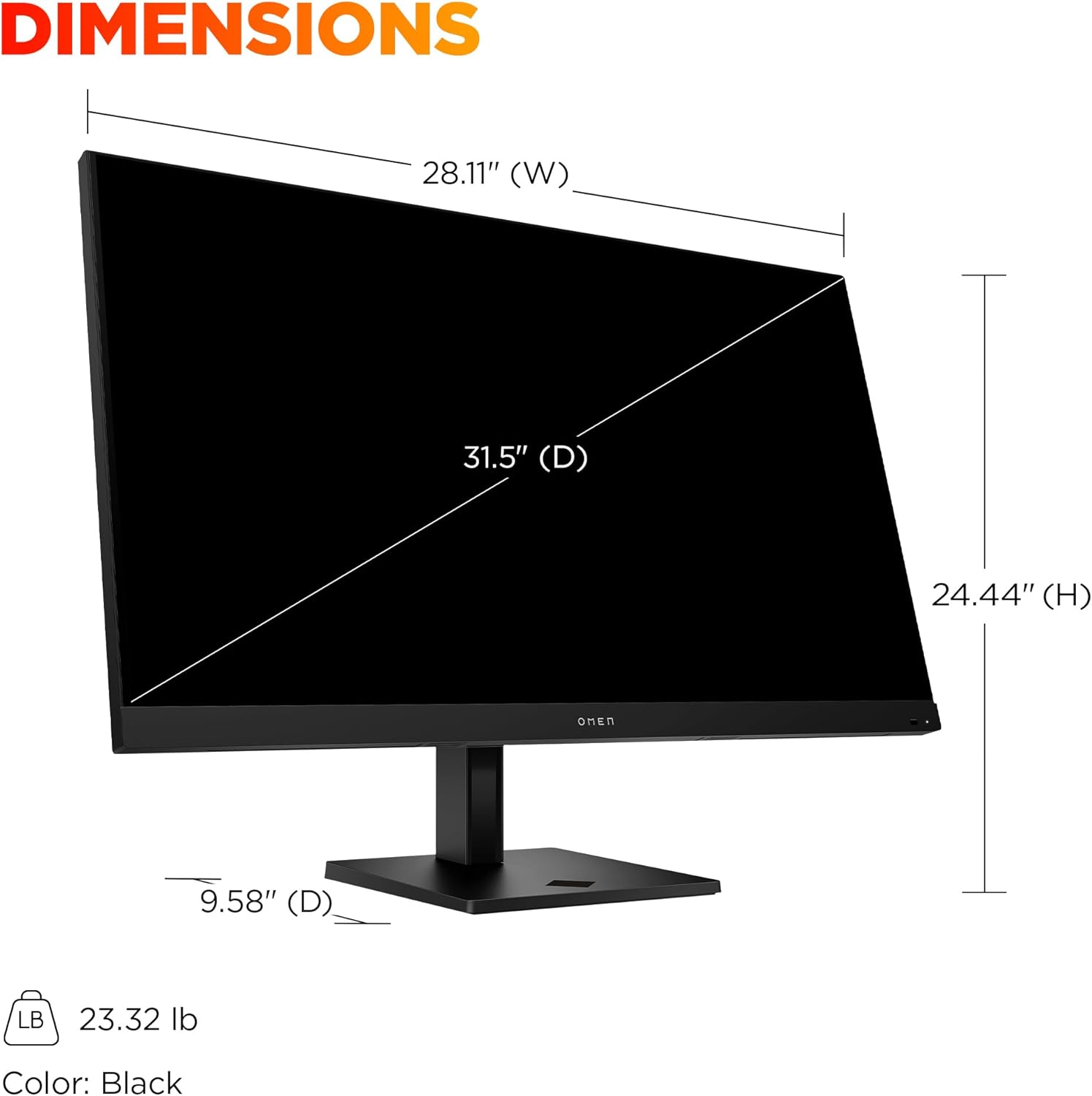
Image 7.1: Detailed dimensions of the HP OMEN 31.5 inch monitor, including width, height, and depth, along with its weight.
8. Gwarancja i wsparcie
8.1 Informacje o gwarancji
This HP OMEN monitor comes with a HP 3-year limited warranty. Please refer to the warranty card included in your product packaging for full terms and conditions. Keep your proof of purchase for warranty claims.
8.2 Obsługa klienta
For technical assistance, troubleshooting beyond this manual, or warranty service, please contact HP customer support. You can find support contact information on the official HP website or through the documentation provided with your monitor.
Online resources, drivers, and FAQs may also be available on the Wsparcie HP webstrona.