1. Wprowadzenie
Welcome to the user manual for your ASUS NUC 15 Pro Tall Barebones Mini PC. This guide provides essential information for setting up, operating, maintaining, and troubleshooting your new mini PC. This barebones kit features an Intel Series 2 Core 7 240H processor, supports dual-channel DDR5 RAM, offers a dual storage design, Thunderbolt™ 4, Wi-Fi 7, Bluetooth 5.4, and toolless chassis access for easy upgrades. A VESA mount is included for flexible placement.
2. Co znajduje się w pudełku
- ASUS NUC 15 Pro Tall Mini PC Unit (Model: RNUC15CRHC70000U)
- Mocowanie VESA
- Zasilacz sieciowy
- Przewód zasilający
3. Koniec produktuview
Familiarize yourself with the physical layout and connectivity options of your ASUS NUC 15 Pro Tall Mini PC.
3.1 Panel przedni

Image: Front panel of the ASUS NUC 15 Pro Tall Mini PC, highlighting the USB ports, audio jack, and power button.
- Przycisk zasilania: Do włączania i wyłączania urządzenia.
- USB 3.2 Gen 2x2 Type-C Port: For high-speed data transfer and connecting compatible Type-C devices.
- 2x USB 3.2 Gen2 Type-A Ports: Do podłączania urządzeń peryferyjnych USB.
- Wtyczka dźwiękowa: Do podłączenia słuchawek lub głośników.
3.2 Panel tylny

Image: Rear panel of the ASUS NUC 15 Pro Tall Mini PC, detailing the power input, display outputs, network, and additional USB/Thunderbolt ports.
- Wejście prądu stałego: Złącze wejściowe zasilania.
- 2x HDMI 2.1 (TMDS) Ports: Do podłączania wyświetlaczy.
- 2.5Gb Ethernet Port: Do przewodowego połączenia sieciowego.
- USB 3.2 Gen2 Type-A Port: Do podłączania urządzeń peryferyjnych USB.
- Port USB 2.0 typu A: Do podłączania urządzeń peryferyjnych USB.
- 2x Thunderbolt™ 4 Ports: For high-speed data transfer, display output, and power delivery to compatible devices.
- Security Mechanism for Power Cable: To secure the power cable connection.
3.3 Projekt wewnętrzny
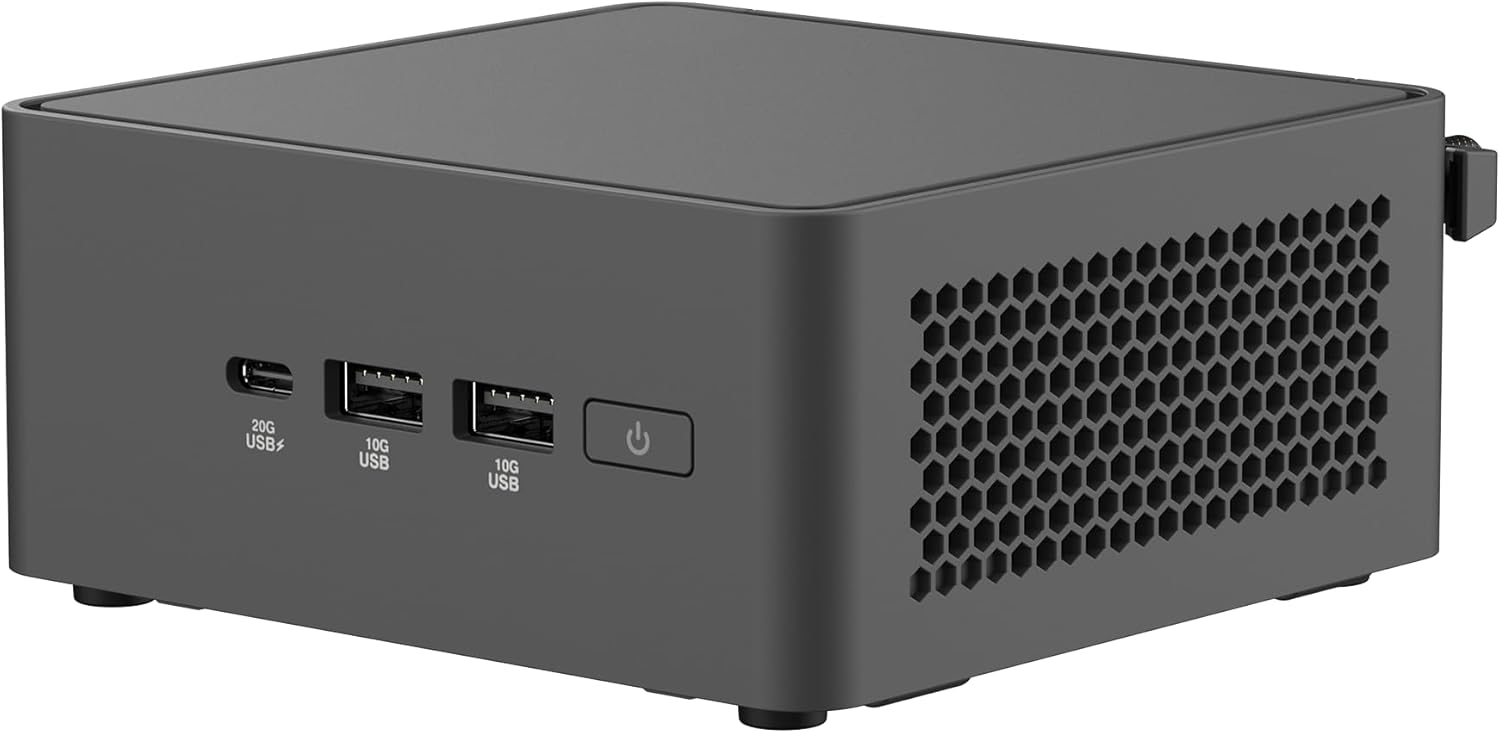
Image: The ASUS NUC 15 Pro Tall Mini PC with its top cover open, illustrating the toolless access for installing or upgrading RAM and storage components.
The chassis features a toolless design, allowing for easy access to internal components for RAM and storage upgrades. This design simplifies maintenance and customization.
4. Konfiguracja
Follow these steps for the initial setup of your ASUS NUC 15 Pro Tall Mini PC.
- Rozpakowywanie: Ostrożnie wyjąć wszystkie elementy z opakowania.
- Montaż (opcjonalny): If using the included VESA mount, attach it to the rear of a compatible display or a wall mount. Secure the mini PC to the VESA mount. This allows for a clutter-free workspace.

Image: The ASUS NUC 15 Pro Tall Mini PC shown mounted on the back of a display, demonstrating its VESA mounting capability for flexible configuration.
- Podłączanie urządzeń peryferyjnych:
- Connect your monitor(s) to the HDMI 2.1 or Thunderbolt 4 ports. The device supports up to four 4K displays.
- Podłącz klawiaturę i mysz do dostępnych portów USB.
- For wired network access, connect an Ethernet cable to the 2.5Gb Ethernet port.
- Connect speakers or headphones to the audio jack on the front panel.
- Podłączenie zasilania: Connect the AC power adapter to the DC-In port on the rear panel, then plug the power cord into an electrical outlet.
- Pierwsze włączenie: Naciśnij przycisk zasilania na panelu przednim, aby włączyć mini PC.
- Instalacja systemu operacyjnego: As a barebones unit, an operating system (e.g., Windows) will need to be installed. Follow the operating system's installation instructions.
5. Obsługa
This section covers basic operation of your mini PC.
5.1 Włączanie/wyłączanie zasilania
Press the power button on the front panel to turn the unit on. To shut down, use the operating system's shutdown procedure. A short press of the power button can also put the system to sleep.
5.2 Konfiguracja wyświetlacza
Utilize the HDMI 2.1 and Thunderbolt 4 ports to connect multiple displays. Refer to your operating system's display settings for configuring multi-monitor setups. The device supports headless emulation and a sync power-off feature for energy efficiency.
5.3 Łączność
- Wi-Fi 7: Połącz się z siecią bezprzewodową, aby uzyskać szybki dostęp do Internetu.
- Bluetooth 5.4: Pair with compatible Bluetooth devices such as keyboards, mice, and audio peripherals.
- Porty USB: Use the various USB ports (USB 3.2 Gen 2x2 Type-C, USB 3.2 Gen2 Type-A, USB 2.0 Type-A) for connecting external devices and data transfer.
- Thunderbolt ™ 4: For high-speed data transfer and connecting advanced peripherals.
6. Konserwacja
Właściwa konserwacja gwarantuje długowieczność i optymalną wydajność Twojego mini komputera.
6.1 Toolless Chassis Access for Upgrades
The mini PC features a toolless 2.0 chassis design for easy upgrades. To access internal components:
- Ensure the device is powered off and disconnected from all power sources.
- Follow the instructions in the detailed hardware guide (typically provided with barebones kits) to open the chassis.
- Install or upgrade DDR5 RAM modules (up to 96GB supported).
- Install or upgrade SSD storage drives (dual storage design).
- Zamknij dokładnie obudowę.
6.2 Układ chłodzenia
The advanced cooling system is designed to maintain optimal performance and reliability. Ensure proper ventilation around the unit to prevent overheating. Avoid blocking air vents.
6.3 Czyszczenie
Use a soft, dry cloth to clean the exterior of the mini PC. Do not use liquid cleaners or aerosols, as they may damage the components.
7. Rozwiązywanie Problemów
W tej sekcji znajdziesz rozwiązania typowych problemów, na jakie możesz natrafić.
7.1 Brak zasilania
- Verify the power adapter and cord are securely connected to the mini PC and a working electrical outlet.
- Upewnij się, że przycisk zasilania jest mocno wciśnięty.
7.2 Brak wyjścia wyświetlacza
- Check all display cable connections (HDMI, Thunderbolt).
- Sprawdź, czy monitor jest włączony i ustawiony na prawidłowe źródło sygnału wejściowego.
- Jeśli używasz wielu wyświetlaczy, spróbuj podłączyć tylko jeden wyświetlacz na raz, aby zidentyfikować problem.
7.3 System Instability or Overheating
- Ensure the mini PC has adequate ventilation and its air vents are not obstructed.
- Update drivers and BIOS to the latest versions from the ASUS support webstrona.
- Jeśli problem nadal występuje, skontaktuj się z pomocą techniczną ASUS webodwiedź witrynę lub skontaktuj się z obsługą klienta.
7.4 Problemy z łącznością (Wi-Fi/Bluetooth)
- Sprawdź, czy w ustawieniach systemu operacyjnego włączona jest obsługa Wi-Fi i Bluetooth.
- Check for updated wireless drivers.
- Verify that your router or Bluetooth device is functioning correctly and within range.
8. Specyfikacje
| Funkcja | Szczegół |
|---|---|
| Nazwa modelu | RNUC15CRHC70000U |
| Edytor | Intel Series 2 Core 7 240H (2.5 GHz) |
| BARAN | Do 96 GB DDR5 |
| Składowanie | Dual Storage Design (SSD, PCIE x 4 interface) |
| Koprocesor graficzny | Grafika Intel (zintegrowana) |
| Maksymalna rozdzielczość ekranu | 3840x2160 pikseli (4K) |
| Wyświetl wyjście | 2x HDMI 2.1, 2x Thunderbolt™ 4 (Supports up to 4x 4K displays) |
| Łączność bezprzewodowa | Wi-Fi 7 (802.11.be), Bluetooth 5.4 |
| Sieć Ethernetowa | 2.5GbEthernet |
| Porty USB (przód) | 1x USB 3.2 Gen 2x2 Type-C, 2x USB 3.2 Gen2 Type-A |
| Porty USB (tył) | 1x USB 3.2 Gen2 typu A, 1x USB 2.0 typu A |
| System operacyjny | Windows (Barebones kit, OS not included) |
| Wymiary (dł. x szer. x wys.) | 4.61 x 4.41 x 2.13 cala |
| Waga przedmiotu | 12.8 uncji |
| Kolor | Czarny |
9. Gwarancja i wsparcie
Your ASUS NUC 15 Pro Tall Barebones Mini PC comes with a standard manufacturer's warranty. Please refer to the warranty card included with your product or visit the official ASUS support webSzczegółowe warunki gwarancji można znaleźć na naszej stronie.
For technical assistance, driver downloads, or further support, please visit the ASUS support website. You can find the latest information and contact options at www.asus.com/support.


