1. Konfiguracja
1.1 Rozpakowanie i zawartość opakowania
Carefully unpack your Keychron K8 HE keyboard. Ensure all components are present:
- 1x Fully Assembled Keyboard (K8 HE)
- 1x kabel typu A do typu C
- 1x odbiornik typu A 2.4 GHz
- 1x Adapter przedłużający do odbiornika
- 1x ściągacz do klawiszy i przełączników
- 1x Śrubokręt
- 1x Klucz Szesnastkowy
- Additional Keycaps (for Mac/Windows layout customization)

Image: The Keychron K8 HE Special Edition package contents, showing the keyboard, USB cable, 2.4GHz receiver, extension adapter, keycap and switch puller, screwdriver, and hex key.
1.2 Połączenie początkowe
The K8 HE supports three connection modes: 2.4 GHz wireless, Bluetooth 5.1, and USB-C wired. Select your preferred mode using the switch located on the side of the keyboard.
- Łączność bezprzewodowa 2.4 GHz: Plug the included 2.4GHz receiver into your computer's USB-A port. Switch the keyboard to 2.4G mode. The keyboard should connect automatically.
- Bluetooth: Switch the keyboard to Bluetooth mode. On your device, search for Bluetooth devices and select 'Keychron K8 HE'. Follow any on-screen pairing instructions. The keyboard can pair with up to three devices.
- USB-C przewodowy: Connect the keyboard to your computer using the provided USB-C cable. The keyboard will operate in wired mode and charge simultaneously.

Image: A close-up of the Keychron K8 HE keyboard's side, highlighting the switches for 2.4 GHz, Bluetooth, and wired USB-C connectivity, along with the USB-C port.
1.3 Zgodność systemu
The Keychron K8 HE keyboard is compatible with Mac, Windows, and Linux operating systems. Use the dedicated switch on the keyboard to select the appropriate operating system layout for optimal functionality.
Wideo: Ponadview of the Keychron K8 HE Wireless Hot Swappable Hall Effect Keyboard, demonstrating its features including online key remapping, adjustable actuation points, multi-system compatibility, triple mode connectivity, magnetic switches, and per-key RGB lighting.
2. Instrukcja obsługi
2.1 Tryby łączności
The K8 HE offers versatile connectivity options:
- Łączność bezprzewodowa 2.4 GHz: Provides an ultra-fast 1000 Hz polling rate for responsive, lag-free performance, ideal for gaming.
- Bluetooth 5.1: Allows connection to up to three devices simultaneously, suitable for multi-device workflows.
- USB-C przewodowy: Offers a stable connection and charges the keyboard's internal battery.
2.2 Key Customization with Keychron Launcher
Customize your keyboard's functions using the web-based Keychron Launcher application. This tool allows you to remap keys, create macros, adjust actuation points, and enable advanced features without requiring software downloads.
- Dostęp: Otwórz swój web browser and navigate to the Keychron Launcher webstrona.
- Cechy: Adjust actuation distance, configure rapid trigger, set dynamic keystrokes, and manage RGB lighting effects.

Image: A screenshot of the Keychron Launcher web application, demonstrating its interface for customizing keymaps, macros, and other keyboard settings online.
2.3 Rapid Trigger Functionality
The K8 HE features Rapid Trigger, which allows keys to activate and reset based on real-time travel distance rather than fixed points. This enables faster, more precise keystrokes, particularly beneficial for competitive gaming.

Image: A diagram illustrating the difference between magnetic switches with rapid trigger (activating and resetting based on travel distance) and traditional mechanical switches (activating and resetting at fixed points).
2.4 Adjustable Actuation Point
Customize the actuation point for each key from 0.2 mm to 3.8 mm with 0.1 mm sensitivity. This allows you to fine-tune key responsiveness to your preference, reducing misfires and optimizing your typing or gaming style.
2.5 Dynamic Keystrokes (DKS)
Dynamic Keystrokes allow you to assign up to four different actions to a single key based on the press depth. For example, a light press could trigger one action, while a deeper press triggers another. This feature enhances efficiency and control, especially in games requiring layered inputs.
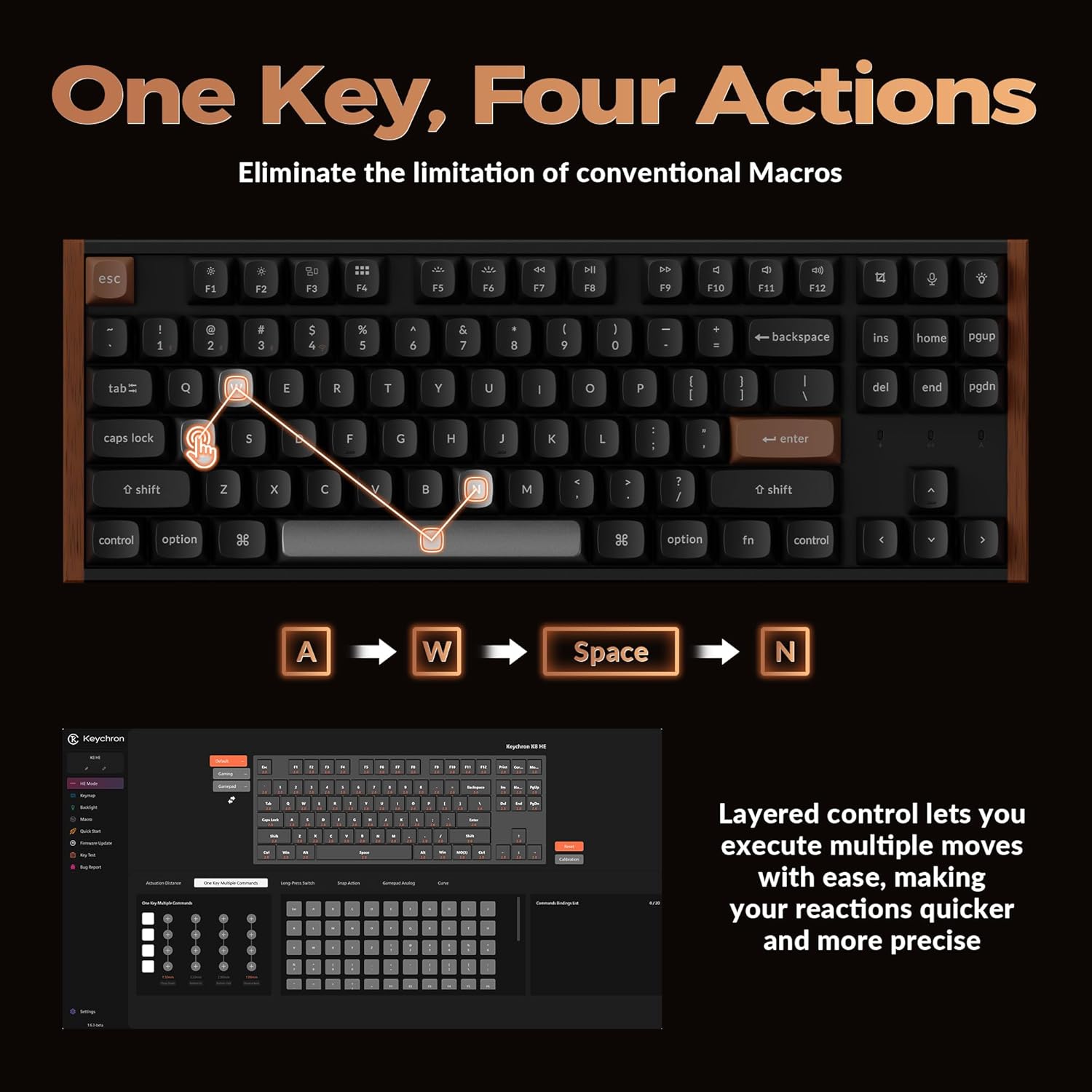
Image: A visual representation of Dynamic Keystrokes (DKS), demonstrating how a single key can execute up to four different actions depending on the depth of the keypress, with an example of 'A', 'W', 'Space', and 'N' actions.
2.6 Snap Action
Snap Action, combined with Last Key Priority (LKP), prioritizes deeper keypresses when multiple keys are pressed. This feature contributes to smoother and more precise directional changes, particularly useful in fast-paced gaming scenarios.
2.7 Oświetlenie RGB
The K8 HE features per-key RGB backlighting. Customize lighting effects, colors, and brightness through the Keychron Launcher software to match your setup or mood.

Image: The Keychron K8 HE keyboard illuminated with colorful RGB backlighting, showcasing the customizable lighting options.
3. Konserwacja
3.1 Czyszczenie klawiatury
Aby zachować optymalną wydajność i wygląd klawiatury, należy ją regularnie czyścić:
- Użyj miękkiej, niestrzępiącej się ściereczki, lekko wyczyśćampened with water or a mild cleaning solution to wipe down keycaps and the frame.
- Do usuwania kurzu i zanieczyszczeń spomiędzy klawiszy należy użyć sprężonego powietrza.
- Unikaj ostrych środków chemicznych i materiałów ściernych.
3.2 Przełączniki i nakładki klawiszy z możliwością wymiany na gorąco
The K8 HE features hot-swappable Hall Effect switches, allowing you to easily replace them without soldering. Keycaps can also be removed for cleaning or customization.
- Zdejmowanie nakładek klawiszy: Use the included keycap puller to gently lift keycaps straight up.
- Demontaż przełączników: Use the included switch puller to carefully grip and pull the switch out.
- Installing Switches/Keycaps: Align the new switch/keycap with the socket and press down gently until it clicks into place. Ensure pins are not bent when installing switches.

Image: A close-up of the Keychron K8 HE keyboard with several keycaps and Hall Effect switches removed, illustrating the hot-swappable design for easy customization and maintenance.
4. Rozwiązywanie Problemów
4.1 Problemy z łącznością
- 2.4 GHz / Bluetooth Not Connecting: Ensure the keyboard is in the correct mode (2.4G or BT). For Bluetooth, check if the keyboard is in pairing mode and visible on your device. Try re-pairing. For 2.4G, ensure the receiver is securely plugged in.
- Połączenie przerywane: Move the keyboard closer to the receiver/device. Avoid sources of interference (e.g., other wireless devices, large metal objects). Ensure the keyboard battery is sufficiently charged.
- Połączenie przewodowe nie działa: Try a different USB-C cable or USB port on your computer. Ensure the keyboard is switched to wired mode.
4.2 Keychron Launcher Not Recognizing Keyboard
- Ensure the keyboard is connected via USB-C cable to your computer.
- Zweryfikuj swoje web browser is compatible (e.g., Chrome).
- Check for any necessary drivers or permissions for your operating system (especially Linux users may need specific udev rules).
4.3 Keys Not Responding or Double-Typing
- Check if the switch is properly seated. Remove the keycap and switch, then reinsert.
- If using wireless modes, ensure the battery is charged.
- Reset the keyboard to factory settings (refer to Keychron's official support for specific instructions).
5. Specyfikacje
| Funkcja | Specyfikacja |
|---|---|
| Model | K8 ON |
| Układ | TKL (Tenkeyless), 87 Keys |
| Łączność | 2.4 GHz Wireless, Bluetooth 5.1, USB-C Wired |
| Przełączniki | Hall Effect Magnetic Switches, Hot-Swappable |
| Punkt Uruchomienia | Adjustable from 0.2 mm to 3.8 mm (0.1 mm sensitivity) |
| Współczynnik sondowania | 1000 Hz (2.4G & Wired Modes) |
| Podświetlenie | RGB |
| Materiał nasadek klawiszy | Podwójny strzał PBT |
| Materiał ramy | Aluminum, Wood Sidings |
| Typ baterii | Litowo-polimerowy (w zestawie) |
| Waga przedmiotu | 3.91 funta |
| Wymiary opakowania | 15.79 x 7.95 x 2.87 cala |
| Kompatybilny system operacyjny | Mac, Windows, Linux |
5.1 Wymiary
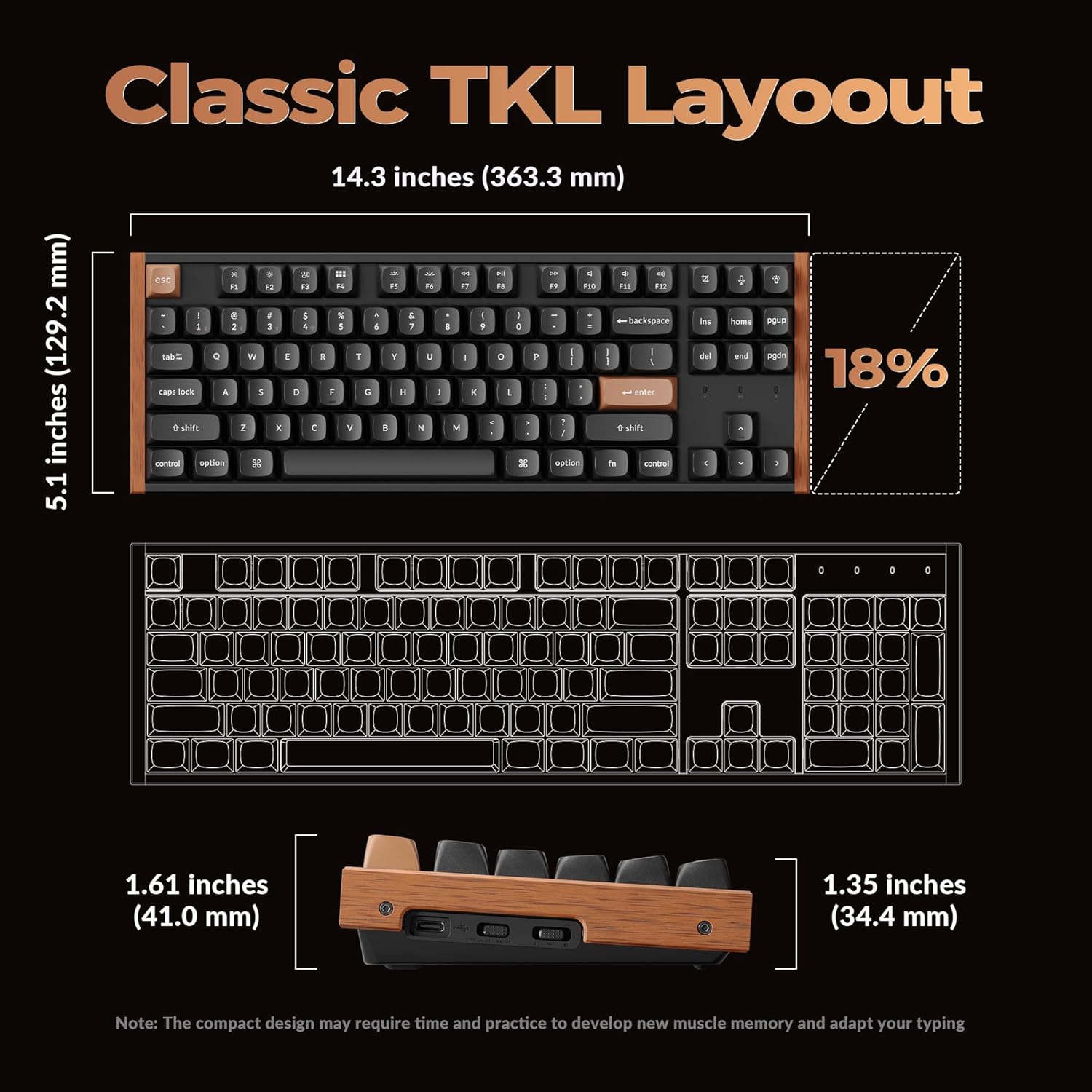
Image: A diagram detailing the dimensions of the Keychron K8 HE TKL keyboard, including its length (14.3 inches / 363.3 mm), width (5.1 inches / 129.2 mm), and height (1.61 inches / 41.0 mm at the front, 1.35 inches / 34.4 mm at the back).
6. Gwarancja i wsparcie
6.1 Gwarancja na produkt
Keychron products typically come with a limited warranty covering manufacturing defects. Please refer to the official Keychron webAby zapoznać się ze szczegółowymi warunkami gwarancji obowiązującymi w Twoim regionie, odwiedź witrynę lub dokumentację zakupu.
6.2 Obsługa klienta
For technical assistance, troubleshooting beyond this manual, or warranty claims, please contact Keychron customer support through their official website. Have your product model and purchase information ready when contacting support.


