1. Wprowadzenie
Welcome to your new HP 14 Laptop. This manual provides comprehensive instructions to help you get started, operate, maintain, and troubleshoot your device. Designed for portability and productivity, your HP 14 Laptop features a thin, lightweight design with a micro-edge display, making it ideal for daily tasks and on-the-go use.
Key features include an Intel Celeron N4120 processor, 16GB RAM, 192GB storage (64GB eMMC + 128GB SD card), and Windows 11 Home in S Mode. A 1-year subscription to Microsoft 365 is also included to enhance your productivity.

Figure 1.1: The HP 14 Laptop, showcasindzięki eleganckiemu wzornictwu i otwartemu wyświetlaczowi.
2. Konfiguracja
2.1 Pierwsze włączenie i konfiguracja systemu Windows
- Podłącz zasilanie: Podłącz zasilacz sieciowy do portu AC Smart Pin w laptopie, a następnie do gniazdka elektrycznego.
- Włączanie: Open the laptop lid and press the power button. The laptop will start.
- Windows 11 Home S Mode Setup: Follow the on-screen instructions to complete the initial Windows 11 Home S Mode setup. This includes selecting your region, language, connecting to a Wi-Fi network, and setting up your Microsoft account.
- Microsoft 365 Activation: Activate your included 1-year Microsoft 365 subscription by following the prompts during Windows setup or by opening any Office application (Word, Excel, PowerPoint) after setup is complete.
2.2 Podłączanie urządzeń peryferyjnych
Your HP 14 Laptop offers various ports for connecting external devices:
- Urządzenia USB: Connect USB drives, external keyboards, or mice to the USB 3.1 Gen 1 Type-A ports or the USB 3.1 Gen 1 Type-C port.
- Wyświetlacz zewnętrzny: Use the HDMI 1.4b port to connect an external monitor or projector. The laptop supports up to FHD (1920x1080)@60Hz resolution on external displays.
- Urządzenia audio: Plug headphones or a headset with a microphone into the headphone/microphone combo jack.
- Karta SD: Insert an SD card into the multi-format SD media card reader for expanded storage or data transfer.

Rysunek 2.1: Koniecview of core components including Intel Celeron processor and integrated graphics.
3. Instrukcja obsługi
3.1 Korzystanie z touchpada
The integrated precision touchpad supports multi-touch gestures for efficient navigation:
- Uzyskiwać: Single tap to click.
- Przewijanie dwoma palcami: Połóż dwa palce na panelu dotykowym i przesuwaj je w górę lub w dół, aby przewijać.
- Powiększanie za pomocą szczypania: Połóż dwa palce na panelu dotykowym i zsuń je lub rozsuń, aby powiększyć lub pomniejszyć obraz.
- Kliknij prawym przyciskiem myszy: Dotknij dwoma palcami lub naciśnij prawy dolny róg touchpada.

Figure 3.1: The laptop's keyboard and touchpad area.
3.2 Łączność bezprzewodowa
- Wi-Fi: To connect to a Wi-Fi network, click the network icon in the taskbar, select your desired network, and enter the password if required.
- Bluetooth: To pair Bluetooth devices, go to Windows Settings > Devices > Bluetooth & other devices, and follow the instructions to add a new device.
3.3 Korzystanie z Webkamera i mikrofony
Zintegrowana karta HD 720p webcam and dual array microphones are suitable for video calls and online meetings. Ensure your internet connection is stable for optimal performance.

Figure 3.2: Laptop in use for a video conference.
3.4 Windows 11 S Mode
Your laptop comes with Windows 11 Home in S Mode, which offers enhanced security and performance by exclusively running apps from the Microsoft Store. If you need to install apps from outside the Microsoft Store, you can switch out of S Mode to standard Windows 11 Home. This is a one-way switch; you cannot revert to S Mode after switching.
To switch out of S Mode:
- Idź do Ustawienia > System > Aktywacja.
- In the "Switch to Windows 11 Home" section, select Idź do sklepu.
- Na Switch out of S mode (or similar) page that appears in the Microsoft Store, click the Dostawać przycisk.
- Follow the on-screen prompts to complete the switch.
4. Konserwacja
4.1 Pielęgnacja baterii
Your HP 14 Laptop features an 11-hour battery life and HP Fast Charge technology. To maximize battery lifespan:
- Unikaj ekstremalnych temperatur.
- Nie należy zbyt często całkowicie rozładowywać akumulatora.
- Jeśli laptop nie będzie używany przez dłuższy czas, przechowuj go z częściowo naładowanym akumulatorem (około 50%).
4.2 Czyszczenie
- Wyświetlacz: Delikatnie użyj miękkiej, niestrzępiącej się szmatki dampSpryskaj wodą lub płynem do czyszczenia ekranów. Nie rozpylaj płynu bezpośrednio na ekran.
- Klawiatura i obudowa: Użyj miękkiej, suchej ściereczki. W przypadku uporczywych zabrudzeń, delikatnie przetrzyj.amp Można użyć ściereczki, upewniając się, że do otworów nie dostanie się żaden płyn.
4.3 Aktualizacje oprogramowania
Regularly update your Windows operating system and drivers to ensure optimal performance, security, and compatibility. Windows Update typically handles this automatically, but you can manually check for updates in Ustawienia > Aktualizacja systemu Windows.
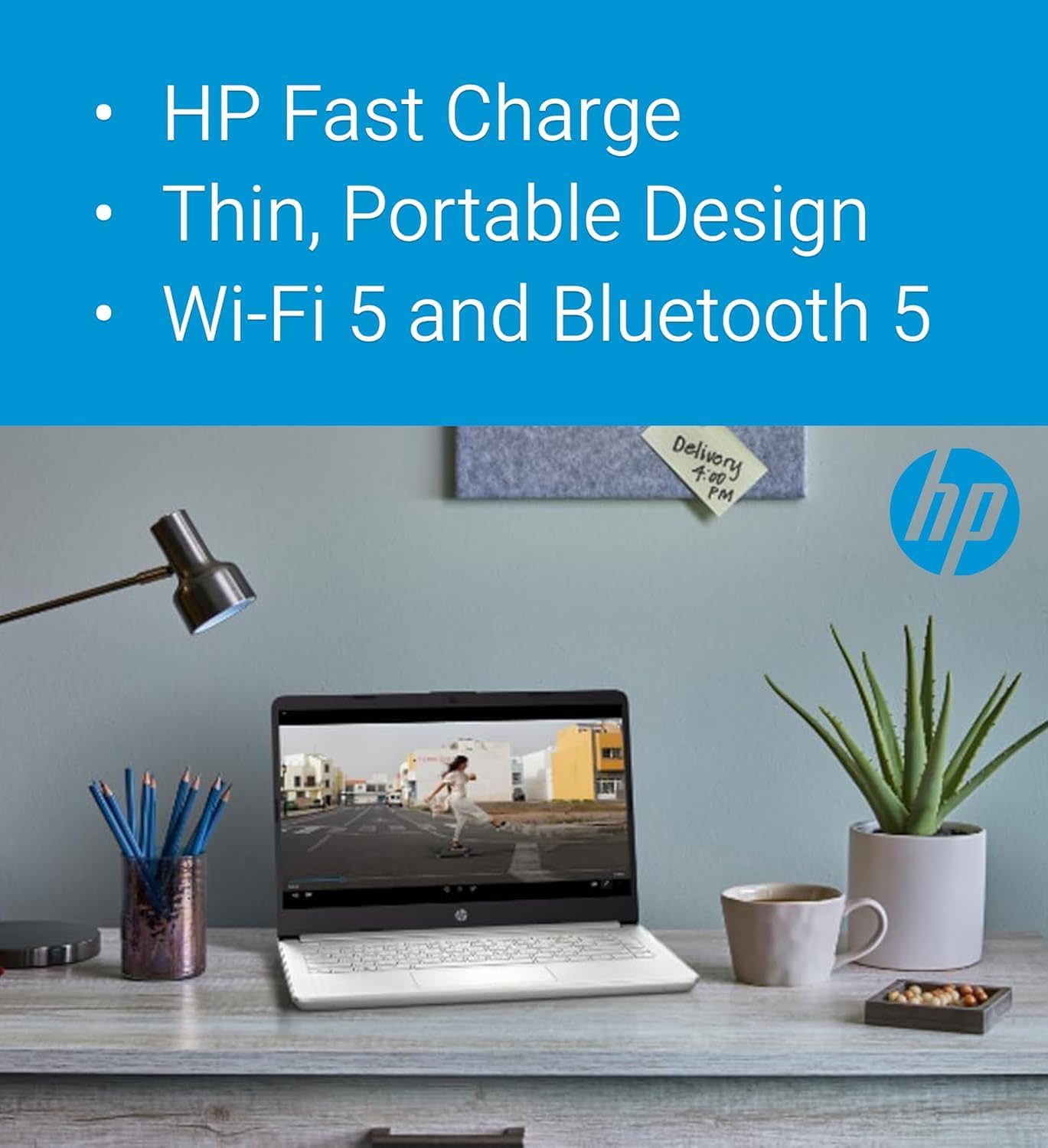
Figure 4.1: Features like HP Fast Charge contribute to easy maintenance and portability.
5. Rozwiązywanie Problemów
This section addresses common issues you might encounter with your HP 14 Laptop.
5.1 Problemy z zasilaniem
- Laptop się nie włącza: Ensure the AC adapter is securely connected to both the laptop and a working power outlet. Try a different outlet. If the battery is completely drained, it may take a few minutes of charging before the laptop powers on.
- Bateria nie ładuje się: Verify the AC adapter is functioning correctly. Check for any damage to the cable or port.
5.2 Problemy z wyświetlaniem
- Pusty ekran: Connect an external monitor to the HDMI port to check if the issue is with the laptop's display or the graphics output. Try pressing Fn+F4 (or the display toggle key) to switch display modes.
- Migotanie ekranu: Update your graphics drivers. If the issue persists, it might indicate a hardware problem.
5.3 Problemy z łącznością
- Brak połączenia Wi-Fi: Ensure Wi-Fi is enabled. Restart your router and the laptop. Check if other devices can connect to the network.
- Urządzenie Bluetooth nie łączy się: Ensure the Bluetooth device is in pairing mode and within range. Check laptop's Bluetooth settings.
Aby rozwiązać bardziej zaawansowane problemy lub rozwiązać problemy, które nie zostały tutaj omówione, skorzystaj z pomocy technicznej HP webodwiedź witrynę lub skontaktuj się z obsługą klienta.
6. Specyfikacje
Below are the detailed technical specifications for the HP 14 Laptop:
| Część | Specyfikacja |
|---|---|
| Edytor | Intel Celeron N4120 (4 cores, 4 threads, 1.1 GHz base, up to 2.6 GHz turbo, 4MB L3 cache) |
| Wyświetlacz | 14-inch HD (1366x768), Micro-edge, BrightView, 220 nitów, 45% NTSC |
| Grafika | Zintegrowana karta graficzna Intel UHD 600 |
| Pamięć (RAM) | 16GB DDR4-2400MHz |
| Składowanie | 192GB (64GB eMMC + 128GB SD card) |
| System operacyjny | Tryb S systemu Windows 11 Home |
| Łączność bezprzewodowa | Realtek RTL8822CE 802.11a/b/g/n/ac (2x2) Wi-Fi, Bluetooth 5 |
| Audio | Podwójne głośniki |
| Bateria | 3-cell, 41Wh Lithium-ion (Up to 11.5 hours battery life) |
| Webkrzywka | Rozdzielczość HD 720p Webkrzywka |
| Bezpieczeństwo | Oprogramowanie układowe TPM 2.0 |
| Klawiatura | English, non-backlit |
| Wymiary (szer. x gł. x wys.) | 12.8 x 8.8 x 0.7 cala (32.4 x 22.5 x 1.8 cm) |
| Waga | 3.5 funtów (1.47 kg) |
| Porty | 1x USB 3.1 Gen 1 Type-C (data transfer only), 2x USB 3.1 Gen 1 Type-A (data transfer only), 1x HDMI 1.4b, 1x Multi-format SD card reader, 1x Headphone/microphone combo, 1x AC smart pin |

Figure 6.1: Physical dimensions of the HP 14 Laptop.
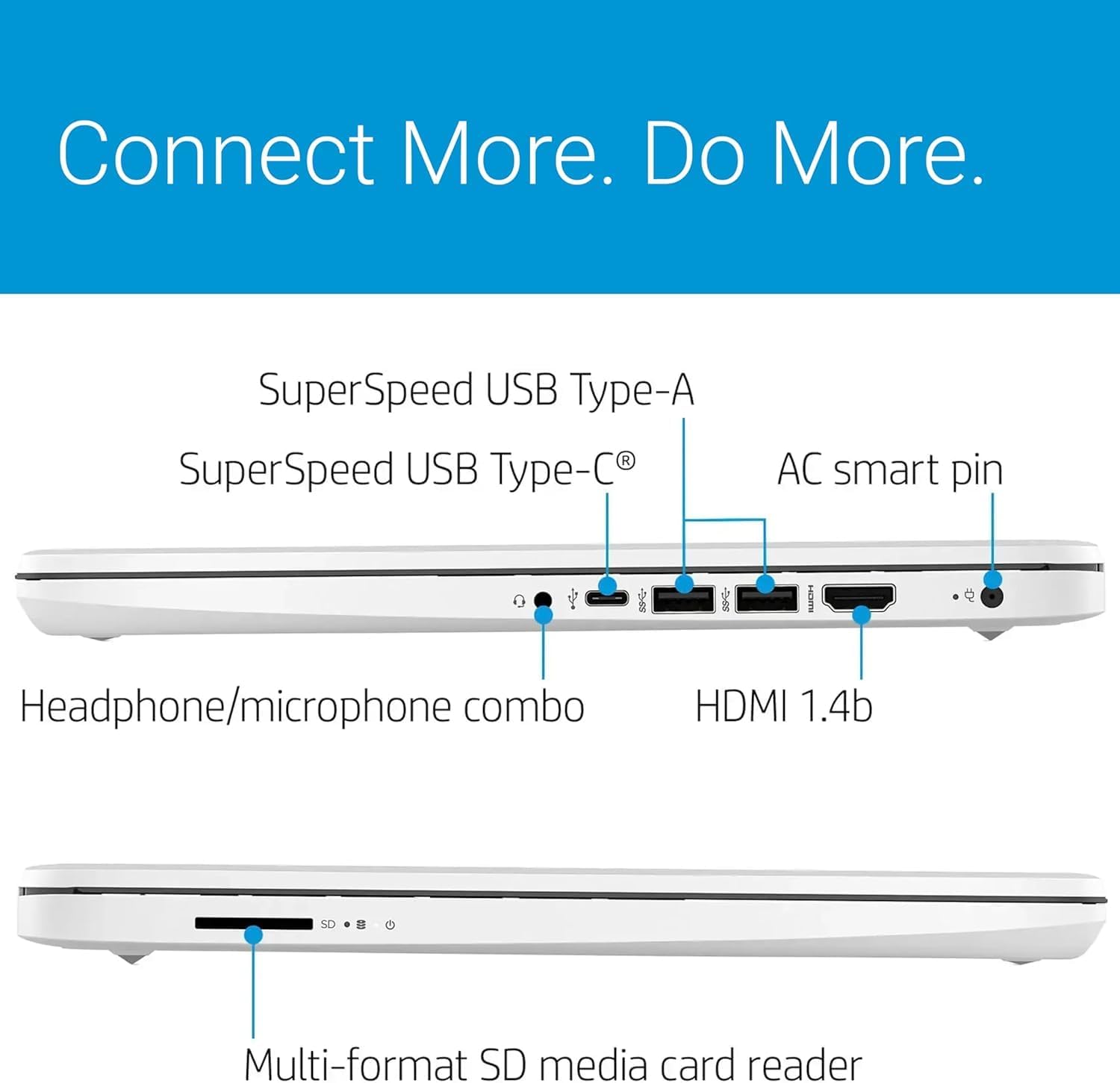
Figure 6.2: Available ports for connectivity on the HP 14 Laptop.

Figure 6.3: The included 128GB SD card for expanded storage.
7. Gwarancja i wsparcie
7.1 Gwarancja na produkt
Your HP 14 Laptop comes with a 1-year manufacturer's warranty covering most components. The expanded 128GB SD card storage, if provided by Issaquah Highlands Tech, includes a separate 3-year warranty. Please retain your proof of purchase for warranty claims.
7.2 Obsługa klienta
For technical assistance, warranty service, or additional information, please visit the official HP support website or contact HP customer service. You can find contact details and support resources on the HP webwitryna specyficzna dla Twojego regionu.
Zasoby internetowe często obejmują:
- Pobieranie sterowników i oprogramowania
- Przewodniki rozwiązywania problemów
- Często zadawane pytania
- Fora społecznościowe