1. Koniec produktuview
The Miofive S1 E Dash Cam is a high-performance 4K Ultra HD car camera designed to capture crystal-clear footage of your journeys. It features a 143-degree wide-angle lens, built-in GPS for precise route and speed recording, and Wi-Fi connectivity for easy access via the Miofive app. Advanced features include WDR Night Vision, 24-hour parking monitoring (requires separate hardwire kit), G-sensor for collision detection, and seamless loop recording.
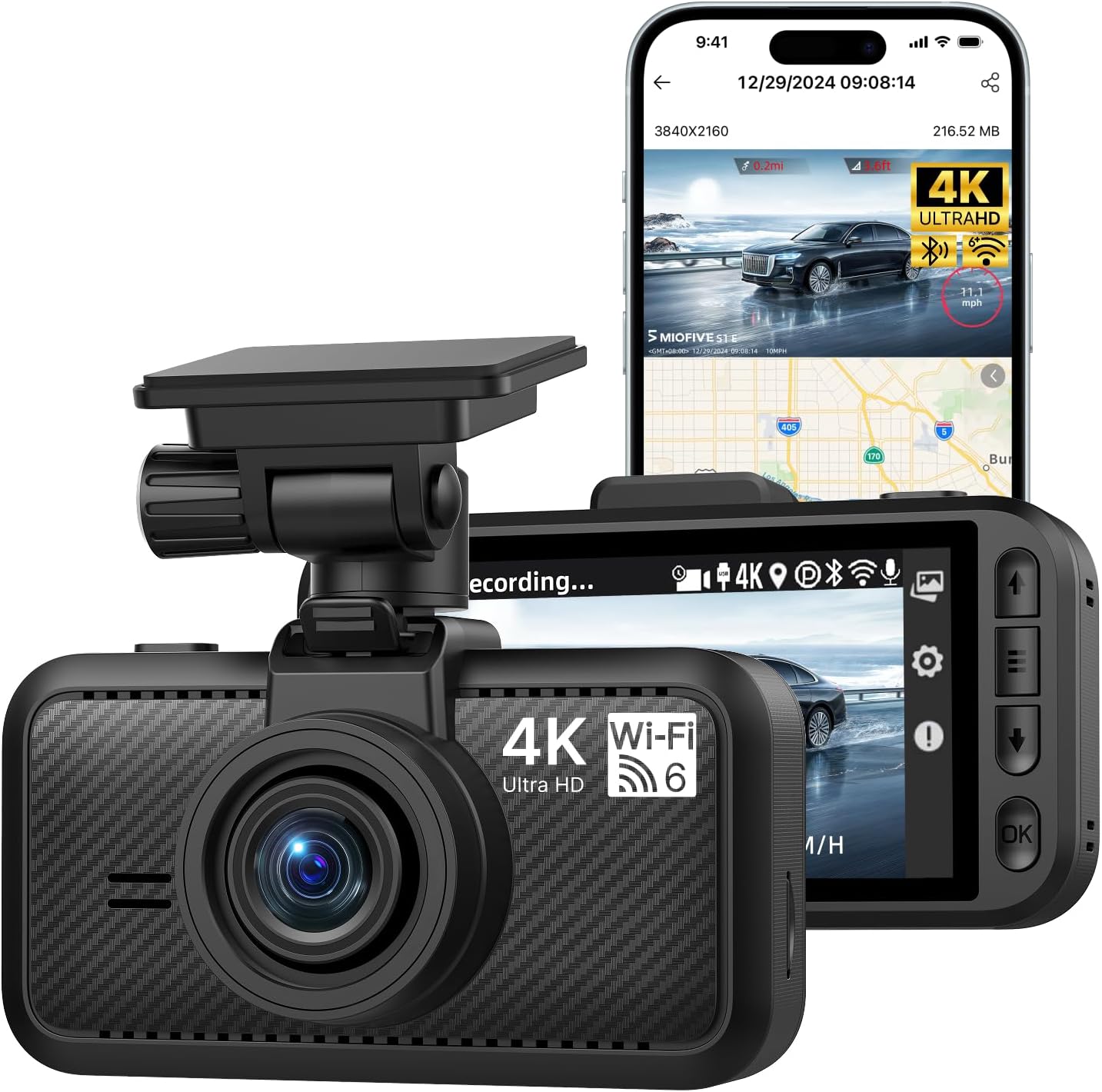
Image 1.1: Miofive S1 E Dash Cam and companion app interface.
2. Co znajduje się w pudełku
Sprawdź, czy w opakowaniu znajdują się wszystkie komponenty:
- S1 E Dash Cam x 1
- Ładowarka samochodowa x 1
- Kabel ładujący x 1
- Narzędzie do podważania kabli x 1
- Kabel do transmisji danych x 1
- Folia elektrostatyczna x 2
- Klej x 1
- Instrukcja obsługi x 1

Image 2.1: All included components of the Miofive S1 E Dash Cam package.
3. Przewodnik konfiguracji
3.1 Instalacja kamery samochodowej
- Wybierz miejsce montażu: Wybierz miejsce na przedniej szybie, które nie będzie Ci przeszkadzać. view of the road. The area behind the rearview lustro jest często idealne.
- Wyczyść przednią szybę: Ensure the chosen area on the windshield is clean and dry before applying the electrostatic film and adhesive.
- Zastosuj folię elektrostatyczną: Adhere one of the provided electrostatic films to the cleaned windshield area. This helps in easy removal and prevents adhesive residue.
- Zamocuj mocowanie samoprzylepne: Apply the adhesive mount to the electrostatic film. Press firmly for 30 seconds to ensure a secure bond.
- Montaż kamery samochodowej: Slide the dash cam onto the mounted bracket until it clicks into place. Adjust the camera angle to ensure a clear view drogi przed nami.
3.2 Połączenie zasilania
- Podłącz ładowarkę samochodową: Podłącz ładowarkę samochodową do gniazda zasilania 12 V w pojeździe (gniazdo zapalniczki).
- Podłącz kabel ładujący: Connect the charging cable from the car charger to the USB Type-C port on the dash cam.
- Poprowadź kabel: Use the provided cable prying tool to neatly tuck the charging cable along the edges of your windshield and dashboard to minimize obstruction.
3.3 Inserting and Formatting the Micro SD Card
The Miofive S1 E supports up to a 512GB Class 10 - U3 speed micro SD card (not included). A high-quality, reliable micro SD card is crucial for optimal performance.
- Włóż kartę SD: With the dash cam powered off, carefully insert the micro SD card into the designated slot until it clicks into place.
- Sformatuj kartę SD: It is essential to format the micro SD card before first use and periodically thereafter to ensure stable recording and prevent data corruption. This can typically be done through the dash cam's settings menu or via the Miofive app.

Image 3.1: Micro SD card insertion and compatibility information.
3.4 App Connection (Wi-Fi & GPS)
The Miofive S1 E features built-in Wi-Fi and GPS for enhanced functionality and easy management via the Miofive app.
- Download the Miofive App: Szukaj "Miofive" in your smartphone's app store (iOS or Android) and download the official application.
- Włącz Wi-Fi w kamerze samochodowej: Power on the dash cam. Navigate to the Wi-Fi settings on the dash cam's screen and enable Wi-Fi.
- Połącz przez aplikację: Open the Miofive app on your smartphone. Follow the in-app instructions to connect to the dash cam's Wi-Fi network. The default Wi-Fi name and password can be found on the dash cam's screen or in the included user manual.
- Funkcje dostępu: Po połączeniu możesz view żyćtage, configure settings, download recorded videos, and track GPS data directly from your smartphone.

Image 3.2: Wi-Fi 6 connectivity for high-speed data transfer to the Miofive app.
4. Instrukcja obsługi
4.1 Podstawowa obsługa
- Automatyczne nagrywanie: The dash cam will automatically power on and begin recording when connected to your vehicle's power supply and the engine starts.
- Nagrywanie ręczne: Press the designated button on the dash cam to manually start or stop recording.
- Odtwarzanie nagranego dźwięku: Use the dash cam's screen or the Miofive app to review nagrane filmy.
4.2 Główne cechy
Rozdzielczość 4.2.1 4K Ultra HD
The S1 E records in 4K (3840x2160P) Ultra HD, providing highly detailed and clear video footage. This resolution allows for better recognition of license plates and road signs.

Image 4.1: Visual representation of 4K resolution clarity.
4.2.2 Super widzenie nocne
Equipped with a large F/1.8 aperture and a 7-glass lens, the dash cam enhances light intake, ensuring clear video recording even in low-light conditions and at night.

Image 4.2: Super Night Vision technology details.
4.2.3 Wbudowany GPS
The integrated GPS module precisely records your driving route, speed, and location data. This information is embedded in the video filei może być viewed on the dash cam's screen or through the Miofive app, providing crucial evidence in case of incidents.

Image 4.3: GPS Route Tracking functionality.
4.2.4 Monitor parkingowy 24-godzinny
When properly installed with the optional Miofive hardwire kit (ASIN: B0CRHJQ3WQ, sold separately), the dash cam can provide continuous 24-hour parking monitoring. This feature records events when your vehicle is parked, protecting against potential incidents.

Image 4.4: 24-Hour Parking Monitor feature.
4.2.5 Czujnik G (nagrywanie awaryjne)
The built-in G-sensor detects sudden impacts or collisions. In the event of a detected incident, the dash cam automatically locks the current video segment, preventing it from being overwritten by loop recording. This ensures critical footage jest zachowane jako dowód.

Image 4.5: G-Sensor functionality for emergency recording.
4.2.6 Nagrywanie w pętli
The loop recording feature ensures continuous recording by automatically overwriting the oldest unlocked video files when the micro SD card reaches its storage capacity. This eliminates the need for manual deletion of old footage.

Image 4.6: Seamless Loop Recording process.
4.2.7 Super Capacitors
The Miofive S1 E utilizes supercapacitors instead of traditional lithium batteries. This design provides superior temperature resistance (-4°F to 158°F / -20°C to 70°C) and extends the product's lifespan, ensuring reliable operation in various climates.

Image 4.7: Super Capacitor technology for enhanced durability.
5. Konserwacja
- Standardowe formatowanie karty SD: To maintain optimal recording performance and prevent data corruption, it is recommended to format the micro SD card once a month. Back up any important videos before formatting.
- Czyszczenie soczewek: Gently clean the camera lens with a soft, lint-free cloth to ensure clear video quality. Avoid using abrasive materials or harsh chemicals.
- Aktualizacje oprogramowania układowego: Periodically check for firmware updates via the Miofive app. Firmware updates can improve performance, add new features, and resolve bugs.
6. Rozwiązywanie Problemów
6.1 Typowe problemy i rozwiązania
| Problem | Możliwa przyczyna | Rozwiązanie |
|---|---|---|
| Kamera samochodowa nie włącza się. | Brak zasilania, uszkodzony kabel/ładowarka. | Check car charger connection and vehicle's 12V outlet. Ensure charging cable is securely connected. Test with another power source if possible. |
| Nagrywanie zatrzymuje się lub footage jest uszkodzone. | SD card issue (not Class 10 U3, full, corrupted, or fake). | Ensure you are using a Class 10 - U3 speed micro SD card (Miofive Ultimate Micro SD Cards recommended). Format the SD card. Replace the SD card if the issue persists. |
| Monitor parkowania nie działa. | Hardwire kit not installed or incorrectly installed. | The 24-hour parking monitor requires the Miofive hardwire kit (ASIN: B0CRHJQ3WQ), sold separately. Ensure it is correctly installed according to its instructions. |
| Problemy z połączeniem Wi-Fi. | Incorrect password; too far from dash cam; app issues. | Ensure correct Wi-Fi password. Stay within 3-5 meters of the dash cam. Restart the app and dash cam. |
| Jakość wideo jest słaba. | Soczewka brudna, na soczewce wciąż folia ochronna, słabe oświetlenie. | Clean the camera lens. Remove any protective film from the lens. Ensure WDR Night Vision is enabled in settings for low light. |
7. Specyfikacje
| Funkcja | Szczegół |
|---|---|
| Nazwa modelu | S1E(4K) |
| Rozdzielczość przechwytywania wideo | 2160p (4K UHD) |
| Wymiary produktu | 6 x 4 x 4 cala |
| Waga przedmiotu | 15.8 uncji |
| Technologia łączności | Bluetooth, Wi-Fi (Wi-Fi 6) |
| Cechy specjalne | Built-in Bluetooth Pairing, Wi-Fi, GPS, Supercapacitor, Microphone, Loop Recording, Parking Monitor, Night Vision, G-Sensor, Free Miofive App, Over-the-Air Firmware Updates, Up to 512GB External Storage Support (NOT INCLUDED) |
| Typ montażu | Mocowanie do przedniej szyby |
| Metoda kontroli | Aplikacja |
| Kolor | Czarny |
| Źródło zasilania | Superkondensator |
8. Gwarancja i wsparcie
Miofive offers an 18-month warranty for the S1 E Dash Cam. For any questions, suggestions, or technical assistance, please contact our dedicated customer support team.
- Okres gwarancji: 18 miesiące
- Wsparcie techniczne: 24/7 availability
- Wsparcie e-mailowe: support@miofive.com
- Lifetime Technical Solution Support

Image 8.1: Miofive Warranty and Support information.


