1. Wprowadzenie
This manual provides detailed instructions for the setup, operation, and maintenance of your GIEC G5300 4K Ultra HD Blu Ray Player. Designed for an enhanced home entertainment experience, this player supports true 4K ultra-high-definition picture quality, HDR10, Dolby Vision, BT.2020 color spaces, and Dolby audio decoding for immersive visuals and sound.
2. Informacje dotyczące bezpieczeństwa
- Ensure proper ventilation around the player to prevent overheating.
- Nie wystawiać urządzenia na deszcz lub wilgoć, aby zmniejszyć ryzyko pożaru lub porażenia prądem.
- Avoid placing heavy objects on top of the player.
- Nie otwierać casing; wszelkie prace serwisowe należy zlecać wykwalifikowanemu personelowi.
- Keep the player away from direct sunlight, heat sources, and strong magnetic fields.
- Używaj wyłącznie zasilacza dostarczonego wraz z urządzeniem.
3. Zawartość opakowania
Sprawdź, czy w przesyłce znajdują się wszystkie wymienione poniżej elementy:
- GIEC G5300 Blu-ray Player (x1)
- Kabel HDMI (x1)
- Pilot zdalnego sterowania (x1)
- Instrukcja obsługi (x1)
4. Koniec produktuview
4.1 Panel przedni

Rycina 4.1: Przód view of the GIEC G5300 Blu Ray Player, showing the disc tray, display, USB port, and control buttons (power, play/pause, eject).
- Taca na płytę: Insert Blu-ray or DVD discs here.
- Panel wyświetlacza: Shows playback status and time.
- Port USB 3.0: Podłącz urządzenia pamięci masowej USB w celu odtwarzania multimediów.
- Przyciski sterujące: Power On/Off, Play/Pause, Eject.
4.2 Panel tylny i złącza

Rysunek 4.2: Tył view of the GIEC G5300 Blu Ray Player, highlighting various input/output ports including LAN, HDMI 2.0, HDMI 1.4, USB 3.0, Coaxial, and Optical outputs.
- Port LAN: For network connection (e.g., firmware updates).
- HDMI 2.0 Output (Video/Audio): Primary HDMI output for 4K video and audio.
- HDMI 1.4 Output (Audio Only): Dedicated HDMI output for audio to an AV receiver.
- Wejście USB 3.0: Podłącz urządzenia pamięci masowej USB w celu odtwarzania multimediów.
- Wyjście koncentryczne: Cyfrowe wyjście audio.
- Wyjście optyczne: Cyfrowe wyjście audio.
5. Konfiguracja
5.1 Instalacja baterii w pilocie zdalnego sterowania
Włóż dwie baterie AAA (nie ma ich w zestawie) do pilota, zwracając uwagę na prawidłową biegunowość.
Video 5.1: This video demonstrates how to install batteries into the remote control and connect the Blu-ray player to a TV using an HDMI cable.
5.2 Connecting to a Display Device (TV/Projector)
- Connect one end of the supplied HDMI cable to the HDMI 2.0 Output (Video/Audio) port z tyłu odtwarzacza Blu-ray.
- Connect the other end of the HDMI cable to an available HDMI input port on your TV or projector.
- For separate audio output, connect another HDMI cable from the HDMI 1.4 Output (Audio Only) port to your AV receiver, or use the Coaxial/Optical outputs.
5.3 Połączenie zasilania
- Connect the power cable to the power input on the rear of the Blu-ray player.
- Podłącz drugi koniec kabla zasilającego do gniazdka ściennego.
- Turn on your TV/projector and select the correct HDMI input source corresponding to the port you connected the Blu-ray player to.
- Press the Power button on the Blu-ray player or remote control to turn on the unit.
6. Instrukcja obsługi
Odtwarzanie płyt 6.1
- Ensure the player is powered on and connected to your display device.
- Naciśnij WYRZUCAĆ przycisk na panelu przednim lub pilocie, aby otworzyć tackę na płytę.
- Carefully place a Blu-ray or DVD disc onto the tray with the label side facing up.
- Naciśnij WYRZUCAĆ button again to close the tray. The player will automatically begin loading and playing the disc.
- Za pomocą pilota możesz sterować funkcjami odtwarzania, takimi jak odtwarzanie, pauza, zatrzymywanie, przewijanie do przodu i do tyłu.
6.2 Odtwarzanie multimediów USB
The GIEC G5300 supports playback of various media files z urządzenia pamięci masowej USB.
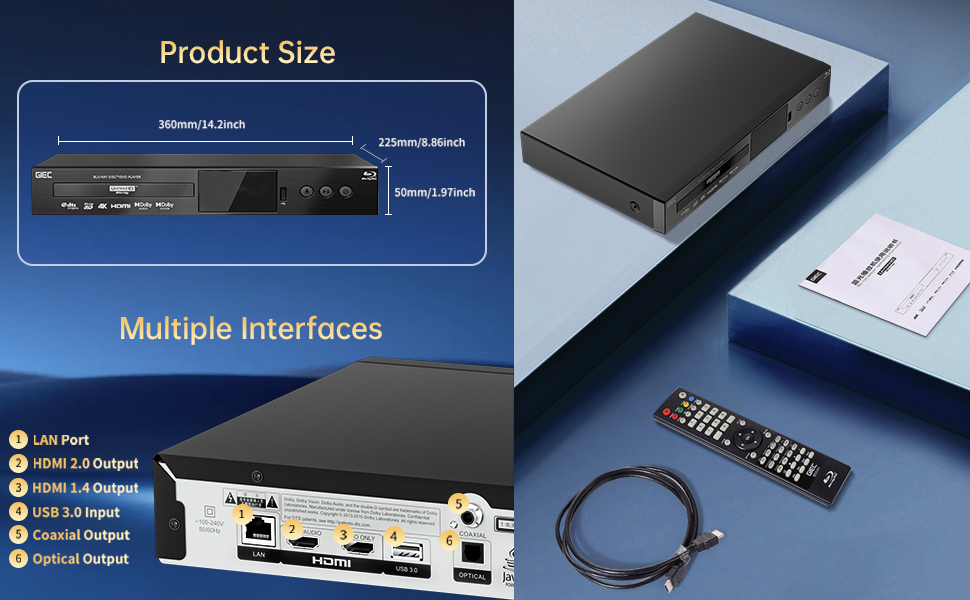
Figure 6.1: Illustration of the multiple disc, video, and audio formats supported by the player.
- Włóż urządzenie pamięci masowej USB do Port USB 3.0 on the front or rear panel.
- Navigate to the "Video," "Music," or "Photo" section on the player's main menu using the remote control.
- Wybierz żądany file from the USB device to begin playback.
Obsługiwane formaty:
- Typy płyt: BD, BD-R, BD-RE, DVD-R/RW, DVD+R/RW, DVD-Video, VCD, CD, CD-R/RW.
- Formaty wideo: MPEG-1, MPEG-2, MPEG-4, VC1, H.264, MOV, MKV, AVI, TS.
- Formaty audio: AAC, APE, CUE, FLAC, OGG, MP3, WAV.
7. Funkcje
- 4K Ultra HD Playback: Experience movies and shows in stunning 4K resolution with clearer images and richer colors.
- Obsługa HDR10: Enjoy a wider range of brightness and contrast, revealing more detail in both dark and bright scenes.
- Dolby Vision: Enhances image quality by dynamically adjusting brightness and expanding dynamic range for more detailed and vivid pictures.
- BT.2020 Color Spaces: Provides a broader color gamut than standard 1080p Blu-ray, resulting in purer, more natural, and realistic colors.
- Dolby Sound & DTS Decoding: Supports Dolby audio decoding and DTS effects for an immersive 5.1 stereo surround sound experience.
- 3D Blu-ray Playback: Compatible with 3D Blu-ray discs for an immersive three-dimensional viewing experience (requires a 3D-compatible TV and glasses).
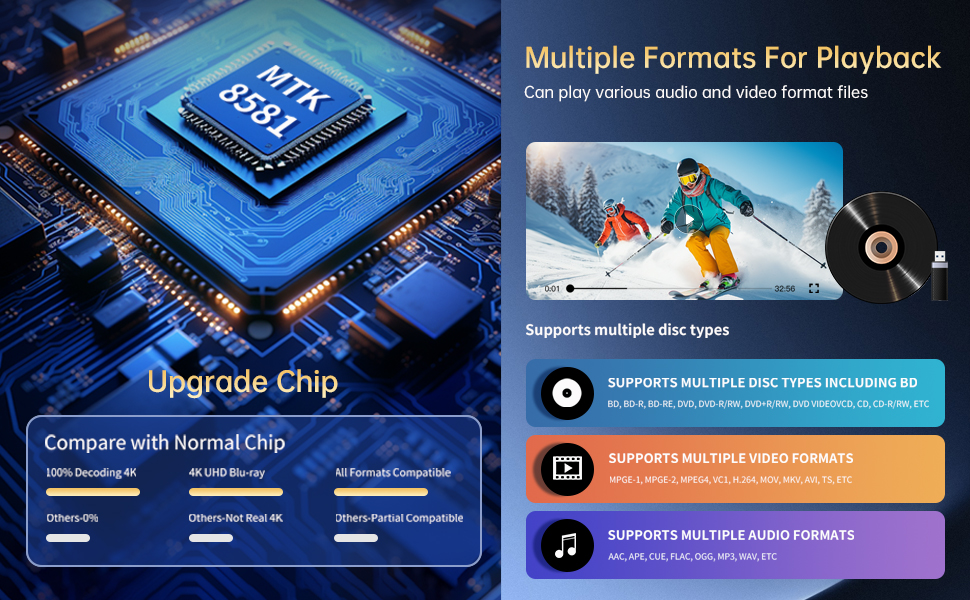
Figure 7.1: Visual comparison illustrating the difference between 8-bit (16.67 million colors) and 10-bit (1.07 billion colors) color depth, highlighting the enhanced detail and delicacy of 10-bit color.

Figure 7.2: The GIEC G5300 Blu Ray Player connected to a TV, showcasing its support for 4K UHD, 3D, HDR, HDR10+, Dolby, and Dolby Vision technologies.
8. Konserwacja
- Czyszczenie: Use a soft, dry cloth to clean the exterior of the player. Do not use liquid or aerosol cleaners.
- Pielęgnacja dysków: Chwytaj płyty za krawędzie. Czyść płyty miękką, niepozostawiającą włókien ściereczką, przecierając je od środka na zewnątrz.
- Wentylacja: Aby zapobiec przegrzaniu, upewnij się, że otwory wentylacyjne odtwarzacza nie są zablokowane.
9. Rozwiązywanie Problemów
If you encounter issues with your Blu-ray player, please refer to the following common solutions:
- Brak zasilania: Check if the power cable is securely connected to both the player and the power outlet. Ensure the outlet is functional.
- Brak obrazu/dźwięku: Verify that the HDMI cable is correctly connected to both the player and the TV/receiver. Ensure the correct HDMI input is selected on your TV/receiver.
- Płyta nie odtwarza się: Check if the disc is clean and free of scratches. Ensure the disc is inserted correctly with the label side up. The player supports Region A Blu-ray discs and all region DVD discs.
- Pilot nie działa: Check the batteries in the remote control and replace them if necessary. Ensure there are no obstructions between the remote and the player.
10. Specyfikacje
| Funkcja | Szczegół |
|---|---|
| Nazwa marki | GIEC |
| Nazwa modelu | G5300 |
| Waga przedmiotu | 4.18 funta (1.9 kilograma) |
| Wymiary produktu | 14.2 x 8.9 x 2 cala |
| Kolor | Czarny |
| Typ nośnika | Płyta Blu-Ray, DVD |
| Rezolucja | 3840x2160 (4K Ultra HD) |
| Cechy specjalne | Anti-Shock, Compact, Dust Proof, Multi-Format Playback, Surround Sound, HDR10, Dolby Vision, BT.2020 Color Spaces |
| Typ złącza | HDMI (Dual Outputs), USB 3.0, Coaxial, Optical, LAN |
| Technologia łączności | HDMI |
11. Gwarancja i wsparcie
For warranty information or technical support, please refer to the documentation included with your purchase or contact GIEC customer service. Keep your proof of purchase for warranty claims.


