Wstęp
This manual provides detailed instructions for the Phomemo PM-248-WF WiFi Thermal Label Printer. It covers initial setup, operational procedures, maintenance guidelines, and troubleshooting steps to ensure optimal performance and longevity of your device. Please read this manual thoroughly before using the printer.

Image: The Phomemo PM-248-WF printer demonstrating its WiFi capability with a printed label.
Zawartość opakowania
Sprawdź, czy wszystkie wymienione poniżej elementy znajdują się w Twojej paczce. Jeśli brakuje któregokolwiek z nich lub jest on uszkodzony, skontaktuj się z obsługą klienta.
- 1x Phomemo 248-WF Wi-Fi Label Printer
- 1x Power Cord & Adapter
- 1x kabel USB
- 1x adapter USB-C
- Podręcznik użytkownika 1x
- 10 sheets of 4x6 Label Paper

Image: A visual representation of all components included in the Phomemo 248-WF product package.
Rozpoczęcie pracy: Konfiguracja
1. Podłączenie zasilania
- Podłącz zasilacz do portu zasilania drukarki.
- Podłącz przewód zasilający do standardowego gniazdka elektrycznego.
- Naciśnij przycisk zasilania, aby włączyć drukarkę. Zaświeci się kontrolka.
2. Ładowanie etykiet
- Otwórz pokrywę drukarki.
- Adjust the label guides to match the width of your labels (supports 1 to 4.6 inches).
- Insert the labels with the print side facing up. Ensure the labels are fed smoothly into the printer.
- Close the printer cover. The printer will automatically detect and calibrate the label size.

Image: The printer's adjustable label guides, accommodating various label widths.
3. Instalacja oprogramowania i łączność
Mobile Device Setup (Labelife App)
- Download the "Labelife" app from the App Store (iOS) or Google Play Store (Android).
- Sprawdź, czy Bluetooth i Wi-Fi w Twoim telefonie są włączone.
- Open the Labelife app and connect to the printer (PM-248-WF).
- Follow the in-app instructions for network configuration, entering your Wi-Fi password when prompted.
- Once connected, you can import and print labels directly from the app.

Image: Step-by-step guide for connecting the printer via the Labelife mobile application.
Computer Setup (Printer Setting Tool)
- Download the Printer Setting Tool for Windows or macOS from the official Phomemo webwitryna lub aimotech.com/labelife/analysis.html.
- Connect your computer to the printer via the provided USB cable.
- Launch the Printer Setting Tool. Select your Wi-Fi network and enter the password to configure the printer's Wi-Fi connection.
- After initial Wi-Fi setup, the printer will automatically connect to the configured network upon power-on. USB connection is also available for printing.

Image: Instructions for configuring the printer's Wi-Fi network using the computer-based Printer Setting Tool.
Połączenie bezprzewodowe (Wi-Fi)
The PM-248-WF supports 5GHz Wi-Fi for stable and fast wireless printing from iOS, Android, iPad, macOS, and Windows devices. Ensure your device is connected to the same Wi-Fi network as the printer.
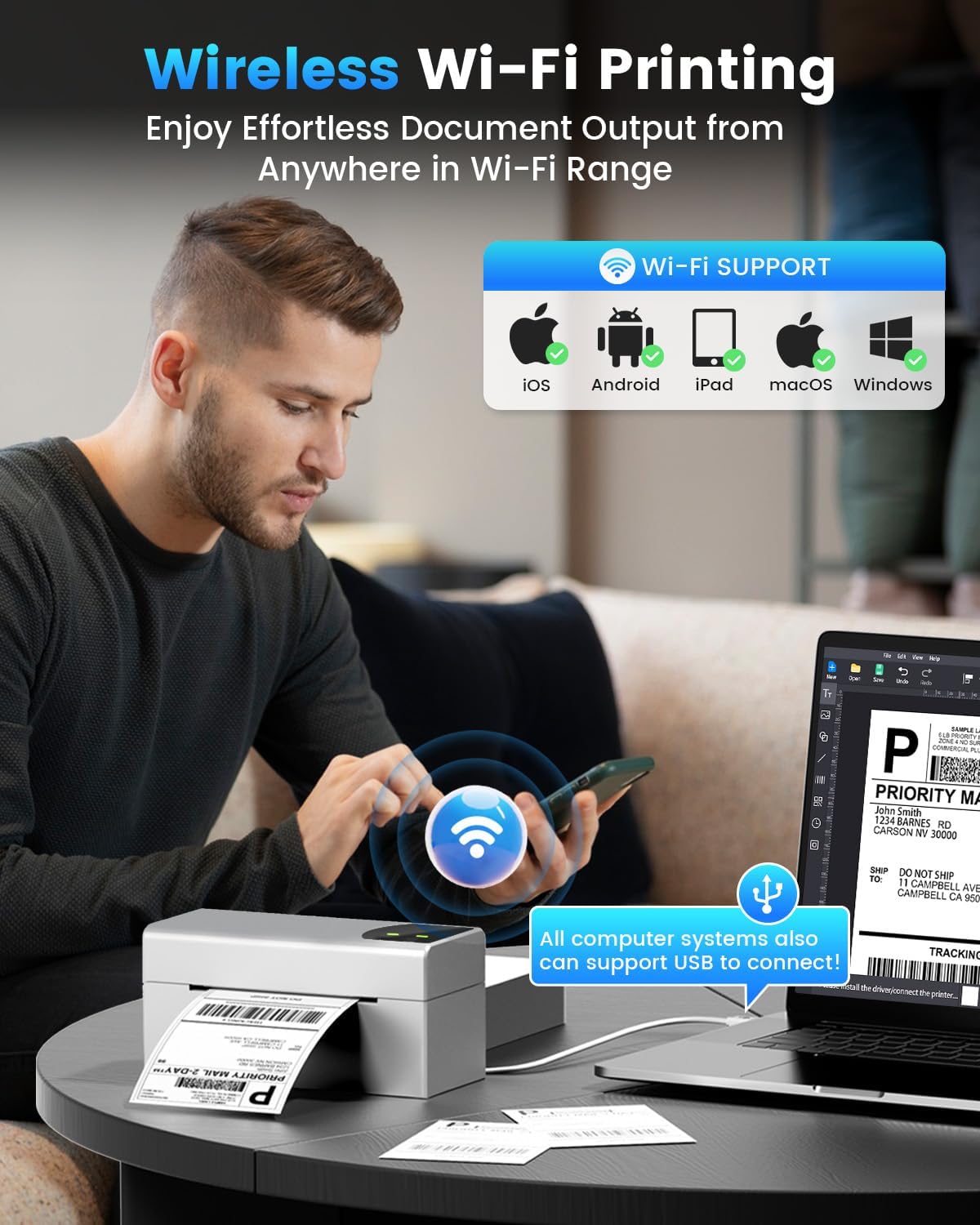
Image: Demonstrates wireless printing from various devices to the Phomemo printer.
Połączenie USB
For direct connection, use the provided USB cable. The printer is compatible with ChromeOS, Linux, macOS, and Windows systems via USB. This offers an alternative to wireless printing.
Działanie
1. Drukowanie etykiet
Once the printer is set up and labels are loaded, you can initiate printing from your connected device or computer. The printer features a speed of 150 mm/s, capable of producing up to 72 sheets of 4x6 labels per minute with 203 DPI resolution.

Image: The printer's high-speed printing capability, highlighting its efficiency.
2. Supported Platforms and Label Types
The Phomemo PM-248-WF is compatible with major shipping platforms and marketplaces, including FedEx, UPS, USPS, ShipStation, Shopify, Amazon, Etsy, eBay, and more. It supports various label sizes from 1 to 4.6 inches, allowing for printing of shipping labels, barcodes, product labels, and custom stickers.

Image: The printer's broad compatibility with various e-commerce and shipping platforms.

Image: Printer in use for shipping packages.

Image: Printer used for custom labels on jars.
Konserwacja
Regular maintenance ensures the longevity and performance of your thermal label printer.
- Czyszczenie głowicy drukującej: Delikatnie przetrzyj wacikiemampened with isopropyl alcohol to gently wipe the print head. Ensure the printer is off and cooled down before cleaning. Allow it to dry completely before use.
- Czyszczenie wałka dociskowego: Obróć wałek dociskowy i wytrzyj goamp cloth to remove any dust or adhesive residue.
- Czyszczenie zewnętrzne: Przetrzyj obudowę drukarki miękką, suchą ściereczką. Unikaj stosowania silnych środków chemicznych i ściernych środków czyszczących.
- No Ink or Toner Required: As a thermal printer, it does not require ink cartridges or toner, simplifying maintenance.
Rozwiązywanie problemów
Aby zapoznać się z typowymi problemami i ich rozwiązaniami, zapoznaj się z poniższą tabelą.
| Wydanie | Możliwa przyczyna | Rozwiązanie |
|---|---|---|
| Drukarka się nie włącza | Odłączony kabel zasilający; problem z gniazdkiem elektrycznym | Sprawdź podłączenie kabla zasilającego; spróbuj użyć innego gniazdka. |
| Nie można połączyć się przez Wi-Fi | Incorrect Wi-Fi password; printer not on same network; 5GHz compatibility issue | Verify Wi-Fi password; ensure printer and device are on the same 5GHz network; reconfigure Wi-Fi using the app or computer tool. |
| Printer not detected by computer/app | Software not installed; USB cable issue; Bluetooth/Wi-Fi off | Install Labelife app or Printer Setting Tool; check USB cable connection; ensure Bluetooth/Wi-Fi is enabled on your device. |
| Słaba jakość wydruku (blady, rozmazany) | Print head dirty; low-quality labels; incorrect print density settings | Clean the print head; use high-quality thermal labels; adjust print density in software settings. |
| Etykiety nie są podawane prawidłowo | Labels loaded incorrectly; label guides not adjusted; paper sensor issue | Reload labels correctly (print side up); adjust label guides snugly; clean paper sensor if accessible. |
| Drukarka przestaje drukować w trakcie zadania | Connectivity interruption; out of labels; overheating | Check Wi-Fi/USB connection; replace label roll; allow printer to cool down. |
Dane techniczne
| Funkcja | Specyfikacja |
|---|---|
| Nazwa modelu | PM-248-WF |
| Technologia druku | Termiczny |
| Technologia łączności | USB, Wi-Fi (5 GHz) |
| Maksymalna prędkość drukowania (monochromatyczna) | 150 mm/s (72 sheets of 4x6 labels per minute) |
| Maksymalna rozdzielczość druku | 203 DPI |
| Maksymalny rozmiar nośnika | 4 x 6 cali |
| Obsługiwane szerokości etykiet | 1" - 4.6" |
| Kompatybilne urządzenia | iOS, Android, iPad, macOS, Windows (Wi-Fi); ChromeOS, Linux, macOS, Windows (USB) |
| Wymiary produktu | 7.16" gł. x 3.54" szer. x 3.5" wys. |
| Waga przedmiotu | 1.58 funta |
| Cechy specjalne | Portable, Wireless Wi-Fi & USB Connection, No Ink, Auto Detection, Auto Paper Return, Intelligent Self-Test |
Gwarancja i wsparcie
The Phomemo PM-248-WF Thermal Label Printer comes with a limited warranty. For specific details regarding warranty coverage and duration, please refer to the warranty card included in your package or visit the official Phomemo webstrona.
For technical assistance, troubleshooting, or any product-related inquiries, please contact Phomemo customer support. Contact information can typically be found in the user guide or on the manufacturer's webstrona.


