1. Wprowadzenie
This manual provides essential information for the safe and efficient use of your Hama Travel 600 Multi-Device Bluetooth Keyboard. Please read these instructions carefully before using the device and keep them for future reference. This keyboard is designed for universal use with mobile devices such as tablets and smartphones, as well as PCs and laptops, offering a portable and versatile typing solution.
2. Instrukcje bezpieczeństwa
- Do not open the device. Incorrect assembly or repair can lead to hazards.
- Protect the product from moisture, dirt, and extreme temperatures. Avoid direct sunlight.
- Używaj produktu wyłącznie zgodnie z jego przeznaczeniem.
- Nie należy używać produktu poza zakresem mocy określonym w danych technicznych.
- Przechowuj ten produkt, podobnie jak wszystkie produkty elektryczne, poza zasięgiem dzieci.
- Materiały opakowaniowe należy natychmiast zutylizować zgodnie z obowiązującymi lokalnie przepisami.
- Nie modyfikuj produktu w żaden sposób. Takie działanie unieważnia gwarancję.
3. Zawartość opakowania
Sprawdź, czy wszystkie przedmioty są obecne i w dobrym stanie:
- 1 Hama Travel 600 Bluetooth Mini Keyboard
- 1 USB Charging Cable (USB-A to USB-C)
- 1 USB-C to USB-A Adapter
- 1 Cable Manager
- 1 Instrukcja obsługi (ten dokument)
4. Koniec produktuview
The Hama Travel 600 is a compact, foldable multi-device Bluetooth keyboard designed for portability and versatility. Its slim design allows it to fit easily into a backpack or tablet compartment. The integrated magnetic case also functions as a stand for your tablet or smartphone, enhancing typing comfort.
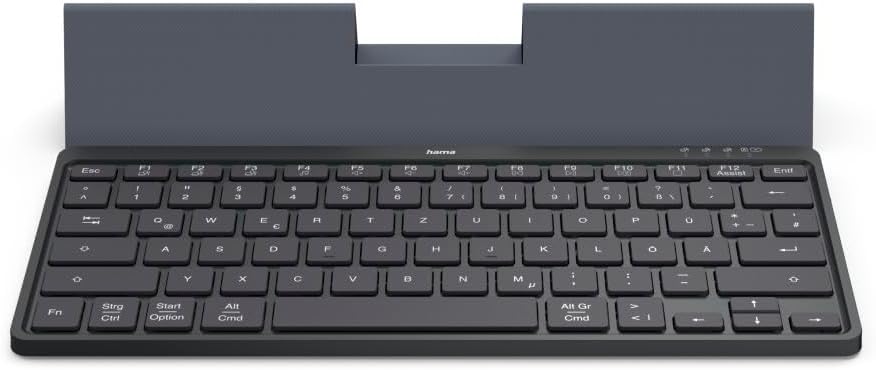
The Hama Travel 600 Multi-Device Bluetooth Keyboard in its open position, revealing the QWERTZ layout and the integrated stand for a tablet or smartphone. The keyboard features a compact design suitable for portability.
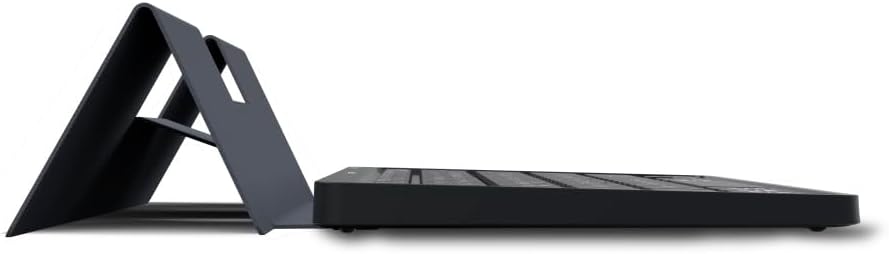
Strona view of the Hama Travel 600 keyboard, illustrating its slim profile and how the integrated case folds to form a stable stand for mobile devices.
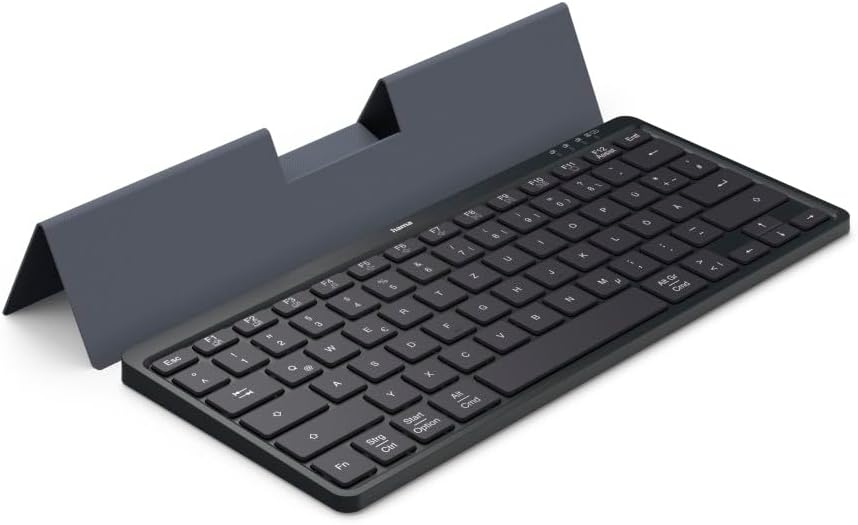
Kątowy view of the Hama Travel 600 keyboard, showcasing its full QWERTZ layout and the magnetic case that doubles as a device stand, providing an ergonomic typing experience.

Spód view of the Hama Travel 600 keyboard with its case folded, highlighting the compact and flat design for easy storage and transport.

Close-up of the right side of the Hama Travel 600 keyboard, detailing the function keys (F7-F12), multimedia controls, and the QWERTZ key arrangement, including the 'Alt Gr' and 'Cmd' keys.

Inny kątowy view of the Hama Travel 600 keyboard, emphasizing its portability and the functional design of the magnetic case that securely holds a tablet or smartphone.
5. Konfiguracja
5.1. Ładowanie klawiatury
The keyboard features an integrated lithium-polymer battery. Before initial use, ensure the keyboard is fully charged. Connect the supplied USB-C charging cable to the keyboard's charging port and the other end to a USB power source (e.g., computer, USB wall adapter). A charging indicator light will typically illuminate during charging and turn off or change color when fully charged. A full charge ensures maximum flexibility and usage time.
5.2. Parowanie Bluetooth
To connect your Hama Travel 600 keyboard to a device via Bluetooth:
- Sprawdź, czy klawiatura jest odpowiednio naładowana.
- Znajdź przełącznik zasilania na klawiaturze i przesuń go do pozycji „ON”.
- Activate Bluetooth on your device (tablet, smartphone, PC).
- Press and hold the Bluetooth pairing button on the keyboard. This is often indicated by a Bluetooth symbol or a specific function key combination (e.g., Fn + C). The indicator light will flash, signifying it is in pairing mode.
- On your device, search for available Bluetooth devices. Select "Hama Travel 600" from the list.
- If prompted, enter the displayed pairing code on the keyboard and press Wchodzić.
- Once successfully paired, the indicator light on the keyboard will stop flashing, and your device will confirm the connection. The keyboard is now ready for use.
6. Obsługa klawiatury
6.1. Przełączanie między wieloma urządzeniami
The Hama Travel 600 keyboard allows you to connect and switch between multiple devices. Use the dedicated multi-device switching keys (typically marked with Bluetooth icons or numbers) to select the desired paired device. Press the corresponding key to switch the keyboard's active connection.
6.2. Special Function Keys (Fn Keys)
The keyboard includes a row of function keys (F1-F12) that can perform special actions when pressed in combination with the Fn key. These keys provide quick access to multimedia controls and system functions.
| Kombinacja klawiszy | Funkcjonować |
|---|---|
| Fn+F7 | Poprzedni utwór |
| Fn+F8 | Odtwórz/Pauza |
| Fn+F9 | Zmniejsz głośność |
| Fn+F10 | Zwiększ głośność |
| Fn+F11 | Niemy |
| Fn+F12 | Assist (e.g., Voice Assistant activation) |
| Strg / Ctrl | kontrola Key |
| Start / Option | Windows Key / Option Key (Mac) |
| Alt / Cmd | Alt Key / Command Key (Mac) |
| Alt Gr / Cmd | Alt Graph Key / Command Key (Mac) |
Note: The exact functionality of some keys may vary depending on the operating system and device connected.
7. Konserwacja
- Produkt należy czyścić jedynie lekko damp, ściereczka nie pozostawiająca włókien.
- Do not use aggressive cleaning agents, alcohol, or other chemical solutions, as these could damage the surface or functionality.
- Ensure no liquid enters the keyboard during cleaning.
- Przechowuj klawiaturę w suchym i wolnym od kurzu miejscu, gdy jej nie używasz.
- Unikaj upuszczania klawiatury i narażania jej na silne uderzenia.
8. Rozwiązywanie Problemów
If you encounter issues with your Hama Travel 600 keyboard, refer to the following table for common problems and solutions:
| Problem | Możliwa przyczyna | Rozwiązanie |
|---|---|---|
| Klawiatura nie łączy się/nie paruje. | Low battery; Bluetooth off on device; keyboard not in pairing mode; interference. | Charge the keyboard. Ensure Bluetooth is enabled on your device. Put the keyboard into pairing mode. Move closer to the device and away from other wireless devices. Try unpairing and re-pairing. |
| Klawisze nie reagują lub wprowadzanie danych jest opóźnione. | Low battery; weak Bluetooth signal; device issue. | Charge the keyboard. Ensure the keyboard is within effective Bluetooth range. Restart your connected device. |
| Incorrect characters are typed. | Incorrect keyboard layout selected on the device. | Check your device's settings to ensure the correct keyboard layout (e.g., QWERTZ DE) is selected. |
| Klawiatura często się rozłącza. | Niski poziom naładowania baterii; zbyt duża odległość od urządzenia; zakłócenia. | Charge the keyboard. Keep the keyboard close to your device. Minimize other wireless interference. |
9. Specyfikacje
| Funkcja | Szczegół |
|---|---|
| Marka | Hama |
| Numer modelu | 00125138 |
| Technologia łączności | Bluetooth |
| Kolor | Czarny |
| Tworzywo | Plastikowy |
| Typ baterii | Zintegrowany litowo-polimerowy |
| Cechy specjalne | Lightweight, Portable, Shortcut keys, Multimedia keys, Rechargeable, Magnetic case |
| Kompatybilne urządzenia | Laptop, PC, Tablet, Smartfon |
| Układ klawiatury | QWERTZ DE (German Layout) |
| Zawarte komponenty | USB-C charging cable, USB-C to USB-A adapter, Cable manager |
10. Gwarancja i wsparcie
Hama products are covered by a standard manufacturer's warranty. For detailed warranty terms, technical support, or service inquiries, please refer to the official Hama webStrona (www.hama.pl) or contact their customer service directly. Please retain your proof of purchase for any warranty claims.


