1. Wprowadzenie
This manual provides comprehensive instructions for the operation, setup, and maintenance of your Symcode 2D Screen Barcode Scanner, Model G2023. Please read this manual thoroughly before using the device to ensure proper functionality and to maximize its lifespan.

Image: The Symcode 2D Screen Barcode Scanner resting in its charging stand. The scanner features a display screen and a comfortable grip, with green accents.
2. Główne cechy
- Wireless Charging Stand & High Capacity Battery: Equipped with a convenient charging cradle and a 2600mAh high-capacity battery, providing up to 24 hours of continuous operation.
- Wszechstronne tryby skanowania: Supports manual trigger, continuous scanning, and auto-sensing modes. Includes a storage mode for offline data collection.
- Podwójna łączność: Connects via 433Mhz wireless (dongle built into stand) or Bluetooth (HID/SPP/BLE modes) for compatibility with laptops, PCs, smartphones, tablets, iPhones, iPads, and POS systems.
- Extensive Symbology Support: Decodes a wide range of 1D and 2D barcodes including QR Code, Data Matrix, PDF417, Code 128, UPC-A, EAN-13, and many more.
- 1.77 Inch TFT Colorful Screen: Displays current scanned barcode, code type, scan count, wireless signal status, time, connection status, connection mode, electricity level, stored count, and total count.
- Durable Anti-shock Design: Engineered to withstand multiple drops from a height of up to 2.5 meters (approximately 8 feet) onto concrete.
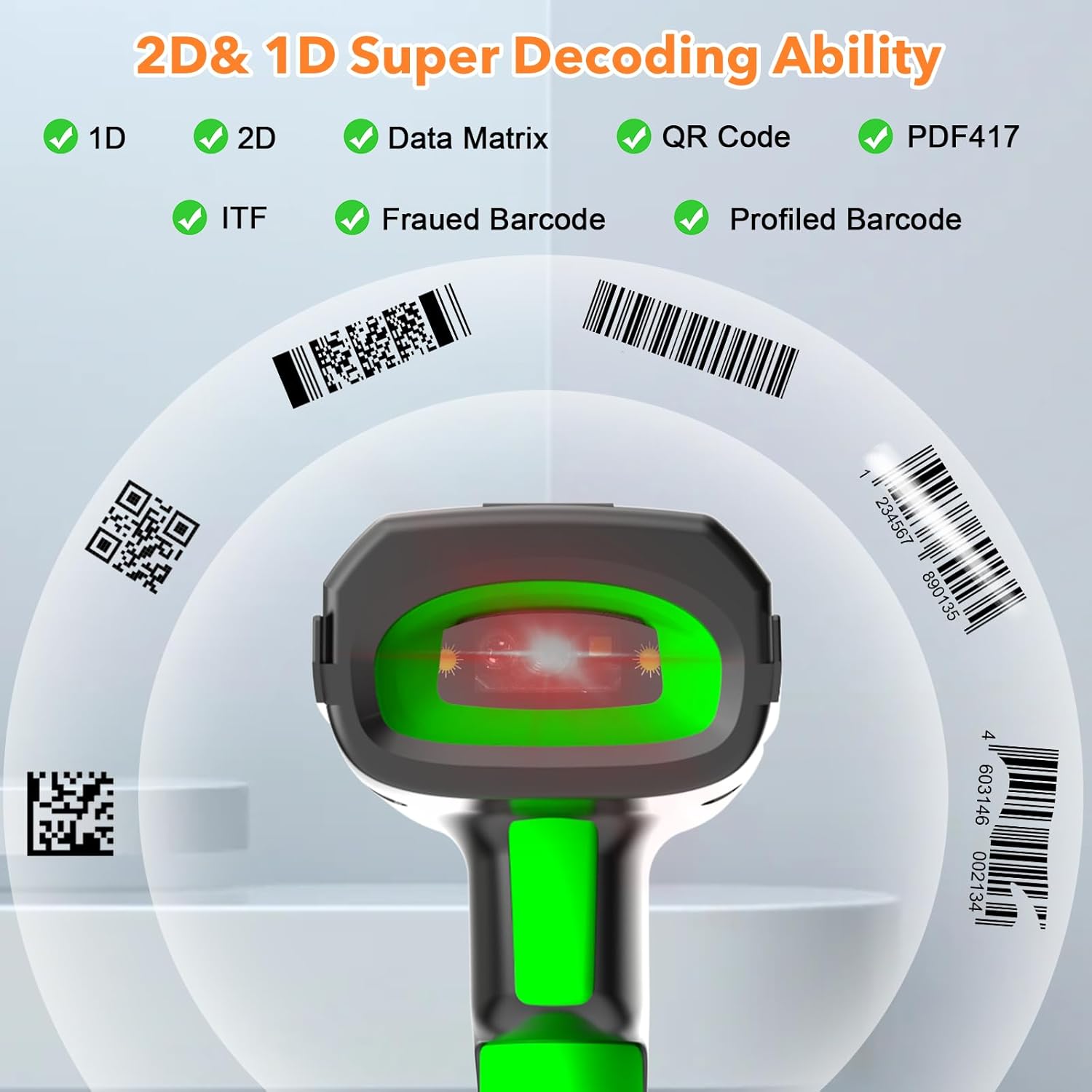
Image: Illustration demonstrating the scanner's ability to decode various 1D and 2D barcode types, including QR Code, Data Matrix, and PDF417.
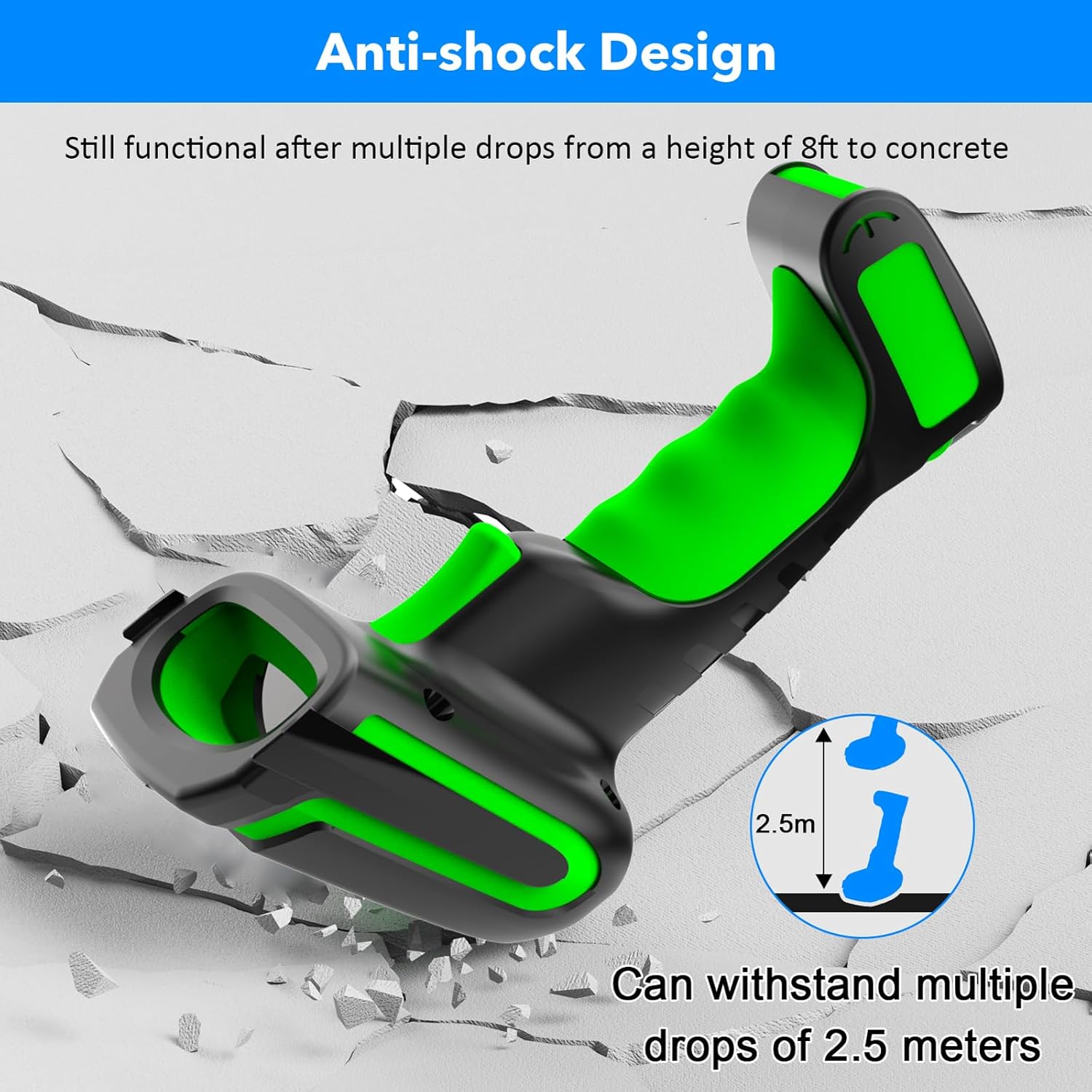
Image: The scanner shown with a cracked concrete background, illustrating its anti-shock design and ability to withstand drops from 2.5 meters.
3. Zawartość opakowania
Sprawdź, czy w opakowaniu znajdują się wszystkie elementy:
- Symcode 2D Screen Barcode Scanner
- Charging Stand (with built-in 433Mhz wireless receiver)
- USB Cable (for charging stand)
- Instrukcja obsługi (ten dokument)
4. Konfiguracja i połączenie
4.1 Ładowanie skanera
Before first use, fully charge the scanner. Place the scanner into the charging stand. Connect the charging stand to a power source (e.g., computer USB port or USB wall adapter) using the provided USB cable. The scanner's screen will indicate charging status.

Image: The barcode scanner being charged in its stand, highlighting the 2600mAh battery and indicating a 4-hour charging time for 30 hours of scanning.
4.2 Tryby połączenia
The Symcode G2023 scanner supports two primary connection methods:
- 433Mhz Wireless Connection:
The charging stand has a built-in 433Mhz wireless dongle. Connect the charging stand to your computer via USB. The scanner will automatically pair with the stand, providing a plug-and-play experience. This mode offers a long transmission range, up to 1000m (3280ft) in open areas.
- Połączenie Bluetooth:
The scanner can connect directly to Bluetooth-enabled devices such as laptops, smartphones, and tablets. It supports HID, SPP, and BLE modes. The Bluetooth range is approximately 15m (49ft) indoors.
Aby połączyć się przez Bluetooth:
- Sprawdź, czy skaner jest włączony.
- Activate Bluetooth on your host device (computer, phone, tablet).
- Scan the Bluetooth pairing barcode (refer to the quick start guide or scanner settings for this barcode).
- On your host device, search for "Symcode Scanner" or similar in the Bluetooth device list and select it to pair.

Image: Comparison of wireless ranges: Bluetooth (15m/49ft) for indoor use and 433Mhz (1000m/3280ft) for outdoor or longer-range applications.

Image: Depiction of the two connection modes: 433Mhz wireless via the charging base connected to a laptop, and direct Bluetooth connection to a tablet.
5. Instrukcja obsługi
5.1 Skanowanie kodów kreskowych
Point the scanner's window at the barcode you wish to scan. Press the trigger button to activate the scanning beam. Ensure the beam covers the entire barcode for accurate reading. A successful scan is typically indicated by a beep and/or vibration (configurable).
5.2 Tryby skanowania
The scanner supports the following operational modes:
- Tryb wyzwalania ręcznego: Press the trigger button for each scan.
- Tryb ciągłego skanowania: The scanner continuously emits a scanning beam, reading barcodes as they are presented.
- Tryb skanowania z automatycznym wykrywaniem: The scanner activates the beam automatically when a barcode is detected in its field of view.
- Tryb przechowywania: When out of wireless or Bluetooth range, scanned barcodes are stored in the scanner's internal memory. Data can be uploaded later when connection is re-established.
Refer to the included quick start guide or the scanner's configuration barcodes for instructions on switching between these modes.
5.3 Informacje wyświetlane na ekranie
The 1.77-inch TFT colorful screen provides real-time information:

Image: Close-up of the scanner's screen, detailing the information displayed: 1. Time, 2. Connection status, 3. Connection mode, 4. Electricity level, 5. Stored scan count, 6. Total scan count.
- Czas: Aktualny czas.
- Status połączenia: Indicates if the scanner is connected (e.g., Bluetooth icon, 433Mhz icon).
- Tryb połączenia: Displays the active connection type (e.g., Bluetooth, 433Mhz).
- Poziom energii elektrycznej: Wskaźnik naładowania baterii.
- Sklep: Number of barcodes currently stored in memory (in storage mode).
- Całkowity: Total number of barcodes scanned.
- Scanned Barcode Data: The actual data of the last scanned barcode.
- Typ kodu: The symbology of the last scanned barcode (e.g., QR Code, Code 128).
6. Konserwacja
6.1 Czyszczenie
Do czyszczenia skanera należy używać miękkiej,amp cloth. Do not use abrasive cleaners or solvents, as these can damage the device. Ensure the scanning window is clean for optimal performance.
6.2 Pielęgnacja baterii
The scanner is equipped with a 2600mAh Lithium Polymer battery. For optimal battery life:
- Unikaj częstego całkowitego rozładowywania akumulatora.
- Charge the scanner regularly, especially when not in use for extended periods.
- Przechowuj skaner w chłodnym i suchym miejscu, gdy nie jest używany.
7. Rozwiązywanie Problemów
| Problem | Możliwa przyczyna | Rozwiązanie |
|---|---|---|
| Scanner not connecting via 433Mhz. | Charging stand not powered or connected to host device. Scanner not paired with stand. | Ensure the charging stand is properly connected via USB. Re-scan the pairing barcode for 433Mhz if available in your quick start guide. |
| Skaner nie łączy się przez Bluetooth. | Bluetooth not enabled on host device. Scanner not in pairing mode. Out of range. | Enable Bluetooth on your device. Scan the Bluetooth pairing barcode on the scanner. Move scanner closer to the host device. |
| Skaner nie odczytuje kodów kreskowych. | Barcode damaged or poor quality. Scanning window dirty. Incorrect scanning mode. | Try scanning a different, known-good barcode. Clean the scanning window. Verify the scanner is in the correct scanning mode. |
| Bateria szybko się rozładowuje. | Frequent use. Battery nearing end of life. | Ensure the scanner is fully charged before use. Reduce continuous scanning time if possible. |
8. Specyfikacje produktu
| Funkcja | Specyfikacja |
|---|---|
| Typ | 1D 2D QR CMOS Display Screen Wireless Barcode Scanner |
| Metoda połączenia | Bluetooth 433Mhz Wireless |
| Interfejs | USB (for charging stand) |
| Prędkość skanowania | 200 razy / s |
| Moc | Prąd stały 5 V |
| Aktualny | 400mAh±5% |
| Pojemność baterii | Polimer litowy 2600 mAh |
| Ciągły czas użytkowania | More than 40,000 hours (product lifespan) / 24 hours (battery life) |
| Odporność na upadki | Can withstand drops under 2.2 meters (7.2 ft) / 2.5 meters (8 ft) |
| Ekran wyświetlacza | 1.77 Inch TFT Colorful Screen |
| Kompatybilne urządzenia | Komputer stacjonarny, laptop, POS, smartfon, tablet |
| Obsługiwane symboliki | 2D: Codeblock A, Codeblock F, PDF417, Micro PDF417, GS1 Composite Codes, QR Code, Data Matrix, MaxiCode, Aztec, HANXIN 1D: Codabar, kod 39, kod 32 farmaceutyczny (PARAF), przeplatany 2 z 5, NEC 2 z 5, kod 93, prosty 2 z 5 przemysłowy, prosty 2 z 5 IATA, macierz 2 z 5, kod 11, kod 128, GS1-128, UPC-A, UPC-E, EAN/JAN-8, EAN/JAN-13, MSI, GS1 DataBar wielokierunkowy, GS1 DataBar Limited, GS1 DataBar rozszerzony, China Post (Hongkong 2 z 5), Korea Post |
9. Gwarancja i wsparcie
For warranty information and technical support, please refer to the warranty card included with your product or visit the official Symcode webZachowaj paragon jako dowód zakupu.