1. Koniec produktuview
This manual provides instructions for the SABLUTE KL386 Wireless Keyboard and Mouse Combo. This combo offers a compact, quiet, and rechargeable solution for your computing needs, featuring backlit keys and an RGB mouse.
Zawartość opakowania:
- Klawiatura bezprzewodowa
- Mysz bezprzewodowa
- Odbiornik USB (2.4 GHz)
- Przejściówka z USB-A na USB-C
- Kabel ładujący USB-C
- Instrukcja obsługi
Identyfikacja komponentu:
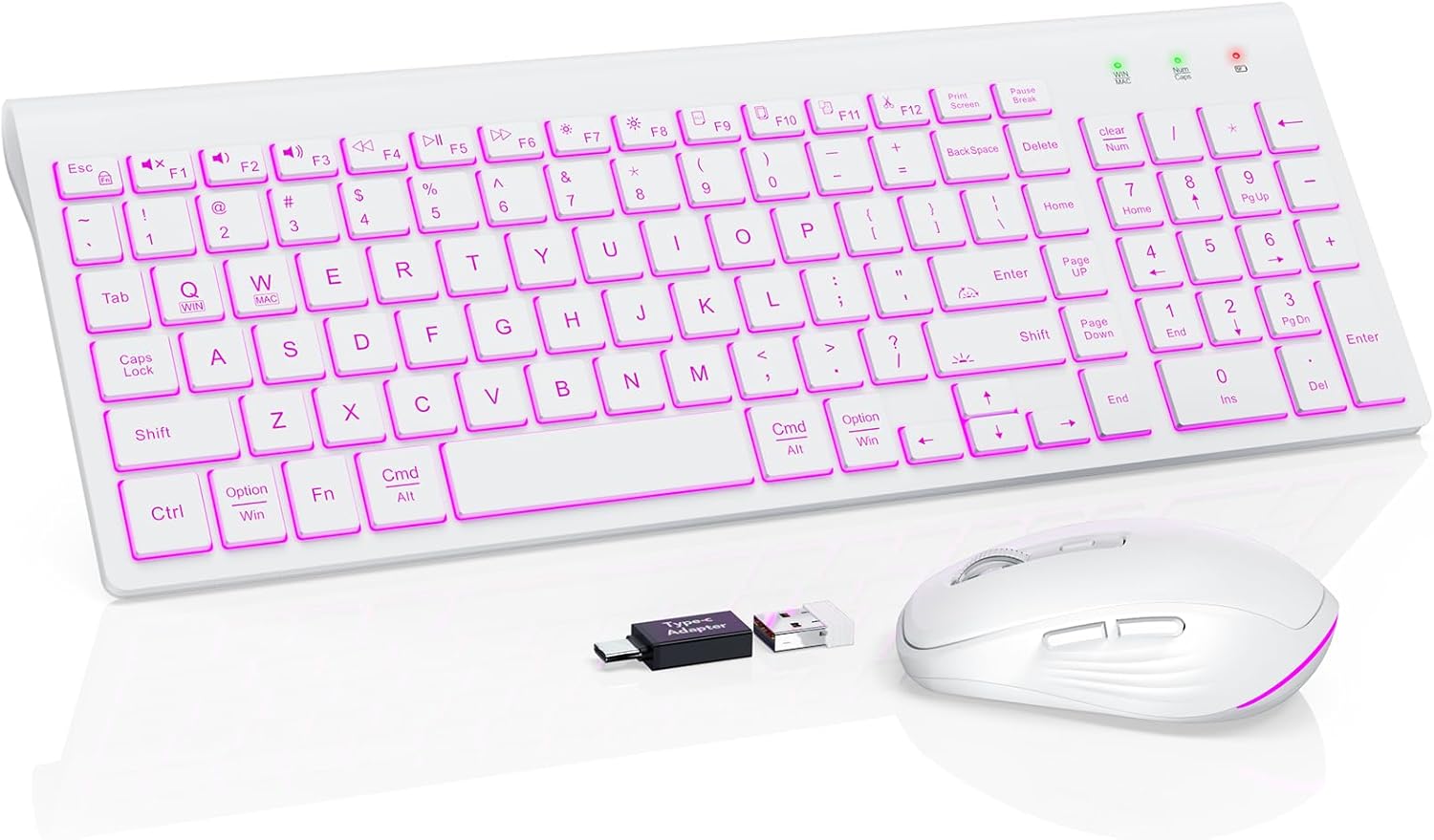
Image: The SABLUTE KL386 wireless keyboard and mouse combo, including the USB receiver and USB-C adapter.
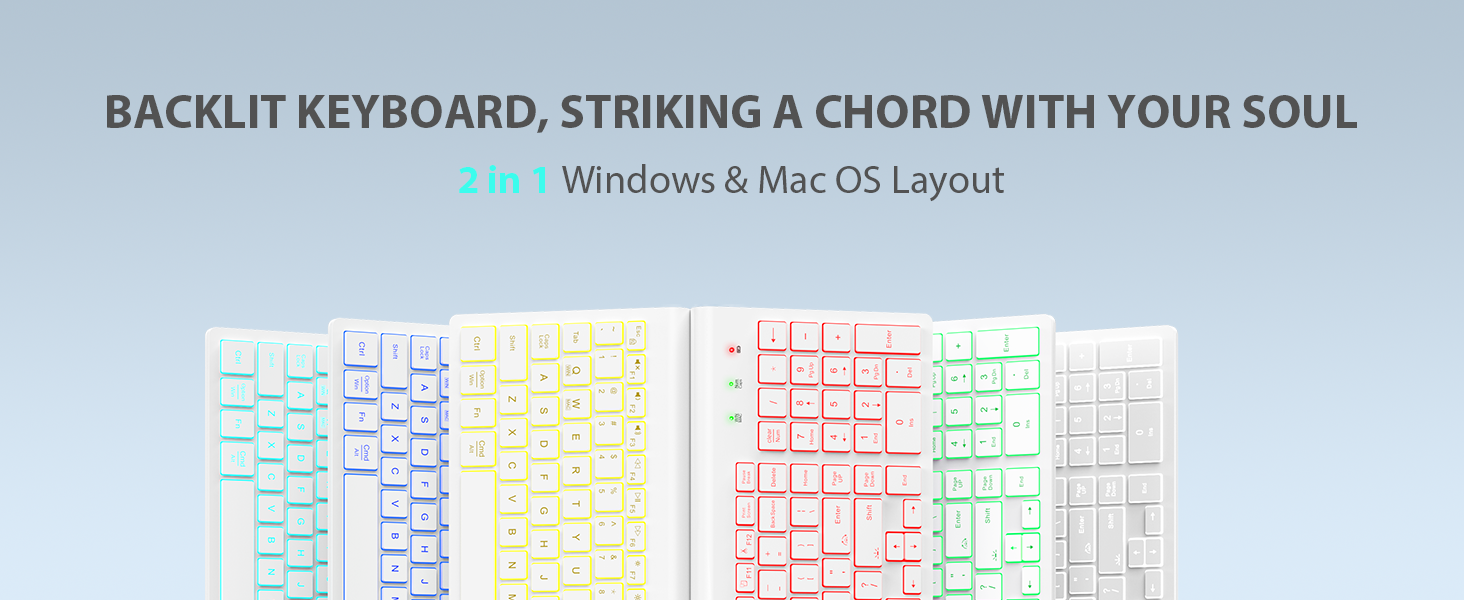
Obraz: Szczegółowy view of the SABLUTE KL386 keyboard layout, highlighting key functions and indicators.
2. Instrukcje konfiguracji
2.1 Ładowanie urządzeń
Before initial use, fully charge both the keyboard and mouse.
- Connect the provided USB-C charging cable to the charging port on the keyboard and mouse.
- Podłącz drugi koniec kabla do źródła zasilania USB (np. portu USB komputera, zasilacza ściennego USB).
- Podczas ładowania kontrolka ładowania będzie się świecić, a po pełnym naładowaniu zgaśnie.

Image: Illustration of the keyboard and mouse connected via USB-C cables for charging, showing battery capacity indicators.
2.2 Podłączanie zestawu bezprzewodowego
The keyboard and mouse share a single USB receiver for connection.
- Znajdź odbiornik USB, który zazwyczaj znajduje się w komorze baterii myszy.
- Plug the USB receiver into an available USB-A port on your computer. If your computer only has USB-C ports, use the included USB-A to USB-C adapter.
- Turn on the power switch located on the back of both the keyboard and the mouse.
- The devices are plug-and-play and should connect automatically within a few seconds.
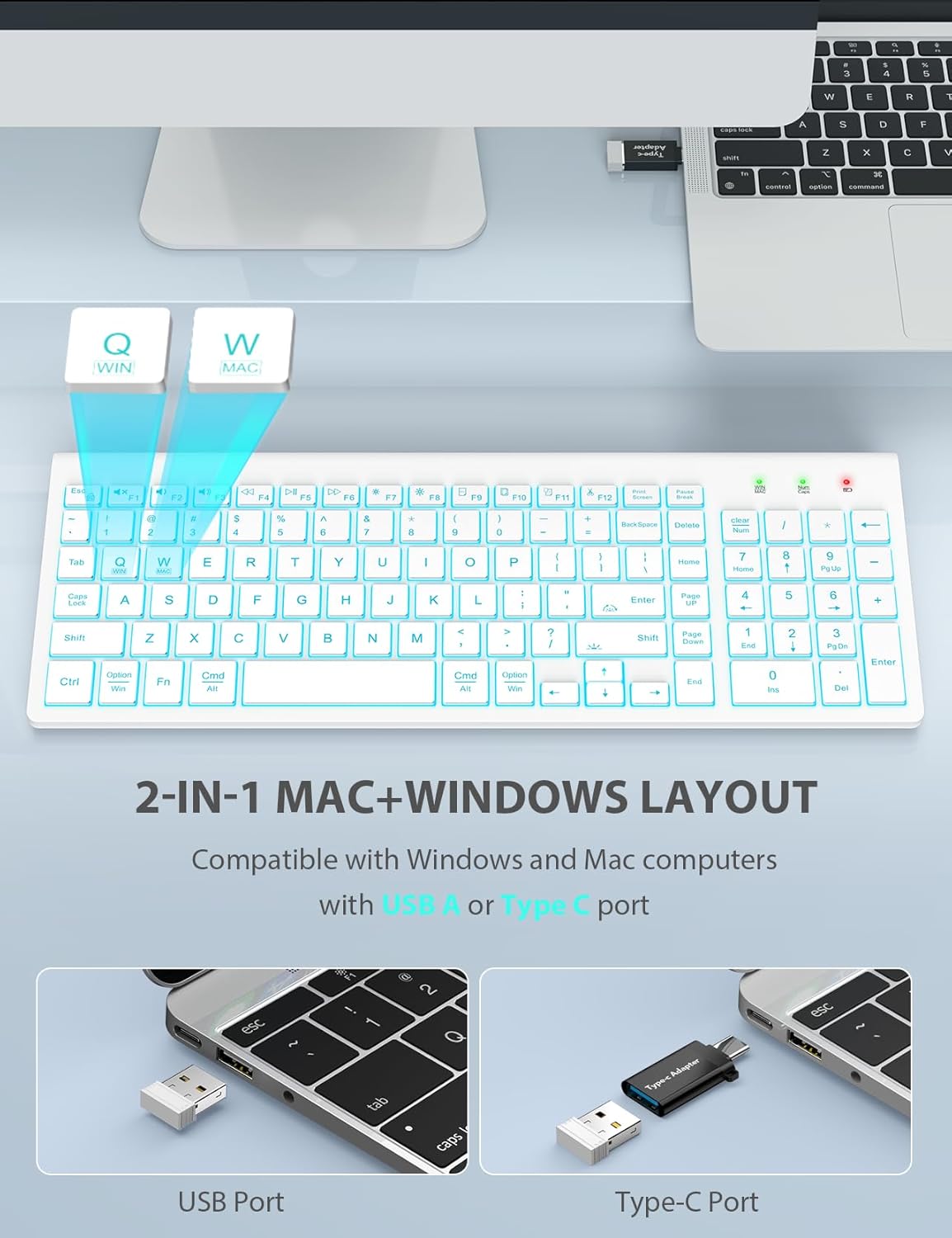
Image: A laptop connected to the wireless keyboard via a USB receiver, demonstrating the use of both USB-A and USB-C ports with the adapter.
2.3 Switching System Layout (Windows/Mac)
The keyboard supports both Windows and Mac layouts.
- Aby aktywować Układ Mac: Naciskać Fn + W. A red indicator light will confirm the switch.
- Aby aktywować Układ okien: Naciskać Fn + Q. A green indicator light will confirm the switch.
3. Instrukcja obsługi
3.1 Keyboard Backlight Control
The keyboard features a 7-color switchable backlight with 4 adjustable brightness levels.
- Turn On/Off/Adjust Brightness: Naciskać Fn+Shift. Cycle through Off, Low, Mid, and High brightness levels.
- Zmień kolory: Naciskać Fn + Enter. Cycle through the 7 available backlight colors.
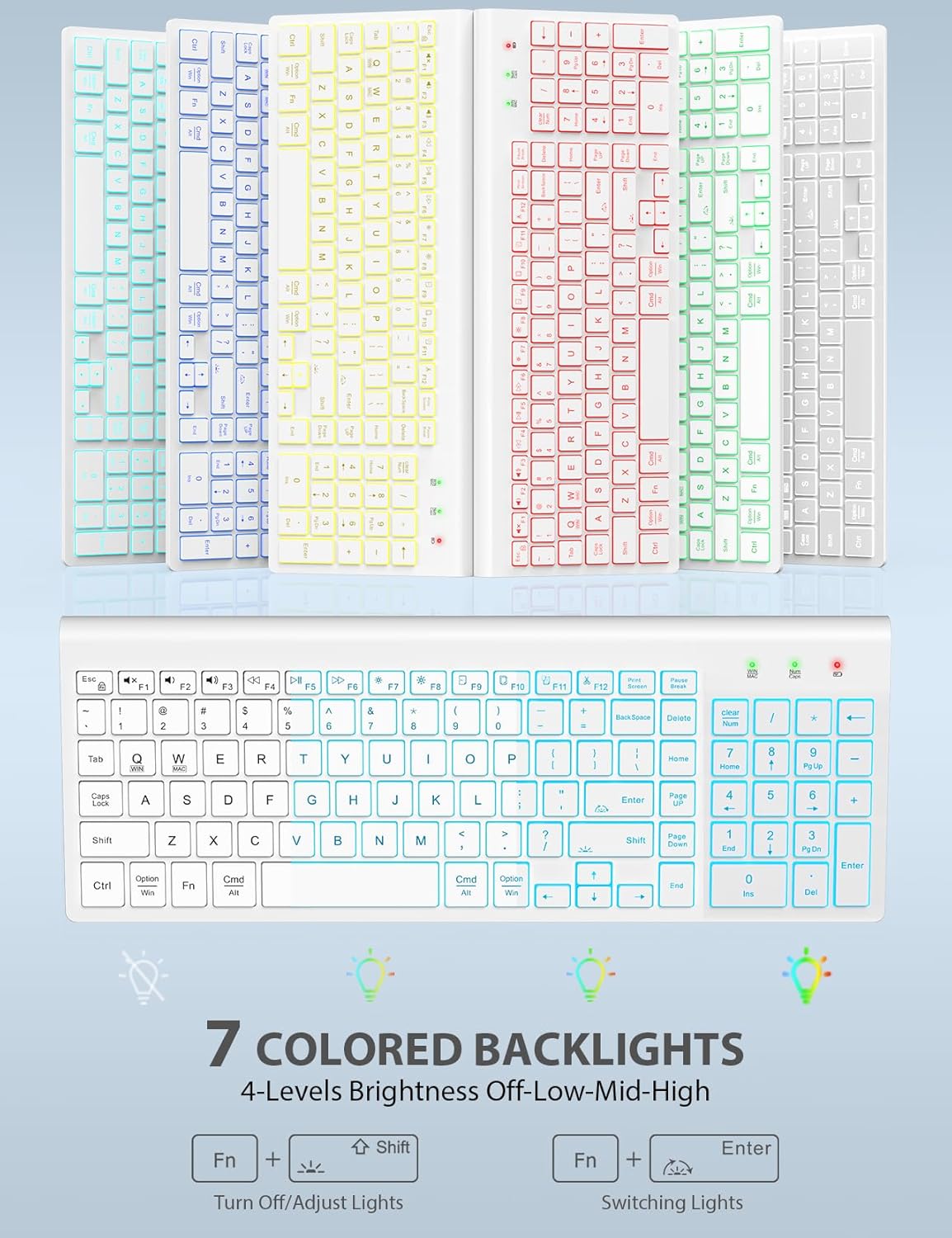
Image: The keyboard displaying various backlight colors, illustrating the 7-color options and brightness levels.
3.2 Mouse RGB Lighting
The mouse features automatic color-changing RGB lighting.
- The RGB lighting changes colors automatically during use.
- To turn the mouse backlight on or off, use the dedicated "backlight switching" button on the mouse.

Image: The wireless mouse showcasing its RGB lighting and highlighting the tracking speed and quiet click features.
3.3 Multimedia Function Hotkeys
The keyboard includes 12 convenient multimedia shortcut keys (F1-F12).
- To enable one-key operation of the F1-F12 multimedia functions, press Fn + ESC. This will toggle the "Fn Lock" feature.

Image: Diagram illustrating the Fn + ESC key combination to enable one-key operation of multimedia functions (F1-F12).
3.4 Funkcje myszy
- Tracking Speed Button: Located on the top of the mouse, this button allows you to adjust the DPI (sensitivity) for different tracking speeds.
- Przyciski do przodu/do tyłu: Located on the side of the mouse, these buttons facilitate faster web nawigacja.
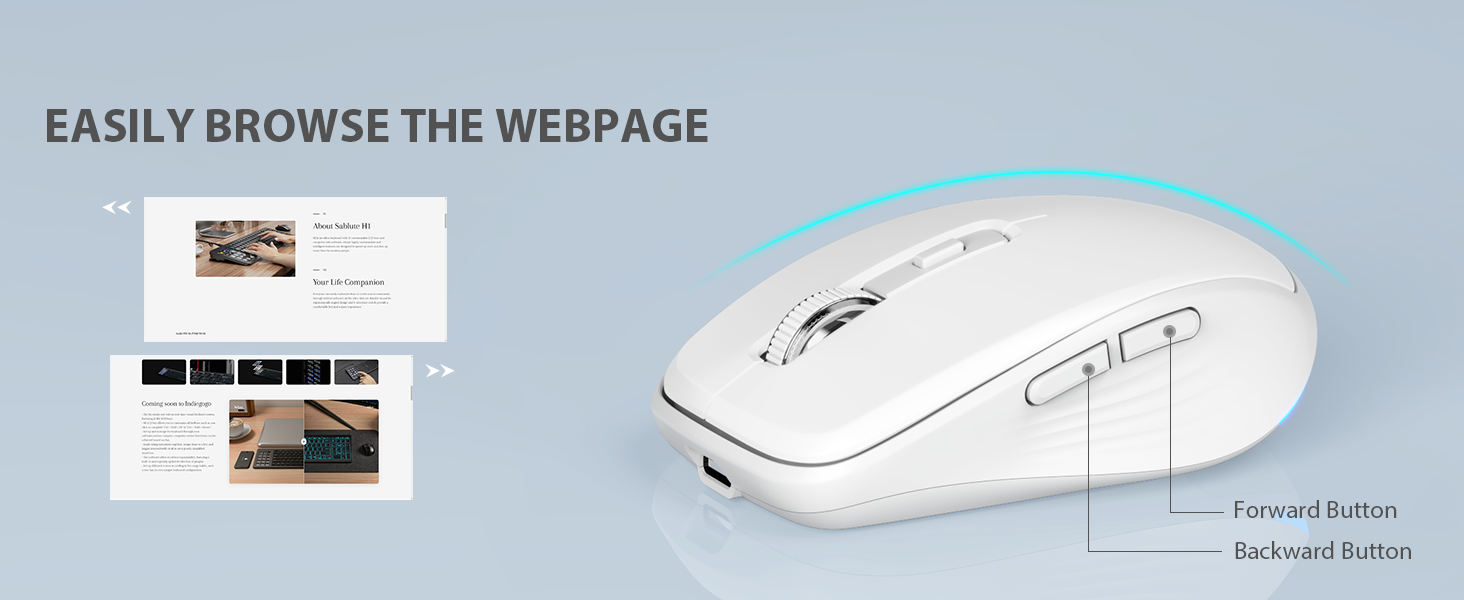
Image: Close-up of the wireless mouse, highlighting the forward and backward navigation buttons for web przeglądanie.
3.5 Smart Sleep Mode
Both the keyboard and mouse feature an automatic sleep function to conserve battery power.
- Klawiatura przejdzie w tryb uśpienia po 10 minutach bezczynności.
- The mouse will enter sleep mode after 15 minutes of inactivity.
- To wake up either device, simply type any key on the keyboard or click any button on the mouse.
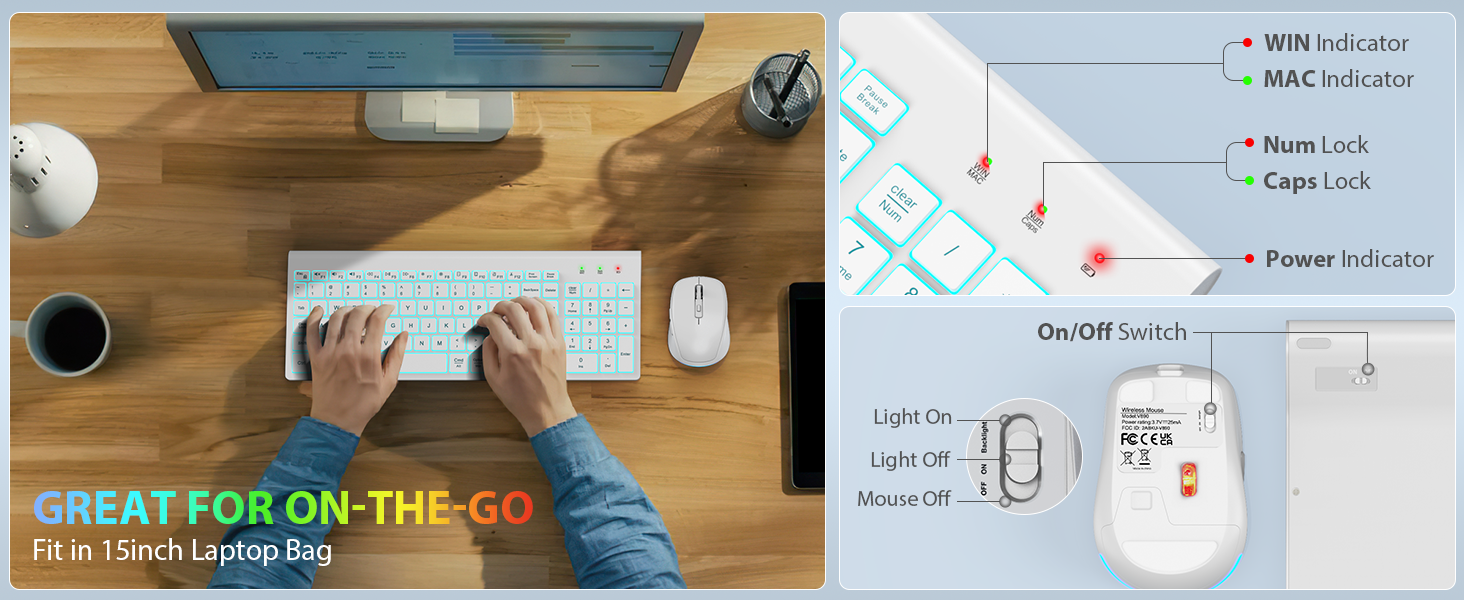
Image: Visual representation of the smart sleep mode feature, indicating idle times for both the keyboard and mouse before entering sleep.
4. Konserwacja
4.1 Czyszczenie
- Do czyszczenia powierzchni klawiatury i myszy należy używać miękkiej, suchej ściereczki.
- W przypadku uporczywych zabrudzeń, delikatnieampPrzetrzyj ściereczkę wodą lub delikatnym środkiem czyszczącym. Unikaj nadmiernej wilgoci.
- Nie należy używać silnych środków chemicznych, ściernych środków czyszczących ani rozpuszczalników.
4.2 Pielęgnacja baterii
- Recharge the devices when the battery indicator lights show low power.
- Aby przedłużyć żywotność baterii, należy unikać jej częstego całkowitego rozładowywania.
- If storing the devices for an extended period, charge them to about 50% and store in a cool, dry place.
5. Rozwiązywanie Problemów
5.1 Problemy z połączeniem
- Brak połączenia: Upewnij się, że odbiornik USB jest prawidłowo podłączony do działającego portu USB. Spróbuj użyć innego portu USB.
- Devices not responding: Check if both the keyboard and mouse are powered on. Ensure they are sufficiently charged.
- Ingerencja: Move the devices closer to the USB receiver. Avoid placing the receiver near other wireless devices or large metal objects that might cause interference.
5.2 Backlight Not Working (Keyboard)
- Sprawdź, czy klawiatura jest naładowana.
- Naciskać Fn+Shift to cycle through brightness levels and turn the backlight on.
5.3 Keys or Mouse Not Responding
- Naładuj urządzenia.
- Turn the devices off and then on again.
- Remove and re-insert the USB receiver.
- Test the devices on a different computer to rule out system-specific issues.
6. Specyfikacje
| Funkcja | Opis |
|---|---|
| Wymiary produktu | 14.8 x 5.4 x 0.78 cala |
| Waga przedmiotu | 1.52 funta |
| Baterie | Wymagana 1 bateria litowo-jonowa (w zestawie) |
| Technologia łączności | Radio Frequency (2.4GHz) |
| Cechy specjalne | Backlit, Lightweight, Portable, Rechargeable, Spill-Resistant, Quiet Operation, Smart Sleep Mode |
| Kompatybilne urządzenia | Chromebook, notebook, MacBook Pro, MacBook Air, iMac, tablet, telewizor, smartfon, Windows XP/Vista/7/8/10/X |
| Podświetlenie klawiatury | 7 switchable colors, 4 brightness levels |
| Oświetlenie myszy | Automatyczna zmiana kolorów RGB |
| Czas czuwania klawiatury | 365 dni |
| Czas czuwania myszy | 270 dni |
7. Gwarancja i wsparcie
7.1 Informacje o gwarancji
SABLUTE provides 24 months of support for this product. If you encounter any issues, please contact our customer service team.
7.2 Obsługa klienta
For technical assistance or warranty claims, please contact SABLUTE USA customer service:
- Telefon: 1-888-905-9607 (US)
- Godziny otwarcia: Monday - Friday, 9:00 AM - 1:00 PM PST and 2:00 PM - 6:00 PM PST

Image: A customer service representative with a headset, indicating available support.


