1. Wprowadzenie
This manual provides detailed instructions for the setup, operation, and maintenance of your Phomemo WiFi Thermal Label Printer Model 249. This printer is designed for efficient and versatile label printing, compatible with various operating systems and e-commerce platforms. Please read this manual thoroughly to ensure proper use and to maximize the printer's performance.
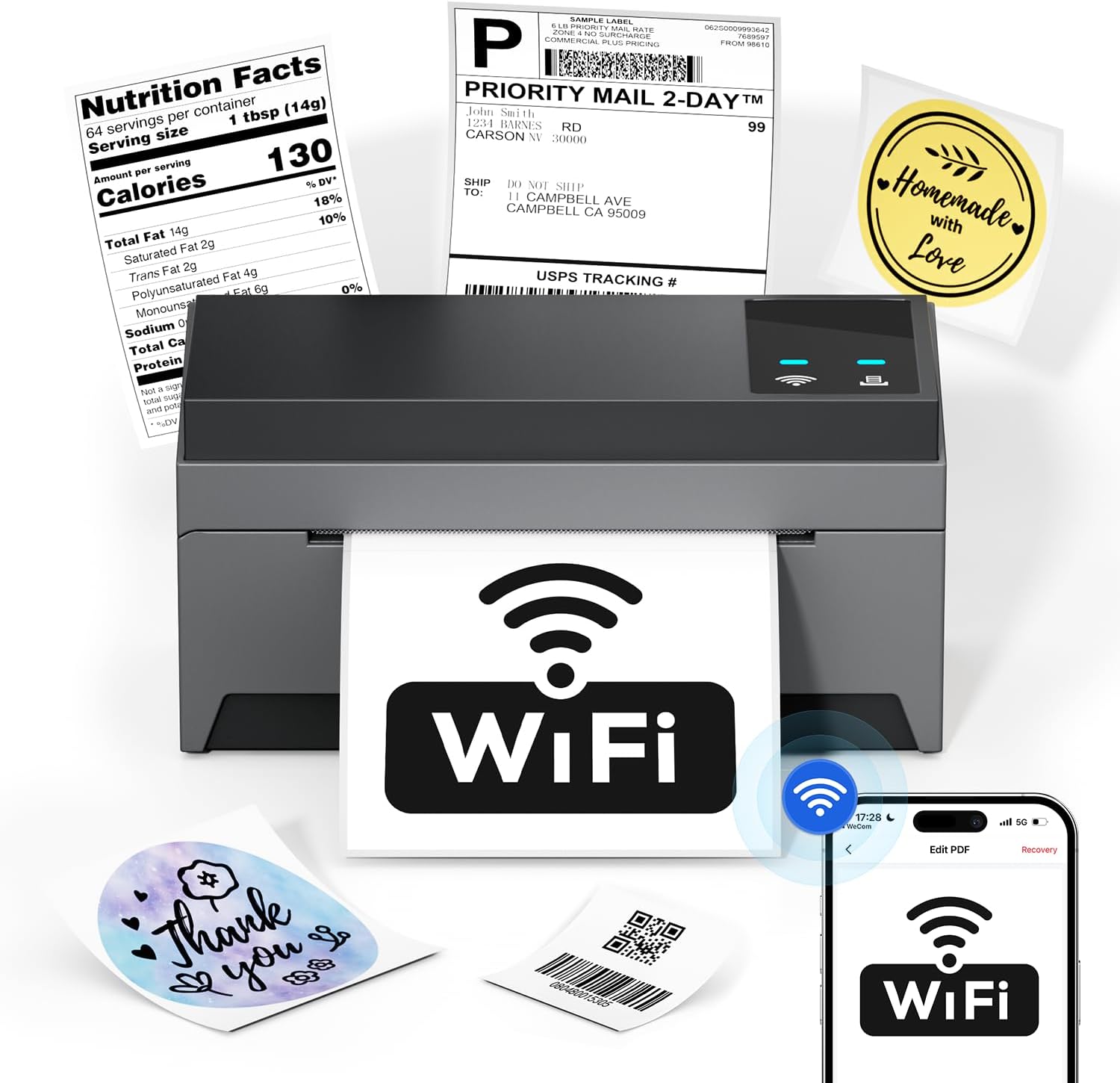
Image: The Phomemo Model 249 printer in operation, demonstrating its capability to print diverse label types such as shipping labels, product information, and custom designs.
2. Zawartość opakowania
Sprawdź, czy w przesyłce znajdują się wszystkie elementy wymienione poniżej:
- 1 Phomemo 249 WiFi label printer
- 1 USB-C Data cable
- 1 Power cord (US/UK/EU) with Adapters
- 10 pcs 4x6 shipping labels
- 1 Szybki przewodnik
- 1 Adapter USB-C

Image: All components included in the Phomemo 249 printer package, neatly arranged on a wooden desk.
3. Przewodnik konfiguracji
3.1 Konfiguracja fizyczna
- Podłącz zasilanie: Plug the power cord into the printer and then into a power outlet.
- Załaduj etykiety: Open the printer cover. Insert the thermal labels with the printable side facing up. Adjust the label guides to fit the width of your labels. Close the cover.
3.2 Instalacja oprogramowania
The Phomemo 249 printer can be operated via the Labelife mobile app or a Printer Setting Tool for computers.
For Mobile Devices (iOS & Android) - Labelife App
- Pobierz aplikację: Scan the QR code or search for "Labelife" in the App Store (iOS) or Google Play Store (Android).
Download Labelife App - Włącz łączność: Turn on Bluetooth and WiFi on your mobile device.
- Podłącz drukarkę: Open the Labelife app. Select the "Internet Connection" option and choose your printer from the list (e.g., PM-249-WF).
- Skonfiguruj Wi-Fi: Enter your WiFi password to connect the printer to your network.

Image: Visual guide demonstrating the steps to connect the printer using the Labelife mobile application.
For Computers (MacOS & Windows) - Printer Setting Tool
- Narzędzie do pobierania: Odwiedź oficjalną stronę Phomemo website or the link provided in your quick guide to download the Printer Setting Tool for your operating system (Windows or MacOS).
- USB Connection (Initial Setup): Connect your computer to the printer using the provided USB-C cable. This is often required for the initial WiFi configuration from a computer.
- Skonfiguruj Wi-Fi: Use the Printer Setting Tool to select your WiFi network and enter the password. Once configured, the printer will automatically connect to WiFi for future use, eliminating the need for repeated USB connections unless the WiFi settings change.

Image: Instructions for setting up the printer's WiFi connection using the Printer Setting Tool on a computer.
3.3 Opcje łączności
- WiFi (5GHz): Supports fast and reliable wireless printing from Android, iOS, Mac, Windows, and Linux devices. Up to 10 devices can connect simultaneously.
- USB: Provides a direct wired connection for all computer systems, including Chrome OS.
- Bluetooth: Note that Bluetooth is for auxiliary WiFi connection setup only and does not support direct printing.

Image: Visual representation of the printer's versatile connectivity via WiFi and USB, compatible with various operating systems.
4. Instrukcja obsługi
4.1 Proces drukowania
Once your printer is connected and labels are loaded, you can initiate printing from your chosen device:
- Przygotuj swój dokument: Otwórz etykietę file (e.g., PDF, image) on your computer or mobile device.
- Wybierz drukarkę: In your application's print dialog, select the Phomemo 249 printer.
- Dostosuj ustawienia: Ensure the label size and orientation are correctly set to match your physical labels.
- Wydrukować: Confirm settings and send the print job to the printer.
4.2 Labelife App Features
The Labelife app provides tools for creating and customizing labels:
- Access a library of free label styles.
- Design custom shipping labels, product tags, and other personalized labels.
- Importuj PDF filedo druku.
- Edit labels with various fonts, shapes, and barcodes.
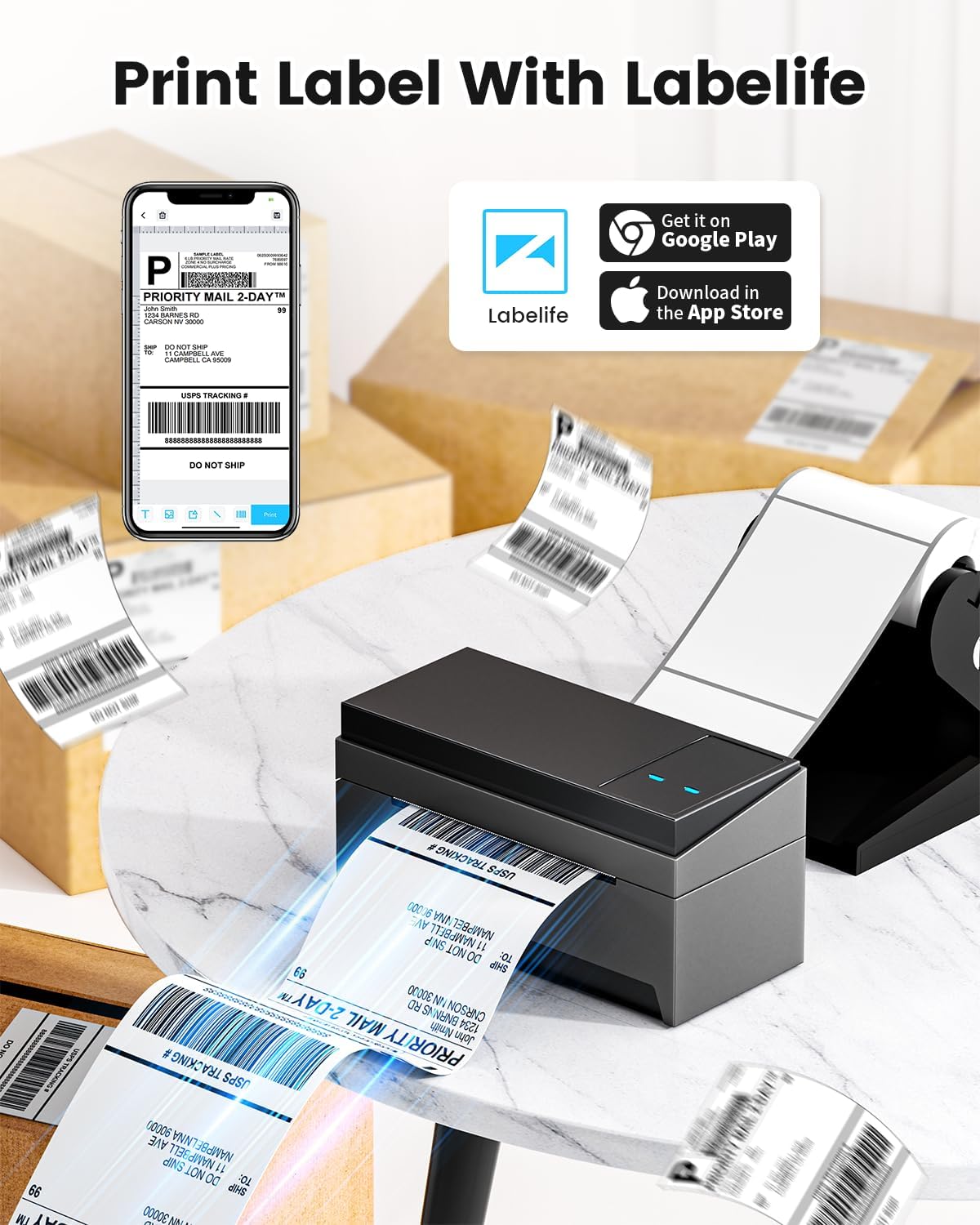
Image: A smartphone displaying the Labelife app, ready to print a shipping label, with the Phomemo printer in the background.
4.3 Obsługiwane platformy
The Phomemo 249 printer is compatible with a wide range of e-commerce and logistics platforms, ensuring accurate label generation for your needs:
- eBay
- Amazonka
- Walmart
- Sklep internetowy
- Poczta amerykańska
- Etsy
- Płatność kartą
- FedEx
- DHL
- UPS
- I wiele innych.
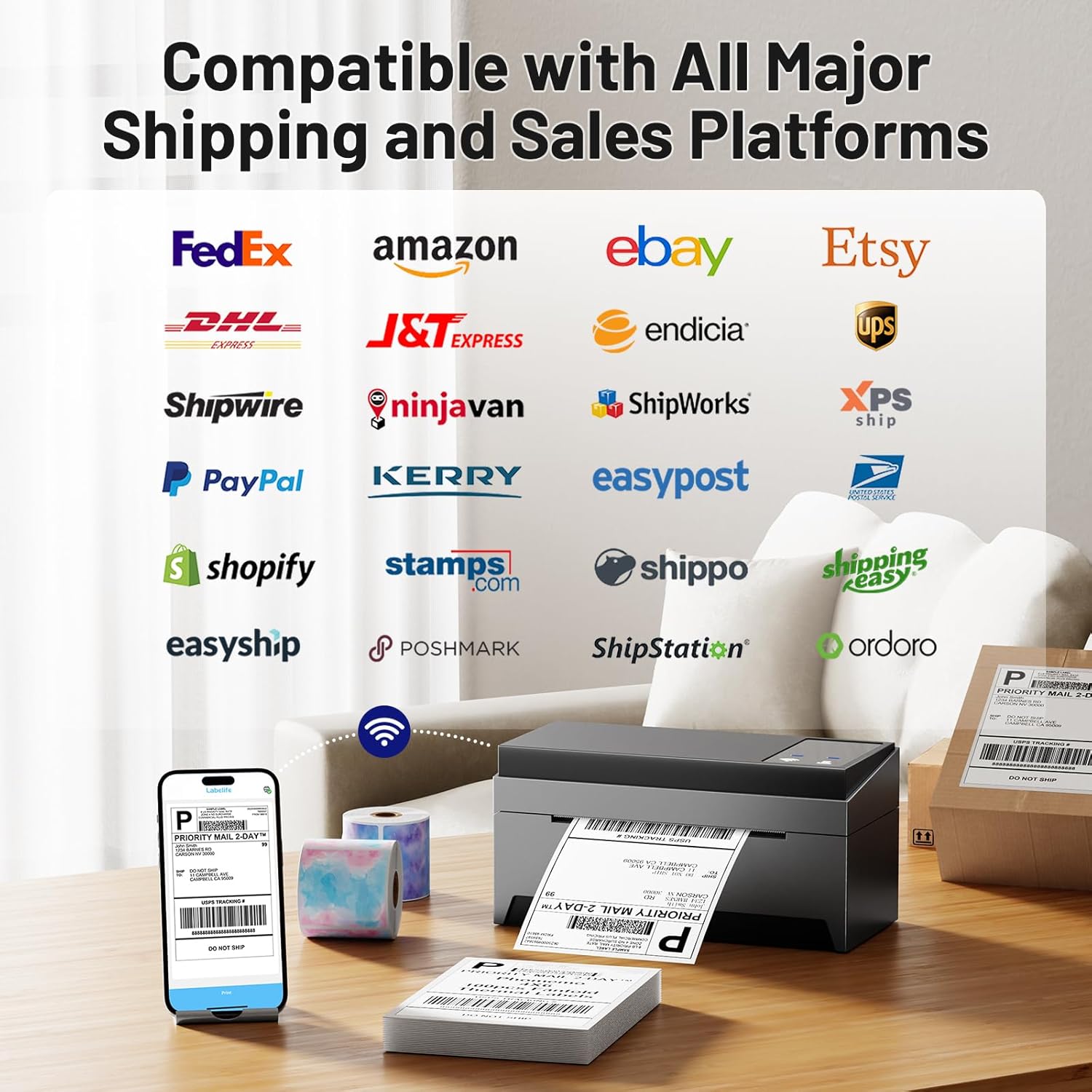
Image: A collage of logos from major e-commerce and logistics platforms, highlighting the printer's broad compatibility.
4.4 Label Types and Sizes
The printer supports various label sizes and types, with a printing range from 1 inch to 4.6 inches in width. This includes standard 4x6 inch shipping labels, smaller product labels, and custom shapes.
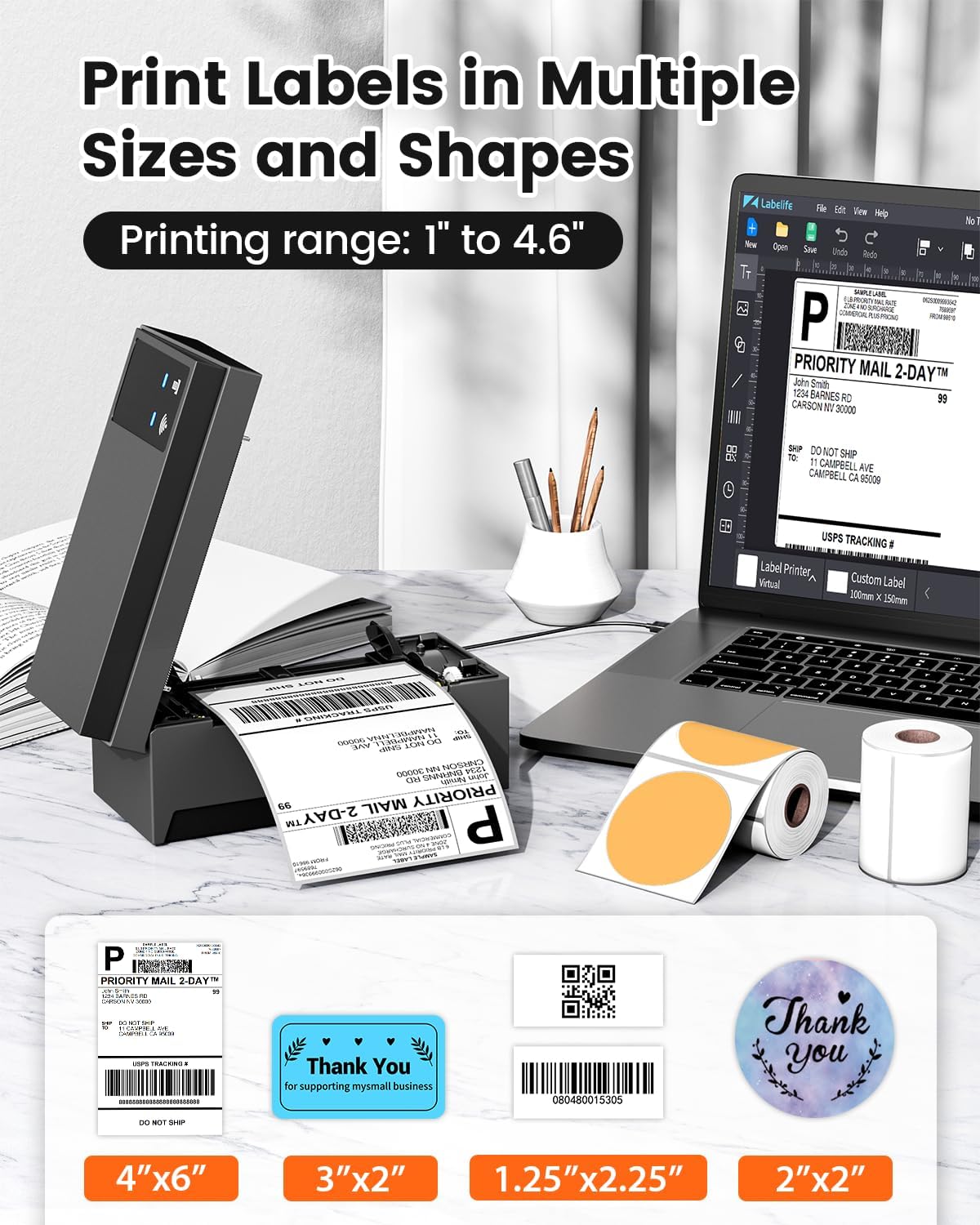
Image: A display of various label sizes and shapes, such as 4x6 inch, 3x2 inch, and round labels, demonstrating the printer's versatility.
5. Konserwacja
5.1 Czyszczenie głowicy drukującej
Aby zachować jakość wydruku, należy regularnie czyścić głowicę drukującą:
- Wyłącz drukarkę i odłącz ją od źródła zasilania.
- Otwórz pokrywę drukarki.
- Delikatnie przetrzyj głowicę drukującą wacikiem bawełnianym.ampwykończony alkoholem do nacierania.
- Przed zamknięciem pokrywy i ponownym włączeniem drukarki należy odczekać, aż głowica drukująca całkowicie wyschnie.
5.2 Ogólna opieka
- Przechowuj drukarkę w czystym i wolnym od kurzu miejscu.
- Unikaj wystawiania drukarki na bezpośrednie działanie promieni słonecznych i ekstremalnych temperatur.
- Aby zapobiec uszkodzeniu głowicy drukującej, należy używać wyłącznie wysokiej jakości etykiet termicznych.
6. Rozwiązywanie Problemów
If you encounter issues with your Phomemo 249 printer, refer to the following common problems and solutions:
| Problem | Możliwa przyczyna | Rozwiązanie |
|---|---|---|
| Printer not connecting via WiFi | Incorrect WiFi password, printer not on the same network, Bluetooth not enabled (for app setup). | Ensure correct WiFi password. Verify printer and device are on the same 5GHz network. For app setup, enable Bluetooth. Re-run WiFi configuration via Labelife app or Printer Setting Tool. |
| Drukarka drukuje puste etykiety | Incorrect label loading, print head dirty, software settings. | Ensure labels are loaded with the printable side up. Clean the print head (refer to Section 5.1). Check print settings in your software (e.g., ensure image is not set to print in color if it's a monochrome thermal printer). Restart printer and device. |
| Labels are faded or unclear | Low quality labels, dirty print head, incorrect print density settings. | Use high-quality thermal labels. Clean the print head. Adjust print density settings in your printer driver or app. |
| Printer not detected by computer via USB | Faulty USB cable, driver not installed correctly, incorrect USB port. | Try a different USB cable or port. Reinstall the printer driver. Ensure the USB-C adapter is correctly used if needed. |
For further assistance, please contact customer support (refer to Section 8).
7. Specyfikacje
Key technical specifications for the Phomemo WiFi Thermal Label Printer Model 249:
| Funkcja | Specyfikacja |
|---|---|
| Nazwa modelu | 249 |
| Marka | Fomemo |
| Technologia łączności | USB, Wi-Fi (5 GHz) |
| Technologia druku | Termiczny |
| Wyjście drukarki | Monochromia |
| Maksymalna rozdzielczość druku | 203 dpi |
| Maksymalna prędkość drukowania (monochromatyczna) | 72 str./min (stron na minutę) |
| Maksymalny rozmiar nośnika | 4x6 cali |
| Rozmiar arkusza | 4x6 cali |
| Maksymalna pojemność arkuszy wejściowych | 100 |
| Kompatybilne urządzenia | Laptopy, PC, smartfony, tablety |
| Interfejs sprzętowy | USB typu C |
| Wymiary produktu | 9 x 14 x 19 cala |
| Waga przedmiotu | 3.03 funta |
| Typ atramentu do drukarki | Bez tuszu (termiczny) |
| Funkcja specjalna | Drukowanie naklejek |
8. Informacje o gwarancji
The Phomemo WiFi Thermal Label Printer Model 249 comes with a ograniczona gwarancja. Please refer to the warranty card included in your package or contact customer support for specific terms and conditions.
9. Obsługa klienta
For any questions, technical assistance, or support, please contact the Phomemo professional support team:
- Wsparcie telefoniczne: Available 9:00 AM - 5:00 PM EST, Monday - Friday.
- Wsparcie e-mailowe: Available for inquiries.
- Czat na żywo: Available 7:30 PM - 4:30 AM EST, Monday - Friday.
- Remote Desktop Assistance: Offered for complex issues.
Detailed video tutorials and additional manuals are also available to assist with setup and operation.


