1. Wprowadzenie
The Redragon K717 PRO is a 61-key compact mechanical gaming keyboard designed for versatility and performance. It features QMK/VIA programmability, multiple connection modes (wired, 2.4GHz wireless, and Bluetooth), and custom linear switches with 3-layer noise dampening. This manual provides detailed instructions for setup, operation, and maintenance of your keyboard.

Obraz 1.1: Przód view of the Redragon K717 PRO Gaming Keyboard, showcasing its compact 61-key layout and RGB backlighting.
2. Co znajduje się w pudełku
Sprawdź, czy w przesyłce znajdują się wszystkie elementy:
- Klawiatura gamingowa Redragon K717 PRO
- Kabel USB-C
- Wyciągacz klawiszy/przełączników
- Zapasowe przełączniki (4 sztuki)
- Instrukcja obsługi
3. Konfiguracja
3.1. Tryby połączenia
The Redragon K717 PRO supports three connection modes: USB-C wired, 2.4GHz wireless, and Bluetooth (BT 3.0/5.0).
3.1.1. Połączenie przewodowe
- Locate the USB-C port on the left side of the keyboard.
- Podłącz dołączony kabel USB-C do klawiatury, a drugi jego koniec do wolnego portu USB w komputerze.
- Ensure the mode switch on the keyboard's underside is set to the 'OFF' or 'Wired' position (refer to the diagram below).
- Klawiatura zostanie automatycznie rozpoznana przez Twój system.

Image 3.1: Detail of the USB-C port on the side of the Redragon K717 PRO keyboard.
3.1.2. Połączenie bezprzewodowe 2.4 GHz
- Znajdź klucz sprzętowy USB 2.4 GHz znajdujący się w schowku na spodzie klawiatury.
- Podłącz klucz USB do wolnego portu USB w komputerze.
- Set the mode switch on the keyboard's underside to the '2.4G' position.
- Klawiatura powinna połączyć się automatycznie.
3.1.3. Połączenie Bluetooth
- Set the mode switch on the keyboard's underside to the 'BT' position.
- Włącz Bluetooth na swoim komputerze lub urządzeniu i wyszukaj nowe urządzenia.
- Select 'Redragon K717 PRO' from the list of available devices to pair.
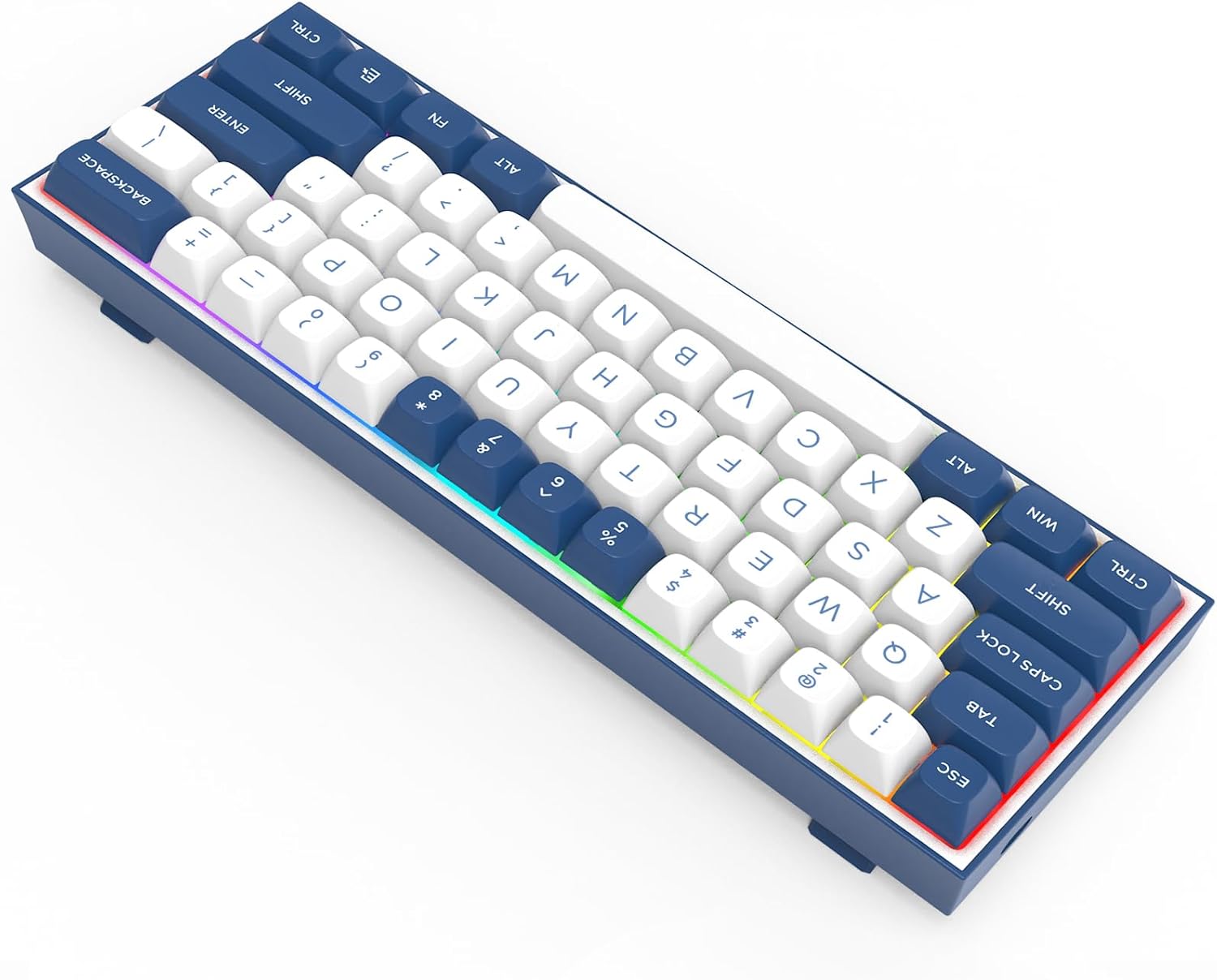
Image 3.2: Underside of the Redragon K717 PRO, highlighting the 2.4GHz dongle storage and the connection mode switch (Wired/2.4G/BT).
3.2. Zmiana systemu operacyjnego
The keyboard features a switch on its underside to toggle between Windows and Mac layouts. Ensure this switch is set to your operating system for optimal key functionality.
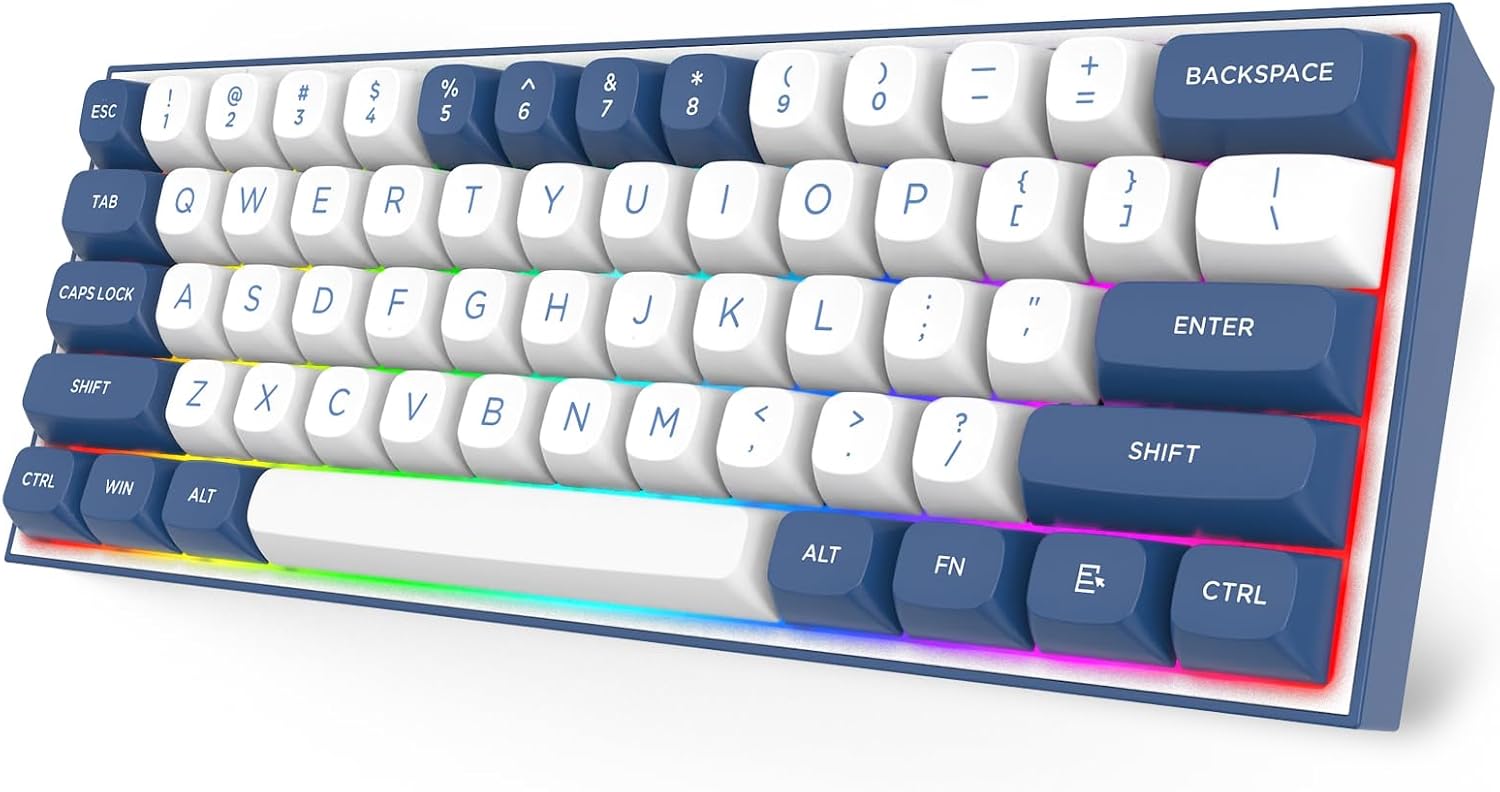
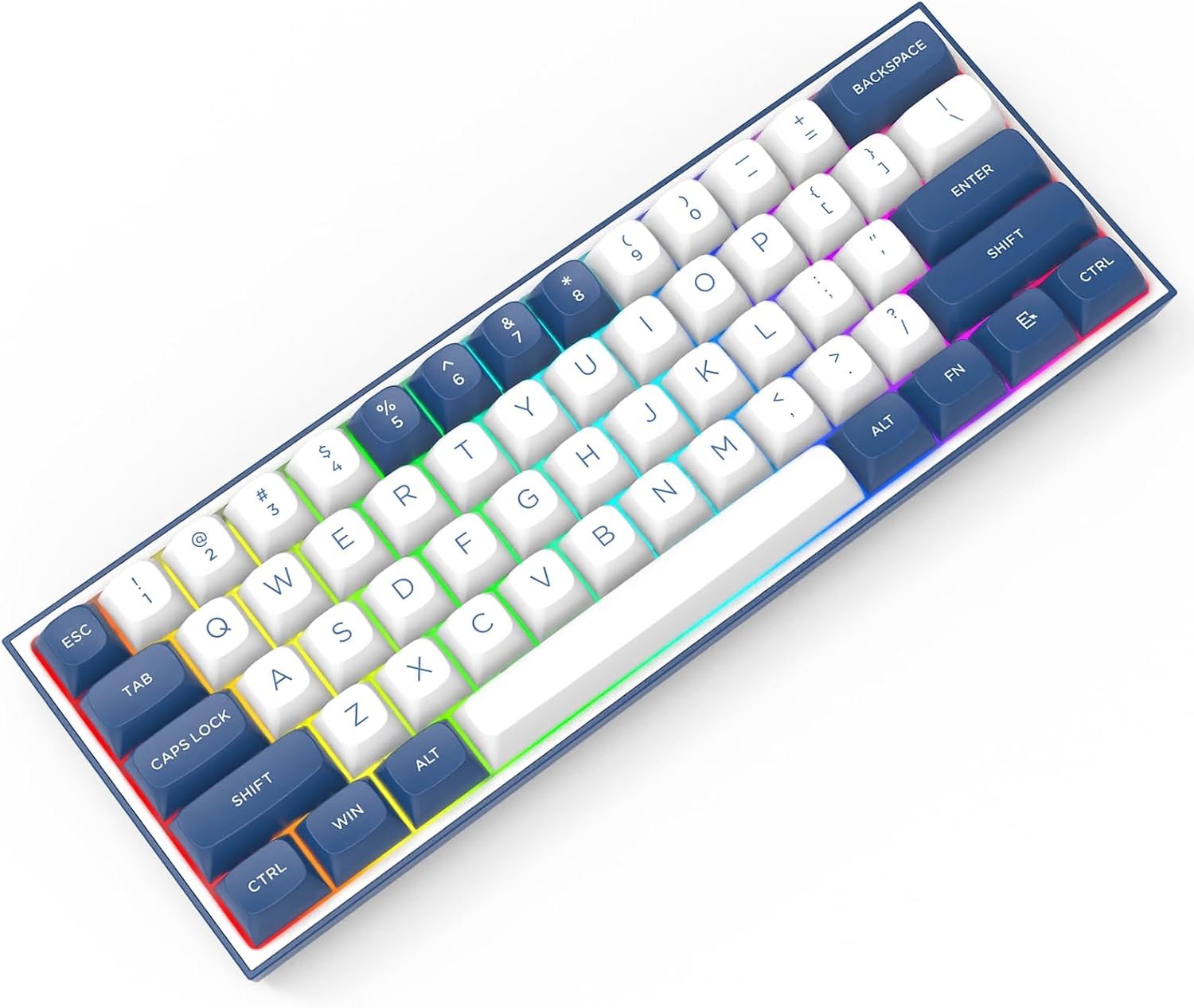
Obraz 3.3: Pod kątem view of the Redragon K717 PRO keyboard, showing the keycap profile and vibrant RGB lighting.
4. Instrukcja obsługi
4.1. Podstawowe funkcje klawiszy
The K717 PRO features a 61-key compact layout. Many standard functions are accessed via the Function (FN) key combined with other keys. Refer to the keyboard's keycap legends for specific FN key combinations.
4.2. Programowalność QMK/VIA
The Redragon K717 PRO supports QMK/VIA for advanced customization. This allows you to remap keys, create macros, and configure hotkeys. Notatka: Key remapping must be performed in wired mode. Once programmed, the custom keymap will function in both wired and wireless modes.
- Download the VIA software from the official Redragon webstrona.
- Connect the keyboard via USB-C cable to your computer.
- Launch the VIA software to access the programming interface.
- Follow the on-screen instructions within VIA to customize your keymap.
4.3. Sterowanie podświetleniem RGB
The keyboard features customizable RGB backlighting. Specific key combinations (usually involving the FN key) allow you to change lighting modes, adjust brightness, and modify colors. Consult the included quick start guide or the Redragon website for detailed RGB control instructions.
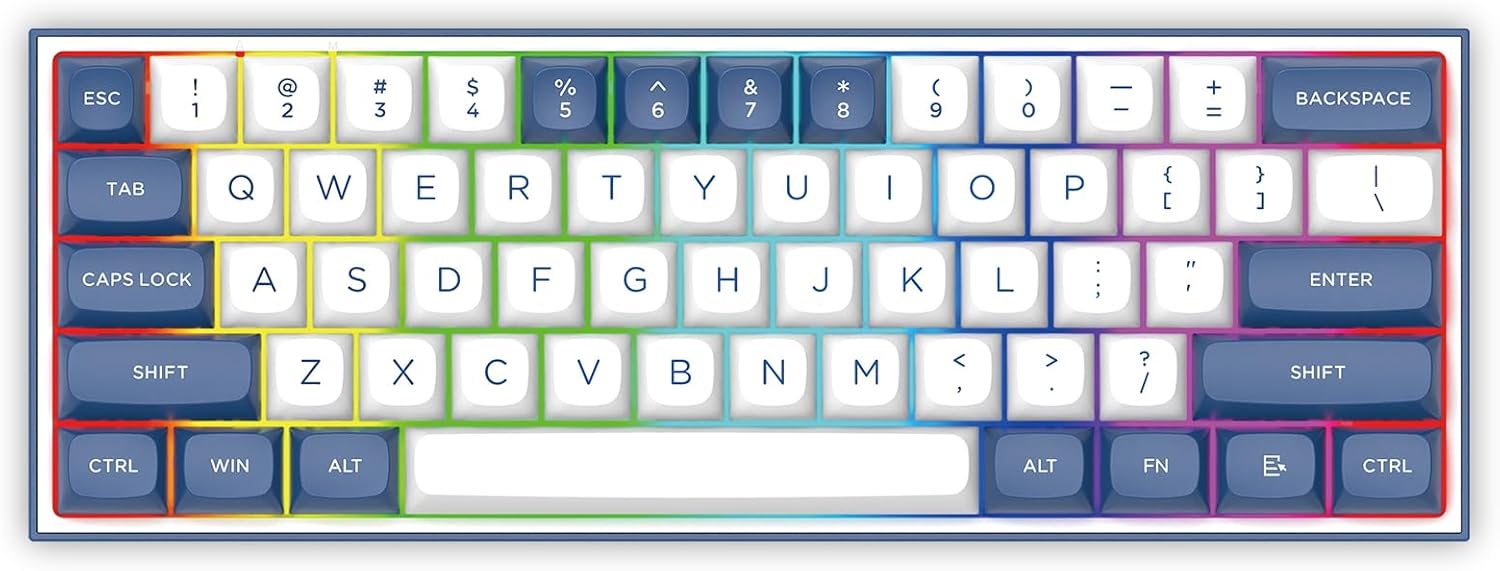
Obraz 4.1: Widok z góry na dół view of the Redragon K717 PRO keyboard, illustrating the 60% layout and per-key RGB illumination.
5. Konserwacja
5.1. Wymiana nasadek klawiszy i przełączników
The K717 PRO features hot-swappable switches, allowing for easy replacement without soldering. Use the provided keycap/switch puller for these tasks.
- Zdejmowanie nakładek klawiszy: Gently attach the keycap puller to the sides of the keycap and pull upwards until it detaches.
- Demontaż przełączników: After removing the keycap, use the switch puller to grasp the two clips on the top and bottom of the switch. Squeeze gently and pull the switch upwards.
- Instalowanie przełączników: Dopasuj piny nowego przełącznika do otworów w płytce drukowanej. Dociśnij mocno, aż przełącznik zatrzaśnie się na miejscu. Upewnij się, że piny nie są wygięte.
- Montaż nakładek na klawisze: Align the keycap over the switch stem and press down gently until it is seated.
Obraz 5.1: Zbliżenie view of the Redragon K717 PRO keyboard with keycaps and switches removed, demonstrating its hot-swappable design.
5.2. Czyszczenie
To clean your keyboard, disconnect it from your computer. Use a soft, dry cloth to wipe down the keycaps and chassis. For deeper cleaning, remove keycaps and use compressed air to clear debris from between switches. Avoid using harsh chemicals or abrasive materials.
6. Rozwiązywanie Problemów
6.1. Klawiatura nie odpowiada
- wired: Upewnij się, że kabel USB-C jest prawidłowo podłączony do klawiatury i komputera. Spróbuj użyć innego portu USB lub kabla.
- Łączność bezprzewodowa 2.4 GHz: Verify the USB dongle is properly inserted into a USB port. Ensure the keyboard's mode switch is set to '2.4G'. Check battery level.
- Bluetooth: Confirm Bluetooth is enabled on your device and the keyboard's mode switch is set to 'BT'. Re-pair the keyboard if necessary. Check battery level.
6.2. Klawisze nie rejestrują się lub są wpisywane podwójnie
- This can sometimes indicate a faulty switch. Use the provided switch puller to replace the problematic switch with one of the spare switches.
- Sprawdź, czy przełącznik jest całkowicie osadzony w płytce PCB.
6.3. Problemy z oświetleniem RGB
- If RGB lighting is not working, ensure the keyboard is powered on and connected.
- Check the brightness settings using the FN key combinations.
- If using wireless mode, note that backlighting can significantly drain battery life.
6.4. Czas pracy baterii
- The keyboard uses 1 Lithium Polymer battery.
- Battery life will vary based on usage, especially with RGB lighting enabled.
- Connect the keyboard via USB-C cable to charge the battery.
7. Specyfikacje
| Marka | Czerwony smok |
| Numer modelu | K717 |
| Szereg | Alcor |
| Platforma sprzętowa | Konsola do gier, laptop, komputer |
| Waga przedmiotu | 1.43 funta |
| Wymiary opakowania | 12.36 x 5.35 x 1.85 cala |
| Kolor | Baja Blue |
| Baterie | Wymagana 1 bateria litowo-polimerowa |
| Pierwszy dostępny | 28 października 2024 r. |
8. Gwarancja i wsparcie
Aby uzyskać informacje dotyczące gwarancji i pomocy technicznej, zapoznaj się z oficjalną stroną Redragon webSzczegóły znajdują się zazwyczaj na opakowaniu produktu lub na ulotce producenta. webstrona.


