1. Koniec produktuview
The Darmoshark M5PRO is a lightweight, tri-mode wireless gaming mouse designed for precision and versatility. It features a PAW3950 optical sensor, up to 30000 DPI, and 5 programmable buttons. The mouse supports 8K wireless, Bluetooth, and wired connections.

Image 1.1: The Darmoshark M5PRO mouse (red) and its 8K wireless receiver.

Image 1.2: Key features of the M5PRO mouse, including its sensor, polling rate, and microcontroller.
Wideo 1.1: Overview of the Darmoshark M5PRO Wireless Gaming Mouse, showcasing its design and various color options.
2. Instrukcje konfiguracji
2.1 Ładowanie myszy
Before initial use, ensure the mouse is fully charged. Connect the provided USB-C cable to the mouse and a power source (e.g., computer USB port, USB wall adapter). The LED indicator will show charging status.

Image 2.1: The M5PRO mouse is equipped with a 300mAh lithium battery for extended use.
2.2 Tryby połączenia
The M5PRO mouse supports three connection modes: 8K wireless, Bluetooth, and wired USB-C.
2.2.1 8K Wireless Connection
- Connect the 8K wireless receiver to an available USB port on your computer.
- Turn on the mouse and select the 8K wireless mode using the switch on the bottom of the mouse.
- Mysz powinna automatycznie połączyć się z odbiornikiem.

Image 2.2: The 8K wireless receiver provides a high-speed connection for the M5PRO mouse.
2.2.2 Połączenie Bluetooth
- Turn on the mouse and select the Bluetooth mode using the switch on the bottom of the mouse.
- Na komputerze lub urządzeniu przejdź do ustawień Bluetooth i wyszukaj nowe urządzenia.
- Select "Darmoshark M5PRO" from the list of available devices to pair.
2.2.3 Połączenie przewodowe
- Connect the USB-C cable to the mouse and the other end to a USB port on your computer.
- Mysz automatycznie przełączy się na tryb przewodowy i rozpocznie ładowanie.
3. Instrukcja obsługi
3.1 Funkcje przycisków
The M5PRO mouse features 5 programmable buttons:
- Lewy przycisk myszy
- Prawy przycisk myszy
- Kółko przewijania (klikalne)
- Przycisk do przodu (bok)
- Przycisk wstecz (bok)
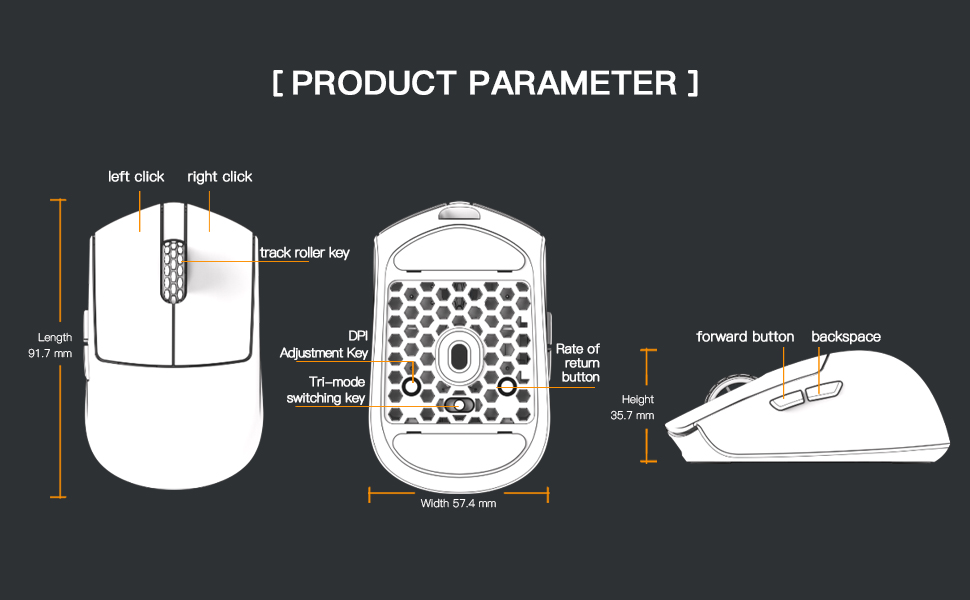
Image 3.1: Diagram illustrating the button layout and dimensions of the M5PRO mouse.
3.2 Regulacja DPI
The DPI (Dots Per Inch) sensitivity can be adjusted using the dedicated DPI adjustment key located on the bottom of the mouse. Press the button to cycle through preset DPI levels. The current DPI level may be indicated by an LED color change (refer to software for specific mappings).
3.3 Przełączanie trybów
Use the switch on the bottom of the mouse to select between 8K wireless, Bluetooth, and wired modes.
3.4 Dostosowywanie oprogramowania
For advanced customization, including button remapping, macro creation, and DPI fine-tuning, download the proprietary drivers from the official Darmoshark website. The software allows for personalized settings to optimize your experience.
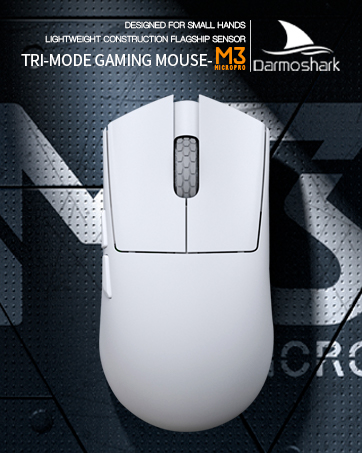
Image 3.2: The proprietary driver software allows for extensive customization of mouse settings.
4. Konserwacja
4.1 Czyszczenie
Do czyszczenia myszy należy używać miękkiej, suchej ściereczki. W przypadku uporczywych zabrudzeń należy użyć delikatnej ściereczki.amp cloth can be used, but ensure no moisture enters the mouse. Avoid using harsh chemicals or abrasive materials.
4.2 Przechowywanie
When not in use for extended periods, store the mouse in a cool, dry place away from direct sunlight and extreme temperatures. Ensure the mouse is turned off to conserve battery life.

Obraz 4.1: Wybuch view of the M5PRO mouse, highlighting its internal structure and lightweight components.
5. Rozwiązywanie Problemów
5.1 Mysz nie odpowiada
- Sprawdź baterię: Upewnij się, że mysz jest naładowana. Podłącz ją kablem USB-C, aby naładować.
- Sprawdź połączenie: Verify the correct mode (8K wireless, Bluetooth, or wired) is selected on the mouse.
- Receiver/Cable: For 8K wireless, ensure the receiver is securely plugged into a working USB port. For wired, ensure the cable is properly connected.
- Ponowne sparowanie Bluetooth: If using Bluetooth, try removing the device from your computer's Bluetooth settings and re-pairing it.
5.2 Problemy z ruchem kursora
- Wyczyść czujnik: Ensure the optical sensor on the bottom of the mouse is clean and free from debris.
- Powierzchnia: Use the mouse on a suitable surface, preferably a mouse pad, for optimal tracking.
- Ustawienie DPI: Adjust the DPI sensitivity to a comfortable level.
5.3 Oprogramowanie nie wykrywa myszy
- Połączenie przewodowe: Connect the mouse via USB-C cable to ensure the software can detect it.
- Ponowna instalacja oprogramowania: Try uninstalling and reinstalling the proprietary drivers.
- Aktualizacja firmware: Check the Darmoshark website for any available firmware updates for the mouse.
6. Specyfikacje
| Funkcja | Specyfikacja |
|---|---|
| Marka | Darmoshark |
| Model | M5PRO |
| Technologia łączności | 8K Wireless, Bluetooth, Wired (USB-C) |
| Technologia wykrywania ruchu | Czujnik optyczny PAW3950 |
| Maksymalna rozdzielczość DPI | 30000 DPI |
| Współczynnik sondowania | Up to 8KHz (8K wireless mode) |
| Liczba przycisków | 5 (Programowalne) |
| Waga | Około 38 gramów |
| Bateria | 1 bateria litowo-jonowa (w zestawie) |
| Zgodność | Windows, Apple Mac |
Image 6.1: The PAW3950 optical sensor is a core component for precise tracking.
7. Gwarancja i wsparcie
For warranty information and technical support, please refer to the official Darmoshark webOdwiedź witrynę lub skontaktuj się z działem obsługi klienta. Zachowaj dowód zakupu na wypadek reklamacji.
Official Darmoshark Webstrona: Darmoshark Store


