1. Wprowadzenie
The FREEWOLF A2 is a transparent wireless gaming mouse designed for versatility and performance. It features dual-mode connectivity (2.4G wireless and Bluetooth 5.0), a PixArt 3212 optical sensor with adjustable DPI, a built-in rechargeable battery with a digital display, and customizable RGB backlighting. Its ergonomic design ensures comfort during extended use across various operating systems like Windows, Mac, and Linux.

Image 1.1: The FREEWOLF A2 Transparent Wireless Gaming Mouse, showcasing its transparent shell and internal components.
2. Zawartość opakowania
Sprawdź, czy w przesyłce znajdują się wszystkie elementy:
- FREEWOLF A2 Wireless Gaming Mouse
- USB Receiver (2.4G dongle)
- Kabel ładujący USB-C
- Instrukcja obsługi (ten dokument)
3. Koniec produktuview
Familiarize yourself with the various components and features of your FREEWOLF A2 mouse.

Image 3.1: Exploded diagram illustrating the internal components of the FREEWOLF A2 mouse, including the transparent shell, battery, PCB board, and switches.

Obraz 3.2: Widok z góry na dół view of the FREEWOLF A2 mouse with key components labeled, including the 2.4G receiver storage, DPI switch, power switch, and dimensions.
Główne cechy:
- Połączenie w dwóch trybach: 2.4G Wireless and Bluetooth 5.0.
- PixArt 3212 Sensor: High sensitivity and accuracy.
- Regulowane DPI: 5 levels up to 4000 DPI.
- Akumulator: Built-in 400 mAh battery with USB-C charging.
- Ekran cyfrowy: Wyświetla procent bateriitage and DPI level.
- Podświetlenie RGB: Możliwość dostosowania efektów świetlnych.
- Ergonomiczna konstrukcja: Comfortable for various grip styles.
4. Konfiguracja
4.1. Ładowanie myszy
Before first use, it is recommended to fully charge the mouse. Connect the provided USB-C charging cable to the mouse's charging port and the other end to a USB power source (e.g., computer USB port, USB wall adapter). The digital screen will display the battery percentage podczas ładowania.
Note: The USB-C cable is for charging only and does not provide a wired connection for mouse operation.

Image 4.1: Close-up of the FREEWOLF A2 mouse showing the digital screen displaying battery percentage.
4.2. Łączenie przez sieć bezprzewodową 2.4G
- Locate the USB receiver (dongle) stored in the compartment on the underside of the mouse.
- Podłącz odbiornik USB do dostępnego portu USB w komputerze.
- Slide the power switch on the underside of the mouse to the '2.4G' position.
- The mouse should connect automatically. Your computer will typically install the necessary drivers.
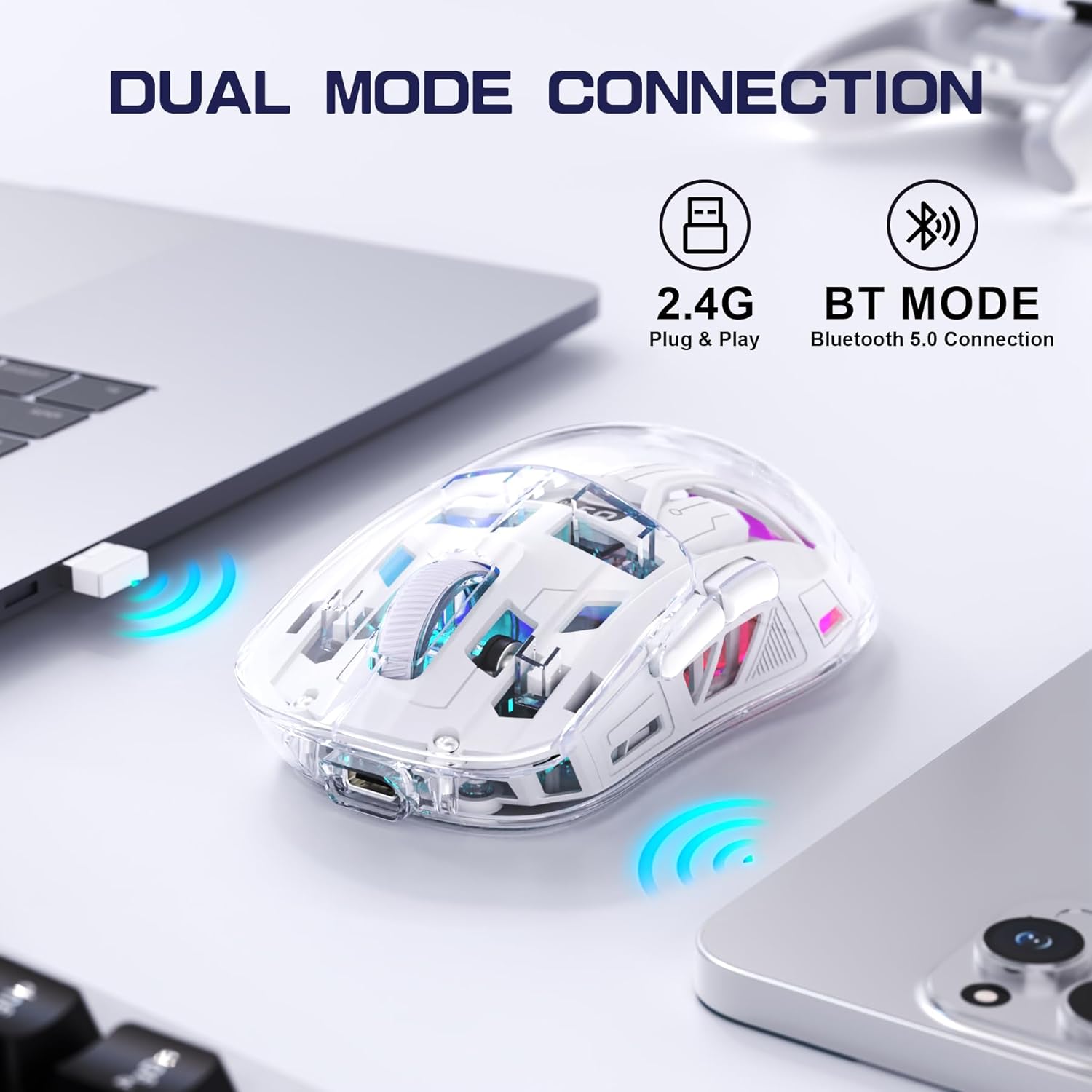
Image 4.2: The FREEWOLF A2 mouse connected to a laptop via its 2.4G wireless USB receiver.
4.3. Łączenie przez Bluetooth 5.0
- Slide the power switch on the underside of the mouse to the 'BT' (Bluetooth) position.
- Na komputerze lub urządzeniu otwórz ustawienia Bluetooth.
- Szukaj new devices. The mouse should appear as 'FREEWOLF A2' or similar.
- Wybierz myszkę, którą chcesz sparować. Postępuj zgodnie z instrukcjami wyświetlanymi na ekranie.
5. Instrukcja obsługi
5.1. Regulacja DPI
The mouse features 5 adjustable DPI levels (1200-4000 DPI) to suit different tasks and preferences. To change the DPI, press the DPI button located on the underside of the mouse. The digital screen will briefly display the current DPI setting.

Image 5.1: Diagram illustrating the 5 adjustable DPI levels (1200, 1600, 2000, 2400, 4000) available on the FREEWOLF A2 mouse.
5.2. Sterowanie podświetleniem RGB
The FREEWOLF A2 mouse features vibrant RGB backlighting. To cycle through different lighting effects or turn the backlight off, press and hold the scroll wheel button for a few seconds.

Image 5.2: Two FREEWOLF A2 mice on a desk, showcasing their cool RGB lighting effects in a low-light environment.
5.3. Wyświetlacz baterii
The integrated digital screen on the mouse continuously displays the current battery percentage, allowing you to monitor power levels and recharge as needed.
5.4. Ergonomiczna konstrukcja
The mouse is designed to conform to various hand grip styles (Palm Grip, Fingertip Grip, Claw Grip), reducing discomfort during prolonged use.
Image 5.3: A hand demonstrating a comfortable grip on the FREEWOLF A2 mouse, highlighting its ergonomic design.
6. Konserwacja
- Czyszczenie: Do czyszczenia myszy używaj miękkiej, suchej ściereczki. Unikaj stosowania silnych środków chemicznych i materiałów ściernych.
- Składowanie: When not in use, store the mouse in a cool, dry place. If storing for an extended period, ensure the mouse is fully charged and turn off the power.
- Pielęgnacja baterii: To prolong battery life, avoid fully discharging the mouse frequently. Recharge when the battery level is low.
7. Rozwiązywanie Problemów
- Mysz nie odpowiada:
- Ensure the mouse is powered on and the correct connection mode (2.4G or BT) is selected.
- Check battery level on the digital screen and recharge if necessary.
- For 2.4G mode, ensure the USB receiver is securely plugged into a working USB port. Try a different USB port.
- For Bluetooth mode, ensure Bluetooth is enabled on your device and the mouse is paired correctly. Try unpairing and re-pairing.
- Uruchom ponownie komputer lub urządzenie.
- Cursor movement is erratic or frozen:
- Wyczyść czujnik optyczny znajdujący się na spodzie myszy.
- Upewnij się, że używasz myszy na odpowiedniej powierzchni (nie odblaskowej ani przezroczystej).
- Sprawdź, czy nie występują zakłócenia pochodzące od innych urządzeń bezprzewodowych.
- Adjust DPI settings to see if it resolves the issue.
- Podświetlenie RGB nie działa:
- Sprawdź, czy bateria myszy jest wystarczająco naładowana.
- Press and hold the scroll wheel button to cycle through lighting modes or turn the backlight on/off.
- Problemy z ładowaniem:
- Sprawdź, czy kabel USB-C jest prawidłowo podłączony do myszy i źródła zasilania.
- Wypróbuj inny kabel USB-C lub zasilacz.
- Sprawdź, czy źródło zasilania jest sprawne.
8. Specyfikacje
| Funkcja | Szczegół |
|---|---|
| Numer modelu | A2 |
| Technologia łączności | Łączność bezprzewodowa 2.4G, Bluetooth 5.0 |
| Technologia wykrywania ruchu | Optyczny (PixArt 3212) |
| Regulowane DPI | 1200-4000 (5 levels) |
| Pojemność baterii | 400 mAh (wbudowany) |
| Port ładowania | USB-C |
| Cechy specjalne | Ergonomic Design, LED Lights (RGB), Portable, Rechargeable, Digital Battery Display |
| Wymiary produktu | 6.89 x 4.53 x 0.04 cala |
| Waga przedmiotu | 4.9 uncji |
| Producent | Wolny Wilk |
9. Gwarancja i wsparcie
Specific warranty information for the FREEWOLF A2 Transparent Wireless Gaming Mouse is not provided in the available product data. Please refer to the product packaging or the retailer's webWięcej szczegółów dotyczących zakresu gwarancji znajdziesz na naszej stronie.
For technical support or further assistance, please contact the manufacturer or your point of purchase. Contact information may be available on the product packaging or the official FREEWOLF webstrona.


