Chilkey ND75

Chilkey ND75 Aluminum 75% Wireless Mechanical Keyboard User Manual

Model: ND75

1. Wprowadzenie

This manual provides detailed instructions for the setup, operation, and maintenance of your Chilkey ND75 Aluminum 75% Wireless Mechanical Keyboard. Please read this manual thoroughly before using the product to ensure optimal performance and longevity.

The Chilkey ND75 is a high-performance 75% layout mechanical keyboard featuring a full aluminum alloy case, multi-mode connectivity (Bluetooth 5.0, 2.4GHz wireless, USB-C wired), hot-swappable switches, per-key RGB backlighting, and an integrated LCD screen for enhanced functionality.
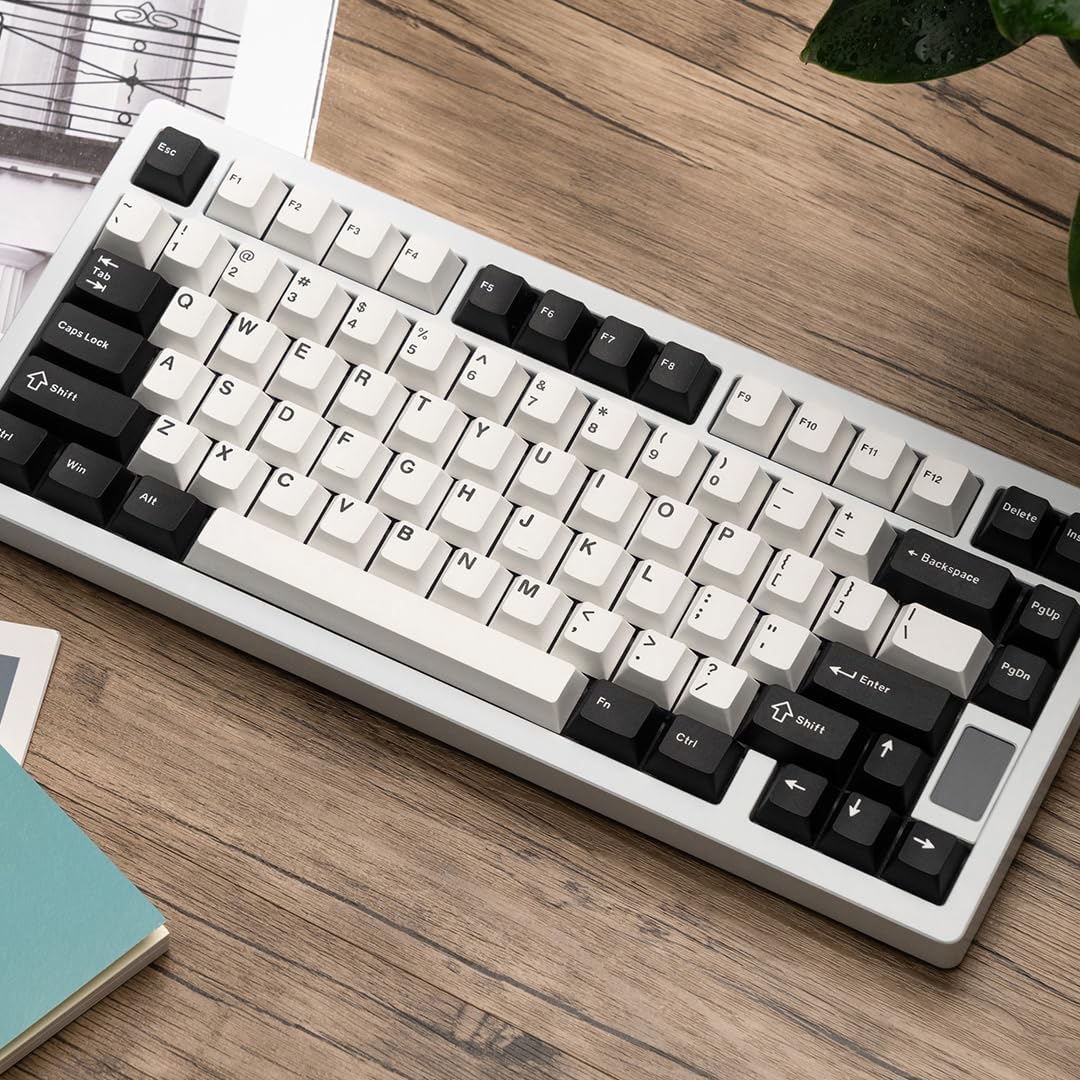
Chilkey ND75 Aluminum 75% Wireless Mechanical Keyboard in white with black and white keycaps, viewed from an angle on a wooden desk.

Image: The Chilkey ND75 keyboard, showcasing its 75% layout and aluminum casing.

2. Zawartość opakowania

Sprawdź, czy w przesyłce znajdują się wszystkie elementy:

  • Chilkey ND75 Aluminum Mechanical Keyboard
  • Kabel USB-C
  • Switch Puller / Keycap Puller Tool
  • Instrukcja obsługi (ten dokument)
  • Additional hardware (e.g., screwdriver, spare mounting system components if applicable)

Note: The product includes 2 Lithium Polymer batteries (pre-installed).

3. Konfiguracja

3.1 Połączenie początkowe

The ND75 keyboard supports three connection modes: Bluetooth 5.0, 2.4GHz wireless, and USB-C wired.

3.1.1 Wired Mode (USB-C)

  1. Podłącz dołączony kabel USB-C do portu USB-C klawiatury.
  2. Podłącz drugi koniec kabla USB-C do wolnego portu USB w komputerze.
  3. Klawiatura zostanie automatycznie wykryta i będzie gotowa do użycia.

3.1.2 Tryb bezprzewodowy 2.4 GHz

  1. Locate the 2.4GHz USB receiver. This is typically stored in a compartment on the keyboard or included separately.
  2. Remove the Right Shift keycap to access the wireless switch. Ensure the switch is in the 2.4GHz position.
  3. Insert the 2.4GHz USB receiver into an available USB port on your computer.
  4. Klawiatura powinna połączyć się automatycznie. Jeśli nie, naciśnij Fn + 4 to activate 2.4GHz pairing mode.

3.1.3 Tryb Bluetooth 5.0

  1. Remove the Right Shift keycap to access the wireless switch. Ensure the switch is in the Bluetooth position.
  2. Włącz Bluetooth na swoim komputerze lub urządzeniu i wyszukaj nowe urządzenia.
  3. On the keyboard, press and hold Fn + 1, Fn + 2, Lub Fn + 3 for 3-5 seconds to enter pairing mode for one of the three available Bluetooth channels. The LCD screen will indicate pairing status.
  4. Select "Chilkey ND75" from the list of available Bluetooth devices on your computer/device to complete pairing.
  5. Możesz przełączać się między sparowanymi urządzeniami Bluetooth za pomocą Fn + 1, Fn + 2, Lub Fn + 3.

3.2 Mounting System Adjustment

The ND75 keyboard features a screwless quick assembly structure and supports three different mounting systems: Split O-Ring Mounting, Silica Gel Particle Mounting, and Top Mounting. These can be adjusted to customize typing feel.

Image showing the three mounting systems: Top Mount, Split O-Ring Mount, and Silica Gel Particle Mount.

Obraz: Zbliżenie view of the keyboard's internal structure highlighting the three mounting systems: Top Mount, Split O-Ring Mount, and Silica Gel Particle Mount. Each system offers a distinct typing experience.

Refer to the detailed instructions provided with the additional hardware for specific guidance on disassembling and reassembling the keyboard to change mounting systems.

4. Instrukcja obsługi

4.1 Funkcje ekranu LCD

The integrated LCD screen provides real-time information and allows for quick adjustments without software. Functions include:

Image showing the ND75 keyboard with an exploded view of the LCD screen interface, displaying various settings like connection, RGB, system, volume, and custom GIF options.

Image: The ND75 keyboard with an overlay illustrating the various functions accessible via the LCD screen, including configuration, connection modes, RGB settings, system information, and volume control.

Navigate the LCD screen menu using the dedicated knob or specific key combinations (refer to the quick guide provided with the keyboard).

4.2 Podświetlenie RGB

The ND75 keyboard features per-key RGB backlighting with 19 preset lighting effects. Custom light colors can also be defined.

Image of the ND75 keyboard with vibrant per-key RGB backlighting enabled, showcasing various colors.

Image: The ND75 keyboard illuminated with per-key RGB backlighting, demonstrating the range of colors and effects available.

Adjust lighting effects and colors directly via the LCD screen or using specific Fn key combinations. Consult the quick guide for a list of shortcuts.

4.3 Przełączniki z możliwością wymiany na gorąco

The ND75 keyboard is equipped with a hot-swappable PCB, allowing users to replace switches without soldering. It supports both 3-pin and 5-pin switches.

Image showing a switch being removed from the keyboard PCB using a switch puller tool, demonstrating the hot-swappable feature.

Image: A switch puller tool is used to remove a mechanical switch from the keyboard, illustrating the hot-swappable functionality.

Aby wymienić przełącznik:

  1. Carefully remove the keycap using the keycap puller tool.
  2. Use the switch puller tool to gently grip the top and bottom clips of the switch.
  3. Pull the switch straight up to remove it from the PCB.
  4. Dopasuj piny nowego przełącznika do otworów na płytce PCB.
  5. Press the new switch firmly into place until it clicks. Ensure the pins are not bent.
  6. Załóż z powrotem nakładkę klawisza.

Caution: Apply gentle, even pressure when inserting switches to avoid bending pins or damaging the PCB.

4.4 Dostosowywanie oprogramowania

The ND75 keyboard supports independent driver/software for advanced customization, including key remapping, macro creation, and further RGB lighting control. The software can be downloaded from the official Chilkey webstrona.

Note: Some users have reported that the software can be clunky. Refer to the official Chilkey Discord community or support channels for assistance with software usage.

5. Konserwacja

5.1 Czyszczenie klawiatury

5.2 Pielęgnacja baterii

The keyboard contains two Lithium Polymer batteries. To prolong battery life:

6. Rozwiązywanie Problemów

6.1 Klawiatura nie odpowiada

6.2 Klawisze nie rejestrują się lub są wpisywane podwójnie

6.3 Problemy z oświetleniem RGB

6.4 Software Not Detecting Keyboard

7. Specyfikacje

ModelND75
Układ75%
Materiał obudowyFull Aluminum Alloy (CNC with electrophoretic surface treatment)
ŁącznośćBluetooth 5.0, bezprzewodowy 2.4 GHz, przewodowy USB-C
PrzełącznikiHot-swappable (supports 3-pin/5-pin switches), Pre-lubed Linear Switches
KlawiszePodwójny PBT, Cherry Profile
PodświetleniePer-key RGB (19 preset effects, custom colors)
WyświetlaczFunctional LCD Screen (custom GIF, connection mode, battery, RGB, volume, language)
Systemy montażoweSplit O-Ring, Silica Gel Particle, Top Mount
Dźwięk DampkoniecFour layers (Poron plate foam, IXPE switch foam, PET acoustic pad, Poron PCB foam)
Bateria2 x Lithium Polymer (included)
Wymiary produktu12.68 x 5.5 x 1.38 cala (dł. 322 mm x szer. 159.8 mm x wys. 35.2 mm)
Waga przedmiotu4.6 funta
ProducentOOCTPK
Zalecane zastosowaniaBusiness, Education, Everyday Use, Gaming, Multimedia, Personal, Photo Editing, Programming, Student, Video Editing
Diagram showing the dimensions of the Chilkey ND75 keyboard in millimeters and inches.

Image: Technical drawing illustrating the precise dimensions of the ND75 keyboard.

Wybuchł view diagram of the Chilkey ND75 keyboard components, showing layers like doubleshot PBT keycaps, switches, aluminum top case, plate, various foams, PCB, lithium batteries, and backplate.

Obraz: Wybuchowy view diagram detailing the internal layers and components of the ND75 keyboard, including keycaps, switches, case, and sound dampmateriały wzmacniające.

8. Gwarancja i wsparcie

For warranty information, technical support, or further assistance, please refer to the official Chilkey website or contact their customer service. You may also find helpful resources and community support on the official Chilkey Discord server.

Manufacturer: OOCTPK

Powiązane dokumenty - ND75

Przedview Chilkey Glacier LW 8K L Master Guide: konfiguracja, funkcje i bezpieczeństwo
Kompleksowy podręcznik użytkownika myszy Chilkey Glacier LW 8K L, obejmujący konfigurację, łączność bezprzewodową i Bluetooth, konfigurację oprogramowania CHILKEY HUB, wskazówki dotyczące bezpieczeństwa i zalecenia dotyczące wygody.
Przedview Schlage ND-Series Timing Guide: Installation and Operation Instructions
Detailed guide for timing Schlage ND-Series locks, covering installation steps, operation checks, and troubleshooting for various models. Ensures proper lock function and prevents damage.
Przedview ND75 LP Tri-mode Keyboard Operation Manual
Operation manual and FCC compliance statement for the ND75 LP Tri-mode Keyboard by Wuhan Ruobing Technology Co., Ltd. Includes product specifications, key functions, connection instructions, and precautions.
Przedview Schlage ND-Series Lock Installation Instructions
Comprehensive installation guide for Schlage ND-Series cylindrical locks (P517-381). Covers door preparation, lock timing, door thickness adjustments, and step-by-step assembly of exterior and interior components. Includes troubleshooting tips and contact information for Schlage support.
Przedview Schlage ND-Series Service Manual
Comprehensive service manual for Schlage ND-Series Grade 1 cylindrical locks, detailing parts, assemblies, exploded views, and ordering information for models manufactured after November 2003.