Wstęp
This manual provides essential information for setting up, operating, maintaining, and troubleshooting your Alienware X16 Gaming Laptop. Designed for high-performance gaming, this laptop features cutting-edge components and advanced cooling solutions to deliver an immersive experience.

Figure 1: Alienware X16 Gaming Laptop, showcasing its high-refresh-rate display and powerful graphics capabilities.
Co jest w pudełku
Upon unboxing your Alienware X16 Gaming Laptop, verify that all components are present:
- Notebook Alienware X16 R2
- Power Adapter (330W Small Form Factor)
- Przewód zasilający
- Dokumentacja (w tym niniejszy podręcznik)
Organizować coś
Pierwsze włączenie zasilania
- Podłącz zasilacz: Plug the power adapter into the Power/DC-in Port on the rear of the laptop. Connect the power cord to the adapter and then to a wall outlet.
- Open the Laptop: Ostrożnie podnieś pokrywę wyświetlacza.
- Włączanie: Naciśnij przycisk zasilania, który zazwyczaj znajduje się na klawiaturze.
- Postępuj zgodnie z instrukcjami wyświetlanymi na ekranie: Laptop przeprowadzi Cię przez początkowy proces konfiguracji systemu Windows 11 Pro, obejmujący wybór języka, nawiązanie połączenia sieciowego i utworzenie konta użytkownika.
Podłączanie urządzeń peryferyjnych
The Alienware X16 offers a variety of ports for connecting external devices:
- Porty USB 3.2 Gen 1 (x2): Do standardowych urządzeń USB, takich jak myszy, klawiatury i dyski zewnętrzne.
- USB-C 3.2 Gen 2 Port with DisplayPort: For modern USB-C devices and external displays.
- Thunderbolt 4 Port with Power Delivery and DisplayPort: High-speed connectivity for advanced peripherals, external GPUs, and charging.
- Port HDMI 2.1: Do podłączania do zewnętrznych monitorów lub telewizorów.
- Headset (Headphone and Microphone Combo) Port: Do wejścia/wyjścia audio.
- Gniazdo karty microSD: Do rozszerzania pamięci masowej lub przenoszenia filez kart pamięci.

Figure 2: Rear port configuration of the Alienware X16, detailing connectivity options.
Obsługa laptopa
Wyświetlacz i wizualizacje
The Alienware X16 features a 16.0" QHD+ (2560 x 1600) display with a 240Hz refresh rate and 3ms response time, ensuring smooth and vibrant visuals. It supports 100% DCI-P3 color gamut, ComfortView Plus for reduced blue light, and NVIDIA G-SYNC + Advanced Optimus for tear-free gaming.

Figure 3: The integrated FHD HDR IR Camera supports facial recognition and provides clear video quality.
Klawiatura i wprowadzanie danych
The English US AlienFX RGB backlit (per-key) Alienware X Series keyboard offers a responsive typing and gaming experience. The AlienFX lighting zones are programmable with up to 16.8 million distinct colors, allowing for extensive customization.
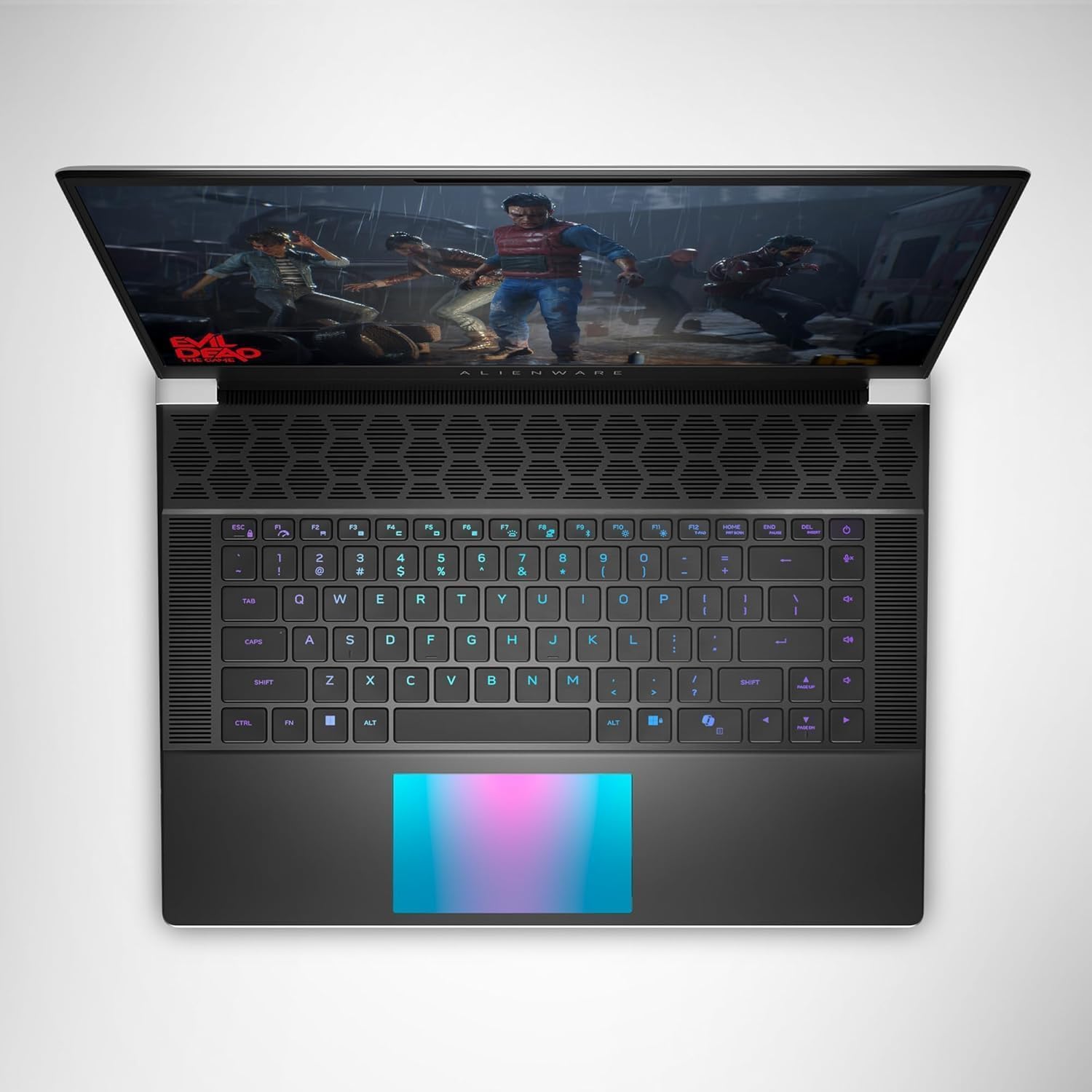
Rysunek 4: Góra view of the Alienware X16, highlighting the customizable RGB keyboard and touchpad.
Alienware Command Center
Utilize the Alienware Command Center software to customize your gaming experience. This application allows you to manage performance presets, monitor system vitals, and configure AlienFX lighting effects and combinations for a personalized setup.

Figure 5: Alienware Command Center interface for system control and customization.
Konserwacja
Układ chłodzenia
The Alienware X16 incorporates advanced Alienware Cryo-tech™ cooling technology, featuring six laser-welded flat end heat pipes. To ensure optimal performance and longevity, regularly check and clean the ventilation grilles to prevent dust accumulation, which can impede airflow.
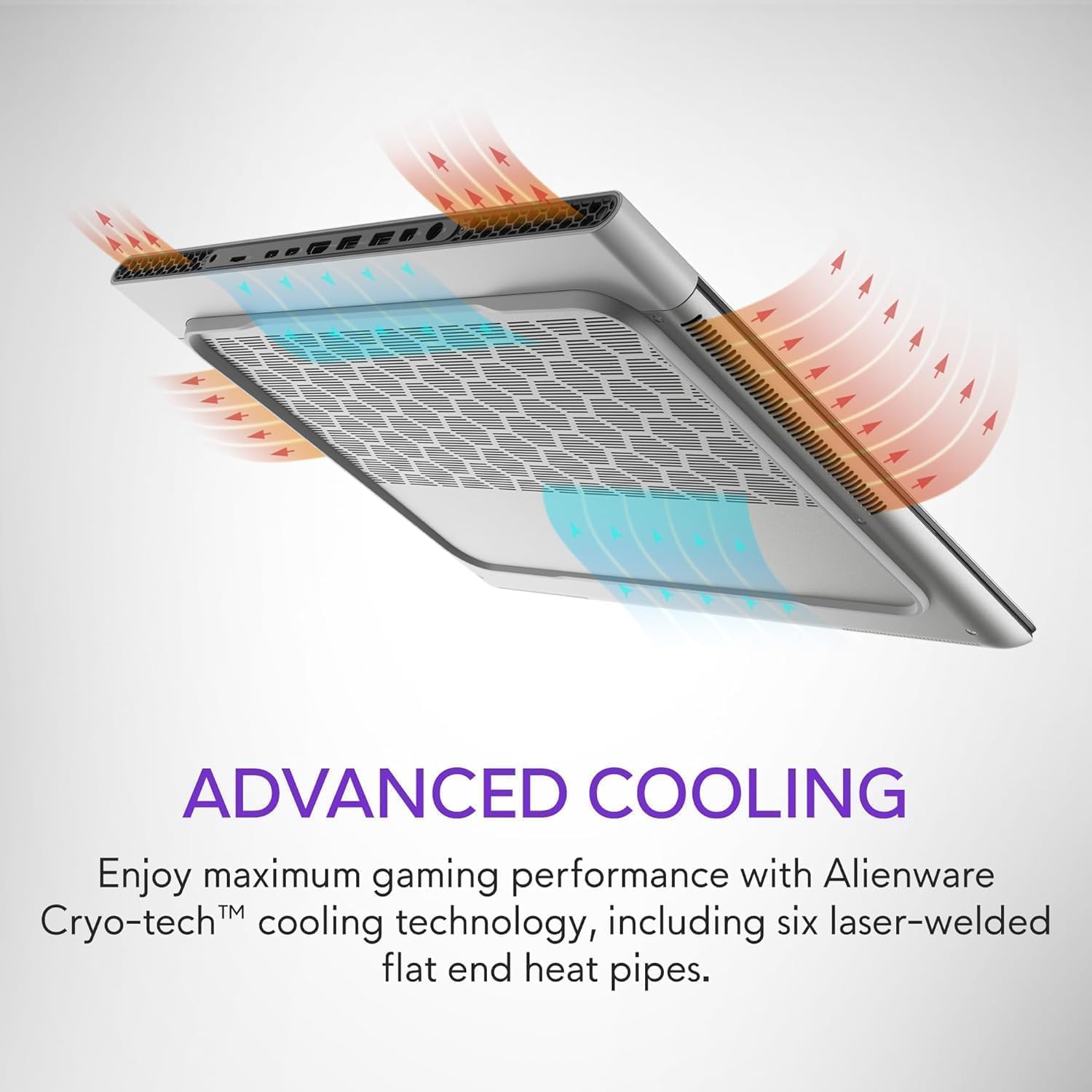
Figure 6: Illustration of the Alienware Cryo-tech™ advanced cooling system.
Opieka ogólna
- Keep the laptop on a flat, stable surface to ensure proper ventilation.
- Unikaj wystawiania laptopa na działanie ekstremalnych temperatur, bezpośredniego światła słonecznego i wysokiej wilgotności.
- Wyczyść ekran miękką, niepozostawiającą włókien ściereczką przeznaczoną specjalnie do urządzeń elektronicznych.
- Wyczyść klawisze klawiatury i porty sprężonym powietrzem, aby usunąć kurz.
Rozwiązywanie problemów
Typowe problemy i rozwiązania
| Problem | Możliwa przyczyna | Rozwiązanie |
|---|---|---|
| Laptop się nie włącza. | No power, faulty adapter, or battery issue. | Ensure power adapter is securely connected to laptop and wall outlet. Check wall outlet with another device. Try a different power outlet. |
| Wyświetlacz jest pusty lub miga. | Incorrect display settings, driver issue, or hardware problem. | Restart the laptop. Update graphics drivers. If using an external monitor, check cable connections. |
| Poor performance during gaming. | Overheating, outdated drivers, or background applications. | Ensure proper ventilation. Update graphics and chipset drivers. Close unnecessary background applications. Adjust power settings to high performance. |
| Problemy z połączeniem Wi-Fi. | Driver issue, router problem, or interference. | Restart the laptop and router. Update wireless drivers. Check router settings. |
For more complex issues, refer to the official Alienware support webodwiedź witrynę lub skontaktuj się z obsługą klienta.
Specyfikacje
| Część | Szczegół |
|---|---|
| Edytor | Intel® Core™ Ultra 9 processor 185H (24MB cache, 16 cores, 2.30 to 5.10 GHz P-Core) |
| System operacyjny | Windows 11 Pro |
| Karta graficzna | NVIDIA GeForce RTX 4090 16 GB GDDR6 |
| Wyświetlacz | 16.0" QHD+ (2560 x 1600) 240Hz 3ms, 100% DCI-P3, ComfortView Plus, NVIDIA G-SYNC + Advanced Optimus |
| Pamięć | 32GB, 2x16GB, LPDDR5X, 7467MT/s |
| Składowanie | 2 TB, M.2, PCIe NVMe, SSD |
| Klawiatura | English US AlienFX RGB backlit (per-key) Alienware X Series keyboard |
| Bezprzewodowy | Intel Killer™ 1750 2x2 and Bluetooth 5.4 Wireless Card with Wifi 7 Ready |
| Kamera | 1080p at 30fps, FHD HDR RGB+IR camera; Dual-array microphones |
| Audio | Tweeter speaker: 2W x 2; Woofer speaker: 3W x 4 |
| Porty | 2 USB 3.2 Gen 1, 1 USB-C 3.2 Gen 2 (DP), 1 Thunderbolt 4 (PD, DP), 1 Headset, 1 HDMI 2.1, 1 microSD-card slot |
| Bateria | 6 Cell, 90 Wh |
| Wymiary (wys. x szer. x gł.) | 18.57 mm (0.73 cala) x 364.81 mm (14.36 cala) x 289.98 mm (11.41 cala) |
| Waga (minimalna) | 2.66 kg (5.86 funta) |
Gwarancja i wsparcie
Your Alienware X16 Gaming Laptop comes with a standard manufacturer's warranty. For detailed warranty terms and conditions, please refer to the documentation included in the box or visit the official Alienware support webstrona.
Aby uzyskać pomoc techniczną, pobrać sterowniki lub uzyskać dalsze wsparcie, odwiedź stronę Alienware Official Store or their dedicated support portal.


