1. Wprowadzenie
This manual provides detailed instructions for the setup, operation, and maintenance of your SABLUTE Wireless Keyboard and Mouse Combo, model KC213D. Please read this manual thoroughly before use to ensure optimal performance and longevity of your device.

Image 1.1: SABLUTE Wireless Keyboard and Mouse Combo (Champagne Pink) with USB receiver and batteries.
2. Zawartość opakowania
Sprawdź, czy w przesyłce znajdują się wszystkie elementy:
- 1 x SABLUTE Wireless Keyboard (KC213D)
- 1 x SABLUTE Wireless Mouse
- 1 x USB 2.4G Receiver (stored in the mouse battery compartment)
- 2 baterie AAA (do klawiatury)
- 1 bateria AA (do myszy)

Image 2.1: Illustration of the keyboard, mouse, USB receiver, and batteries included in the package.
3. Instrukcje konfiguracji
3.1 Instalacja baterii
Dla klawiatury:
- Znajdź komorę baterii na spodzie klawiatury.
- Otwórz pokrywę komory baterii.
- Włóż dwie (2) baterie AAA, zwracając uwagę na prawidłową biegunowość (+/-).
- Zamknij pokrywę komory baterii.
Dla myszy:
- Locate the battery compartment on the underside of the mouse. The USB receiver is typically stored here.
- Otwórz pokrywę komory baterii.
- Włóż jedną (1) baterię AA, zwracając uwagę na prawidłową biegunowość (+/-).
- Zamknij pokrywę komory baterii.

Image 3.1: Keyboard battery compartment with AAA batteries and USB receiver.

Image 3.2: Mouse battery compartment with AA battery.
3.2 Podłączanie odbiornika USB
- Remove the USB 2.4G receiver from the mouse battery compartment.
- Plug the USB receiver into an available USB-A port on your computer or laptop.
- The keyboard and mouse should automatically connect within a few seconds. No additional drivers are typically required.
The wireless connection operates on a 2.4G frequency, providing a reliable range of up to 33 feet (10 meters).

Image 3.3: The USB 2.4G receiver and its effective wireless range.
3.3 Zgodność
This keyboard and mouse combo is compatible with a variety of operating systems and devices:
- Systemy operacyjne Windows
- macOS
- System operacyjny Chrome
- Komputery stacjonarne
- Laptopy
- Chromebooki
- Dell Inspiron, HP ENVY, HUAWEI MateBook, Macbook Air, iMac, Personal Computer, Television (with USB-A port)
Notatka: A USB-C dongle is not included. This combo cannot connect directly to tablets or phones without an appropriate adapter.

Image 3.4: Visual representation of compatible operating systems and device types.
4. Instrukcja obsługi
4.1 Ergonomic Design Features
The keyboard is designed for comfort during extended use:
- Zintegrowana podpórka pod nadgarstki: Features a 2.8-inch wide wrist rest to provide support and reduce strain.
- 10° Tilt Angle: The keyboard is designed with a 10-degree tilt for a more natural typing posture.

Image 4.1: The ergonomic wrist rest and 10-degree tilt angle of the keyboard.
4.2 Integrated Phone and Tablet Holder
The keyboard includes a built-in holder for mobile devices:
- The holder accommodates phones and tablets up to 11.9 inches in width.
- Dimensions of the holder: 8.87 inches (length) x 0.59 inches (width).

Image 4.2: A tablet positioned in the keyboard's integrated holder.
4.3 Multimedia i klawisze skrótów
The keyboard features 6 multimedia hotkeys for quick access to common functions:
- Poprzednia strona: Navigates to the previous page in a browser or document.
- Następna strona: Navigates to the next page in a browser or document.
- Refresh/Search: Refreshes the current page or activates search function.
- Szukaj: Opens the search utility.
- Stop Loading: Halts the loading of a web strona.
- Kalkulator: Opens the system calculator.

Rysunek 4.3: Szczegółowy view of the dedicated multimedia and shortcut keys.
4.4 Silent Typing and Clicking
- The keyboard utilizes soft membrane keys designed to reduce typing noise by up to 95%.
- The wireless mouse features Silent Micro Motion technology, resulting in nearly silent clicks.

Image 4.4: Comparison of noise levels, highlighting the 95% noise reduction of the combo.
4.5 Obsługa myszy
The wireless mouse is equipped with 6 buttons and adjustable tracking speed:
- Projekt z 6 przyciskami: Includes standard left/right click, scroll wheel, DPI adjustment, and forward/backward buttons.
- 3 Levels of Tracking Speed (DPI): Adjust the mouse sensitivity to your preference. Press the DPI button (usually located below the scroll wheel) to cycle through the settings.
- Przyciski do przodu/do tyłu: Located on the side of the mouse for convenient navigation in web przeglądarki lub file odkrywcy.
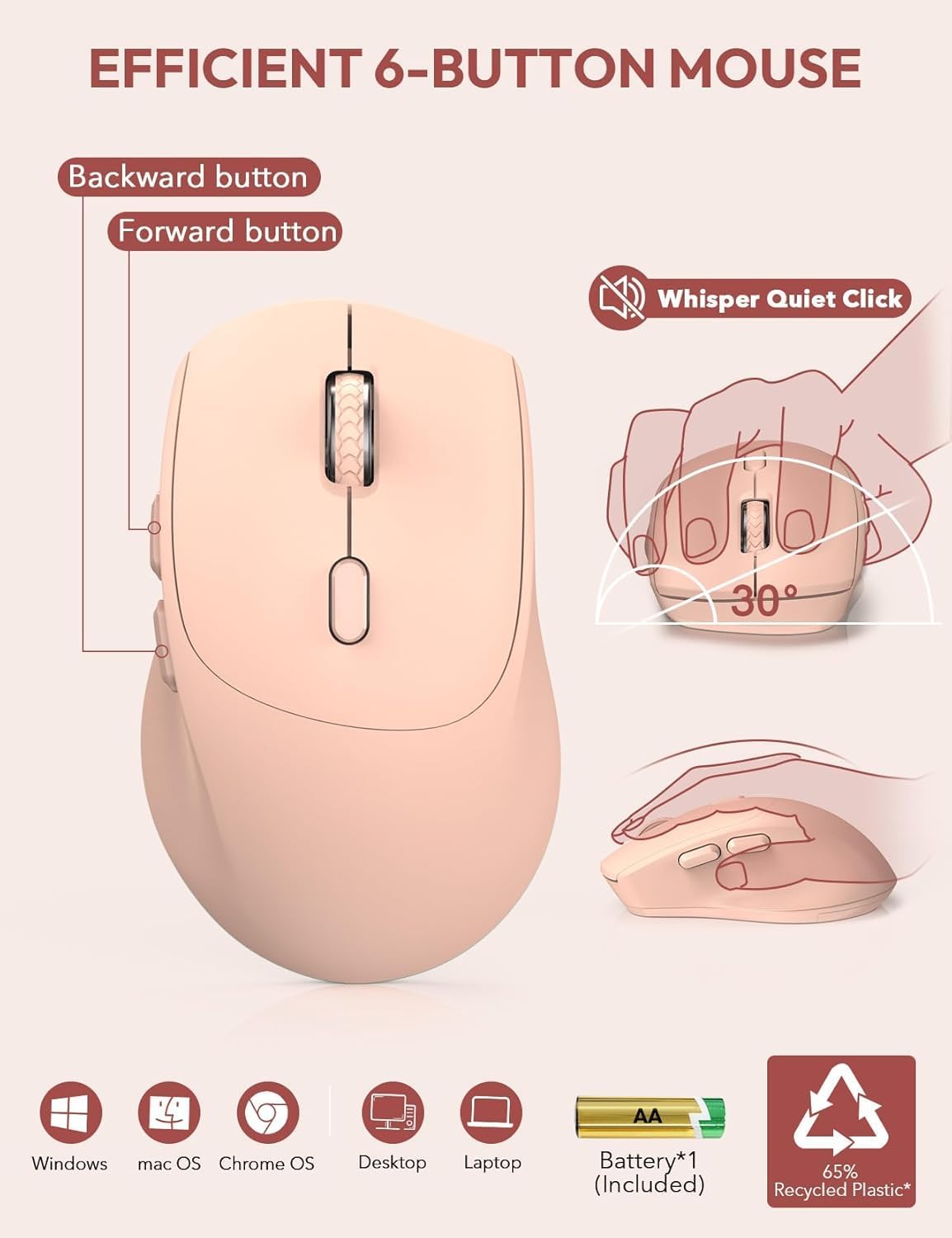
Image 4.5: Features of the 6-button mouse, including silent click and ergonomic design.
4.6 Funkcja oszczędzania energii
Aby oszczędzać baterię, klawiatura i mysz posiadają automatyczny tryb uśpienia:
- Automatyczny tryb uśpienia: Both devices will enter sleep mode after 10 minutes of inactivity.
- Quick Wake-up: To wake the keyboard, press any key. To wake the mouse, click any button. The devices will become active within 1 second.
- Wydłużony tryb gotowości: Provides up to 365 days of standby time for the keyboard and up to 400 hours of working time for the mouse on a single set of batteries.

Image 4.6: Details on the power-saving functions and battery life.
5. Konserwacja
Proper maintenance ensures the longevity and performance of your SABLUTE Wireless Keyboard and Mouse Combo:
- Czyszczenie: Do czyszczenia powierzchni klawiatury i myszy używaj miękkiej, suchej ściereczki. W przypadku uporczywych zabrudzeń, delikatnie przetrzyj powierzchnię.amp Można używać ściereczki zwilżonej łagodnym mydłem, upewniając się, że do wnętrza urządzenia nie dostanie się żaden płyn.
- Wymiana baterii: Replace batteries when performance degrades or the low battery indicator (if present) illuminates. Always use new batteries of the specified type (AAA for keyboard, AA for mouse).
- Składowanie: Przechowuj urządzenia w chłodnym, suchym miejscu, z dala od bezpośredniego światła słonecznego i ekstremalnych temperatur.
- Odbiornik USB: When not in use, the USB receiver can be stored in the mouse's battery compartment to prevent loss.
6. Rozwiązywanie Problemów
If you encounter issues with your SABLUTE Wireless Keyboard and Mouse Combo, refer to the following common solutions:
- Urządzenie nie odpowiada:
- Ensure the USB receiver is securely plugged into a functional USB-A port on your computer.
- Check if the batteries in both the keyboard and mouse are correctly installed and have sufficient charge. Replace if necessary.
- Przesuń klawiaturę i mysz bliżej odbiornika USB, aby wykluczyć problemy z zasięgiem.
- Try plugging the USB receiver into a different USB-A port, preferably directly on your computer rather than a USB hub, as some hubs may cause connectivity issues.
- Brak klucza USB:
- The USB receiver is typically stored in a sealed bag within the product packaging or inside the mouse's battery compartment. Please check all packaging materials and the mouse compartment carefully.
- If still missing, contact customer support for assistance.
- Opóźnienia lub przerywane połączenie:
- Upewnij się, że w pobliżu odbiornika nie działają żadne duże metalowe przedmioty ani inne urządzenia bezprzewodowe (np. routery Wi-Fi, telefony bezprzewodowe), ponieważ mogą one powodować zakłócenia.
- As noted in reviews, connecting the USB receiver directly to a computer's USB-A port, rather than a USB-A hub, can resolve lag issues.
- Keys Wearing Off:
- Keycap legends may show wear over time with heavy use. Gentle typing and regular cleaning can help preserve them.
- If excessive wear occurs prematurely, contact customer support.
- Ogólne problemy:
- For any other issues not covered here, refer to the support section or contact SABLUTE customer service.
7. Specyfikacje
| Funkcja | Szczegół |
|---|---|
| Numer modelu | KC213D |
| Wymiary produktu (klawiatura) | 16.54 x 8.27 x 1.38 cala |
| Waga przedmiotu | 2.2 funta |
| Technologia łączności | Bezprzewodowy port USB 2.4G |
| Baterie do klawiatury | Baterie 2 x AAA (w zestawie) |
| Baterie do myszy | Bateria 1 x AA (w zestawie) |
| Cechy specjalne | Ergonomiczna podpórka pod nadgarstek, uchwyt na telefon, pełny rozmiar, klawisze skrótu, niski poziom profesjonalistyfile nakładka na klawisze, wodoodporna |
| Kompatybilne urządzenia | Chromebook, Dell Inspiron, HP ENVY, HUAWEI MateBook, Laptop, Notebook, Macbook Air, iMac, Personal Computer, Television |
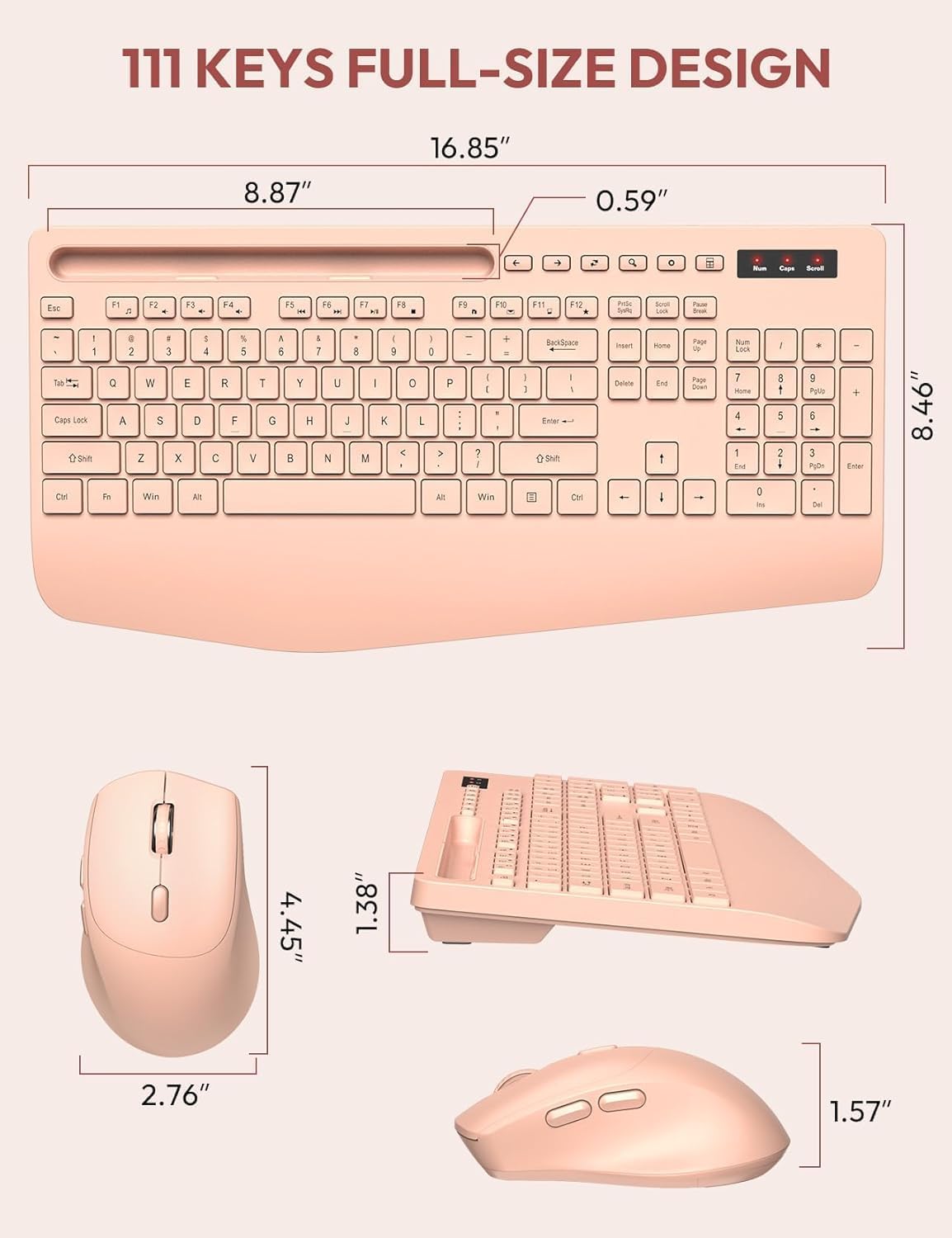
Image 7.1: Detailed dimensions of the keyboard and mouse.
8. Gwarancja i wsparcie
SABLUTE stawia sobie za cel dostarczanie wysokiej jakości produktów i zadowolenie klienta.
- Wymiana w ciągu 90 dni: We offer a 90-day replacement policy for product defects.
- 360-dniowa gwarancja producenta: Your product is covered by a 360-day manufacturer warranty from the date of purchase.
- Obsługa klienta: For any inquiries, troubleshooting assistance, or warranty claims, please contact our support team.
Adres e-mail kontaktowy: Usługi sabluteservices@outlook.com

Image 8.1: SABLUTE customer support details.


