1. Koniec produktuview
The WamGra BQ12 is a versatile device designed to integrate multiple functionalities into a single, compact unit. It serves as a stable phone stand, delivers audio through its Bluetooth speaker, charges compatible devices wirelessly, and includes a digital clock with an alarm function.
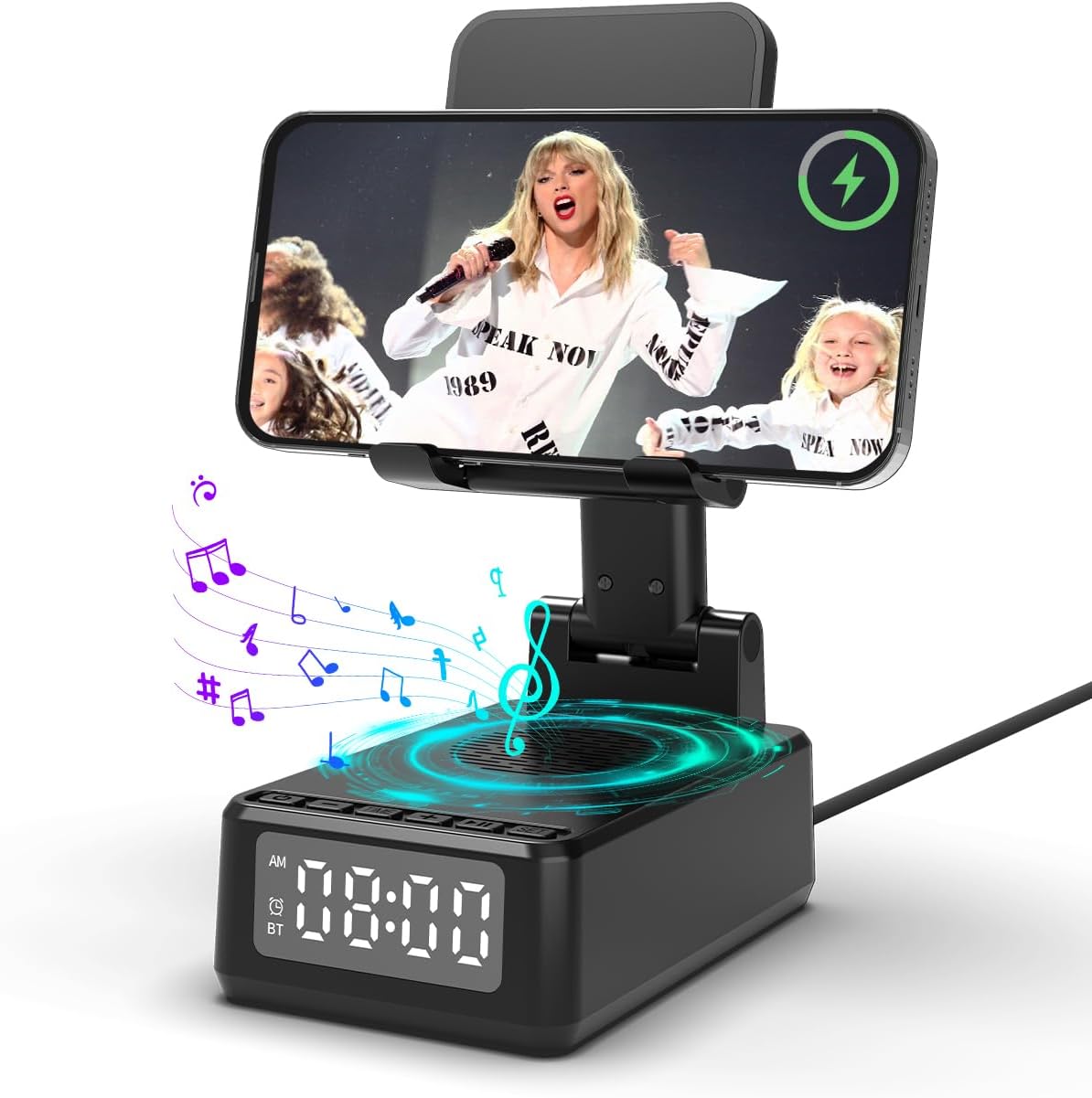
The WamGra BQ12 device in its upright position, holding a smartphone horizontally while displaying a video. Musical notes emanate from the speaker, and the digital clock shows the time.
2. Co znajduje się w pudełku
- Portable Bluetooth speaker cell phone stand x 1
- Kabel USB-C x 1
- Instrukcja obsługi x 1
- Lifetime Customer Support (information)
3. Konfiguracja
3.1 Połączenie zasilania
Connect the provided USB-C cable to the device's charging port located at the back. Plug the other end into a compatible USB power adapter (not included). The device will power on, and the digital display will activate.

A close-up of the WamGra BQ12 device with the USB-C charging cable inserted into its port.
3.2 Regulacja stojaka
The phone stand features multiple adjustable hinges, allowing you to customize the viewing angle and height for optimal comfort. Gently pivot the stand components to achieve your desired position.

The WamGra BQ12 phone stand is shown in different configurations, demonstrating its adjustable arm and phone holder for various viewkąty.
3.3 parowanie Bluetooth
To connect your audio device via Bluetooth:
- Wciśnij przycisk zasilania (U) on the device to enter Bluetooth mode. The display will show "BT".
- On your smartphone or tablet, navigate to Bluetooth settings.
- Locate "BQ12" in the list of available devices and select it to pair.
- Dźwięk potwierdzenia wskaże, że parowanie przebiegło pomyślnie.
This video tutorial illustrates the steps to pair a mobile device with the WamGra BQ12's Bluetooth speaker function, showing the device's display and phone settings.
4. Instrukcja obsługi
4.1 Bezprzewodowe ładowanie
Ensure the device is connected to power. Place your wireless charging-compatible smartphone directly onto the charging pad on the stand. The charging indicator on your phone will activate. The stand supports both vertical and horizontal phone placement for charging.

An image illustrating a smartphone being charged wirelessly on the WamGra BQ12 stand, demonstrating both vertical and horizontal orientations.
This video provides instructions on how to properly use the wireless charging feature of the WamGra BQ12, including placement and compatibility tips.
4.2 Funkcja głośnika Bluetooth
Once paired via Bluetooth, audio from your connected device will play through the WamGra BQ12 speaker. Use the volume buttons (- I +) on the device or your connected phone to adjust the sound level.

A smartphone is shown positioned on the WamGra BQ12 stand, playing music through its integrated Bluetooth speaker, with musical notes visually representing the sound.
4.3 Ustawianie zegara
To set the time on the digital display:
- Press the "TIME" button. The hour digits will begin to flash.
- Użyj przycisków „+” i „-”, aby ustawić godzinę.
- Press "TIME" again to move to minute adjustment.
- Użyj przycisków „+” i „-”, aby dostosować minuty.
- Press "TIME" a third time to confirm the setting.
- To switch between 12-hour and 24-hour formats, long-press the "TIME" button.
This video demonstrates how to set the current time and switch between 12-hour and 24-hour display formats on the WamGra BQ12's integrated digital clock.
4.4 Ustawianie alarmu
Aby ustawić alarm:
- Press the "SET" button. The alarm hour digits will flash.
- Użyj przycisków „+” i „-”, aby ustawić godzinę alarmu.
- Press "SET" again to move to alarm minute adjustment.
- Użyj przycisków „+” i „-”, aby dostosować minuty alarmu.
- Press "SET" a third time to confirm the alarm setting. An alarm icon will appear on the display.
- To temporarily snooze the alarm, press any button except "SET" when the alarm sounds.
- To turn off the alarm completely, long-press the "SET" button until the alarm icon disappears.
This video guide explains how to set and manage the alarm function on the WamGra BQ12 device, including setting the time, snoozing, and turning off the alarm.
5. Konserwacja
To maintain your WamGra BQ12, regularly wipe the device with a soft, dry cloth. Avoid using abrasive cleaners or solvents. Ensure the charging port and speaker grille are free from dust and debris. Do not immerse the device in water.
6. Rozwiązywanie Problemów
6.1 Problemy z ładowaniem bezprzewodowym
- Urządzenie się nie ładuje: Ensure your phone is wireless charging compatible. Verify the WamGra BQ12 is connected to a power source. Remove any thick phone cases or metal objects that may interfere with charging. Ensure proper alignment of the phone on the charging pad.

This image provides a visual checklist for resolving common wireless charging problems, including compatibility, power connection, and obstruction removal.
6.2 Problemy z połączeniem Bluetooth
- Nie można sparować: Ensure the WamGra BQ12 is in Bluetooth pairing mode ("BT" displayed). Check that Bluetooth is enabled on your audio device. Move your device closer to the speaker.
6.3 Alarm/Clock Issues
- Clock not displaying correctly: Re-set the time using the "TIME" button. Check for power interruptions.
- Alarm nie działa: Ensure the alarm is set and the alarm icon is visible on the display. Check the volume level.
7. Specyfikacje
| Funkcja | Szczegół |
|---|---|
| Typ montażu | Uchwyt na blat |
| Tworzywo | Plastikowy |
| Nazwa modelu | BQ12 |
| Typ głośnika | przenośny głośnik |
| Funkcja specjalna | 5-in-1 portable Bluetooth speaker, Cell Phone Stand Holder, Digital Alarm Clock, Wireless Charger |
| Wymiary produktu | 4.6" gł. x 3" szer. x 2.5" wys. |
| Waga przedmiotu | 0.4 kilograma (14 uncji) |
| Technologia komunikacji bezprzewodowej | Bluetooth |
| Maksymalna moc wyjściowa głośnika | 3 watów |
| Technologia łączności | Bluetooth, USB |
| Źródło zasilania | Zasilanie bateryjne (w zestawie 1 bateria litowo-polimerowa) |
8. Gwarancja i wsparcie
The WamGra BQ12 comes with a limited warranty. For any product inquiries, technical assistance, or warranty claims, please refer to the contact information provided in the original packaging or reach out to the "Electronic technology flagship store" via the Amazon platform. Lifetime customer support is available to assist you with any questions or issues.


