1. Koniecview
Opis produktu
The LEWITT CONNECT 2 is a highly intuitive USB-C audio interface engineered to simplify the recording process for musicians, podcasters, streamers, and voice actors. It combines robust hardware with intelligent software features to deliver sensational sound quality with minimal effort. Its compact design ensures it fits seamlessly into any setup, whether at home or on the go.
Główne cechy
- Sensational Sound with a Few Clicks: Designed for ease of use, allowing users to achieve professional-grade recordings without extensive audio engineering knowledge.
- Autosetup for Optimal Settings: Automatically configures input levels and applies essential processing for perfect sound in seconds.
- Easy-to-Use Tools for Perfect Sound: Includes integrated Autogain, Denoiser (for background noise reduction), and Compressor (for uniform sound imaging).
- Clipguard Protection: Safeguards your audio signal from clipping, even during loud performances, ensuring clean recordings.
- Three Iconic Preamp Dźwięki: Offers 'Clean', 'Warm', and 'Vivid' preamp styles to tailor your microphone and instrument tone.

Rycina 1: Przód view of the LEWITT CONNECT 2 Audio Interface.
2. Przewodnik konfiguracji
Zawartość opakowania
Upon unboxing your LEWITT CONNECT 2, ensure all the following items are present:
- LEWITT CONNECT 2 Audio Interface
- Kabel USB-C do USB-C
- Przejściówka USB-C na USB-A
Podłączanie urządzenia
The CONNECT 2 is bus-powered via its USB-C connection, simplifying your setup by eliminating the need for an external power supply. All connectors are conveniently located at the back for a tidy workspace.

Rysunek 2: Tył view of the CONNECT 2 with port labels.
- Połączenie USB-C: Connect the provided USB-C cable from the interface to your computer. Use the USB-A adapter if your computer only has USB-A ports.
- Przedwzmacniacz mikrofonuamp with 3-pin XLR Input: Connect your XLR microphone here. The interface provides 48V phantom power for condenser microphones.
- Hi-Z Input for Instruments (6.35 mm): Plug in your guitar, bass, or other high-impedance instruments.
- Balanced Output Jacks for Loudspeakers (6.35 mm L/R): Connect your studio monitors for playback.
- Two Headphone Outputs (3.5 mm / 6.35 mm): Podłącz słuchawki w celu monitorowania.

Figure 3: CONNECT 2 with all cables connected for a clean setup.
Software Installation (LEWITT Control Center)
To unlock the full potential of your CONNECT 2, download and install the free LEWITT Control Center software from the official LEWITT website. This software is available for both Mac and Windows operating systems.

Figure 4: LEWITT Control Center software interface.
Autosetup Feature
The Autosetup function is a core feature of the CONNECT 2, designed to quickly and automatically find the perfect settings for your microphone or instrument. This eliminates the need for manual gain staging and complex audio adjustments.
- Connect your microphone or instrument to the CONNECT 2.
- Open the LEWITT Control Center software.
- Click the 'Autosetup' button within the software or press the central button on the interface.
- Follow the on-screen prompts, which may include performing a short soundcheck.
- The CONNECT 2 will automatically set optimal input levels and apply intelligent processing like Clipguard, Denoiser, and Compressor.

Figure 5: Autosetup wizard in LEWITT Control Center.
3. Działanie
Elementy sterujące na panelu przednim
The CONNECT 2 features intuitive touch-based controls with clear visual feedback for easy operation.

Figure 6: Front panel controls of the CONNECT 2.
- Przycisk wyciszenia: Mutes all inputs and outputs.
- Input Selectors (Microphone, Instrument): Tap to select the input you wish to control.
- Output Selectors (Monitor, Headphone): Tap to select the output you wish to control.
- Kółko przewijania: Adjusts gain levels for selected inputs and volume levels for selected outputs.
- Przycisk niestandardowy: A programmable button that can be assigned various workflow shortcuts via the Control Center software.
LEWITT Control Center Software
The Control Center software provides comprehensive control over all aspects of your CONNECT 2.
- Inputs Section: Manage gain levels, activate 48V phantom power, enable Clipguard, and select preamp styles (Clean, Warm, Vivid). You can also toggle Denoiser and Compressor for each input.
- Outputs Section: Control the volume of your monitor and headphone outputs. Includes an audio loopback feature for streaming.
- Monitoring Section: Blend the direct input signal with your computer's audio for latency-free monitoring.
- Dostosowanie diody LED: Adjust the brightness and color of the LEDs on the interface to match your preference.
- Custom Button Configuration: Assign various functions to the custom button, such as toggling mic/instrument preamp styles, muting specific outputs, or dimming outputs.
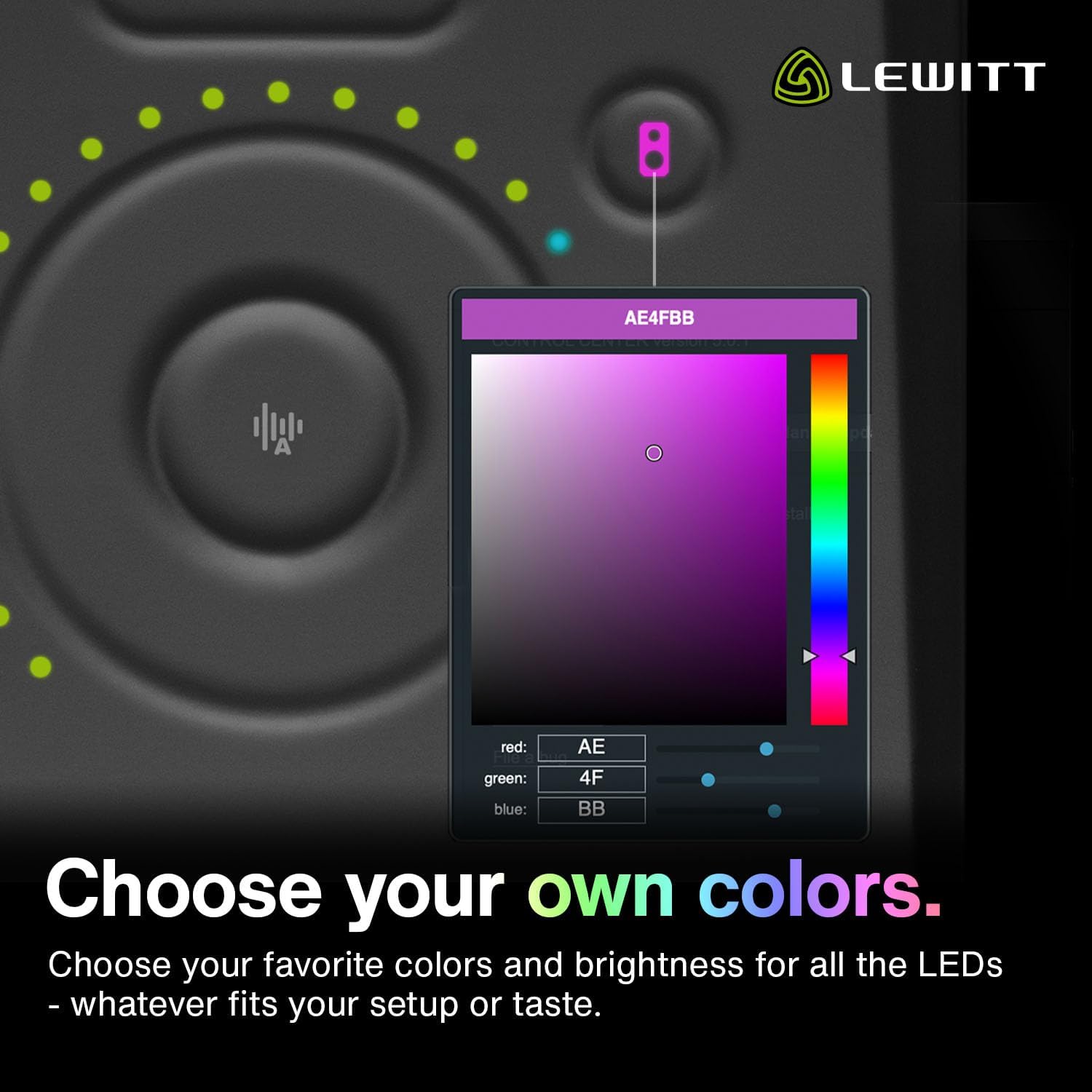
Figure 7: Custom button settings in LEWITT Control Center.
Sound Processing Features
The CONNECT 2 integrates powerful DSP effects to enhance your audio in real-time.
- Autogain: Automatically sets your input levels to ensure optimal recording quality, preventing signals from being too loud or too quiet.
- Clipguard: Provides protection against audio clipping, allowing you to perform without worrying about signal distortion.
- Denoiser: Effectively removes unwanted background noise and hum, maintaining the natural quality of your sound.
- Kompresor: Creates a uniform sound image, similar to professional studio recordings, by reducing the dynamic range of your audio.
- Przedamp Sounds (EQ Styles): Choose from three distinct tonal characteristics:
- Czysty: Offers unparalleled clarity and fidelity, ideal for processing your signal further.
- Ciepły: Provides a vintage vibe and helps to smooth the high-end of overly bright microphones.
- Żywy: Brings even dull-sounding microphones alive and adds articulation by boosting specific frequencies.

Figure 8: Visual representation of the three preamp sound styles.
4. Konserwacja
Czyszczenie
To maintain the appearance and functionality of your CONNECT 2, regularly wipe the device with a soft, dry cloth. Avoid using abrasive cleaners or solvents, as these can damage the finish and internal components.
Aktualizacje oprogramowania układowego
Periodically check for firmware updates for your CONNECT 2 via the LEWITT Control Center software. Updates often include performance improvements, bug fixes, and new features. Keeping your firmware up-to-date ensures optimal performance and compatibility.
5. Rozwiązywanie Problemów
Typowe problemy i rozwiązania
- Brak dźwięku:
- Ensure the CONNECT 2 is properly connected via USB-C and powered on.
- Check all cable connections (XLR, Hi-Z, monitor, headphones).
- Verify volume levels on the interface and within the Control Center software.
- Confirm the correct audio device is selected in your computer's sound settings and your Digital Audio Workstation (DAW).
- Audio Clipping/Distortion:
- Wykorzystaj Automatyczna konfiguracja feature to automatically set optimal gain levels.
- Zapewnić Clipguard is enabled in the Control Center software.
- Manually reduce the input gain using the scroll wheel or Control Center if clipping persists.
- Nadmierny hałas w tle:
- Aktywuj Denoiser feature in the Control Center software.
- Ensure your recording environment is as quiet as possible.
- Check microphone placement and proximity to noise sources.
- Urządzenie nie jest rozpoznawane przez komputer:
- Spróbuj podłączyć urządzenie do innego portu USB lub użyć innego kabla USB-C.
- Uruchom ponownie komputer.
- Reinstall the LEWITT Control Center software and drivers.
- Sprawdź, czy są jakieś oczekujące aktualizacje systemu operacyjnego.
6. Specyfikacje techniczne
| Specyfikacja | Szczegół |
|---|---|
| Numer modelu | POŁĄCZ 2 |
| Technologia łączności | USB |
| Liczba kanałów | 2 |
| Waga przedmiotu | 1.72 funta |
| Wymiary produktu | 7.99 x 6.06 x 2.4 cala |
| Kompatybilne urządzenia | Personal Computer, Tablet, Smartphone, Microphone |
| Obsługiwane oprogramowanie | Steinberg Cubase LE, Cubasis LE |
| System operacyjny | Multiple or NA |
7. Gwarancja i wsparcie
Rejestracja produktu
Register your LEWITT CONNECT 2 product online to ensure you receive important updates and support. Registration details can typically be found within the LEWITT Control Center software or on the official LEWITT webstrona.
Wsparcie online
Aby uzyskać dalszą pomoc, wsparcie techniczne lub file a bug report, please visit the official LEWITT support page. You can find comprehensive FAQs, troubleshooting guides, and contact information for direct support.


