Wstęp
This instruction manual provides detailed information on the setup, operation, maintenance, and troubleshooting of your Miroddi MagSafe Wallet. Designed for seamless integration with Apple iPhone 12 series and newer, this wallet combines secure card storage with advanced tracking capabilities.
Przewodnik po konfiguracji
1. Initial Pairing with Apple Find My
The Miroddi MagSafe Wallet is equipped with Apple Find My technology. To pair, ensure your iPhone or iPad is updated to the latest iOS version. Bring the wallet close to your device, and a one-click setup prompt will appear. Follow the on-screen instructions to connect the wallet to your Find My network.

Image: The Miroddi MagSafe Wallet displaying its compatibility with Apple Find My, showing the wallet's location on a map within the Find My app interface on an iPhone.
2. Ładowanie portfela
The wallet contains a rechargeable Lithium Ion battery. To charge, place the wallet on a compatible wireless charger. A full charge takes approximately 1.5 hours and provides up to 5 months of battery life. Note: A wireless charger is not included.
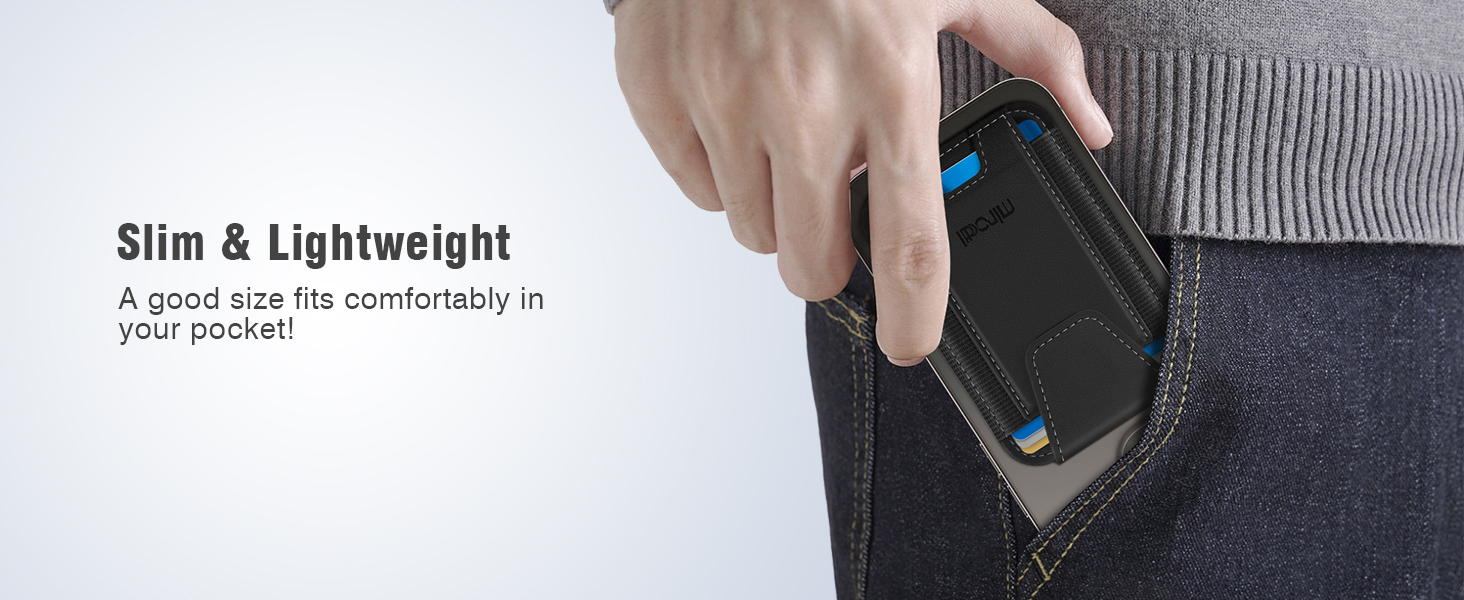
Image: The Miroddi MagSafe Wallet placed on a wireless charging pad, illustrating the wireless charging capability.
3. Attaching to iPhone
The wallet features a strong magnetic hold (up to 20 N) for secure attachment. Align the wallet with the MagSafe area on the back of your iPhone (iPhone 12 series and newer). It will snap firmly into place. For optimal magnetic connection, use a MagSafe-compatible case or no case. Non-magnetic cases are not supported.

Image: A hand demonstrating the "Snap & Go" feature, attaching the Miroddi MagSafe Wallet to the back of an iPhone.
Instrukcja obsługi
1. Storing and Accessing Cards
The Miroddi MagSafe Wallet can comfortably store up to 7 cards and some cash. To access cards, use the thumb slot at the bottom to push them up. The integrated privacy flap ensures cards remain secure and prevents accidental exposure of private information, even if the wallet is inverted.

Image: A hand demonstrating how to easily access a card from the Miroddi MagSafe Wallet using the thumb slot.
2. Utilizing Find My Features
Once paired, the Find My app provides several functionalities to locate your wallet:
- Left-behind alerts: Receive immediate notifications on your iPhone if your wallet is separated from your device.
- Odtwórz dźwięk: Activate a sound from the wallet to help locate it when it's nearby.
- Wskazówki: Obtain directions to the wallet's last known location on a map if it is out of range.

Image: An iPhone displaying a "Left behind Remind" notification for the wallet, alongside the Find My app showing the wallet's location and options to play sound or get directions.
3. Film demonstracyjny produktu
Video: An official product video from Miroddi Direct demonstrating the MagSafe Wallet's features, including its compatibility with Apple Find My and how it securely holds cards.
Pielęgnacja i konserwacja
1. RFID Blocking Protection
The Miroddi MagSafe Wallet incorporates RFID blocking technology to safeguard your credit cards from unauthorized scanning and prevent demagnetization. This feature helps protect your personal and financial data.

Image: The Miroddi MagSafe Wallet shown with a credit card, emphasizing its RFID blocking capability to keep cards safe from unauthorized scanning.
2. Instrukcje czyszczenia
To maintain the appearance and longevity of your wallet, wipe it gently with a soft, slightly damp cloth. Avoid using abrasive cleaners, solvents, or harsh chemicals, as these can damage the leather material. Allow the wallet to air dry completely before use.
Rozwiązywanie problemów
| Wydanie | Możliwa przyczyna | Rozwiązanie |
|---|---|---|
| Wallet not attaching securely to iPhone. | Non-MagSafe compatible phone model or case. Weak magnetic connection. | Ensure your iPhone is an iPhone 12 series or newer. Use a MagSafe-compatible case or no case. The wallet's magnetic force is 20N, which is designed for a strong hold. |
| Find My feature not working or wallet not discoverable. | Wallet battery low or not charged. Incorrect pairing. | Charge the wallet using a wireless charger. Re-pair the wallet with your iPhone via the Find My app. Ensure Bluetooth is enabled on your iPhone. |
| Cards falling out of the wallet. | Wallet overloaded or privacy flap not properly closed. | Ensure no more than 7 cards are stored. Always close the privacy flap to secure cards. |

Image: A visual comparison illustrating the "Ultra Strong Magnetic" hold of the Miroddi MagSafe Wallet, indicating its superior magnetic strength for secure attachment.
Specyfikacja produktu
- Numer modelu: MF38
- Marka: Miroddi
- Tworzywo: Skóra
- Kolor: Czarny
- Waga przedmiotu: 1.44 uncji
- Wymiary opakowania: 4.65 x 3.27 x 0.75 cala
- Bateria: 1 bateria litowo-jonowa (w zestawie)
- Czas pracy baterii: Do 5 miesięcy na jednym ładowaniu
- Metoda ładowania: Wireless charging (charger not included)
- Siła magnetyczna: Do 20 N
- Pojemność karty: Do 7 kart
- Cechy szczególne: Magnetic, RFID Blocking, Privacy Flap, Apple Find My compatibility
- Zgodność: iPhone 16, 16 Pro, 16 Pro Max, 16 Plus, iPhone 15, 15 Pro, 15 Pro Max, 15 Plus, iPhone 14, 14 Pro, 14 Pro Max, 14 Plus, iPhone 13, 13 Pro, 13 Pro Max, iPhone 12, 12 Pro, 12 Pro Max
- Producent: Yiqisou Technology (Shenzhen) Co., Ltd
- Kraj pochodzenia: Chiny
- Data pierwszej dostępności: 16 marca 2024 r.

Image: The Miroddi MagSafe Wallet displayed from a side angle, emphasizing its slim profile i lekka konstrukcja.
Gwarancja i wsparcie
Specific warranty details for the Miroddi MagSafe Wallet are not provided in the available product information. For warranty claims or technical support, please refer to the contact information provided with your product packaging or visit the official Miroddi webstrona.
For general inquiries or further assistance, you may also contact the seller, Miroddi Direct, through the platform where the product was purchased.


