Wstęp
The Keychron Q6 Max is a full-size, wireless custom mechanical keyboard designed for versatility and performance. This barebone knob version features a full-metal body, multi-mode connectivity (2.4 GHz, Bluetooth, and Type-C wired), QMK/VIA programmability, and a hot-swappable design. It is compatible with macOS, Windows, and Linux operating systems.
This manual provides detailed instructions to help you set up, operate, and maintain your Keychron Q6 Max keyboard.

Image: Keychron Q6 Max keyboard highlighting its key features.
Zawartość opakowania
Verify that all items are present in your Keychron Q6 Max package:
- Keyboard Kit (Without Keycaps & Switches):
- 1x aluminiowa obudowa
- 1x PCB (Printed Circuit Board)
- 1x płytka komputerowa
- 1x pianka pochłaniająca dźwięk
- 1x pianka IXPE
- 1x folia PET
- 1x lateksowa podkładka dolna
- 1x pianka akustyczna dolnej części obudowy
- 1x dolna folia PET
- 16x Uszczelki (12 Zainstalowanych i 4 w Pudełku)
- 8 zestawów x stabilizatory
- Kabel:
- 1x kabel typu C do typu C
- 1x przejściówka typu A na typ C
- 1x Adapter przedłużający do odbiornika
- Odbiornik:
- 1x odbiornik typu A 2.4 GHz
- Narzędzia:
- 1x ściągacz do klawiszy i przełączników
- 1x Śrubokręt
- 1x Klucz Szesnastkowy

Image: Detailed list of included items for the Keychron Q6 Max.
Organizować coś
1. Installing Switches and Keycaps
The Keychron Q6 Max is a barebone keyboard, meaning switches and keycaps are not pre-installed. You will need to purchase these separately.
- The keyboard supports 3-pin and 5-pin MX-style mechanical switches.
- Use the included switch puller to carefully insert switches into the hot-swappable sockets on the PCB. Ensure the pins align correctly to avoid bending.
- Once switches are installed, place your desired keycaps onto the switches.

Image: Keychron Q6 Max barebone keyboard, ready for switch and keycap installation.

Image: Hot-swappable socket supporting 3-pin and 5-pin mechanical switches.
2. Opcje łączności
The Keychron Q6 Max offers three connection modes: 2.4 GHz wireless, Bluetooth 5.1, and Type-C wired.
- Łączność bezprzewodowa 2.4 GHz: Insert the included 2.4 GHz receiver into a USB-A port on your computer. Ensure the keyboard's mode switch (located on the back or side) is set to 2.4G.
- Bluetooth 5.1: Set the keyboard's mode switch to BT. On your computer or device, search for Bluetooth devices and select 'Keychron Q6 Max'. You can pair up to three devices.
- Przewodowy typ C: Connect the keyboard to your computer using the provided Type-C to Type-C cable (or Type-A to Type-C adapter). Set the keyboard's mode switch to Cable.

Image: Tri-Mode Connection options for the Keychron Q6 Max.
3. QMK/VIA Software Configuration
The Keychron Q6 Max supports QMK/VIA for advanced customization. VIA is a graphical user interface that allows you to remap keys, create macros, and adjust lighting without flashing firmware.
- Pobierz oprogramowanie VIA z oficjalnego Keychron webstrona.
- Connect your keyboard via the Type-C cable.
- Launch VIA. The software should automatically detect your keyboard.
- Use the interface to remap any key, assign macro commands, create shortcuts, or combine key functions.
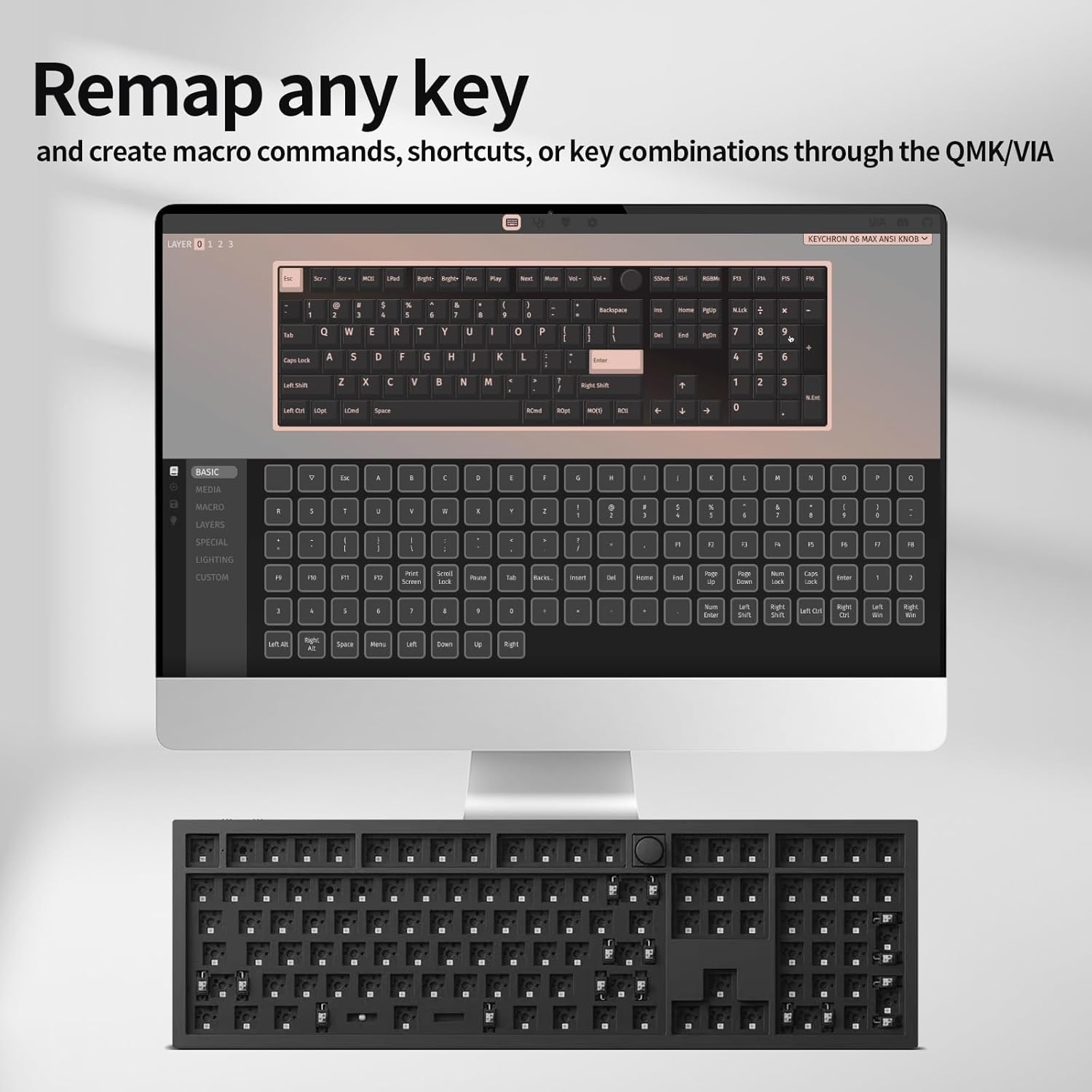
Image: VIA software interface for key remapping and customization.
Działanie
1. Przełączanie trybów łączności
Use the physical switch on the keyboard to toggle between 2.4 GHz, Bluetooth, and wired (Cable) modes. Ensure the switch is set to the desired mode for proper functionality.
2. Key Customization with QMK/VIA
As detailed in the setup section, the VIA software allows for extensive key customization. You can create multiple layers of keymaps, enabling different functions for the same physical keys, which is useful for various applications or operating systems.
3. Podświetlenie RGB
The Keychron Q6 Max features south-facing RGB backlighting. You can adjust lighting effects, colors, and brightness directly on the keyboard using key combinations (refer to the keyboard's quick start guide for specific key commands) or through the VIA software for more granular control.

Image: South-Facing RGB Backlight illumination.
4. Rotary Knob Functionality
The rotary knob typically controls media functions such as volume up/down and mute. Its functionality can also be customized via the QMK/VIA software to perform other actions.
Konserwacja
1. Czyszczenie
- Przed czyszczeniem odłącz klawiaturę od wszystkich źródeł zasilania.
- Użyj miękkiej, niestrzępiącej się ściereczki, lekko wyczyśćampened with water or a mild cleaning solution to wipe the keyboard surface. Avoid harsh chemicals.
- For cleaning between keycaps, use compressed air to remove dust and debris.
- To deep clean, remove keycaps using the included keycap puller and clean the switches and plate area.
2. Wymiana przełącznika
Thanks to the hot-swappable design, individual switches can be replaced without soldering. Use the switch puller to gently remove a switch and insert a new one, ensuring the pins are straight and align with the PCB sockets.
Rozwiązywanie problemów
- Klawiatura nie odpowiada:
- Sprawdź, czy klawiatura jest naładowana lub podłączona przez USB-C.
- Check the mode switch (2.4G, BT, Cable) is set correctly for your connection type.
- For 2.4G, ensure the receiver is properly inserted. For Bluetooth, re-pair the device.
- Spróbuj podłączyć się za pomocą kabla USB-C, aby wykluczyć problemy z łącznością bezprzewodową.
- Klawisze nie rejestrują się lub są wpisywane podwójnie:
- This can sometimes be due to a faulty switch. Use the switch puller to remove the problematic switch and replace it with a new one.
- Upewnij się, że przełączniki są prawidłowo osadzone w gniazdach.
- Clean any debris around the switch.
- Problemy z połączeniem Bluetooth:
- Ensure the keyboard is in Bluetooth mode and discoverable.
- Usuń klawiaturę z listy Bluetooth swojego urządzenia i sparuj ją ponownie.
- Upewnij się, że żadne inne urządzenia nie zakłócają sygnału Bluetooth.
- QMK/VIA Software Not Detecting Keyboard:
- Upewnij się, że klawiatura jest podłączona za pomocą kabla USB-C.
- Verify that the keyboard's mode switch is set to 'Cable'.
- Uruchom ponownie oprogramowanie VIA i/lub komputer.
- RGB Backlight Not Working:
- Check keyboard brightness settings using onboard controls or VIA software.
- Ensure the keyboard is not in a low-power mode.
Specyfikacje
| Funkcja | Szczegół |
|---|---|
| Numer modelu | Q6M-M1 |
| Wymiary produktu | 17.56 x 5.39 x 12.83 cala (44.6 x 13.7 x 32.6 cm) |
| Waga przedmiotu | 5.39 funtów (2.44 kg) |
| Producent | Chronograf |
| Baterie | 1 bateria litowo-polimerowa (w zestawie) |
| Kompatybilne urządzenia | macOS, Windows, Linux |
| Technologia łączności | 2.4 GHz Wireless, Bluetooth 5.1, Type-C Wired |
| Funkcja specjalna | Podświetlany (RGB) |
| Obsługa kolorów podświetlenia klawiatury | RGB |
| Współczynnik sondowania | 1000 Hz (2.4 GHz & Wired), 90 Hz (Bluetooth) |
| Personalizacja | QMK/VIA Programmable |
| Zgodność przełączników | 3-pin and 5-pin MX style mechanical switches (hot-swappable) |
| Budowa | Full-metal body, Double-gasket design |

Image: Response speed comparison for 2.4G and Bluetooth modes.

Obraz: Wybuchowy view illustrating the internal layers and components of the keyboard.
Gwarancja i wsparcie
Warranty information for your Keychron Q6 Max keyboard is typically provided with the product packaging or can be found on the official Keychron website. For technical support, troubleshooting assistance, or warranty claims, please refer to the manufacturer's official support channels.
Producent: Keychron
Aby uzyskać najnowsze zasoby pomocy technicznej, odwiedź stronę Oficjalny Keychron Webstrona.


