1. Wprowadzenie
This user manual provides detailed instructions for the setup, operation, maintenance, and troubleshooting of your Z-EDGE U28I4K 4K Monitor. Please read this manual thoroughly before using the product to ensure proper functionality and to prevent damage.
Cechy produktu:
- Rozdzielczość 4K UHD (3840x2160): Delivers stunningly clear and lifelike images with exceptional detail.
- Częstotliwość odświeżania 144 Hz i czas reakcji 1 ms: Ensures smooth, crisp visuals and reduces motion blur, ideal for gaming.
- Panel IPS: Provides wide 178° viewing angles and consistent, accurate color reproduction.
- HDR10 Technology: Enhances picture quality with deeper blacks and brighter whites.
- Wiele opcji łączności: Two HDMI inputs and two DisplayPort inputs for versatile device connection.
- Technologia pielęgnacji oczu: Features low blue light and flicker-free technology to reduce eye strain.
- Zgodność z mocowaniem VESA: Zgodność ze standardem mocowania VESA 100x100 mm zapewnia elastyczną instalację.
2. Zawartość opakowania
Please check the package contents upon unboxing. If any items are missing or damaged, contact Z-EDGE customer support.
- Z-EDGE U28I4K 4K Monitor
- Stojak na monitor (podstawa i szyjka)
- Zasilacz i kabel zasilający
- Kabel HDMI
- Kabel DisplayPort
- Instrukcja obsługi
- Screws and Screwdriver for stand assembly
3. Konfiguracja
3.1 Montaż stojaka
- Ostrożnie wyjmij monitor z opakowania i połóż go bezpiecznie na miękkiej, płaskiej powierzchni.
- Attach the stand neck to the monitor's rear panel using the provided screws. Ensure it is securely fastened.
- Connect the stand base to the stand neck and tighten the thumb screw or use the provided screwdriver to secure it.
- Gently place the assembled monitor on a stable, flat desk.

3.2 Podłączanie do urządzenia
The Z-EDGE U28I4K monitor supports multiple input types. Choose the appropriate cable for your device.
- Połączenie HDMI: Connect one end of the HDMI cable to the HDMI port on your computer/device and the other end to an HDMI input port (HDMI 1 or HDMI 2) on the monitor.
- Połączenie DisplayPort: Connect one end of the DisplayPort cable to the DisplayPort on your computer/device and the other end to a DisplayPort input port (DP 1 or DP 2) on the monitor.
- Wyjście audio: Connect external speakers or headphones to the 3.5mm audio output jack on the monitor if desired.

3.3 Połączenie zasilania
Connect the power adapter to the DC 12V input on the monitor, then plug the power cable into a wall outlet.
Important: Use only the power adapter provided with your monitor.
4. Obsługa monitora
4.1 Włączanie/wyłączanie zasilania
Press the power button located on the back or bottom of the monitor to turn it on or off. The power indicator light will illuminate when the monitor is on.
4.2 Menu ekranowe (OSD)
The OSD menu allows you to adjust various monitor settings. Navigate the menu using the buttons typically found on the back or bottom right of the monitor.
Typowe ustawienia OSD:
- Jasność/Kontrast: Dostosuj ogólną jasność i współczynnik kontrastu.
- Ustawienia kolorów: Modyfikuj temperaturę barwową, gamma i poszczególne poziomy RGB.
- Źródło sygnału wejściowego: Manually select between HDMI 1, HDMI 2, DP 1, or DP 2.
- Tryb obrazu: Select preset display modes (e.g., Standard, Game, Movie, Text).
- Response Time/Overdrive: Adjust the pixel response time for faster transitions.
- FreeSync/Adaptacyjna synchronizacja: Enable or disable adaptive synchronization technology.
- Niski poziom niebieskiego światła: Zredukuj emisję niebieskiego światła, aby zminimalizować zmęczenie oczu.
- Bez migotania: Ensure the display is free from visible flickering.
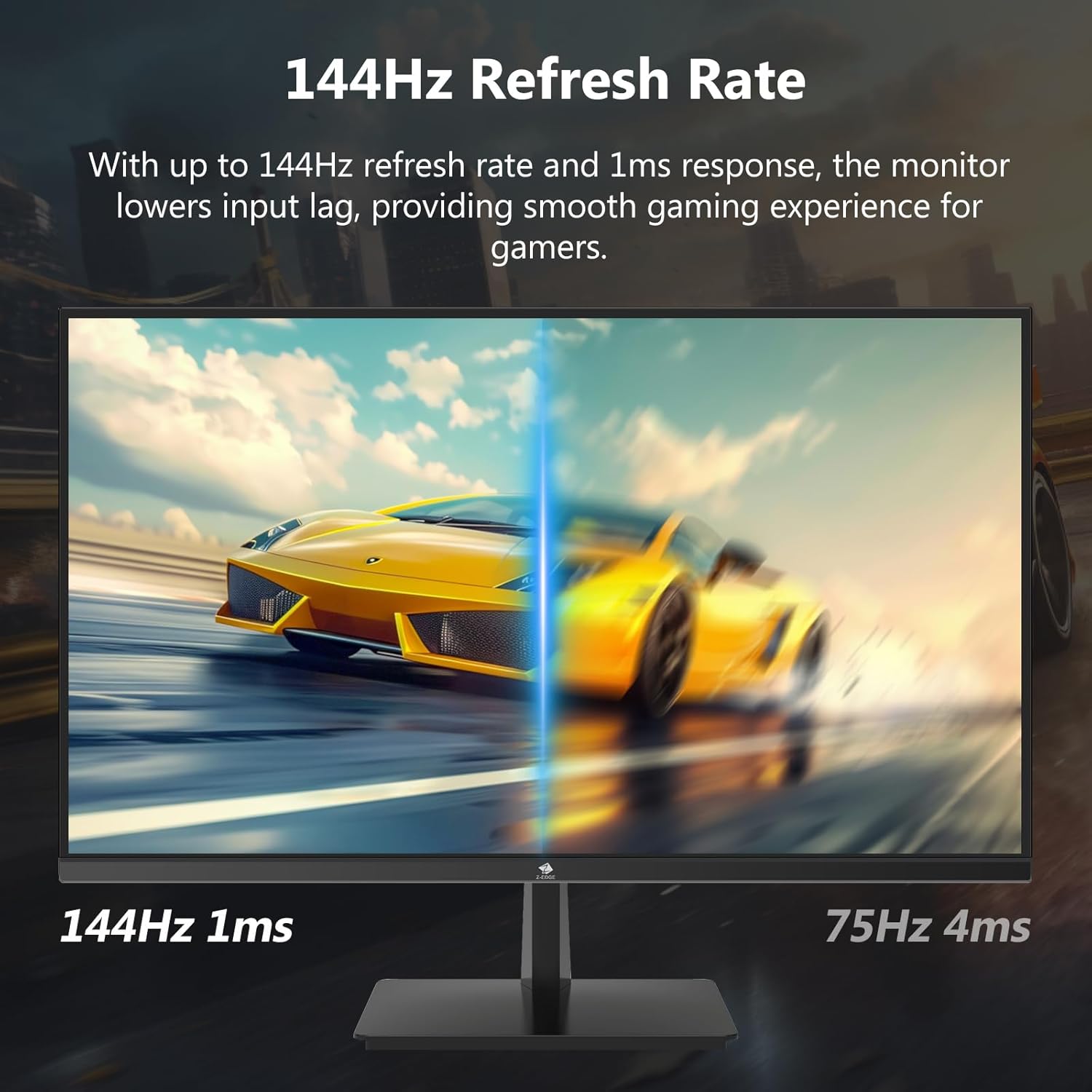

4.3 Częstotliwość odświeżania i czas reakcji
The monitor supports up to a 144Hz refresh rate and 1ms response time for optimal performance in fast-paced applications and gaming.
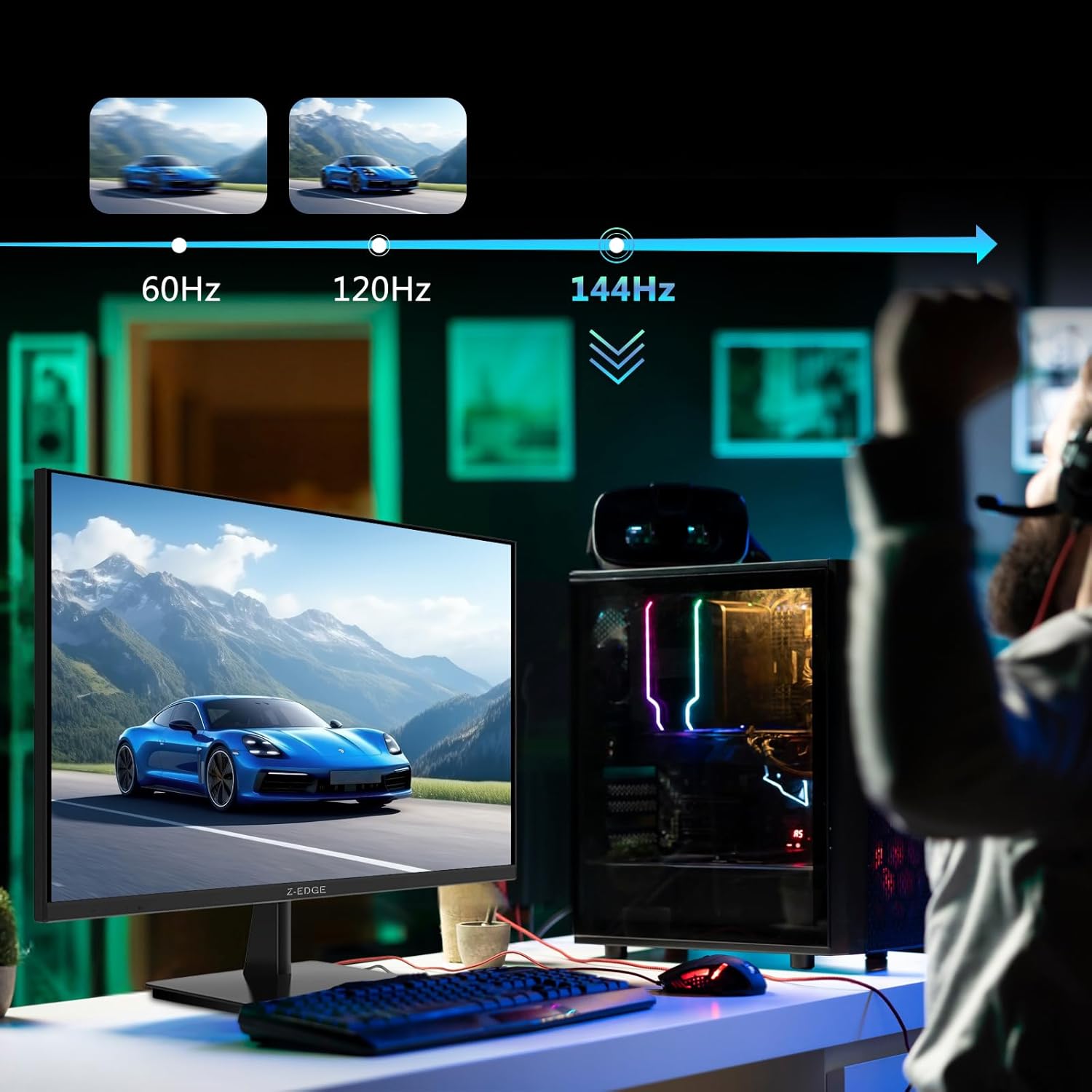

5. Konserwacja
5.1 Czyszczenie monitora
- Przed czyszczeniem należy zawsze odłączyć monitor od gniazdka zasilania.
- Użyj miękkiej, niestrzępiącej się ściereczki, lekko wyczyśćampCzyścić wodą lub nieściernym środkiem do czyszczenia ekranów.
- Nie rozpylać środka czyszczącego bezpośrednio na ekran.
- Unikaj stosowania benzenu, rozcieńczalnika, amoniaku i środków czyszczących o właściwościach ściernych, ponieważ mogą one uszkodzić powierzchnię monitora.
5.2 Przechowywanie
Podczas przechowywania monitora przez dłuższy czas należy upewnić się, że jest on wyłączony i odłączony od wszystkich kabli. Przechowuj go w chłodnym, suchym miejscu, najlepiej w oryginalnym opakowaniu, aby chronić go przed kurzem i uszkodzeniami mechanicznymi.
6. Rozwiązywanie Problemów
| Problem | Możliwa przyczyna | Rozwiązanie |
|---|---|---|
| Brak zasilania | Kabel zasilający nie jest podłączony; gniazdko elektryczne jest uszkodzone; zasilacz jest uszkodzony. | Ensure power cable is securely connected to monitor and outlet. Test outlet with another device. Contact support if adapter is suspected faulty. |
| Brak sygnału | Input cable not connected; Incorrect input source selected; Computer/device not outputting signal. | Check HDMI/DisplayPort cable connections. Select correct input source via OSD menu. Restart computer/device. |
| Migotanie ekranu | Loose cable connection; Refresh rate mismatch; DCR (Dynamic Contrast Ratio) enabled. | Ensure cables are firmly connected. Adjust refresh rate in display settings. Disable DCR in OSD menu. |
| Słaba jakość obrazu (rozmazany/zniekształcony) | Incorrect resolution; Cable quality; Graphics driver issues. | Set display resolution to 3840x2160. Try a different high-quality cable. Update graphics drivers. |
| No Audio from Monitor | Volume too low; Incorrect audio output selected on computer; External speakers not connected/powered. | Increase monitor volume via OSD. Select monitor as audio output device in OS settings. Ensure external speakers are connected and powered. |
If the problem persists after trying these solutions, please contact Z-EDGE customer support.
7. Specyfikacje
| Funkcja | Szczegół |
|---|---|
| Numer modelu | U28I4K |
| Rozmiar ekranu | 28 cali |
| Typ panelu | IPS |
| Rezolucja | 3840x2160 (4K UHD) |
| Częstotliwość odświeżania | 144 Hz |
| Czas reakcji | 1 ms (MPRT) |
| Jasność | 300 cd/m² |
| Współczynnik kontrastu | 1000:1 |
| Obsługa kolorów | 16.7 miliona kolorów (8 bitów) |
| Viewing kąt | 178° (poziom/pion) |
| Obsługa HDR | HDR10 |
| Łączność | 2x HDMI 2.1, 2x DisplayPort 1.4, 1x wyjście audio (3.5 mm) |
| Mocowanie VESA | 100x100mm |
| Wymiary (z podstawką) | Wymiary 19 x 64 x 46 cm |
| Waga (z podstawką) | 5.96 kilogramów |
| Moc wejściowa | Prąd stały 12 V |
8. Gwarancja i wsparcie
8.1 Informacje o gwarancji
Z-EDGE products typically come with a limited manufacturer's warranty. Please refer to the warranty card included in your product packaging or visit the official Z-EDGE webSzczegółowe warunki gwarancji znajdziesz na stronie. Zachowaj paragon jako dowód zakupu na wypadek roszczeń gwarancyjnych.
8.2 Obsługa klienta
For technical assistance, troubleshooting, or warranty inquiries, please contact Z-EDGE customer support:
- Webstrona: www.z-edge.com (Check for support contact details, FAQs, and driver downloads)
- E-mail: Odwołaj się do urzędnika webodwiedź witrynę, aby uzyskać najnowszy adres e-mail pomocy technicznej.
- Telefon: Odwołaj się do urzędnika webstrona z najnowszym numerem telefonu pomocy technicznej.
When contacting support, please have your monitor's model number (U28I4K) and serial number ready.