1. Wprowadzenie
This manual provides detailed instructions for the Hyperkin Pixel Art Bluetooth Controller, Miraculous Cat Noir Edition. Please read this manual thoroughly before using the product to ensure proper operation and to maximize your gaming experience. This controller is designed for use with multiple platforms, offering wireless connectivity and a comfortable, ergonomic design.
2. Koniec produktuview
The Hyperkin Pixel Art Bluetooth Controller combines a retro aesthetic with modern functionality. It features a unique Miraculous Cat Noir design, wireless Bluetooth connectivity, and a built-in turbo function.
2.1 Główne cechy
- Bezprzewodowa łączność Bluetooth: Enjoy gaming freedom up to 30 feet away.
- Funkcja turbo: Activate rapid-fire action for enhanced gameplay.
- Retro Design with Modern Ergonomics: A classic look combined with comfortable handling for extended play sessions.
- Przyjazny w podróży: Kompaktowa konstrukcja pozwala na łatwe przenoszenie.
- High-Quality Symmetrical Sticks: Designed for precision and responsiveness.
2.2 Układ kontrolera

Obraz 2.2.1: Przód view of the Hyperkin Pixel Art Bluetooth Controller, Miraculous Cat Noir Edition. This image displays the D-pad, left and right analog sticks with paw print designs, A/B/X/Y buttons, Start/Select buttons, and the Cat Noir character art.

Obraz 2.2.2: Strona view of the Hyperkin Pixel Art Bluetooth Controller, Miraculous Cat Noir Edition. This image shows the shoulder buttons (L1, R1) and triggers (L2, R2), along with the USB-C charging port and mode switch.

Obraz 2.2.3: Z bliska view emphasizing the controller's retro design combined with modern ergonomic features for comfortable handling.
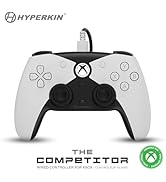
Obraz 2.2.4: Z bliska view showcasing the high-quality symmetrical analog sticks, designed for precise control during gameplay.
3. Konfiguracja
3.1 Ładowanie Kontrolera
The controller includes a built-in Lithium Polymer battery. To charge, connect the supplied Type-C cable to the controller's charging port and the other end to a USB power source (e.g., a computer USB port, a USB wall adapter). The LED indicator on the controller will show charging status and turn off when fully charged.
3.2 Pairing via Bluetooth
To pair the controller with your device:
- Sprawdź, czy kontroler jest odpowiednio naładowany.
- Włącz kontroler naciskając przycisk Home.
- Put the controller into pairing mode (refer to your device's specific instructions for Bluetooth pairing, as this may vary). Typically, this involves holding a small pairing button or a combination of buttons until the LED indicator flashes rapidly.
- On your device (Nintendo Switch, PC, Mac, Android, iOS, etc.), navigate to the Bluetooth settings.
- Szukaj available devices and select "Hyperkin Pixel Art Controller" (or similar name) from the list.
- Once connected, the LED indicator on the controller will stabilize.
For Nintendo Switch, navigate to the 'Controllers' menu, then 'Change Grip/Order' to initiate pairing mode on the console.
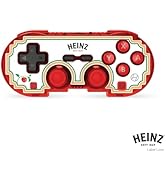
Obraz 3.2.1: Illustration of the controller connecting wirelessly via Bluetooth, indicating a range of up to 30 feet.
3.3 Połączenie przewodowe
The controller can also be used via a wired connection. Connect the Type-C cable from the controller to a compatible USB port on your device. This mode is often plug-and-play, requiring no additional pairing.
4. Instrukcja obsługi
4.1 Podstawowe sterowanie
Kontroler wyposażony jest w standardowe przyciski do gier:
- D-pad: Wejście kierunkowe.
- Gałki analogowe: Left and Right symmetrical sticks for precise movement and camera control.
- Przyciski akcji (A, B, X, Y): Primary interaction buttons.
- Przyciski naramienne (L, R) i spusty (ZL, ZR): Additional input buttons, typically for actions like aiming, firing, or menu navigation.
- Przyciski Start/Wybierz: Do menu i opcji w grze.
- Przycisk Home: Powrót do ekranu głównego systemu.
4.2 Funkcja Turbo
The turbo function allows for rapid, repeated input of a button press without continuously pressing the button. To activate or deactivate turbo for a specific button:
- Naciśnij i przytrzymaj Turbo przycisk.
- While holding the Turbo button, press the desired action button (e.g., A, B, X, Y, L, R, ZL, ZR) once to activate turbo for that button.
- Repeat the process (hold Turbo, press the same action button) to deactivate turbo for that button.
5. Zgodność
The Hyperkin Pixel Art Bluetooth Controller is compatible with a wide range of gaming platforms:
- Nintendo Switch
- Nintendo Switch OLED Model
- Nintendo Switch Lite
- Komputer z systemem Windows 10/11
- Prochowiec
- Chromebook
- Urządzenia z Androidem
- Urządzenia Apple iOS
- Para
- Pokład parowy
- Sojusznik ROG
- Raspberry Pi
- Amazon Games/Amazon Luna
- Tesla
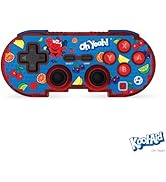
Obraz 5.1: Visual representation of the controller's broad compatibility across multiple gaming platforms and operating systems.
6. Konserwacja
Aby zapewnić długowieczność i optymalną wydajność kontrolera, należy przestrzegać poniższych wskazówek dotyczących konserwacji:
- Czyszczenie: Do wycierania kontrolera użyj miękkiej, suchej ściereczki. W przypadku uporczywych zabrudzeń delikatnie przetrzyjampWytrzyj szmatkę wodą. Unikaj silnych środków chemicznych i ściernych środków czyszczących.
- Składowanie: Przechowuj kontroler w chłodnym, suchym miejscu, z dala od bezpośredniego światła słonecznego i ekstremalnych temperatur.
- Pielęgnacja baterii: Unikaj częstego całkowitego rozładowywania baterii. Regularnie ładuj kontroler, nawet jeśli nie jest używany przez dłuższy czas, aby utrzymać baterię w dobrym stanie.
- Unikaj wpływu fizycznego: Do not drop or expose the controller to strong impacts, as this can damage internal components.
7. Rozwiązywanie Problemów
If you encounter issues with your Hyperkin Pixel Art Bluetooth Controller, refer to the following common problems and solutions:
| Problem | Możliwe rozwiązanie |
|---|---|
| Kontroler nie włącza się. | Ensure the controller is charged. Connect it to a power source using the Type-C cable. |
| Kontroler nie łączy się przez Bluetooth. |
|
| Przyciski nie reagują lub działają z opóźnieniem. |
|
| USB charging port does not work. |
|
| Vibration is too strong or loud. | Some games or systems may offer an option to adjust or disable vibration feedback within their settings. Consult your game or system's options menu. |
8. Specyfikacje
| Funkcja | Szczegół |
|---|---|
| Numer modelu | M01328-MTCN |
| Łączność | Bluetooth (Wireless), USB Type-C (Wired) |
| Zasięg bezprzewodowej | Do 30 stóp |
| Typ baterii | 1 bateria litowo-polimerowa (w zestawie) |
| Wymiary opakowania | 7.4 x 5.2 x 2.4 cala |
| Waga przedmiotu | 9.9 uncji |
| Producent | Hiperkin |
9. Gwarancja i wsparcie
This product is covered by the manufacturer's standard warranty. For specific warranty terms and conditions, please refer to the documentation included with your purchase or visit the official Hyperkin website. For technical support or further assistance, please contact Hyperkin customer service through their official channels.


