1. Wprowadzenie
This manual provides comprehensive instructions for the Hyperkin Pixel Art Bluetooth Controller, Tetris™ Edition (Model M01328-TETS). This limited-edition wireless controller is designed for use with various gaming platforms, offering a blend of retro aesthetics and modern functionality. Please read this manual thoroughly before use to ensure proper setup and operation.

Image 1.1: The Hyperkin Pixel Art Bluetooth Controller, Tetris™ Edition, showcasing its unique Tetris-themed design.
2. Zawartość opakowania
Sprawdź, czy w przesyłce znajdują się wszystkie elementy:
- Hyperkin Pixel Art Bluetooth Controller (Tetris™ Edition)
- Kabel ładujący USB-C
- Instrukcja obsługi (ten dokument)
3. Układ kontrolera
Familiarize yourself with the buttons and features of your controller:

Obraz 3.1: Przód view of the controller, displaying the D-pad, analog sticks, action buttons (A, B, X, Y), SELECT, START, and Tetris™ logo.
- Pad kierunkowy: Wejście kierunkowe.
- Lewy/prawy drążek analogowy: Precise 360-degree movement.
- Przyciski akcji (A, B, X, Y): Primary interaction buttons.
- Przycisk WYBIERZ: Function varies by platform/game.
- Przycisk Start: Function varies by platform/game.
- Guziki na ramionach (L1, R1): Przyciski montowane u góry.
- Przyciski spustowe (L2, R2): Analogowe spusty zamontowane u dołu.
- Przycisk Home: Returns to system menu (functionality varies by platform).
- Przycisk Turbo: Activates/deactivates turbo function for selected buttons.
- Port USB-C: Do ładowania i przewodowego połączenia.

Obraz 3.2: Tył view of the controller, showing the ergonomic grip and product label.
4. Konfiguracja
4.1. Ładowanie kontrolera
Before initial use, fully charge the controller. Connect the included USB-C charging cable to the controller's USB-C port and the other end to a USB power source (e.g., computer, USB wall adapter). The charging indicator light will show charging status and turn off when fully charged.
4.2. Parowanie Bluetooth
The controller supports wireless connection via Bluetooth up to 30 feet. Follow these general steps for pairing:
- Sprawdź, czy kontroler jest naładowany.
- Turn on the controller (specific method may vary, typically holding the Home button).
- Activate pairing mode on the controller (refer to specific platform instructions below, usually a combination of buttons or a dedicated pairing button). The indicator lights will flash rapidly.
- On your device (Nintendo Switch, PC, Mac, Android, iOS), navigate to the Bluetooth settings.
- Szukaj available devices and select "Hyperkin Pixel Art Controller" or similar.
- Once paired, the indicator lights on the controller will become solid.
4.2.1. Pairing with Nintendo Switch/OLED Model
- From the HOME Menu, select "Controllers" > "Change Grip/Order."
- While on this screen, press and hold the pairing button on the Hyperkin controller until the indicator lights flash.
- Once paired, the controller will appear on the screen, and the player indicator will light up.
4.2.2. Pairing with PC (Windows 10/11)
- Go to "Settings" > "Devices" > "Bluetooth & other devices."
- Turn on Bluetooth and click "Add Bluetooth or other device."
- Select "Bluetooth" and then choose "Hyperkin Pixel Art Controller" from the list.
4.2.3. Pairing with Mac
- Open "System Settings" (or "System Preferences") > "Bluetooth."
- Ensure Bluetooth is on. The controller should appear in the list of devices.
- Click "Connect" or "Pair" next to "Hyperkin Pixel Art Controller."
4.2.4. Pairing with Android/iOS Devices
- Go to your device's "Settings" > "Bluetooth."
- Turn on Bluetooth. The controller should appear in the list of available devices.
- Tap on "Hyperkin Pixel Art Controller" to pair.

Image 4.1: The controller demonstrating wireless connectivity with a Nintendo Switch console, highlighting its Bluetooth capability.
5. Instrukcja obsługi
5.1. Podstawowe sterowanie
The controller functions as a standard gamepad. Button mapping may vary depending on the game and platform. Refer to your game's instructions for specific control schemes.
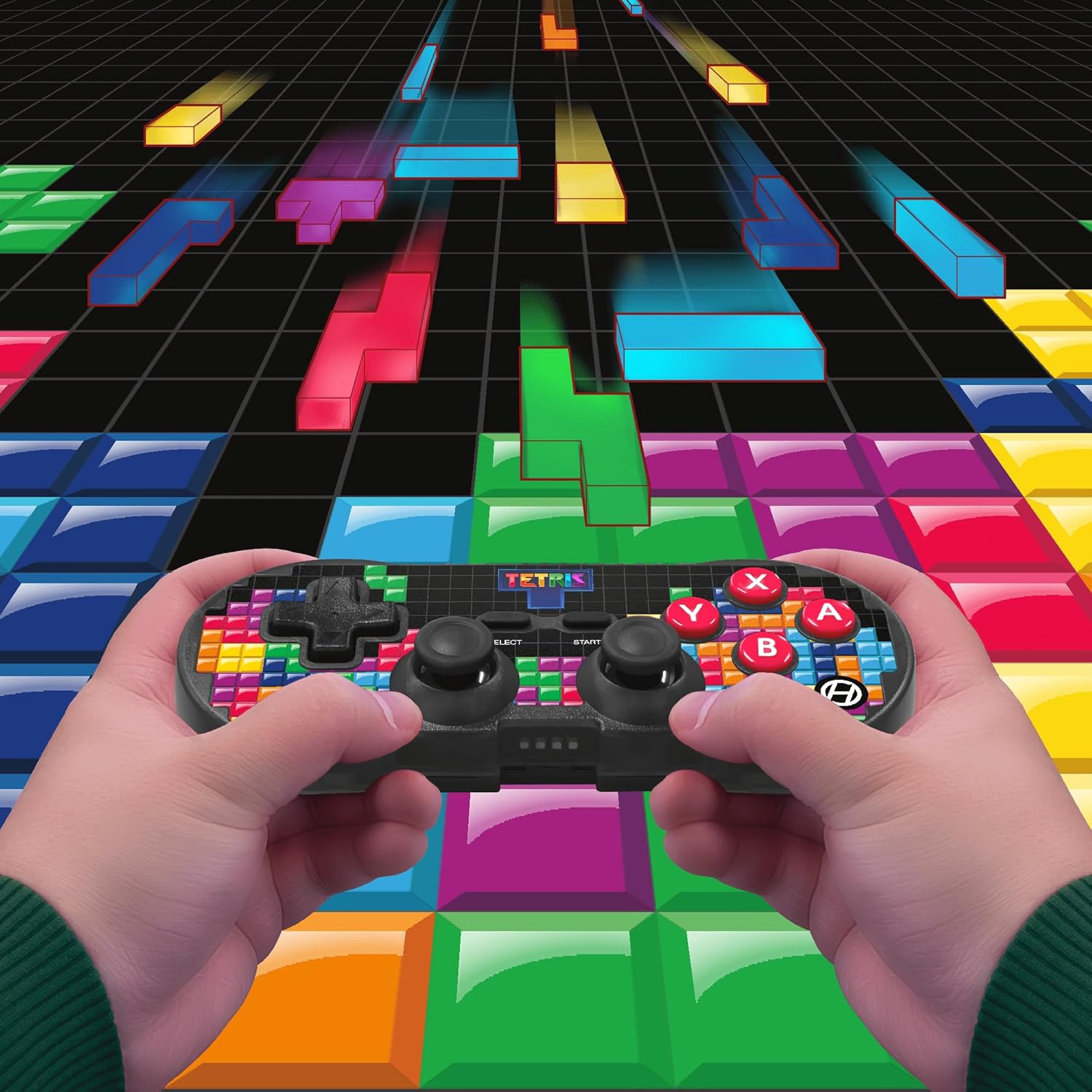
Image 5.1: A user holding the controller, illustrating its use during gameplay.
5.2. Funkcja turbo
The controller features a turbo function for rapid button presses. To activate or deactivate turbo for a specific button:
- Naciśnij i przytrzymaj Przycisk Turbo.
- While holding the Turbo button, press the desired przycisk akcji (A, B, X, Y, L1, R1, L2, R2) you wish to apply turbo to.
- Release both buttons. The selected action button will now have turbo enabled.
- To disable turbo for that button, repeat the process.
6. Zgodność
The Hyperkin Pixel Art Bluetooth Controller is compatible with a wide range of platforms:
- Nintendo Switch
- Nintendo Switch OLED Model
- Komputer z systemem Windows 10/11
- Prochowiec
- Urządzenia z Androidem
- Urządzenia z systemem iOS
- Para
- Raspberry Pi
- Amazon Games
- Amazon Luna
- Tesla

Image 6.1: Visual representation of the controller's broad compatibility across multiple gaming and computing platforms.
7. Konserwacja
To ensure the longevity and optimal performance of your controller:
- Czyszczenie: Do czyszczenia kontrolera używaj miękkiej, suchej ściereczki. Unikaj środków czyszczących o właściwościach ściernych i rozpuszczalników.
- Składowanie: Przechowuj kontroler w chłodnym, suchym miejscu, z dala od bezpośredniego światła słonecznego i ekstremalnych temperatur.
- Pielęgnacja baterii: Do not attempt to replace the internal Lithium Polymer battery. Avoid fully discharging the battery for extended periods.
- Unikaj kropli: Chroń kontroler przed upadkami i uderzeniami, które mogą uszkodzić jego podzespoły wewnętrzne.
8. Rozwiązywanie Problemów
If you encounter issues with your Hyperkin Pixel Art Bluetooth Controller, refer to the following common problems and solutions:
| Problem | Możliwe rozwiązanie |
|---|---|
| Kontroler nie włącza się. | Upewnij się, że kontroler jest w pełni naładowany. Podłącz go do źródła zasilania za pomocą kabla USB-C. |
| Controller does not pair via Bluetooth. |
|
| Opóźnienie sygnału wejściowego lub zerwane połączenie. |
|
| Przyciski nie reagują lub się zacinają. | Clean around the buttons with a soft, dry cloth. Avoid liquid cleaners. If the issue persists, contact support. |
9. Specyfikacje
| Funkcja | Szczegół |
|---|---|
| Numer modelu | M01328-TETS |
| Łączność | Bluetooth (Wireless up to 30 ft.), USB-C (Wired) |
| Zgodność | Nintendo Switch/OLED, Windows 10/11 PC, Mac, Android, iOS, Steam, Raspberry Pi, Amazon Games, Amazon Luna, Tesla |
| Cechy specjalne | Turbo function, Retro design with modern ergonomics, High-quality symmetrical sticks, Responsive action buttons, Reliable triggers |
| Typ baterii | 1 Lithium Polymer battery (internal) |
| Wymiary opakowania | 7.24 x 5 x 2.48 cala |
| Waga przedmiotu | 9.9 uncji |
| Producent | Hiperkin |
10. Gwarancja i wsparcie
Aby uzyskać informacje o gwarancji i pomocy technicznej, odwiedź oficjalną stronę Hyperkin webOdwiedź witrynę lub skontaktuj się z działem obsługi klienta. Zachowaj dowód zakupu na wypadek reklamacji.
Oficjalny Hyperkin Webstrona: www.hyperkin.com


