1. Wprowadzenie
Thank you for choosing the OFFNOVA Shipping Label Printer. This thermal label printer is designed for efficient and high-quality label printing for small businesses and shipping needs. It supports various platforms and offers flexible connectivity options, including Bluetooth for mobile devices and USB for computers. This manual provides detailed instructions to help you set up, operate, and maintain your printer for optimal performance.
2. Zawartość opakowania
Przed rozpoczęciem upewnij się, że w przesyłce znajdują się wszystkie elementy:
- OFFNOVA Shipping Label Printer
- Zasilacz i kabel
- Kabel USB
- Instrukcja obsługi (niniejsza instrukcja)
3. Przewodnik konfiguracji
3.1 Rozpakowanie i początkowe rozmieszczenie
Carefully remove the printer and all accessories from the packaging. Place the printer on a stable, flat surface near a power outlet and your computer or mobile device.
3.2 Podłączanie zasilania
Connect the power adapter to the printer's power port and then plug the power cable into a wall outlet. The power indicator light on the printer should illuminate.
3.3 Ładowanie etykiet
Open the printer cover. Insert the thermal labels into the label compartment, ensuring the print side faces upwards. Adjust the label guides to fit the width of your labels snugly. Close the printer cover. The printer will automatically detect and calibrate the label size.
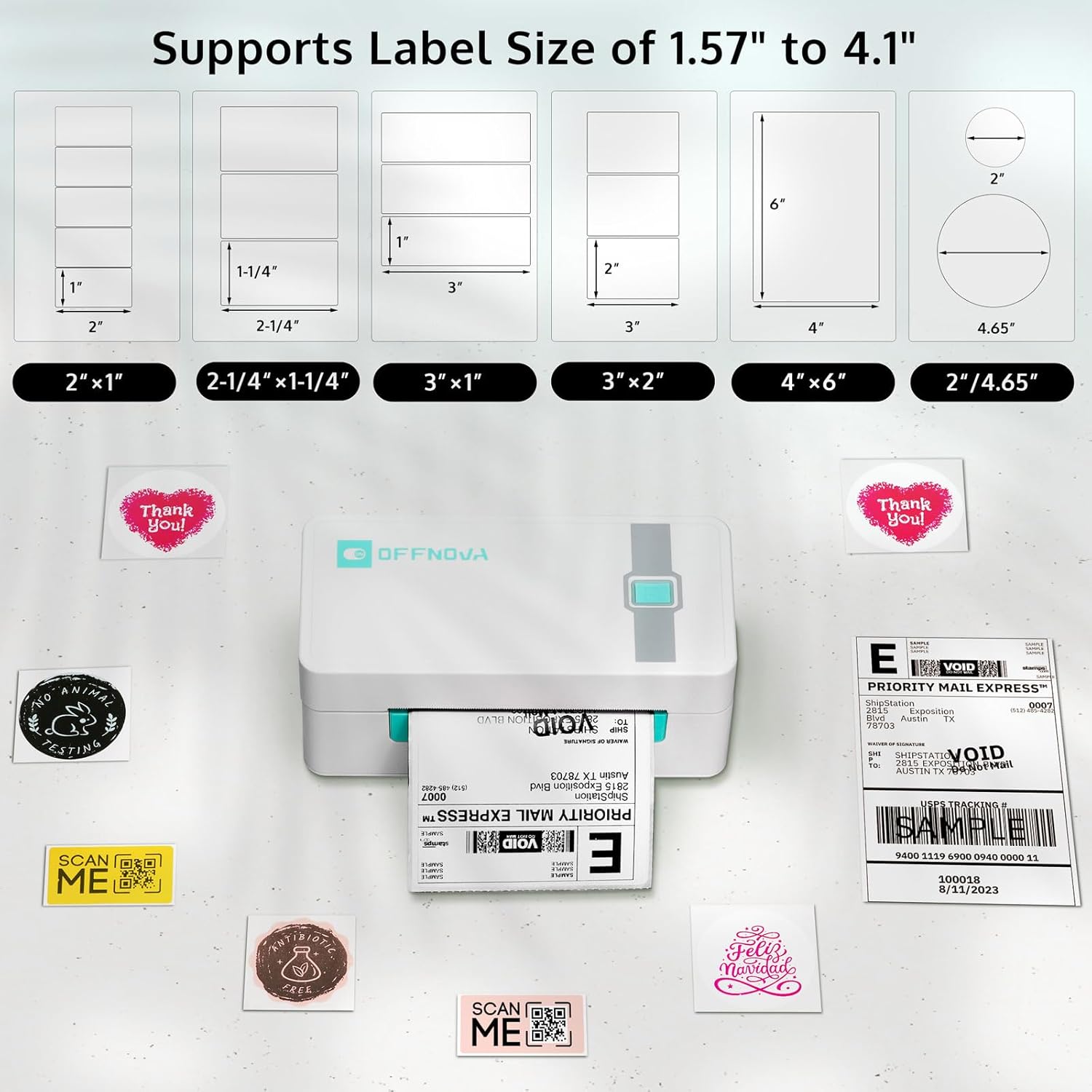
Figure 3.3: The OFFNOVA printer supports a wide range of label sizes, from 1.57 inches to 4.1 inches in width, accommodating common shipping labels like 4x6 inches, as well as smaller labels for various applications.
3.4 Driver Installation (for USB Connection)
For Windows, Mac, Linux, and Chromebook users, download the latest drivers from the official OFFNOVA website. Follow the on-screen instructions to complete the installation. After installation, connect the printer to your computer using the provided USB cable.

Figure 3.4: The OFFNOVA printer offers versatile connectivity, supporting both wireless Bluetooth connections for Android and iOS devices, and wired USB connections for Windows, Mac, Chromebook, and Linux operating systems.
3.5 Mobile App Installation (for Bluetooth Connection)
For iOS and Android devices, download the '4Barcode' APP from Google Play Store or Apple App Store. Szukaj '4Barcode' and install the application. This app allows wireless printing and label customization.

Figure 3.5: To enable wireless printing from your mobile device, download the '4Barcode' application, available on both the Google Play Store for Android and the Apple App Store for iOS.

Figure 3.5.1: Step-by-step guide for connecting your OFFNOVA printer via Bluetooth using the '4Barcode' app. This process involves downloading the app, searching for devices, selecting your printer (e.g., ZPL-2054N), and then proceeding to print your desired label.
4. Instrukcja obsługi
4.1 Printing via Bluetooth (iOS/Android)
1. Upewnij się, że Bluetooth jest włączony w Twoim urządzeniu mobilnym.
2. Open the '4Barcode' APP.
3. In the app, search for available devices and select your OFFNOVA printer (PIN CODE: 0000 for Android if prompted).
4. You can create new label templates, import existing labels (e.g., PDF, image), or use pre-designed templates within the app.
5. Customize your label with text, images, QR codes, or barcodes. The app supports various design templates.

Figure 4.1: The '4Barcode' app provides multiple design templates and extensive customization options, allowing users to create professional labels by adding elements such as images, icons, QR codes, tables, text, and barcodes.
6. Once your label is ready, tap the 'Print' button in the app to send it to the printer.
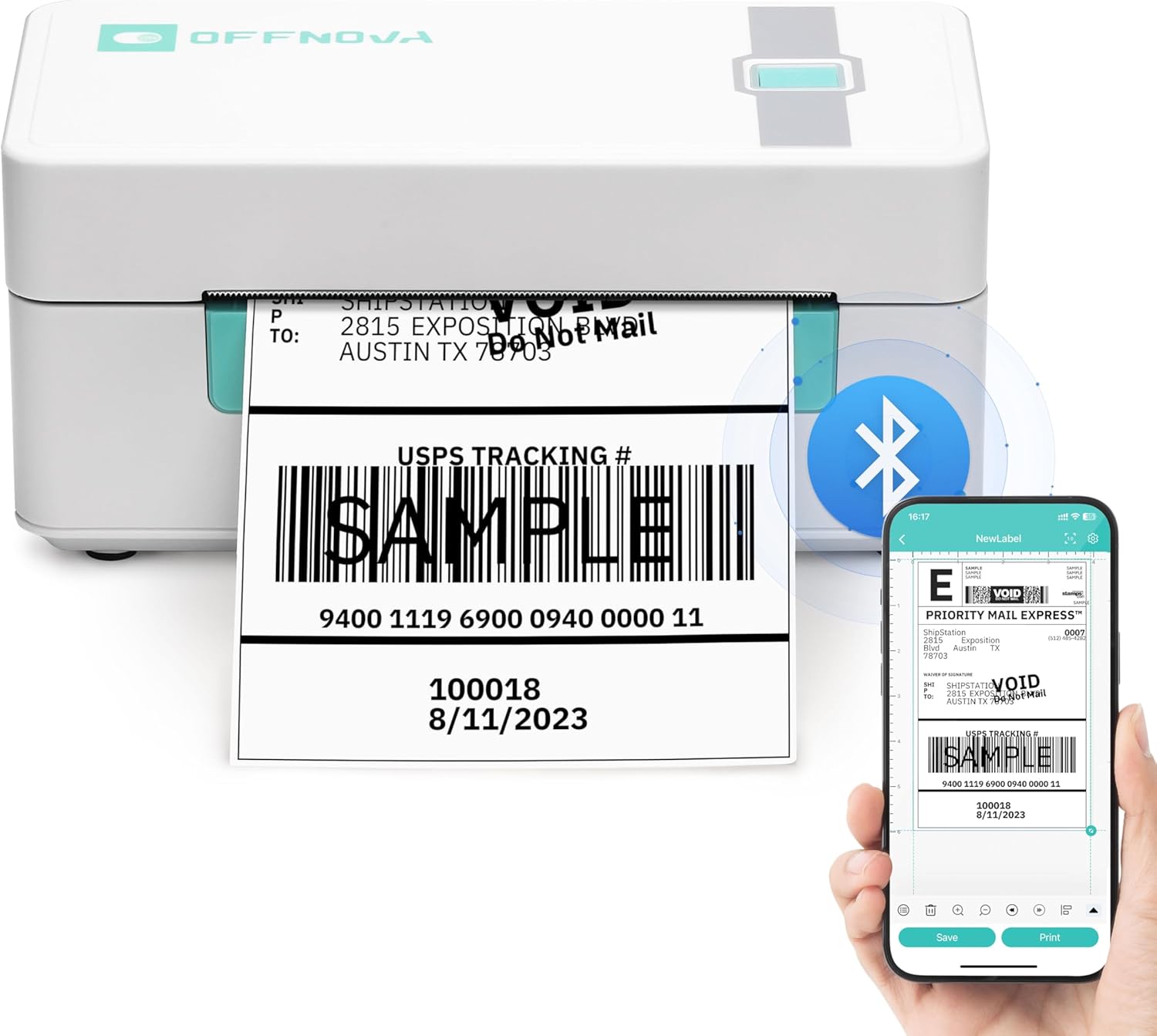
Figure 4.1.1: The OFFNOVA printer in operation, wirelessly printing a shipping label from a mobile device using the '4Barcode' app. The image highlights the seamless integration between the printer and the mobile application for efficient label generation.
4.2 Printing via USB (Windows/Mac/Linux/Chromebook)
1. Ensure the printer drivers are installed on your computer.
2. Connect the printer to your computer using the USB cable.
3. Open the document or application from which you wish to print your label (e.g., shipping platform, PDF vieweee).
4. Select the OFFNOVA printer from your list of available printers.
5. Adjust print settings as needed (e.g., paper size, orientation). Ensure the label size matches the labels loaded in the printer.
6. Initiate the print command from your computer.

Figure 4.2: The OFFNOVA printer is compatible with a wide array of major e-commerce and shipping platforms, including Amazon, eBay, Shopify, Etsy, PayPal, FedEx, UPS, USPS, and many others, allowing for direct printing of shipping labels.
4.3 Automatyczna kalibracja
The OFFNOVA printer features an auto-calibration function. After loading labels, the printer will automatically detect the label size and adjust its settings for accurate printing. If calibration issues occur, ensure labels are properly loaded and restart the printer.
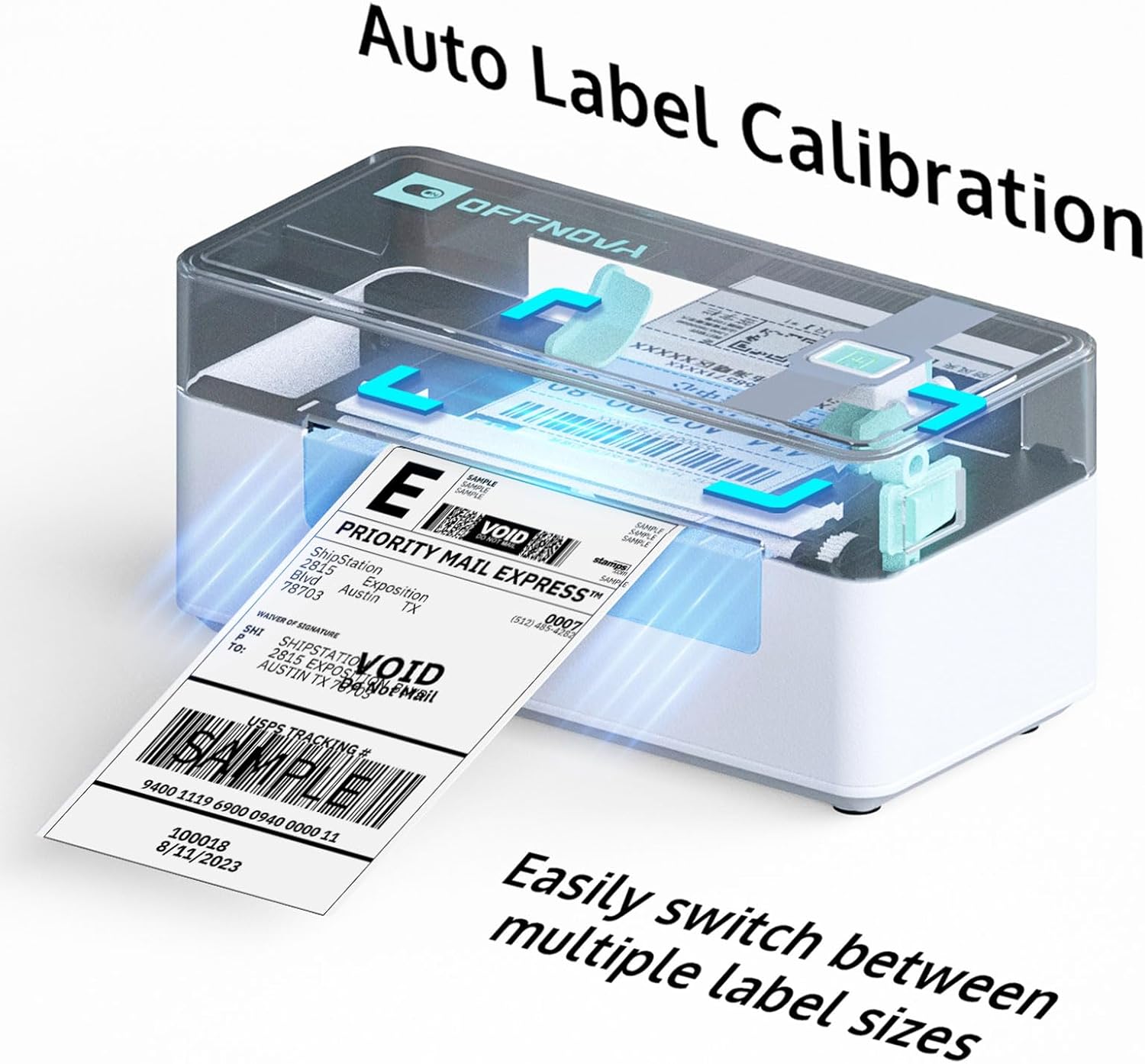
Figure 4.3: The OFFNOVA printer's auto-calibration feature simplifies the process of switching between different label sizes, ensuring precise printing without manual adjustments.
5. Konserwacja
5.1 Czyszczenie głowicy drukującej
To maintain print quality, regularly clean the print head. Turn off the printer and disconnect the power cable. Use an alcohol swab or a lint-free cloth lightly dampened with isopropyl alcohol to gently wipe the print head surface. Allow it to dry completely before reconnecting power.
5.2 Czyszczenie wałka dociskowego
The platen roller can also accumulate dust or adhesive residue. With the printer off, gently rotate the platen roller and wipe it with an alcohol swab. This helps ensure smooth label feeding.
5.3 Ogólna opieka
Przechowuj drukarkę w czystym, wolnym od kurzu otoczeniu. Unikaj wystawiania jej na bezpośrednie działanie promieni słonecznych, ekstremalnych temperatur i wysokiej wilgotności. Nie używaj środków czyszczących ani rozpuszczalników o działaniu ściernym na powierzchni zewnętrznej drukarki.
6. Rozwiązywanie Problemów
| Problem | Możliwa przyczyna | Rozwiązanie |
|---|---|---|
| Drukarka nie odpowiada | No power; Loose cable; Driver issue (USB); Bluetooth not connected (mobile) | Check power connection; Reconnect cables; Reinstall drivers; Re-pair Bluetooth in app. |
| Słaba jakość wydruku (wyblakły/smużasty) | Dirty print head; Low quality labels; Incorrect print density setting | Wyczyść głowicę drukującą; Używaj wysokiej jakości etykiet termicznych; Dostosuj gęstość druku w oprogramowaniu/aplikacji. |
| Etykiety nie są podawane prawidłowo | Labels loaded incorrectly; Label guides not adjusted; Paper jam | Reload labels correctly; Adjust label guides; Clear any jammed labels. |
| Drukarka zatrzymuje się w połowie drukowania | Out of labels; Overheating; Connectivity issue | Load more labels; Allow printer to cool down; Check USB/Bluetooth connection. |
| Połączenie Bluetooth niestabilne | Too many devices connected; Low memory on device; App issue | Ensure only one device is connected; Free up device memory; Update or reinstall '4Barcode' app. |
7. Specyfikacje
| Funkcja | Szczegół |
|---|---|
| Nazwa modelu | ZPL-2054N |
| Technologia druku | Termiczny |
| Technologia łączności | Bluetooth, USB |
| Maksymalna prędkość drukowania (monochromatyczny) | 72 ppm (labels per minute) / 150 mm/s |
| Maksymalna rozdzielczość druku | 203 DPI |
| Obsługiwana szerokość etykiety | od 1.57" do 4.1" |
| Kompatybilne systemy operacyjne | Windows, Mac, iOS, Android, Linux, Chromebook |
| Wymiary produktu | 6.3" gł. x 7.68" szer. x 4.13" wys. |
| Waga przedmiotu | 2.89 funta |
| Zawarte komponenty | Printer, Power Adapter & Cable, USB Cable, User Guide |

Figure 7.1: The OFFNOVA printer boasts a high print speed of 150 mm/s, capable of producing up to 80 labels per minute, with a clear resolution of 203 DPI for sharp prints.

Figure 7.2: A visual comparison highlighting the superior print quality of the OFFNOVA printer (203 DPI), which produces clear and easily scannable labels, in contrast to the blurry and unreadable output from a lower-quality printer.
8. Gwarancja i wsparcie
8.1 Informacje o gwarancji
The OFFNOVA Shipping Label Printer comes with a 1-Year Limited Warranty from the date of purchase. This warranty covers manufacturing defects and workmanship under normal use. It does not cover damage caused by misuse, accidents, unauthorized repairs, or consumables.
8.2 Obsługa klienta
For technical assistance, troubleshooting, or warranty claims, please contact OFFNOVA customer support through the official website or the contact information provided with your purchase. Our responsive customer support team is available to help with any questions regarding setup, operation, or maintenance.


