Wstęp
The EvoFox Elite X Wireless Gamepad is designed to provide a superior gaming experience on PC with its advanced features, including dual vibration motors, programmable macro buttons, and low-latency wireless connectivity. This manual provides detailed instructions for setting up, operating, maintaining, and troubleshooting your gamepad to ensure optimal performance.
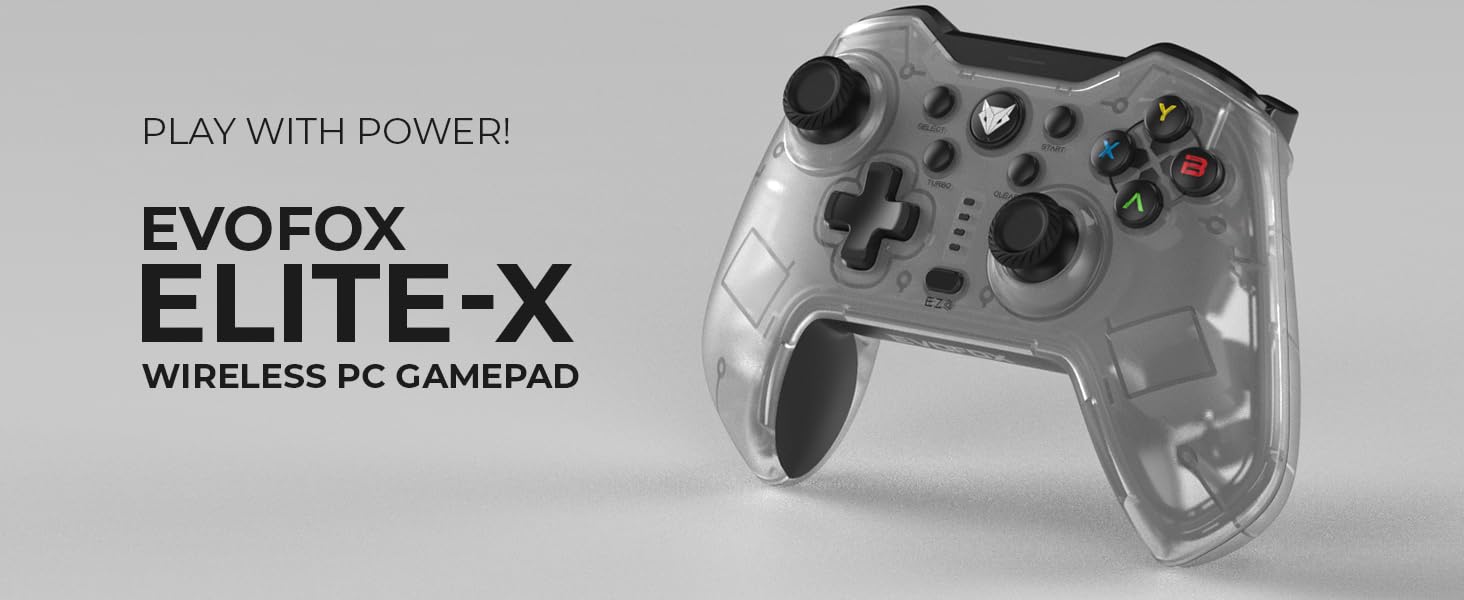
Image: The EvoFox Elite X Wireless PC Gamepad, showcasindzięki eleganckiemu wzornictwu i brandingowi.
Zawartość opakowania
Sprawdź, czy w przesyłce znajdują się wszystkie elementy:
- EvoFox Elite X Wireless Gamepad
- Kabel ładujący
- Klucz USB
- Instrukcja obsługi (ten dokument)
Przewodnik po konfiguracji
1. Connecting the USB Dongle
The EvoFox Elite X Gamepad utilizes a 2.4GHz wireless USB dongle for connectivity. This ensures a stable and low-latency connection to your PC.
- Locate the USB dongle included in your package.
- Włóż klucz USB do dostępnego portu USB w komputerze.
- Twój komputer powinien automatycznie wykryć i zainstalować niezbędne sterowniki. Może to potrwać chwilę.
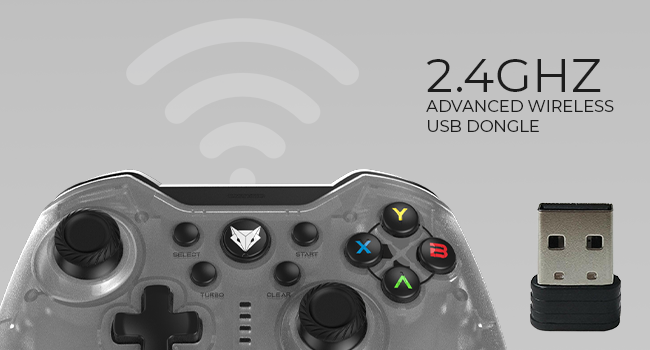
Image: The 2.4GHz advanced wireless USB dongle, essential for connecting the gamepad to your PC.
2. Pierwsze włączenie i parowanie
Once the USB dongle is connected, power on your gamepad. The gamepad should automatically pair with the dongle. If pairing does not occur automatically, refer to the troubleshooting section.
3. Ładowanie gamepada
Before first use, it is recommended to fully charge the gamepad. The gamepad features a Type-C charging port.
- Connect the provided charging cable to the Type-C port on the gamepad.
- Connect the other end of the charging cable to a USB power source (e.g., PC USB port, USB wall adapter).
- The charging indicator lights on the gamepad will show the charging status. Refer to the gamepad's LED indicators for specific charging behavior.
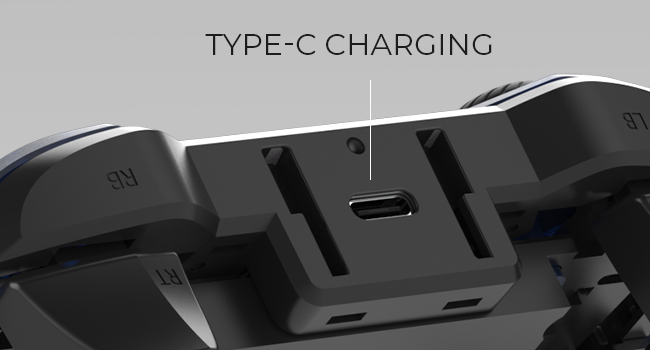
Obraz: Zbliżenie view of the Type-C charging port located on the top of the gamepad.
A full charge provides up to 8 hours of gaming time.
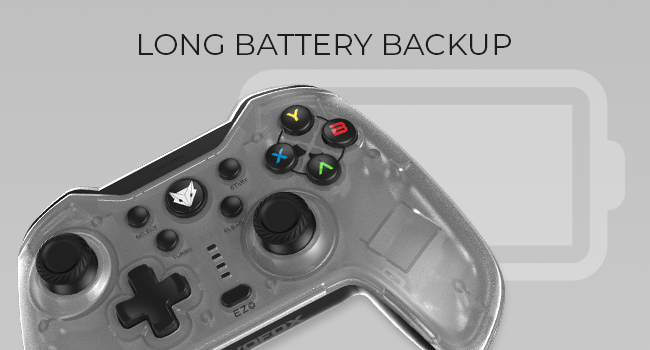
Image: Illustration indicating the long battery backup capability of the gamepad.
Instrukcja obsługi
Gamepad Layout and Controls

Obraz: Przód view of the EvoFox Elite X Gamepad, showing all buttons, joysticks, and the D-pad.
- Joysticki analogowe: Two high-precision analog joysticks for 360-degree movement and camera control.
- Pad kierunkowy: Podkładka kierunkowa umożliwiająca precyzyjne wprowadzanie kierunku.
- Przyciski akcji (A, B, X, Y): Standard gaming action buttons.
- Przyciski naramienne (LB, RB) i spusty (LT, RT): Located on the top of the gamepad for various in-game actions. The triggers are analog for pressure-sensitive input.
- Przycisk Wybierz/Wstecz: Typically used for menu navigation or specific game functions.
- Przycisk Start: Typically used for pausing games or accessing in-game menus.
- Home/EvoFox Button: Central button, often used to access system menus or return to the home screen.
- Przycisk Turbo: Activates turbo mode for rapid button presses.
- Przycisk Wyczyść: Used in conjunction with other buttons for specific functions, such as clearing macro settings.
- EZ Click Macro Buttons (M1, M2): Two programmable back buttons for custom macros.
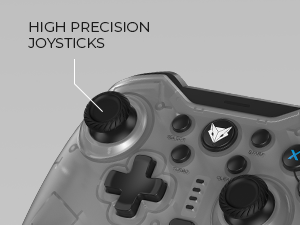
Image: Close-up of the high-precision joysticks on the gamepad.
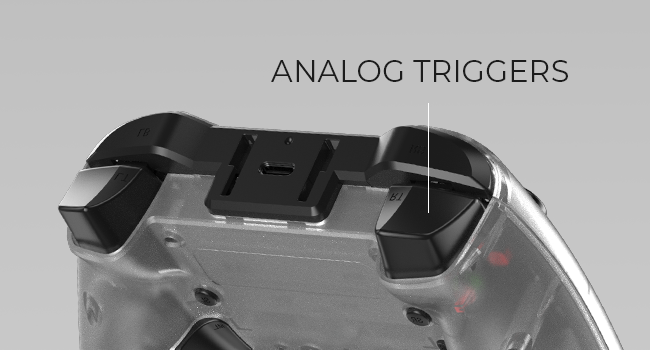
Obraz: View of the analog triggers on the top rear of the gamepad.
Macro Functions (EZ On-the-Fly Macro)
The gamepad features two programmable EZ Click Macro Buttons (M1 and M2) on the back, allowing you to program complex sequences of commands for quick execution.

Obraz: Tył view of the gamepad highlighting the two EZ Click programmable buttons.
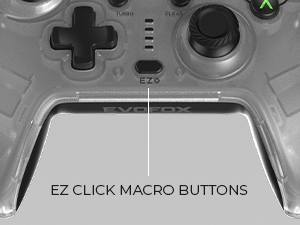
Image: Close-up showing the location of the EZ Click Macro Buttons.
To Program a Macro:
- Naciśnij i przytrzymaj EZ przycisk.
- Podczas trzymania EZ, press the Macro Button (M1 or M2) you wish to program. The indicator light will flash, indicating recording mode.
- Perform the sequence of button presses you want to record.
- Press the Macro Button (M1 or M2) again to save the macro. The indicator light will stop flashing.
Aby użyć makra: Simply press the programmed Macro Button (M1 or M2) during gameplay to execute the recorded sequence.
Aby wyczyścić makro: Naciśnij i przytrzymaj EZ przycisk, a następnie naciśnij Jasne button, and then the Macro Button (M1 or M2) you wish to clear.
Ustawienia Turbo
The Turbo function allows a button to repeat its input multiple times per second, providing a rapid-fire effect.
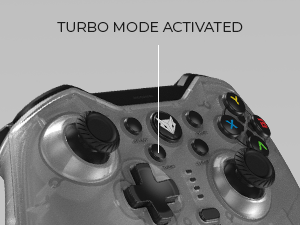
Image: Close-up showing the Turbo button and its indicator.
Aby aktywować Turbo:
- Naciśnij i przytrzymaj Turbo przycisk.
- Podczas trzymania Turbo, press the action button (e.g., A, B, X, Y, LB, RB, LT, RT) you wish to apply turbo to.
- Release both buttons. The selected button will now have turbo activated.
Aby dezaktywować Turbo: Repeat the same steps. Press and hold Turbo, then press the button with turbo activated. Release both buttons.
Feedback wibracji
The gamepad features dual vibration motors for immersive haptic feedback. You can adjust the vibration intensity.

Image: Diagram illustrating the adjustable vibration levels on the gamepad's back.
To Adjust Vibration:
Specific instructions for adjusting vibration levels are typically found in the full product manual or through a combination of buttons. Please refer to the included quick start guide or the manufacturer's website for precise button combinations to cycle through High, Medium, Low, and No Vibration settings.
Konserwacja
Czyszczenie
- Always disconnect the gamepad from any power source before cleaning.
- Use a soft, dry cloth to wipe down the surface of the gamepad.
- W przypadku uporczywych zabrudzeń, delikatnieampPrzetrzyj szmatkę wodą lub delikatnym, nieściernym środkiem czyszczącym. Unikaj nadmiernej wilgoci.
- Do not use harsh chemicals, solvents, or abrasive materials, as these can damage the gamepad's finish and internal components.
Składowanie
- Przechowuj gamepad w chłodnym, suchym miejscu, z dala od bezpośredniego światła słonecznego i ekstremalnych temperatur.
- Avoid placing heavy objects on the gamepad to prevent damage.
- If storing for an extended period, ensure the gamepad is fully charged before storage and recharge it every few months to maintain battery health.
Rozwiązywanie problemów
| Problem | Możliwa przyczyna | Rozwiązanie |
|---|---|---|
| Gamepad not connecting to PC. | USB dongle not properly inserted or drivers not installed. Gamepad battery low. | Ensure USB dongle is fully inserted into a working USB port. Try a different USB port. Allow PC to install drivers. Charge the gamepad fully. |
| Buttons or joysticks unresponsive. | Connection issue. Software conflict. | Reconnect the gamepad by unplugging and re-inserting the USB dongle. Restart your PC. Test the gamepad in a different game or application. |
| Wibracje nie działają. | Vibration setting is off. Game does not support vibration. | Check gamepad settings to ensure vibration is enabled (refer to "Adjustable Vibration Levels" section). Verify that the game you are playing supports vibration feedback. |
| Macro not recording/playing correctly. | Nieprawidłowe kroki programowania. | Review the "Macro Functions" section and ensure you are following the programming steps precisely. Try clearing and re-recording the macro. |
| Krótki czas pracy baterii. | Battery not fully charged. Aging battery. | Ensure the gamepad is fully charged before use. If the issue persists after a full charge, the battery may be nearing the end of its lifespan. |
Specyfikacje
| Funkcja | Szczegół |
|---|---|
| Numer modelu | 577 |
| Łączność | Bezprzewodowa sieć 2.4 GHz (klucz USB) |
| Zgodność | PC (Windows X-Input) |
| Wibracja | Dual Vibration Motors, Adjustable Levels |
| Przyciski makro | 2 Programmable EZ Click Back Buttons |
| Funkcja Turbo | Tak |
| Typ baterii | Litowo-jonowy (w zestawie) |
| Żywotność baterii | Do 8 godzin |
| Port ładowania | Typ C |
| Wymiary produktu | Wymiary 15.5 x 11 x 7 cm |
| Waga przedmiotu | 220 gramów |
| Data wydania | 27 lipca 2023 |
Gwarancja i wsparcie
Informacje o gwarancji
The EvoFox Elite X Wireless Gamepad comes with a 1 rok gwarancji produkcyjnejNiniejsza gwarancja obejmuje wady materiałowe i wykonawcze powstałe w wyniku normalnego użytkowania.
Proszę zachować dowód zakupu na potrzeby roszczeń gwarancyjnych.
Obsługa klienta
For any assistance, technical support, or warranty claims, please contact EvoFox customer support:
- Sposób kontaktu: Please Call or Email our customer support. (Specific contact details like phone number or email address are not provided in the input, so a generic instruction is given).
- Producent: Allied Electronics & Magnetics Private Limited
- Adres: C-64/4, Okhla Phase - 2, New Delhi - 110020
For further information or updates, you may visit the official EvoFox store on Amazon: EvoFox Store


