1. Koniec produktuview
The Taiahiro Low Profile Mechanical Keyboard is an ultra-slim 87-key keyboard designed specifically for Mac users, offering a compact 80% layout. It features ultra-low profile brown switches for a tactile and responsive typing experience. This wired keyboard provides full support for Mac function keys and customizable white backlighting.
Główne cechy
- Niski Profile Brown Switches for tactile feedback.
- 87-key (TKL) compact design.
- Full Mac Function Keys Support.
- Detachable Type-C connection.
- 18-Modes LED White Backlighting with 4 adjustable brightness levels.
- Durable Aluminum Alloy Panel construction.
- Double Shot Injection Keycaps for comfortable typing.
- Ergonomic design for comfortable angle.
Zawartość opakowania
- Taiahiro Low Profile Klawiatura mechaniczna
- Kabel USB-C do USB-A
- Instrukcja obsługi
Diagram produktu

Rysunek 1: Koniecview of the Taiahiro Low Profile Mechanical Keyboard, highlighting its compact design and key layout.
2. Przewodnik konfiguracji
Podłączanie klawiatury
- Znajdź port USB-C z tyłu klawiatury.
- Podłącz jeden koniec dołączonego kabla USB-C do portu USB-C klawiatury.
- Connect the other end of the USB-C cable to an available USB-A port on your computer (MacBook Pro/Air, iMac, Mac Mini, or PC).
- Klawiatura jest typu plug-and-play i powinna zostać automatycznie rozpoznana przez system operacyjny.
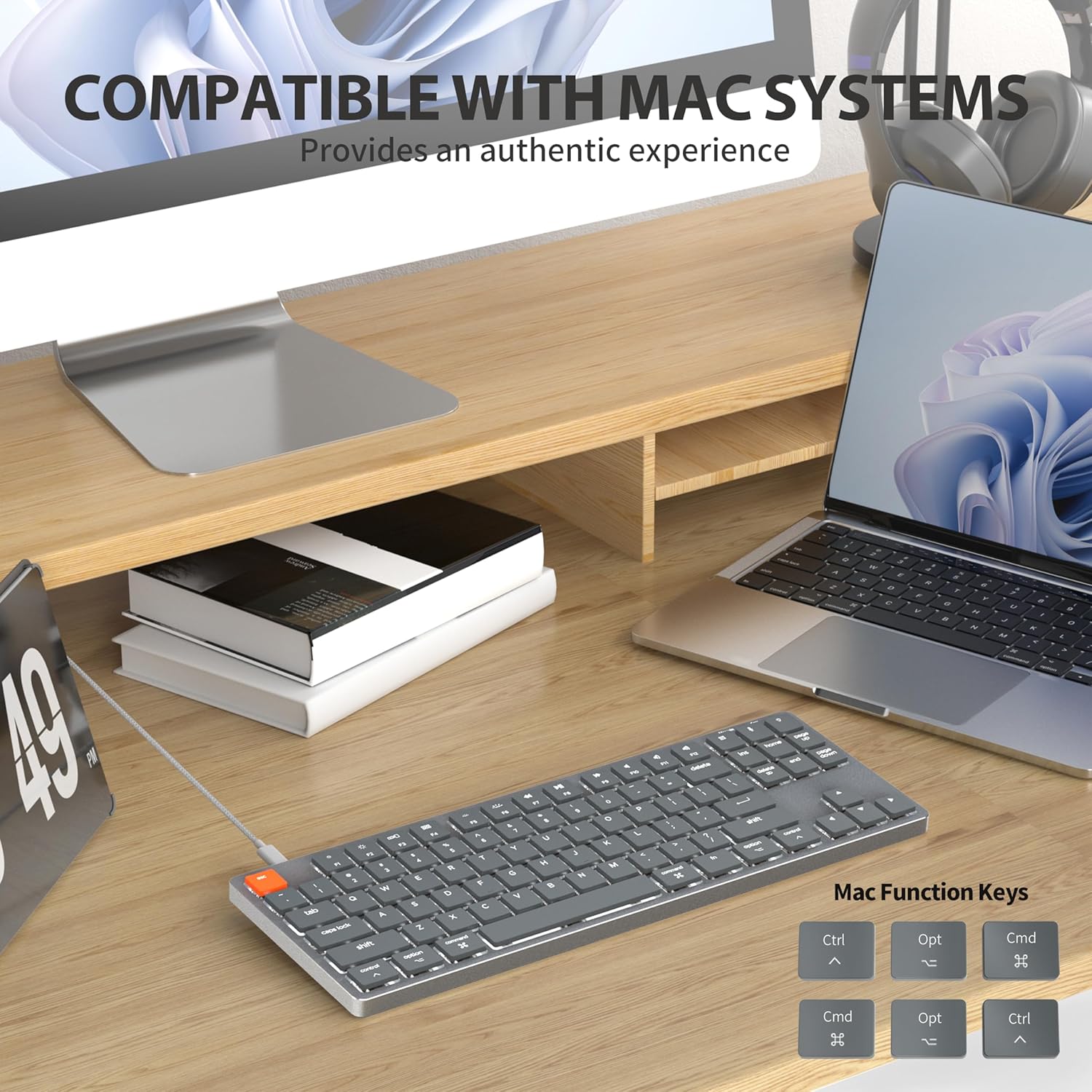
Figure 2: Connecting the detachable Type-C cable to the keyboard for convenience and efficiency.
Zgodność systemu
This keyboard is designed for full compatibility with Mac OS and Windows operating systems. It supports Mac Mini, MacBook Air, MacBook Pro, PC, and iMac devices.

Figure 3: The keyboard seamlessly integrated with a Mac system, providing an authentic user experience.
3. Instrukcja obsługi
Podstawowe pisanie
Niskoprofile brown switches provide a quiet yet responsive typing experience with satisfying tactile feedback. The ultra-thin design and high-quality keycaps enhance fingertip comfort during extended use.
Kontrola podświetlenia
The keyboard features 18 distinct LED white backlighting modes. You can cycle through these modes and adjust brightness levels using the dedicated function keys. Refer to the keyboard's layout for specific key combinations, typically involving the 'Fn' key combined with other keys (e.g., Fn + F1/F2 for brightness, Fn + arrow keys for modes).

Figure 4: The keyboard's 18-modes LED white backlighting, offering customizable illumination.
Mac Function Keys Support
The keyboard is specifically designed to support Mac function keys, allowing you to easily control system functions such as screen brightness, volume, and media playback directly from the keyboard. These functions are typically accessed by pressing the 'Fn' key in combination with the corresponding F-keys (F1-F12).
Klawisze skrótu
The keyboard includes multifunctional shortcut keys for enhanced productivity. These keys provide quick access to various commands, including multimedia controls. Consult the keycap legends for specific shortcut functions.

Figure 5: The keyboard's multifunctional shortcut keys, providing 100% fully loaded functionality.
4. Konserwacja i pielęgnacja
Czyszczenie klawiatury
- Przed czyszczeniem odłącz klawiaturę od komputera.
- Użyj miękkiej, niestrzępiącej się ściereczki, lekko wyczyśćampPrzetrzyj klawisze i powierzchnię wodą lub łagodnym środkiem czyszczącym.
- Do usuwania kurzu i zanieczyszczeń spomiędzy klawiszy należy użyć sprężonego powietrza lub małej szczoteczki.
- Unikaj stosowania silnych środków chemicznych, ściernych środków czyszczących i nadmiernej wilgoci.
Składowanie
When not in use for extended periods, store the keyboard in a cool, dry place away from direct sunlight and extreme temperatures to prevent damage.
5. Rozwiązywanie Problemów
Klawiatura nie odpowiada
- Sprawdź połączenie: Sprawdź, czy kabel USB-C jest prawidłowo podłączony do klawiatury i komputera.
- Wypróbuj inny port: Plug the keyboard into a different USB port on your computer.
- Restart komputera: Sometimes a simple system restart can resolve connectivity issues.
- Sprawdź kabel: If possible, try using a different USB-C cable to rule out a faulty cable.
Problemy z podświetleniem
- Enable Backlight: Ensure the backlight is not turned off. Use the designated function keys (e.g., Fn + backlight key) to toggle it on/off.
- Dostosuj jasność: Cycle through brightness levels using the appropriate function keys (e.g., Fn + F1/F2) to ensure it's not set to the lowest level.
- Zmień tryb: Try cycling through different backlight modes to see if the issue persists across all modes.
Mac Compatibility Concerns
- Wersja systemu operacyjnego: Ensure your Mac OS is up to date or meets the minimum requirements for peripheral compatibility.
- Typ procesora: While designed for Mac, some specific processor architectures (e.g., M2/ARM) might require updated drivers or system settings. Check Taiahiro's official support page for any specific driver downloads or compatibility notes.
- Tryb klawiatury: If your keyboard has a physical switch or key combination to toggle between Mac/Windows mode, ensure it is set to Mac mode.
6. Specyfikacje techniczne
| Funkcja | Szczegół |
|---|---|
| Numer modelu | 201 |
| Marka | Taiahiro |
| Typ klawiatury | Niski Profile Klawiatura mechaniczna |
| Typ przełącznika | Brązowy przełącznik |
| Liczba kluczy | 87 |
| Łączność | Przewodowy (USB-C) |
| Podświetlenie | 18-Modes LED White Backlighting |
| Tworzywo | Panel ze stopu aluminium |
| Kolor | Black-Gray |
| Wymiary produktu | 12.5 x 1.8 x 34.59 cm (4.92 x 0.71 x 13.62 cala) |
| Waga przedmiotu | 971 gramów |
| Kompatybilny system operacyjny | Mac OS, Windows |
Dimensions and Profile

Figure 6: Detailed dimensions of the 87-key ultra-thin mechanical keyboard, illustrating its compact and slim profile.
Technologia przełączania

Figure 7: Comparison of Ultra Low Profile Brown Switch with standard mechanical switches, highlighting shorter actuation point for faster and more precise input.
Projekt nasadki klawiszy

Figure 8: The ultra-thin double shot injection keycaps, designed for comfortable and durable typing.
Ergonomia
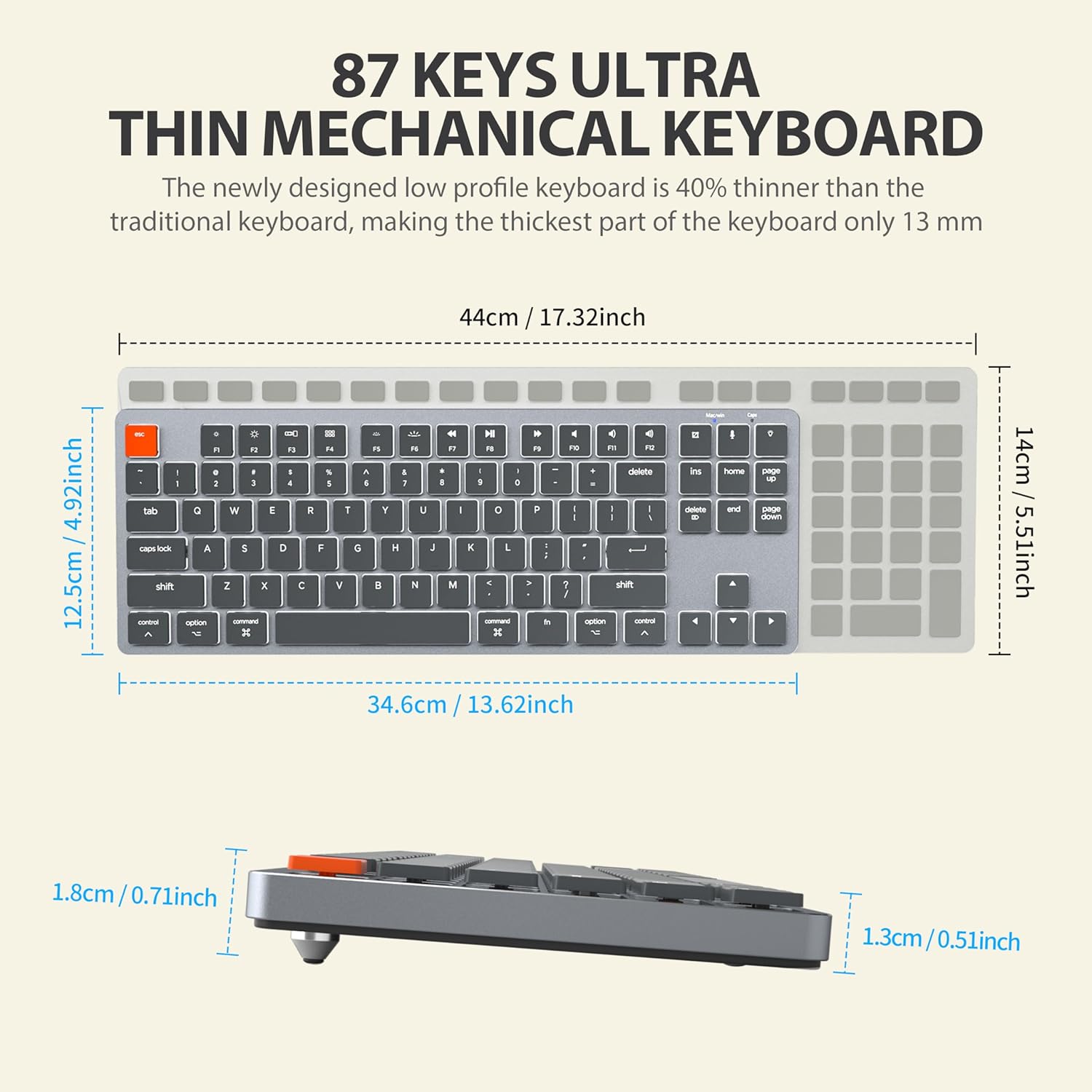
Figure 9: The ergonomic design of the keyboard, providing a comfortable angle for extended typing sessions.
7. Gwarancja i wsparcie
Informacje o gwarancji
This Taiahiro product comes with a standard manufacturer's warranty. Please refer to the product packaging or the official Taiahiro webSzczegółowe warunki gwarancji, w tym okres gwarancji i procedury składania reklamacji, można znaleźć na stronie internetowej.
Obsługa klienta
For technical assistance, troubleshooting, or any product-related inquiries, please visit the official Taiahiro webOdwiedź stronę internetową lub skontaktuj się z działem obsługi klienta. Dane kontaktowe zazwyczaj znajdują się na opakowaniu produktu lub na oficjalnej stronie internetowej marki.


