1. Wprowadzenie
Thank you for choosing the SABLUTE KM61 Wireless Mechanical Gaming Keyboard. This manual provides essential information for setting up, operating, maintaining, and troubleshooting your new keyboard. Please read it carefully to ensure optimal performance and longevity of your device.
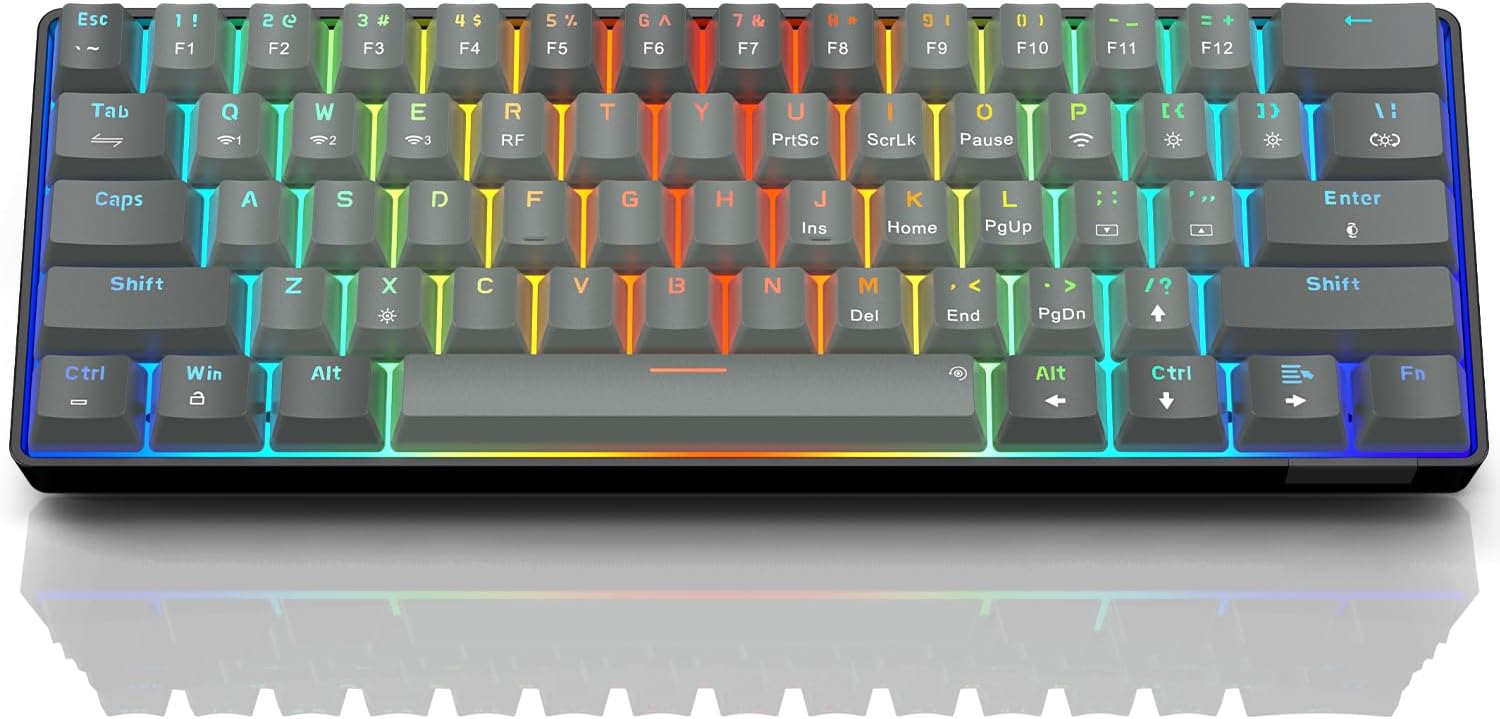
Image: The SABLUTE KM61 Wireless Mechanical Gaming Keyboard showcasing its compact design and vibrant RGB backlighting.
2. Co znajduje się w pudełku
Upewnij się, że w przesyłce znajdują się wszystkie elementy:
- SABLUTE KM61 Wireless Mechanical Gaming Keyboard
- Kabel USB typu C.
- USB-A 2.4G Wireless Dongle
- Instrukcja obsługi
3. Główne cechy
- Łączność trójmodowa: Supports Bluetooth, 2.4G USB Wireless, and Wired (USB Type-C) connections.
- 60% Kompaktowy układ: 61-key design for space-saving and portability.
- Mechanical Red Switches: Linear switches designed for fast response and durability (100,000,000 keystroke test).
- Możliwość wymiany na gorąco: Allows for easy replacement of switches without soldering, supporting 3-pin/5-pin switches.
- Podświetlenie RGB: Features 20 backlight effects, 7 pure colors, 5 brightness levels, and 5 speed adjustments.
- Inteligentne oszczędzanie energii: Includes a 60-second smart sleep mode, offering up to 600 hours of working time (with lights off) and 365 days of standby time.
- Ergonomiczna konstrukcja: Features a ladder key layout and adjustable height for comfortable typing.
- Najazd na klawisz N: Ensures every keypress is registered accurately, even during rapid typing or gaming.
- Szeroka kompatybilność: Compatible with Chrome OS, Android, Windows 7-11, Mac, and Linux systems.

Image: The compact 61-key layout of the SABLUTE KM61 keyboard, highlighting its space-saving design.
4. Konfiguracja i połączenie
The SABLUTE KM61 keyboard offers three connection modes: Wired, 2.4G Wireless, and Bluetooth. Ensure the keyboard is charged before initial wireless use.
4.1. Połączenie przewodowe
- Podłącz dołączony kabel USB typu C do portu typu C klawiatury.
- Plug the other end of the USB Type-C cable into an available USB port on your computer.
- Klawiatura automatycznie przełączy się na tryb przewodowy i rozpocznie ładowanie.
4.2. Połączenie bezprzewodowe 2.4G
- Locate the USB-A 2.4G wireless dongle. It is typically stored in a compartment on the back of the keyboard.
- Plug the 2.4G wireless dongle into an available USB-A port on your computer.
- Turn the power switch on the back of the keyboard to the 'ON' position.
- Naciskać
Fn+Rto activate 2.4G wireless mode. The keyboard should connect automatically.
4.3. Połączenie Bluetooth
Klawiatura obsługuje do trzech urządzeń Bluetooth.
- Turn the power switch on the back of the keyboard to the 'ON' position.
- Naciskać
Fn+Q,Fn+W, LubFn+Eto select a Bluetooth channel. The indicator light for the selected channel will flash rapidly, indicating pairing mode. - On your device (computer, tablet, smartphone), enable Bluetooth and search for available devices.
- Select "SABLUTE KM61" or a similar name from the list to pair.
- Po sparowaniu lampka kontrolna przestanie migać i pozostanie światłem ciągłym.
- Aby przełączać się między sparowanymi urządzeniami Bluetooth, naciśnij
Fn+Q,Fn+W, LubFn+E.

Image: Visual representation of the three connection methods: Bluetooth, 2.4G USB Wireless, and Wired.
Wideo: Ponadview of the SABLUTE KM61 Mini Mechanical Gaming Keyboard, demonstrating its features and connectivity options.
5. Instrukcja obsługi
5.1. Sterowanie podświetleniem RGB
The KM61 keyboard features customizable RGB backlighting:
- Zmień efekt podświetlenia: Naciskać
Fn+|\aby przełączać się między 20 różnymi efektami podświetlenia. - Dostosuj jasność: Naciskać
Fn+[{to decrease brightness, andFn+]}to increase brightness (5 levels). - Dostosuj prędkość: Naciskać
Fn+;:to decrease effect speed, andFn+'"to increase effect speed (5 levels). - Mienić się: Naciskać
Fn+Enterto cycle through 7 pure colors. - Turn Backlight On/Off: Naciskać
Fn+Xaby przełączyć podświetlenie.
Video: Demonstration of the RGB lighting effects and color changes on the SABLUTE keyboard.
Video: A close-up view of the SABLUTE keyboard with its backlight turned off, showcasing the keycap design.
5.2. Smart Power Saving
The keyboard enters a 60-second smart sleep mode when inactive to conserve battery. It can provide up to 600 hours of working time with the backlight off and 365 days of standby time. Keystroke will wake up the keyboard. Note that the backlight does not turn off when connected via Type-C cable.

Image: The keyboard connected via its Type-C cable, illustrating the charging process.
6. Konserwacja
6.1. Czyszczenie
To clean your keyboard, first disconnect it from all power sources. Use a soft, dry cloth to wipe down the keycaps and chassis. For deeper cleaning, use the provided keycap puller to remove keycaps and clean underneath with compressed air or a small brush.
6.2. Replacing Switches (Hot-Swappable)
The KM61 keyboard features hot-swappable switches, allowing you to easily replace them without soldering:
- Use the keycap puller to gently remove the desired keycap.
- Use the switch puller to carefully grip the switch and pull it straight up to remove it from the PCB.
- Dopasuj piny nowego przełącznika do otworów na płytce PCB.
- Delikatnie dociśnij nowy przełącznik, aż usłyszysz kliknięcie.
- Załóż ponownie nakładkę klawisza.

Image: A close-up of the keyboard demonstrating the hot-swappable feature, with switches being removed and inserted.
7. Rozwiązywanie Problemów
- Klawiatura nie odpowiada: Ensure the keyboard is properly connected (wired, 2.4G dongle, or Bluetooth). Check battery level if using wireless modes. Try restarting your computer or device.
- Problemy z połączeniem bezprzewodowym: Ensure the 2.4G dongle is securely plugged in or Bluetooth is enabled and paired correctly. Move closer to the receiver/device to reduce interference.
- Podświetlenie nie działa: Ensure the backlight is turned on (
Fn+X). Adjust brightness levels (Fn+[{/]}). - Klawisze nie rejestrują się lub są wpisywane podwójnie: This could indicate a faulty switch. Utilize the hot-swappable feature to replace the affected switch.
- MacOS compatibility: Some multimedia keys may not be fully compatible with Mac systems. Refer to your Mac's system preferences for keyboard settings.
8. Specyfikacje
| Funkcja | Specyfikacja |
|---|---|
| Model | KM61 |
| Łączność | Bluetooth, 2.4G USB Wireless, Wired (USB Type-C) |
| Typ przełącznika | Czerwony przełącznik mechaniczny |
| Układ | 60% (61 klucze) |
| Podświetlenie | RGB (20 effects, 7 colors, 5 brightness, 5 speeds) |
| Możliwość wymiany podczas pracy | Yes (3-pin/5-pin switches) |
| Bateria | 1 bateria litowo-metalowa (w zestawie) |
| Working Time (Light Off) | Do 600 godzin |
| Czas czuwania | 365 dni |
| Czas ładowania | Około 4 godzin |
| Wymiary produktu | 11.5" dł. x 4" szer. x 1.46" wys. |
| Waga przedmiotu | 1.35 funta |
| Zgodność | Chrome OS, Android, Windows 7-11, Mac, Linux |
9. Gwarancja i wsparcie
SABLUTE products are designed for quality and reliability. For warranty information, technical support, or any product-related inquiries, please contact SABLUTE customer support. Refer to the contact details provided in your product packaging or visit the official SABLUTE webstrona.
Thank you for your purchase and support!


