1. Wprowadzenie
This manual provides essential information for the safe and efficient use of your AOC CU34P3CV 34-inch Ultrawide Quad HD LED Monitor. Please read this manual thoroughly before operating the device and retain it for future reference.
The AOC CU34P3CV is a 34-inch ultrawide curved monitor designed for productivity and immersive viewing, featuring a 3440 x 1440 Quad HD resolution, a VA panel, and a versatile USB-C docking solution.
2. Informacje dotyczące bezpieczeństwa
- Źródło zasilania: Używaj wyłącznie przewodu zasilającego i zasilacza dostarczonych z monitorem. Upewnij się, że gniazdko elektryczne jest prawidłowo uziemione.
- Wentylacja: Nie blokuj otworów wentylacyjnych. Zachowaj odpowiednią ilość miejsca wokół monitora, aby zapewnić prawidłowy przepływ powietrza.
- Ekspozycja na płyny: Trzymaj monitor z dala od wody i innych płynów. Nie używaj go w środowisku o wysokiej wilgotności.
- Czyszczenie: Przed czyszczeniem odłącz przewód zasilający. Użyj miękkiej, suchej ściereczki. Unikaj środków czyszczących w płynie lub aerozolu.
- Umieszczenie: Place the monitor on a stable, level surface. Avoid direct sunlight, heat sources, or excessive dust.
- Serwisowanie: Nie próbuj samodzielnie naprawiać monitora. Wszelkie prace serwisowe zlecaj wykwalifikowanemu personelowi.
3. Zawartość opakowania
Proszę sprawdzić zawartość opakowania po rozpakowaniu. Jeśli brakuje któregokolwiek elementu lub jest on uszkodzony, prosimy o kontakt ze sprzedawcą.
- AOC CU34P3CV Monitor
- Stojak na monitor (podstawa i szyjka)
- Kabel zasilający
- Kabel HDMI
- Kabel DisplayPort
- Kabel USB-C
- Instrukcja obsługi (ten dokument)
4. Konfiguracja
4.1. Montaż stojaka
- Aby zapobiec porysowaniu, ostrożnie połóż monitor ekranem do dołu na miękkiej i czystej powierzchni.
- Attach the stand neck to the back of the monitor. Secure with screws if provided.
- Attach the stand base to the stand neck. Secure with the thumb screw or screws provided.
Image: AOC CU34P3CV Monitor Front View
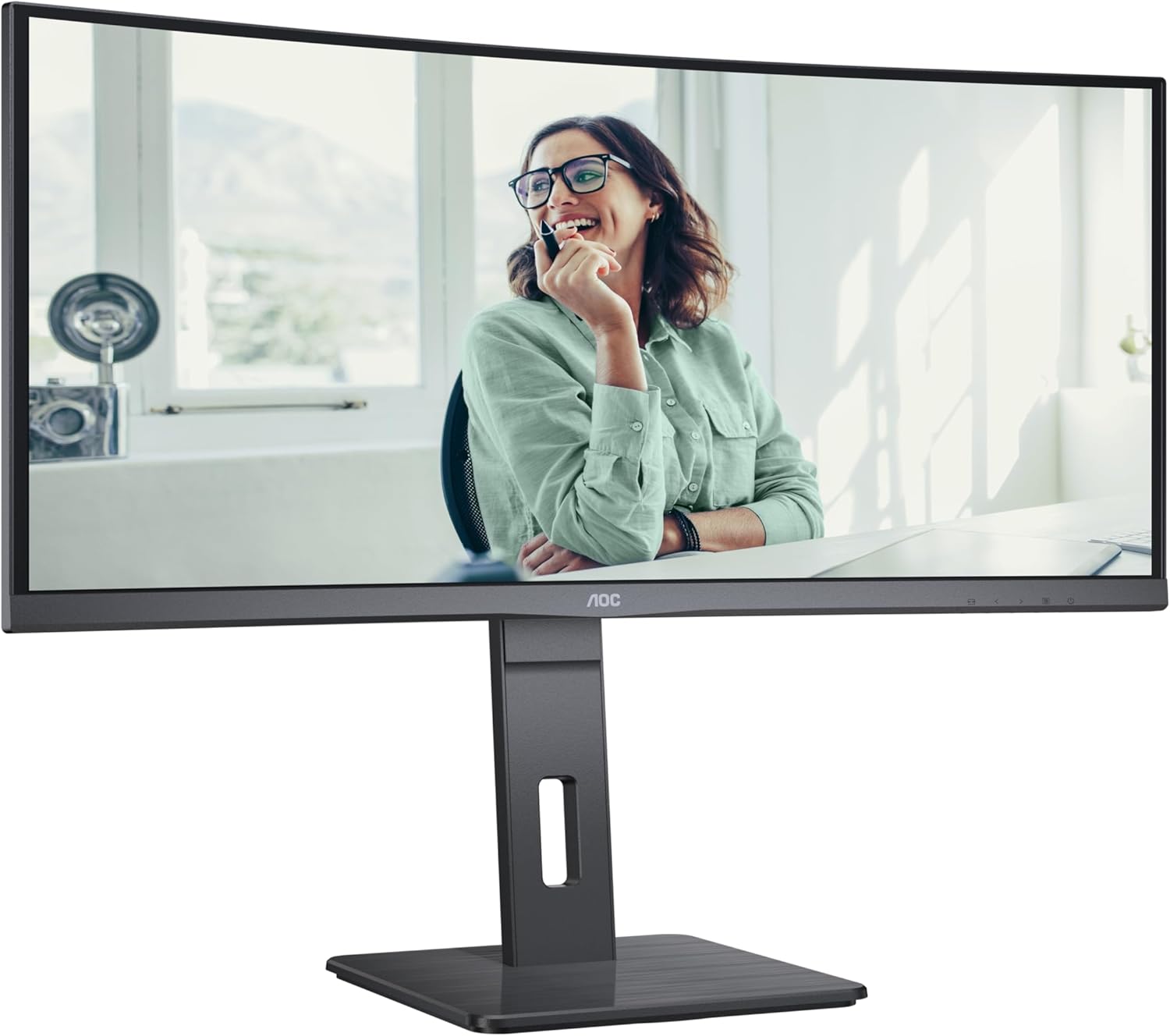
This image shows the AOC CU34P3CV monitor from the front, with its stand, displaying a vibrant image on its curved screen.
Image: AOC CU34P3CV Monitor Features Overview

This image provides a front view of the AOC CU34P3CV monitor, with graphical overlays indicating its key features such as 34-inch size, WQHD resolution, VA panel, 3-sided frameless design, adjustable stand, and curved display.
4.2. Podłączanie monitora
Patrz tył view obraz lokalizacji portów.

This image displays the rear of the AOC CU34P3CV monitor, detailing the arrangement of its power input, video input ports (HDMI, DisplayPort, USB-C), and USB hub ports.
- Podłączenie zasilania: Podłącz kabel zasilający do wejścia zasilania monitora, a następnie do uziemionego gniazdka elektrycznego.
- Połączenie wideo:
- USB typu C: For a single-cable solution providing video, data, and power delivery (up to 65W), connect the USB-C cable from your computer to the monitor's USB-C port.
- HDMI/DisplayPort: Connect an HDMI or DisplayPort cable from your computer's video output to the corresponding port on the monitor.
- Rozdzielacz USB: Connect the upstream USB-C cable (if using USB-C for video) or a separate USB upstream cable (if using HDMI/DP) from your computer to the monitor to enable the integrated USB hub ports.
- Sieć (RJ45): If your monitor supports an integrated Ethernet port via USB-C docking, connect an Ethernet cable from your network router/modem to the RJ45 port on the monitor.
4.3. Pierwsze włączenie zasilania
- Upewnij się, że wszystkie kable są bezpiecznie podłączone.
- Naciśnij przycisk zasilania na monitorze.
- Turn on your computer. The monitor should automatically detect the input signal. If not, you may need to manually select the input source using the On-Screen Display (OSD) menu.
5. Instrukcja obsługi
5.1. Włączanie/wyłączanie zasilania
Press the power button, usually located on the bottom right or rear of the monitor, to turn the monitor on or off.
5.2. Menu ekranowe (OSD)
The OSD menu allows you to adjust various monitor settings. Use the control buttons (joystick or individual buttons) typically located on the bottom or rear of the monitor to navigate the menu.
- Wybór wejścia: Choose between USB-C, HDMI, or DisplayPort inputs.
- Ustawienia obrazu: Adjust Brightness, Contrast, Gamma, Color Temperature, and various picture modes.
- Color Setup: Fine-tune color settings.
- Konfiguracja OSD: Dostosuj język OSD, przezroczystość i limit czasu.
- Dodatkowy: Access information about the current resolution and refresh rate.
5.3. Regulacja położenia monitora
The monitor stand allows for ergonomic adjustments.
- Regulacja wysokości: Aby dostosować wysokość monitora, delikatnie pociągnij go w górę lub w dół.
- Regulacja nachylenia: Przechyl ekran monitora do przodu lub do tyłu, aby znaleźć preferowaną opcję. viewkąt.
- Regulacja obrotu: Obróć monitor na podstawie w lewo lub w prawo.
Image: AOC CU34P3CV Monitor Side View z portami USB

Na tym zdjęciu widać boczną częśćfile of the AOC CU34P3CV monitor, highlighting two easily accessible USB ports on the side of the display.
Image: AOC CU34P3CV Monitor Side View with Stand Adjustment

This image illustrates the side view of the AOC CU34P3CV monitor, showcasing the flexibility of its stand for height and tilt adjustments.
Image: AOC CU34P3CV Monitor Top View
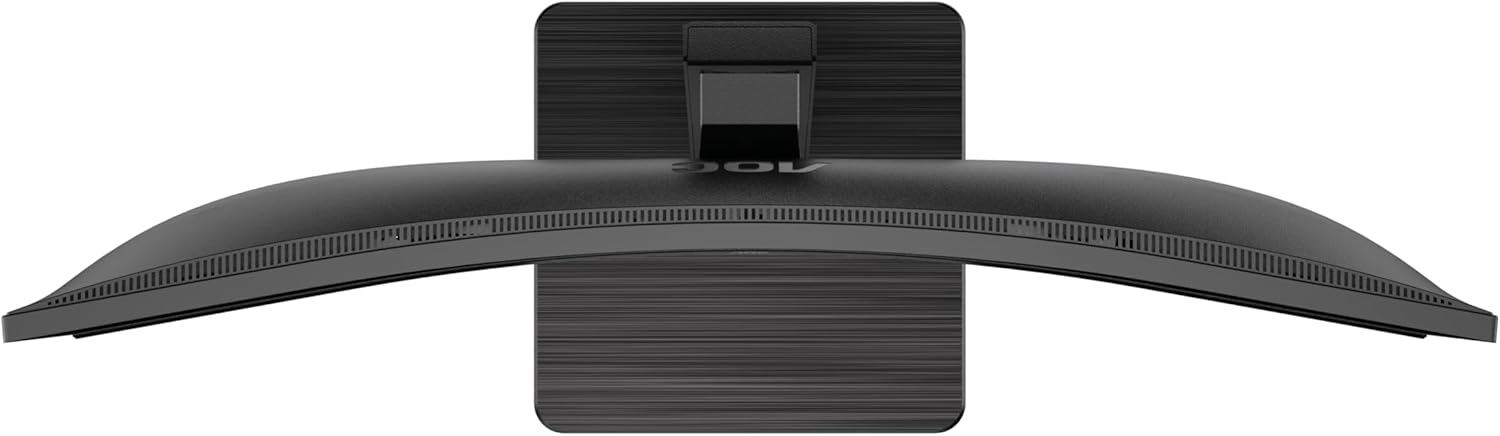
This image provides a top-down perspective of the AOC CU34P3CV monitor, clearly showing the curvature of its ultrawide screen.
6. Konserwacja
6.1. Czyszczenie monitora
- Przed czyszczeniem należy zawsze odłączyć monitor od gniazdka zasilania.
- Do delikatnego przecierania ekranu i powierzchni zewnętrznych należy używać miękkiej, niepozostawiającej włókien ściereczki.
- W przypadku uporczywych plam delikatnieampPrzetrzyj ściereczkę wodą lub delikatnym, nieściernym środkiem do czyszczenia ekranów. Nie rozpylaj środka czyszczącego bezpośrednio na ekran.
- Unikaj stosowania benzenu, rozcieńczalnika, środków czyszczących na bazie amoniaku i środków ściernych.
7. Rozwiązywanie Problemów
Jeśli masz problemy z monitorem, zapoznaj się z poniższymi typowymi problemami i ich rozwiązaniami:
| Problem | Możliwa przyczyna | Rozwiązanie |
|---|---|---|
| No power/No image | Power cable not connected; Monitor off | Ensure power cable is securely connected; Press the power button to turn on the monitor. |
| No signal/"No Input" message | Kabel wideo nie jest podłączony; wybrano nieprawidłowe źródło sygnału wejściowego | Check video cable connections (HDMI, DisplayPort, USB-C); Use OSD menu to select the correct input source. |
| Obraz zbyt ciemny/jasny | Nieprawidłowe ustawienia jasności/kontrastu | Dostosuj ustawienia jasności i kontrastu za pomocą menu OSD. |
| Migający obraz | Incorrect refresh rate; Loose cable | Ensure refresh rate is set to 60Hz in your computer's display settings; Check video cable connections. |
| Porty USB nie działają | USB upstream cable not connected; Driver issue | Ensure the USB-C cable (for video and data) or a separate USB upstream cable is connected to your computer; Check computer's device manager for USB driver issues. |
8. Specyfikacje
Model: AOC CU34P3CV
| Funkcja | Specyfikacja |
|---|---|
| Rozmiar ekranu | 34 cala (86.4 cm) |
| Rezolucja | 3440 x 1440 Quad HD |
| Proporcje obrazu | 21:9 |
| Typ panelu | Panel VA |
| Częstotliwość odświeżania | 60 Hz |
| Współczynnik kontrastu obrazu | 1000:1 |
| Łączność | USB-C (with Power Delivery), HDMI, DisplayPort, USB Hub, Ethernet (RJ45) |
| Pobór mocy (SDR) | 32.0 W |
| Zużycie energii (HDR) | 35.0 W |
| Pobór mocy (tryb wyłączony) | 0.3 W |
| Pobór mocy (tryb czuwania) | 0.5 W |
| Wymiary produktu (w przybliżeniu) | 11.81 x 11.81 x 11.81 cala (z podstawką) |
| Waga przedmiotu (w przybliżeniu) | 2.2 funta (bez stojaka) |
| Gwarantowane aktualizacje oprogramowania/oprogramowania sprzętowego | 8 lat |
| Guaranteed Spare Parts | 7 lat |
| Gwarantowane wsparcie produktu | 8 lat |
Image: Product Information Sheet
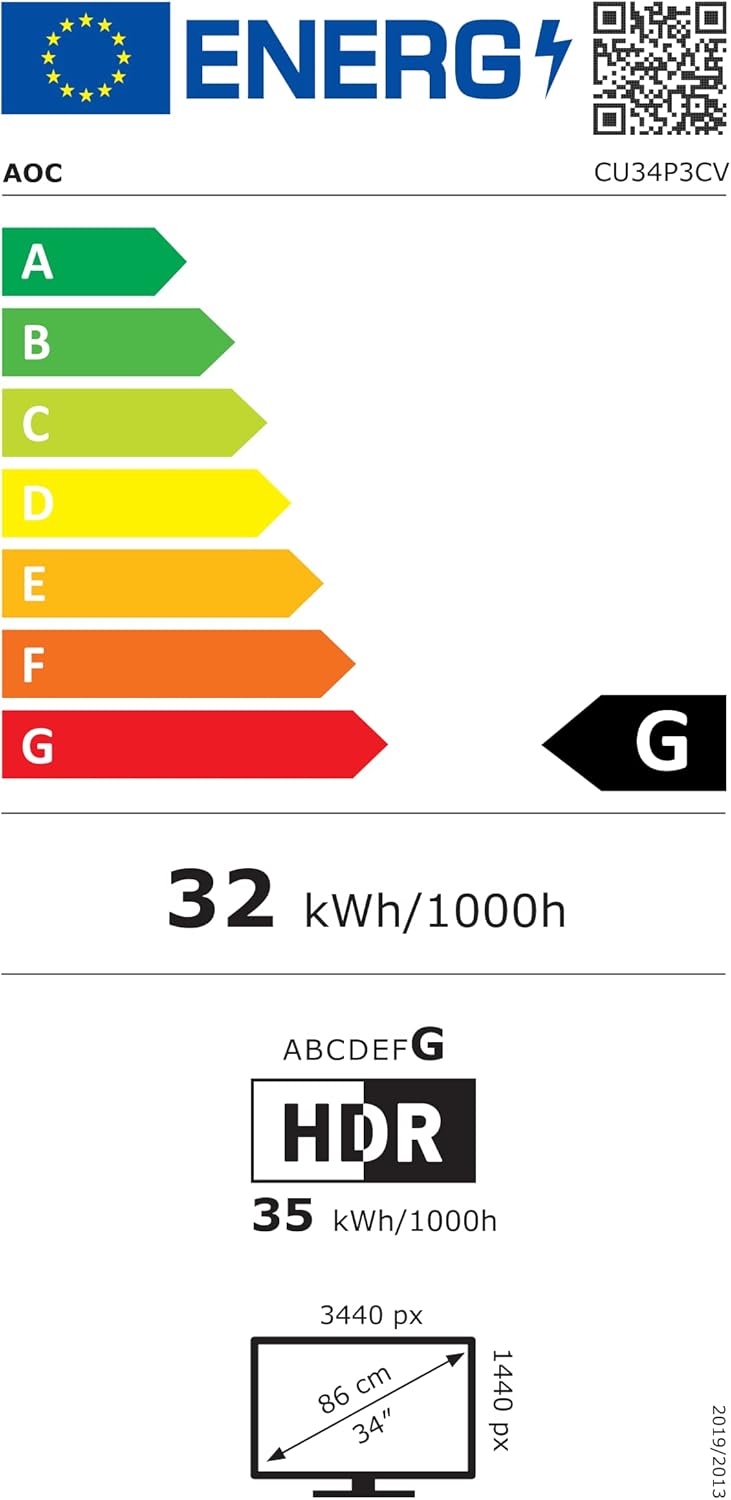
This image displays the official Product Information Sheet for the AOC CU34P3CV monitor, providing detailed technical specifications and compliance information.
Image: Energy Label
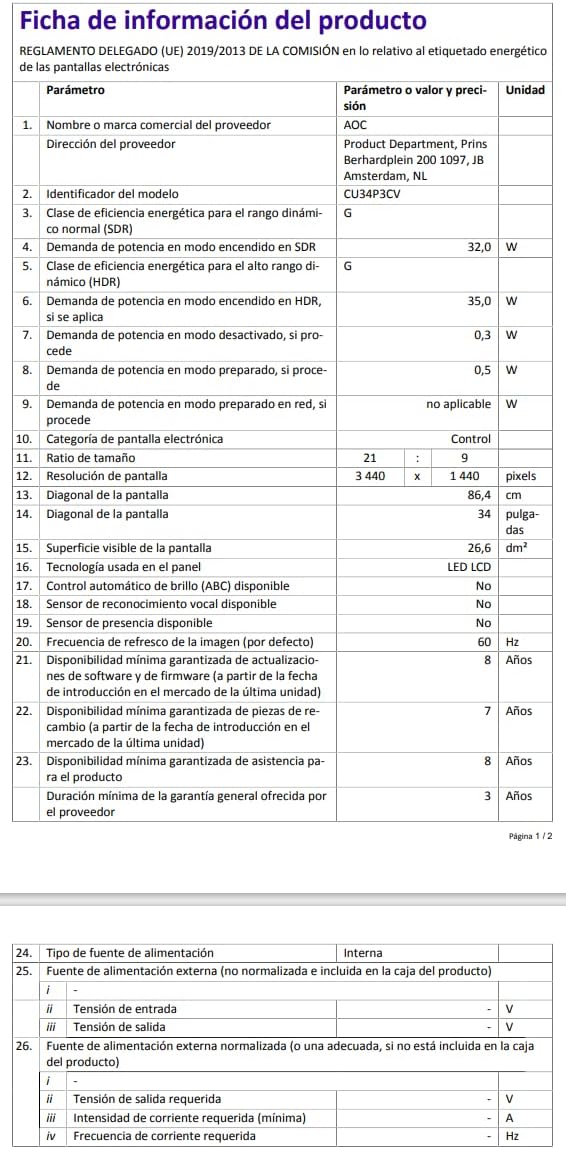
This image presents the EU Energy Label for the AOC CU34P3CV monitor, indicating its energy efficiency class and annual power consumption.
Więcej szczegółowych informacji na temat energii można znaleźć w bazie danych EPREL: https://eprel.ec.europa.eu/qr/1362085
9. Gwarancja i wsparcie
Your AOC CU34P3CV monitor comes with a minimum general guarantee of 3 lata provided by the supplier. Additionally, AOC guarantees minimum availability of software and firmware updates for 8 years, spare parts for 7 years, and product support for 8 years from the date of end of placement on the market.
For technical support, warranty claims, or further assistance, please visit the official AOC website or contact your local AOC customer service center. Keep your purchase receipt as proof of purchase for warranty purposes.


