1. Wprowadzenie
This manual provides comprehensive instructions for the setup, operation, maintenance, and troubleshooting of your AJAZZ AK992 Wireless Mechanical Keyboard. Please read this manual thoroughly before using the product to ensure proper function and longevity.

Image 1.1: The AJAZZ AK992 Wireless Mechanical Keyboard, showcasing its full layout and coiled cable.
2. Zawartość opakowania
Sprawdź, czy w opakowaniu znajdują się wszystkie elementy:
- 1 x AJAZZ AK992 Mechanical Keyboard
- 1 odbiornik USB 2.4 GHz
- 1 x Custom Coiled USB-C Cable
- 1 x narzędzie do zdejmowania nasadek klawiszy
- 1 x ściągacz przełączników
- 4 x przełączniki zamienne
- 8 x Replacement Keycaps
- 1 x Instrukcja obsługi (ten dokument)
3. Specyfikacje
| Funkcja | Szczegół |
|---|---|
| Model | AK992 |
| Łączność | Bluetooth 5.0, bezprzewodowy 2.4 GHz, przewodowy USB-C |
| Klawiatura | 99 klawisze (układ 98%) |
| Przełączniki | Możliwość wymiany na gorąco (kompatybilność z 3/5 pinami) |
| Klawisze | PBT OEM Keycaps |
| Podświetlenie | RGB (18+ efektów) |
| Pojemność baterii | 4000mAh |
| Wymiary | 16.5 x 2.2 x 2.8 cala |
| Waga | 2.48 funta |
| Producent | MAGIC-REFINER |
4. Konfiguracja
4.1 Ładowanie klawiatury
Before initial use, fully charge the keyboard using the provided USB-C cable. Connect the USB-C end to the keyboard and the USB-A end to a power source (e.g., computer USB port, wall adapter).
- The keyboard features a 4000mAh battery, providing extended usage time.
- To check battery level, press FN + Back (Delete Key). The number keys 1-0 will light up to indicate the power proportion.
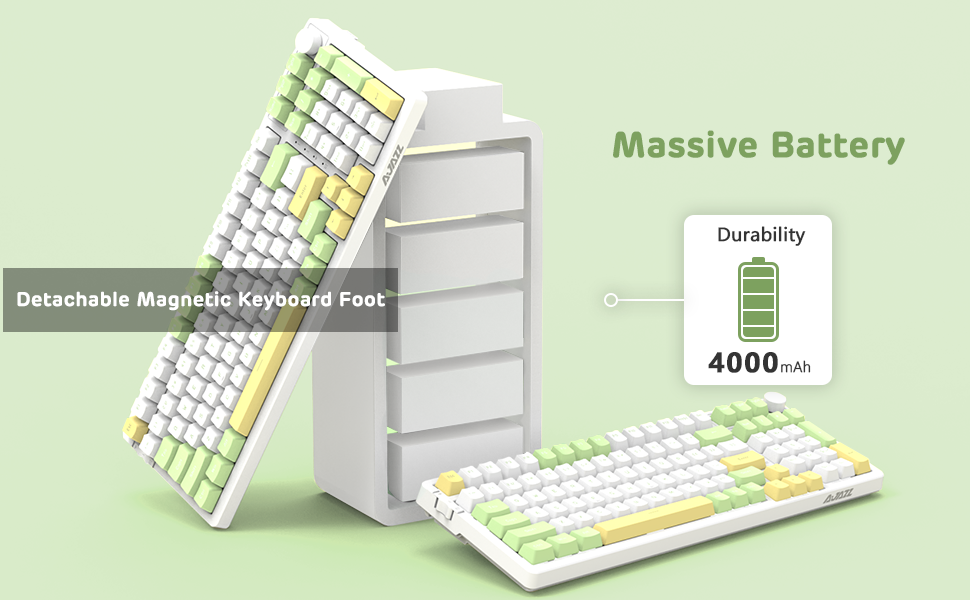
Image 4.1: Visual representation of checking the keyboard's battery level by pressing FN + Back (Delete Key).
4.2 Connecting the Keyboard (Three Modes)
The AK992 keyboard supports three connection modes: Bluetooth 5.0, 2.4GHz Wireless, and USB-C Wired. Use the sliding switch on the left side of the keyboard to select your desired mode.
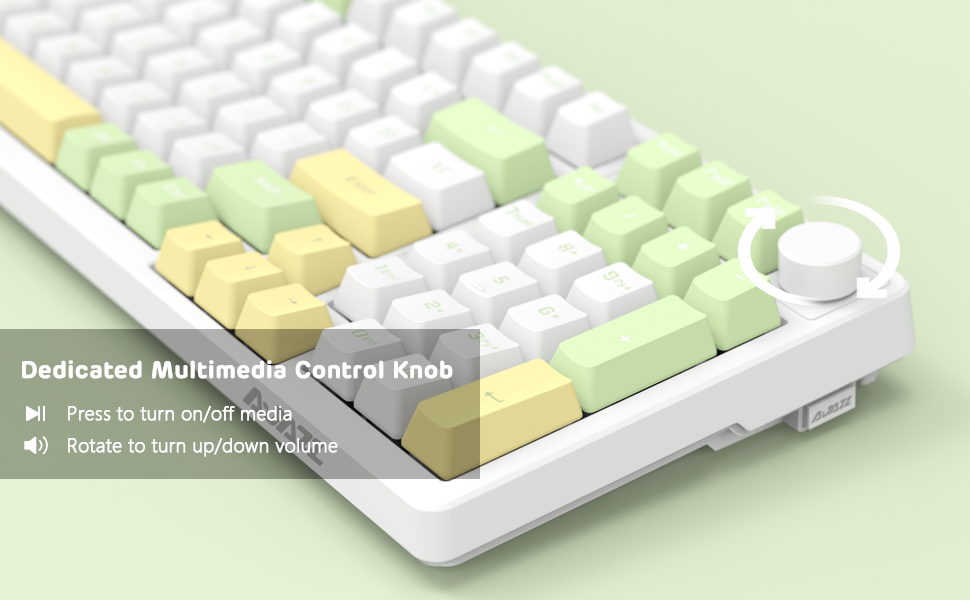
Image 4.2: Illustration of the three connection modes: USB-C, 2.4GHz, and Bluetooth 5.0, connecting to various devices.
4.2.1 Połączenie bezprzewodowe 2.4 GHz
- Locate the 2.4GHz USB receiver, typically stored in a compartment on the side of the keyboard.
- Podłącz odbiornik USB do dostępnego portu USB w komputerze.
- Slide the connection switch on the keyboard to the "2.4G" position.
- Klawiatura powinna połączyć się automatycznie.
4.2.2 Połączenie Bluetooth 5.0
The keyboard can store up to 3 Bluetooth devices.
- Slide the connection switch on the keyboard to the "BT" position.
- Naciśnij i przytrzymaj FN + 1, FN + 2, Lub FN + 3 for 3-5 seconds to enter pairing mode for the desired profileKontrolka będzie szybko migać.
- On your device (PC, Mac, tablet, smartphone), enable Bluetooth and search for "AK992".
- Select "AK992" to pair. The indicator light on the keyboard will stop flashing once connected.
- Aby przełączać się między sparowanymi urządzeniami Bluetooth, naciśnij FN + 1/2/3 krótko.
4.2.3 Połączenie przewodowe USB-C
- Podłącz dołączony spiralny kabel USB-C do portu USB-C klawiatury.
- Podłącz drugi koniec kabla do portu USB w komputerze.
- Slide the connection switch on the keyboard to the "Wired" position.
- The keyboard will be recognized as a standard USB keyboard.

Image 4.3: The custom coiled USB-C cable with a metal aviation connector, designed for durability and stable data transmission.
5. Instrukcja obsługi
5.1 Pokrętło sterowania multimediami
The knob located in the upper right corner provides convenient multimedia control:
- Obróć zgodnie z ruchem wskazówek zegara: Zwiększ głośność
- Obrót w kierunku przeciwnym do ruchu wskazówek zegara: Zmniejsz głośność
- Naciskać: Play/Pause Media or Mute/Unmute Audio

Image 5.1: Close-up of the metal knob, illustrating its functions for volume control and media play/pause/mute.
5.2 Sterowanie podświetleniem RGB
The AK992 features dynamic RGB backlighting with multiple effects.
- FN + \| (Backslash/Pipe key): Cycle through 18+ RGB lighting effects.
- FN + ↑ / ↓: Dostosuj jasność podświetlenia.
- FN + ← / →: Dostosuj prędkość/kierunek podświetlenia.
- FN + 1/2/3: Customize three sets of game or office lighting effects (requires software for full customization).
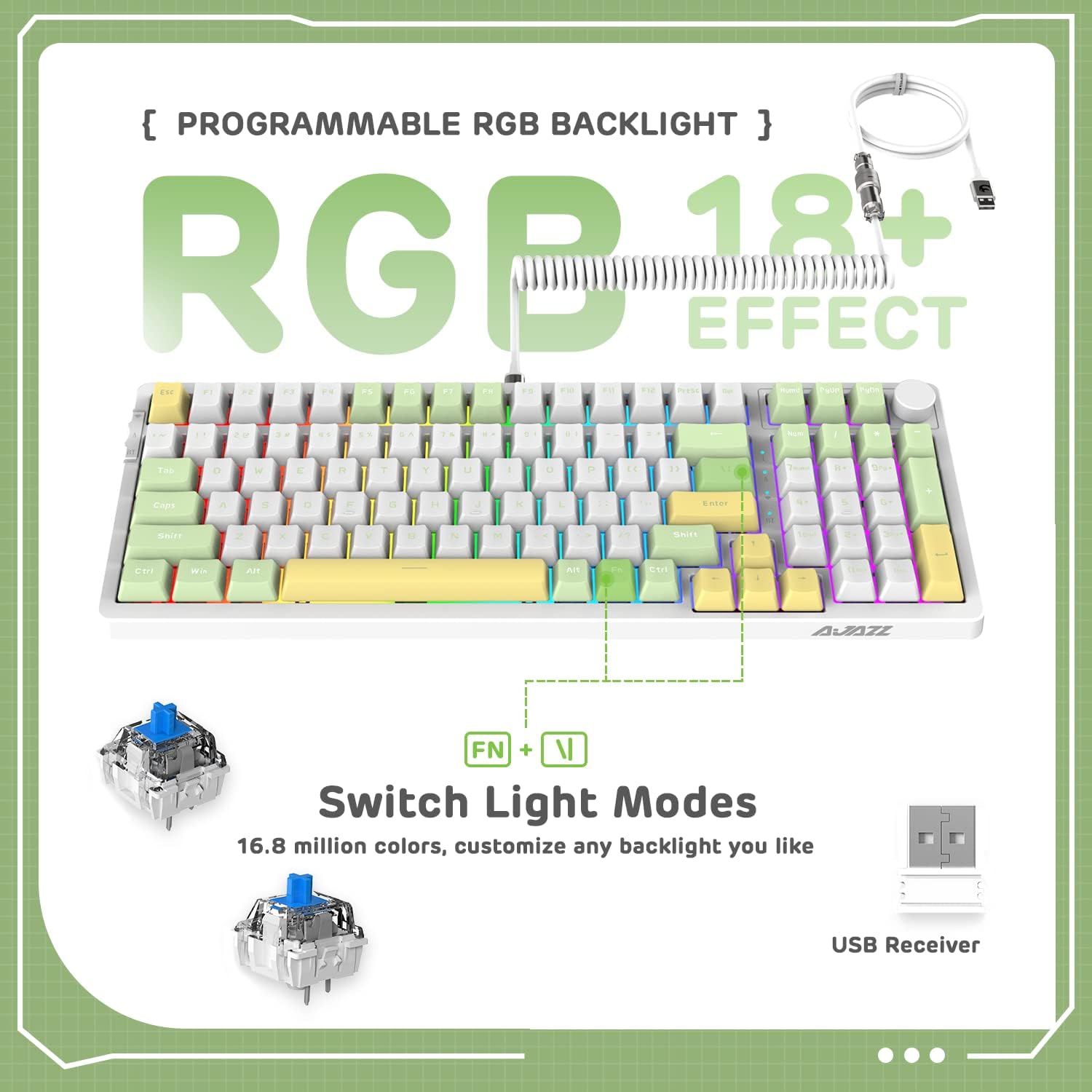
Image 5.2: The keyboard displaying various RGB lighting effects, highlighting the FN + \| key combination for switching modes.
5.3 Przełączniki z możliwością wymiany na gorąco
The AK992 keyboard features a hot-swappable PCB, allowing users to change mechanical switches without soldering. It supports both 3-pin and 5-pin switches.
- Za pomocą dołączonego ściągacza klawiszy ostrożnie zdejmij wybrany klawisz.
- Use the provided switch puller to gently grip the switch and pull it straight up to remove it from the PCB.
- Dopasuj piny nowego przełącznika do otworów w płytce PCB. Upewnij się, że piny są proste.
- Wciśnij nowy przełącznik mocno, aż usłyszysz kliknięcie.
- Załóż z powrotem nakładkę klawisza.

Rysunek 5.3: Szczegółowy view of the keyboard's hot-swappable PCB, showing removed keycaps and switches, along with replacement components.
5.4 Ergonomiczna konstrukcja
The keyboard is designed with a two-stage tripod foot system, allowing adjustment of the typing angle to 5° or 8° for improved comfort and reduced hand fatigue.

Image 5.4: The keyboard's two-stage tripod design, illustrating the 5° and 8° adjustable typing angles.
6. Konserwacja
6.1 Czyszczenie
- Przed czyszczeniem odłącz klawiaturę od wszystkich źródeł zasilania i urządzeń.
- Użyj miękkiej, niestrzępiącej się ściereczki, lekko wyczyśćampPrzetrzyj klawisze i obudowę wodą lub łagodnym środkiem czyszczącym.
- Aby dokonać dokładniejszego czyszczenia, należy zdjąć nakładki klawiszy za pomocą dołączonego ściągacza, a następnie wyczyścić ich spód sprężonym powietrzem lub małą szczotką.
- Avoid using harsh chemicals, abrasives, or solvents, as these may damage the keyboard's finish or components.
6.2 Przechowywanie
Store the keyboard in a cool, dry place away from direct sunlight and extreme temperatures. If storing for an extended period, ensure the battery is partially charged (around 50%) to preserve battery health.
7. Rozwiązywanie Problemów
| Problem | Możliwa przyczyna | Rozwiązanie |
|---|---|---|
| Klawiatura nie reaguje w trybie bezprzewodowym. | Low battery, incorrect mode selected, receiver not plugged in (2.4G), not paired (Bluetooth). | Charge the keyboard. Ensure the mode switch is set correctly. Re-insert the 2.4G receiver. Re-pair Bluetooth device. |
| RGB backlight not working or dim. | Podświetlenie wyłączone, jasność ustawiona na zbyt niskim poziomie, niski poziom baterii. | Naciskać FN + \| to cycle modes. Adjust brightness with FN +. Naładuj klawiaturę. |
| Klawisze nie reagują na polecenia lub są wpisywane podwójnie. | Wadliwy przełącznik, zanieczyszczenia pod klawiszem, problem z oprogramowaniem. | Remove keycap and clean. Replace the switch using the provided tools and spare switches. Test on another device. Update keyboard firmware if available. |
| Klawiatura często się rozłącza. | Zakłócenia, odległość od odbiornika/urządzenia, niski poziom naładowania baterii. | Reduce distance to receiver/device. Ensure no strong interference sources. Charge the keyboard. Try wired mode. |
8. Gwarancja i wsparcie
8.1 Informacje o gwarancji
The AJAZZ AK992 Wireless Mechanical Keyboard is covered by a limited warranty against manufacturing defects. Please refer to the warranty card included in your package or contact your retailer for specific warranty terms and conditions. Keep your proof of purchase for warranty claims.
Notatka: The warranty typically covers defects in materials and workmanship under normal use. It does not cover damage caused by misuse, accidents, unauthorized modifications, or normal wear and tear.
8.2 Obsługa klienta
For technical assistance, troubleshooting, or general inquiries, please contact the manufacturer or your point of purchase. You may also visit the official AJAZZ or MAGIC-REFINER website for FAQs, driver downloads, and additional support resources.
Manufacturer: MAGIC-REFINER
Model: AK992
9. Oficjalny film o produkcie
Wideo 9.1: Oficjalny film prezentujący produktasing the AK992 99 Keys Gasket Wireless Mechanical Gaming Keyboard in use, demonstrating its features and RGB lighting. This video is provided by MAGIC-REFINER Direct.


