1. Wprowadzenie
Thank you for choosing the SABLUTE Wireless Keyboard. This full-size ergonomic keyboard features 7 colored backlights, a comfortable wrist rest, and a convenient phone holder. Designed for a quiet and efficient typing experience, it connects wirelessly via 2.4G and is rechargeable. This manual provides detailed instructions for setup, operation, maintenance, and troubleshooting to ensure optimal performance and longevity of your device.

Image: The SABLUTE Wireless Keyboard, featuring its full layout, integrated phone holder with a smartphone, and the included 2.4G USB dongle and Type-C adapter.
2. Co znajduje się w pudełku
Sprawdź zawartość paczki, aby upewnić się, że znajdują się w niej wszystkie elementy:
- Klawiatura bezprzewodowa *1
- USB A Dongle *1
- TYPE C Adapter *1
- TYPE C Charging Cable *1
- Instrukcja obsługi *1
3. Główne cechy
- 7-Color Backlighting: Choose from 7 switchable backlight colors and 3 brightness levels to customize your typing environment.
- Ergonomic Design with Wrist Rest: Scientifically designed to encourage healthy wrist posture, reducing strain and fatigue during long hours of use.
- Integrated Phone/Tablet Holder: A convenient U-shaped holder allows you to prop up your smartphone or tablet for easy viewing while working. Note: This holder does not have a charging function.
- Ciche klawisze: Unique scissor-switch key design provides a comfortable typing experience with over 95% noise reduction.
- Akumulator: Built-in battery offers extended use on a single charge, with a user-friendly power-saving feature that puts the keyboard into sleep mode after 15 minutes of inactivity.
- Stable 2.4G Wireless Connection: Provides a fast and stable connection up to 33 feet, ensuring no delay and plug-and-play functionality.
- Uniwersalna kompatybilność: Compatible with devices featuring USB and Type-C ports, supporting Windows OS, iOS, Chrome OS, Linux, and Android OS.
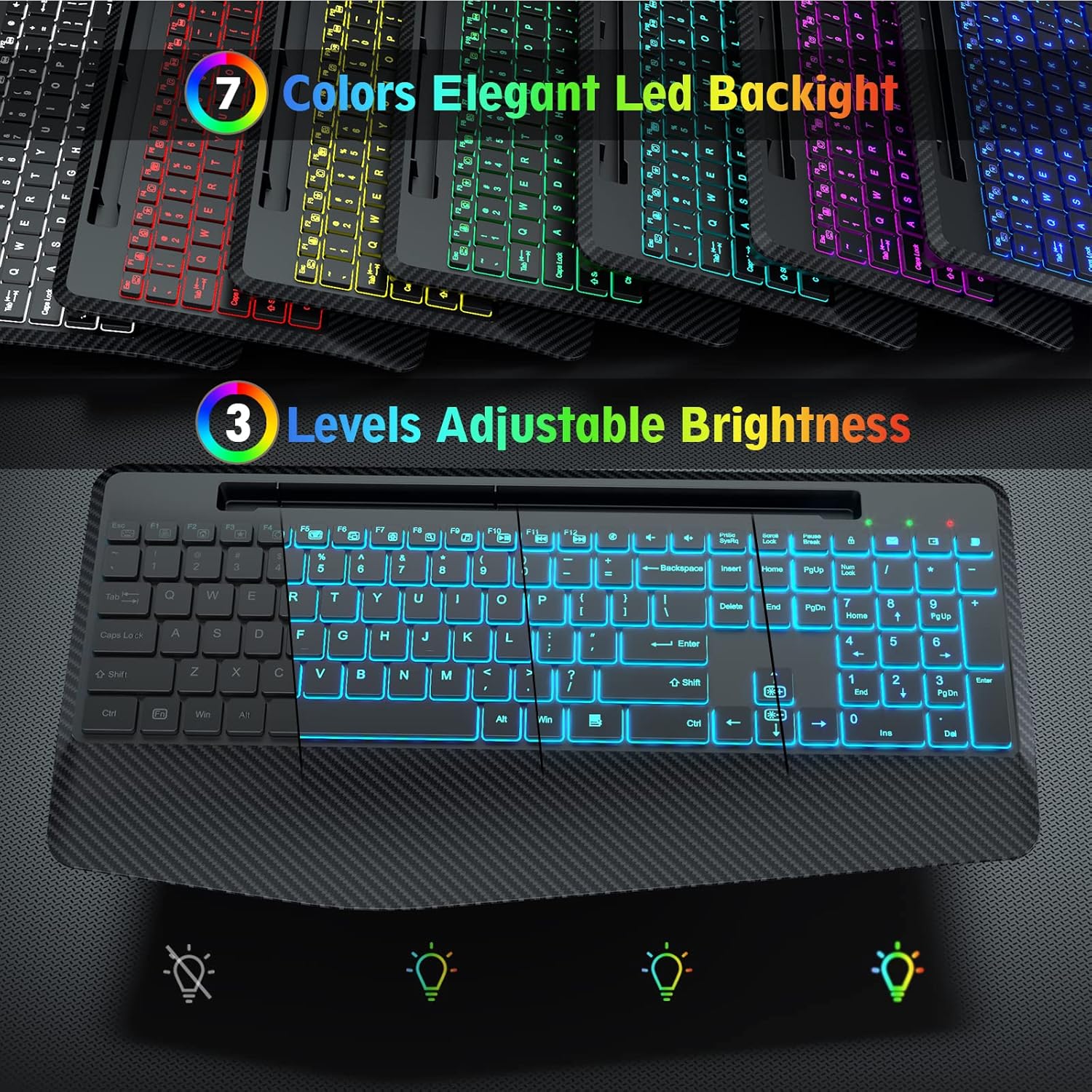
Image: Illustration of the keyboard's 7 switchable backlight colors and 3 adjustable brightness levels.

Image: The ergonomic wrist rest design of the keyboard, showing how it helps reduce strain during typing.

Obraz: Zbliżenie view highlighting the silent and stable nature of the keyboard's keys, designed for comfortable and quiet typing.
4. Przewodnik konfiguracji
4.1 Podłączanie klawiatury
- Zlokalizuj odbiornik USB: The small transparent bag contains a USB A dongle and a Type C adapter. The USB A dongle is typically stored in a compartment on the keyboard itself for safekeeping.
- Choose Your Port:
- For devices with a standard USB-A port (e.g., most PCs, Laptops), plug the USB A dongle directly into an available USB port.
- For devices with a Type-C port (e.g., MacBooks, newer laptops, some tablets/smartphones), attach the Type C adapter to the USB A dongle, then plug the combined unit into the Type-C port.
- Włączanie: Locate the ON/OFF switch on the keyboard (usually on the back or top edge) and slide it to the 'ON' position.
- Automatyczne połączenie: Klawiatura powinna automatycznie połączyć się z urządzeniem. Nie są wymagane żadne dodatkowe sterowniki.

Image: Visual guide demonstrating how to connect the keyboard using the USB A dongle for traditional computers and the Type C adapter for devices like MacBooks.
5. Instrukcja obsługi
Sterowanie podświetleniem 5.1
The keyboard features 7 switchable backlight colors and 3 adjustable brightness levels:
- Zmiana kolorów: Naciśnij Fn + blokada przewijania keys simultaneously to cycle through the 7 available backlight colors.
- Regulacja jasności: Naciśnij Fn + Strona w górę keys to increase brightness and Fn + strona w dół keys to decrease brightness. There are 3 levels of brightness.
- Turning Backlight On/Off: Naciskać Fn + blokada przewijania repeatedly until the backlight turns off, or use the dedicated backlight key if available.
5.2 Using the Phone/Tablet Holder
The integrated U-shaped groove at the top of the keyboard is designed to hold your smartphone or tablet, allowing for convenient viewing while typing. Simply place your device into the groove. Ensure your device fits securely. Please note that this holder does not provide charging functionality.

Image: The full-size keyboard with a phone and tablet in its integrated holder, illustrating its dimensions and how it helps declutter your workspace.
5.3 Foldable Stands
The keyboard is equipped with foldable stands on the underside. Gently pull out these stands to adjust the typing angle for a more comfortable and ergonomic experience.

Image: The keyboard with its foldable stands extended, demonstrating how to adjust the angle for more comfortable typing.
6. Ładowanie i żywotność baterii
The SABLUTE Wireless Keyboard features a built-in rechargeable battery. To charge the keyboard, use the provided Type-C charging cable.
- Ładowanie: Connect the Type-C end of the cable to the keyboard's charging port and the USB-A end to a wall charger, PC, or power bank.
- Wskaźnik ładowania: A red light will appear when the keyboard is charging. The power indicator will turn off once fully charged.
- Wskaźnik niskiego poziomu baterii: A green light will flash when the battery is low, indicating it's time to recharge.
- Czas pracy baterii: The keyboard can be used normally for up to 90 days without the backlight function on a single charge. With the backlight function turned on, it can work for 12-24 hours, depending on the brightness level.
- Oszczędzanie energii: The keyboard has a smart sleep mode that activates after 15 minutes of non-use to conserve battery. If the keyboard remains idle for 90 seconds, the backlight will automatically turn off.

Image: The keyboard connected via its Type-C charging port, highlighting its rechargeable battery and power-saving features.

Obraz: Ponadview of the keyboard's underside, detailing the Type-C charging port, ON/OFF switch, non-slip pads, foldable stands, and indicator lights for NUM, CAPS, and Power/Battery status.
7. Zgodność
The SABLUTE Wireless Keyboard offers broad compatibility with various devices and operating systems:
- Zgodne urządzenia: PC, Laptops, Smart TVs, MacBooks, Tablets, Smartphones.
- Zgodne systemy operacyjne: Supports all Windows OS (XP/7/10/Vista), iOS, Chrome OS, Linux, Android OS.
Important Note: This keyboard can only be used with one device at a time and cannot be connected to multiple devices simultaneously.

Image: The keyboard's multi-system compatibility, showing it can be used with various devices and operating systems.
8. Konserwacja
To ensure the longevity and optimal performance of your keyboard, follow these simple maintenance guidelines:
- Czyszczenie: Use a soft, dry, lint-free cloth to wipe down the keyboard surface. For stubborn dirt, slightly dampPrzetrzyj szmatkę wodą lub delikatnym, nieściernym środkiem czyszczącym. Unikaj nadmiernej wilgoci.
- Usuwanie kurzu: Za pomocą sprężonego powietrza usuń kurz i zanieczyszczenia spomiędzy klawiszy.
- Unikaj płynów: Do not spill liquids on the keyboard. In case of accidental spills, immediately disconnect the keyboard and allow it to dry completely before re-using.
- Składowanie: Jeśli klawiatura nie będzie używana przez dłuższy czas, należy ją przechowywać w chłodnym, suchym miejscu, z dala od bezpośredniego światła słonecznego i ekstremalnych temperatur.
9. Rozwiązywanie Problemów
If you encounter any issues with your SABLUTE Wireless Keyboard, please refer to the following common solutions:
- Klawiatura nie odpowiada:
- Ensure the keyboard is turned 'ON'.
- Check if the USB receiver is securely plugged into your device's USB or Type-C port. Try a different port if available.
- Ensure the keyboard is charged. Connect it to the charging cable and allow it to charge for a while.
- Move the keyboard closer to the USB receiver to ensure it's within the 33-foot wireless range.
- Uruchom ponownie komputer/urządzenie.
- Podświetlenie nie działa lub migocze:
- Ensure the keyboard is sufficiently charged. Low battery can affect backlight performance.
- Naciskać Fn + blokada przewijania to cycle through colors and ensure the backlight is not turned off.
- Naciskać Fn + Strona w górę aby zwiększyć jasność.
- Klawisze się zacinają lub nie reagują:
- Clean around and under the affected keys using compressed air to remove any debris.
- Krótki czas pracy baterii:
- Przed użyciem upewnij się, że klawiatura jest całkowicie naładowana.
- Reduce backlight brightness or turn off the backlight when not needed to extend battery life.
- Allow the keyboard to enter sleep mode when idle.
If the issue persists after trying these steps, please contact SABLUTE customer support for further assistance.
10. Specyfikacje
| Funkcja | Specyfikacja |
|---|---|
| Numer modelu | KN225 |
| Wymiary produktu | 16.6 x 8.42 x 0.55 cala |
| Waga przedmiotu | 1.72 funta |
| Technologia łączności | 2.4G USB A Wireless |
| Liczba kluczy | 112 |
| Podświetlenie klawiatury | 7 Colored Backlits (RGB) |
| Poziomy jasności | 3 |
| Port ładowania | Typ C |
| Zasięg bezprzewodowej | Do 33 stóp |
| Zalecane zastosowania | Office, Personal, Business |
11. Gwarancja i wsparcie
SABLUTE is committed to providing high-quality products and excellent customer service.
- Gwarancja: Your SABLUTE Wireless Keyboard comes with a warranty of up to 24 months from the date of purchase. This warranty covers manufacturing defects and product malfunctions under normal use.
- Obsługa klienta: If you experience any issues with your product, such as malfunctions, missing accessories, or require assistance with usage, please do not hesitate to contact our professional after-sales service team. We are dedicated to helping you solve any problems within 24 hours.

Image: Our customer service team is ready to assist you.


