1. Koniec produktuview
The SSK SC211 is an 11-in-1 USB-C docking station designed to expand the connectivity of your USB-C enabled laptop, tablet, or smartphone. It provides multiple ports for display output, data transfer, network connectivity, power delivery, and audio, transforming a single USB-C port into a comprehensive workstation solution.

Image: The SSK SC211 docking station, showcasing its compact design and the array of devices it can connect to, including HDMI cables, USB drives, SD/TF cards, and an Ethernet cable.
2. Główne cechy
- Łączność 11 w 1: Integrates 2x 4K HDMI, 1x VGA, 2x USB 3.0, 1x USB 2.0, 1x 100W PD charging, 1x 1000M Gigabit Ethernet RJ45, 1x SD Card slot, 1x TF Card slot, and 1x 3.5mm Audio/Mic port.
- Wiele opcji wyświetlania: Supports dual 4K HDMI output and triple display configurations (2x HDMI + VGA) for Windows 10/11. Offers mirror mode (SST) and extend mode (MST).
- Wideo w wysokiej rozdzielczości: Single HDMI 1 supports up to 4K@60Hz. Dual HDMI supports up to 4K@30Hz. When VGA is connected, each monitor supports up to 1080P@60Hz.
- Szybki transfer danych: Two USB 3.0 ports provide data transfer speeds up to 5Gbps. SD/TF card slots support up to 104MB/s.
- Gigabit Ethernet: RJ45 port offers stable and fast wired network connectivity at 10/100/1000Mbps.
- Dostawa energii: USB-C PD 3.0 port supports up to 100W input and 85W output for charging your host device.
- Łączność audio: Integrated 3.5mm Audio/Mic port for headphones or speakers.

Obraz: szczegółowy view of the SSK docking station highlighting each port: Gigabit RJ45 Ethernet, VGA, HDMI 1 (4K@60Hz), HDMI 2 (4K@30Hz), USB 2.0 (for mouse & keyboard), PD3.0 (Max 100W power delivery), 3.5mm Headphone & Speaker, 2x USB 3.0 (5Gbps), and SD/TF Card slots (Up to 104MB/s).
3. Specyfikacje
| Numer modelu | SC211 |
| Wymiary produktu | 4.89 x 2.08 x 0.71 cala |
| Waga przedmiotu | 4.2 uncji |
| Kolor | Szary |
| Interfejs sprzętowy | Ethernet, HDMI, MicroSD, USB 2.0, USB 3.0, USB typu C, VGA |
| Funkcja specjalna | Podwójne HDMI |
| Kompatybilne urządzenia | Laptops (MacBook Pro, Dell XPS, Huawei MateBook X PRO, HP EVNY X360, Lenovo ThinkPad X1, Huawei P20/30, etc.) |
| Systemy operacyjne | Windows, macOS, Android, iPadOS (Win7/XP/Linux may require driver for RJ45) |
| Dostarczanie mocy | Do 100 W mocy wejściowej, 85 W mocy wyjściowej |
| Prędkość danych USB 3.0 | Do 5 Gbps |
| Prędkość Ethernetu | 10/100/1000 Mb/s |
4. Przewodnik konfiguracji
Before connecting the docking station, ensure your laptop's USB-C port supports video output ("Display Port Alternate Mode"), data transfer, and Power Delivery (PD) for full functionality. Not all USB-C ports support all these features.

Image: This diagram illustrates the types of USB-C ports and their capabilities. It shows that for triple monitor support, the laptop's USB-C port must support Thunderbolt 3, Data + DisplayPort, or Data + PD + DisplayPort functions. Ports that only support data transfer or power delivery will not enable video output.
- Podłącz zasilanie (opcjonalne, ale zalecane): If your laptop requires charging or you are connecting multiple power-intensive devices, connect your laptop's original USB-C power adapter to the docking station's PD 3.0 port. This ensures stable operation and charges your laptop.
- Połącz z urządzeniem hosta: Plug the integrated USB-C cable of the docking station into your laptop's compatible USB-C port.
- Podłącz wyświetlacze:
- For single display: Connect an HDMI cable to either HDMI 1 or HDMI 2 port, or a VGA cable to the VGA port, then connect to your monitor.
- For dual displays: Connect two HDMI cables to HDMI 1 and HDMI 2 ports, then to your monitors.
- For triple displays (Windows only): Connect two HDMI cables to HDMI 1 and HDMI 2, and one VGA cable to the VGA port, then to your monitors.
- Podłącz urządzenia peryferyjne: Plug in your USB devices (mouse, keyboard, USB drives) into the USB 3.0 or USB 2.0 ports. Insert SD or TF cards into their respective slots. Connect an Ethernet cable to the RJ45 port for wired network access.
- Podłącz dźwięk: If using external headphones or speakers, plug them into the 3.5mm Audio/Mic port.
Note: Please provide power to the USB-C Docking Station first when connecting monitors or multiple high-power devices to ensure stable performance.
5. Instrukcja obsługi
5.1 Tryby wyświetlania
Stacja dokująca obsługuje różne konfiguracje wyświetlania, w zależności od systemu operacyjnego.
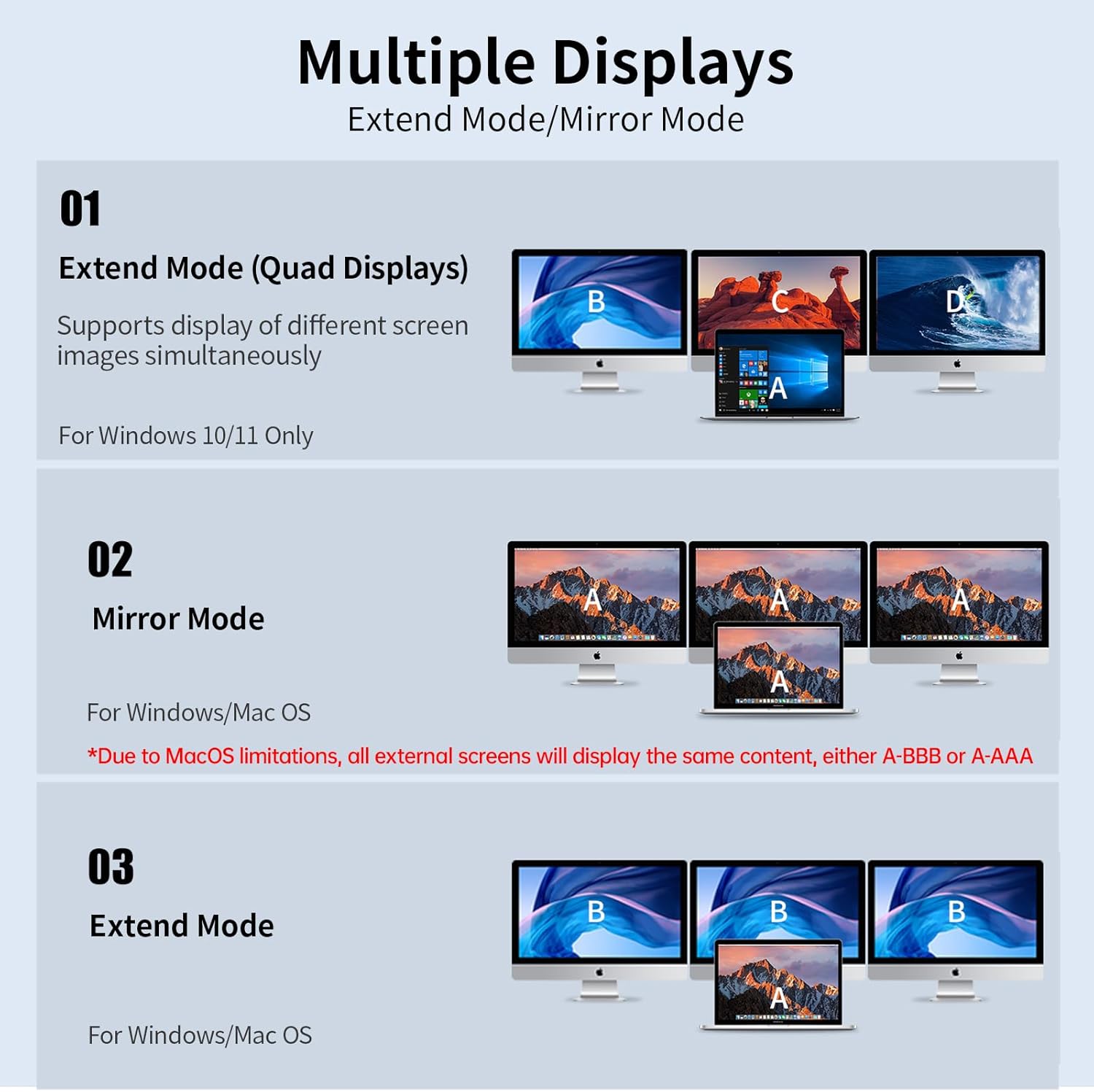
Image: This diagram illustrates the different display modes. For Windows, it shows Extend Mode (Quad Displays: A-BCD) and Mirror Mode (A-AAA). For macOS, it shows Mirror Mode (A-AAA or A-BBB) due to MST limitations, where all external monitors display the same content.
- W przypadku systemu Windows 10 / 11:
- Extend Mode (A-BCD): Supports displaying different content on up to four screens simultaneously (laptop screen + 3 external monitors).
- Mirror Mode (A-AAA): Wszystkie podłączone wyświetlacze pokazują tę samą treść.
- Dla systemu macOS:
- Due to macOS limitations (does not support MST - Multi-Stream Transport), the docking station only supports extending one monitor, and all external monitors will display the same screen content (A-AAA or A-BBB).
- You can achieve a mirrored display where all external monitors show the same content as your laptop, or an extended display where one external monitor extends your desktop and other external monitors mirror that extended display.
5.2 Ustawienia audio
When using the 3.5mm Audio/Mic port:
- When HDMI is connected: The audio port can be directly plugged in and used.
- When using the headphone jack alone:
- Dla systemu macOS: Go to Apple icon > System Preferences > Sound > Output > Select "USB Audio Device".
- Dla systemu Windows: Click the sound icon on the bottom right of the desktop > Choose "USB Audio Device" as the sound output.
5.3 Przesyłanie danych i ładowanie
- 3.0 USB Porty: Use for high-speed data transfer with external hard drives, USB flash drives, etc. These ports also support BC1.2 fast charging for USB devices.
- Port USB 2.0: Ideal for connecting wireless mouse/keyboard receivers to avoid interference with USB 3.0 devices. Also supports USB 2.0 data transfer.
- Gniazda kart SD/TF: Insert memory cards for quick data access.
- PD 3.0 Charging Port: Connect your laptop's power adapter here to charge your laptop while using the docking station. This port is for power delivery only, not data transfer.

Image: The SSK docking station connected to a laptop, receiving 100W input power and providing 85W output to the laptop, demonstrating simultaneous data transfer and charging. Note that the wall charger and cable are not included.
6. Konserwacja
- Przechowuj stację dokującą w suchym miejscu, z dala od płynów i ekstremalnych temperatur.
- Urządzenie należy czyścić miękką, suchą ściereczką. Unikaj stosowania agresywnych środków chemicznych i materiałów ściernych.
- Nie próbuj samodzielnie demontować ani naprawiać urządzenia. W przypadku problemów skontaktuj się z obsługą klienta.
- Aby zapobiec przegrzaniu, należy zapewnić odpowiednią wentylację wokół urządzenia w trakcie jego pracy.
7. Rozwiązywanie Problemów
If you encounter issues with your SSK docking station, please refer to the following common solutions:
- Brak wyjścia wyświetlacza:
- Ensure your laptop's USB-C port supports "Display Port Alternate Mode" (video output).
- Verify that the HDMI/VGA cables are securely connected to both the docking station and the monitor.
- Try connecting a power adapter to the docking station's PD port.
- Jeśli to możliwe, przetestuj urządzenie przy użyciu innego monitora lub kabla.
- Uruchom ponownie laptopa.
- External Monitors Display Same Content (macOS):
- This is a limitation of macOS, which does not support Multi-Stream Transport (MST) for multiple distinct external displays via a single hub. All external monitors will mirror each other or mirror the main display.
- No Network Connection (RJ45):
- Sprawdź, czy kabel Ethernet jest prawidłowo podłączony.
- Sprawdź ustawienia sieciowe na swoim komputerze.
- For Windows 7/XP/Linux, you may need to install a specific driver for the Gigabit RJ45 Ethernet port.
- Powolne ładowanie lub brak ładowania:
- Ensure your power adapter is connected to the docking station's PD port and is capable of providing sufficient wattage (up to 100W input, 85W output).
- Sprawdź, czy port USB-C Twojego laptopa obsługuje technologię Power Delivery.
- Urządzenia USB nie są rozpoznawane:
- Sprawdź, czy stacja dokująca jest prawidłowo podłączona do laptopa.
- Try connecting the USB device to a different port on the docking station or directly to your laptop to isolate the issue.
- Some high-power USB devices may require the docking station to be powered via its PD port.
8. Zgodność
The SSK SC211 docking station is compatible with a wide range of devices and operating systems, provided the host device's USB-C port supports the necessary functions (DisplayPort Alternate Mode, Power Delivery, and Data Transfer).
- Laptopy: Compatible with MacBook Pro (2016, 2017, 2018), Dell XPS, Huawei MateBook X PRO (2019), HP ENVY X360, Lenovo ThinkPad X1, and similar models with a full-featured USB-C port.
- Smart Devices: Compatible with Huawei P20/30 and other smartphones/tablets that support video output via USB-C.
- Systemy operacyjne: Works with Windows, macOS, Android, and iPadOS or higher operating systems. For Windows 7/XP/Linux, a driver may be required for the Gigabit RJ45 Ethernet port.
Important: The USB-C port of your laptop or phone must support DP (video) output for display functionality.
9. Gwarancja i wsparcie
For warranty information, please refer to the specific terms and conditions provided at the time of purchase or contact your retailer. SSK products are designed for quality and reliability.
If you encounter any issues or require technical assistance, please contact SSK customer support through their official channels or the retailer from whom you purchased the product. Please have your model number (SC211) and purchase details ready.
For more information about SSK products, visit the SSK Store on Amazon.


