1. Wprowadzenie
This manual provides detailed instructions for the Phomemo PM241BT Bluetooth Thermal Label Printer. Please read this guide thoroughly before using the printer to ensure proper operation and to maximize its lifespan. This printer is designed for efficient label printing for various applications, including shipping, addressing, and product labeling.

Image 1.1: Phomemo PM241BT printer in operation, connected via Bluetooth to a smartphone.
2. Informacje dotyczące bezpieczeństwa
Observe the following safety precautions to prevent damage to the printer or injury to yourself:
- Do not disassemble or modify the printer.
- Keep the printer away from water, moisture, and direct sunlight.
- Używaj wyłącznie dostarczonego zasilacza i kabli.
- Upewnij się, że drukarka jest umieszczona na stabilnej, płaskiej powierzchni.
- Unikaj dotykania głowicy drukującej bezpośrednio po drukowaniu, gdyż może być gorąca.
3. Zawartość opakowania
Sprawdź, czy w opakowaniu znajdują się wszystkie elementy:
- Phomemo PM241BT Thermal Label Printer
- Zasilacz
- Kabel USB
- Adapter USB-C
- Przewód zasilający
- Szybki przewodnik
- 10 x 4x6 inch Labels
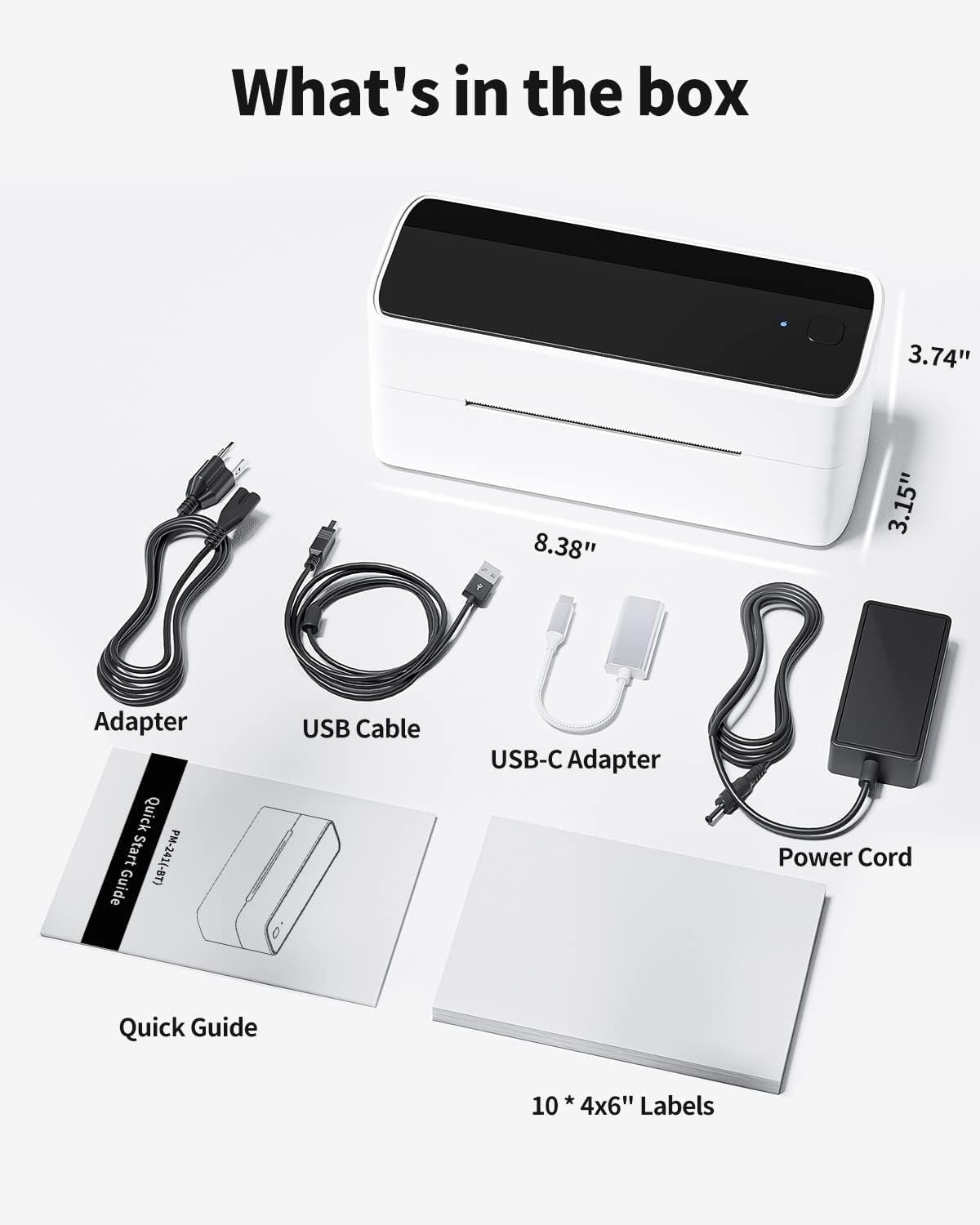
Image 3.1: All components included in the Phomemo PM241BT product package.
4. Konfiguracja
4.1. Połączenie sprzętowe
- Connect the power cord to the power adapter, then plug the adapter into the printer's power port.
- Podłącz przewód zasilający do gniazdka ściennego.
- If connecting via USB, connect the USB cable from the printer to your computer. Use the USB-C adapter if necessary.
4.2. Ładowanie etykiet
The printer supports thermal labels with a width of 1 inch (25.4 mm) to 4.6 inches (116 mm).
- Upewnij się, że drukarka jest włączona.
- Gently open the top cover of the printer.
- Insert the thermal labels into the feed slot, ensuring the print side faces upwards.
- Adjust the label guides to fit the label width snugly.
- Close the top cover. The printer will automatically detect and calibrate the label size.
4.3. Instalacja oprogramowania i łączność
The Phomemo PM241BT offers both Bluetooth and USB connectivity.
4.3.1. Bluetooth Connection (Mobile Devices & Computers)
For Bluetooth connectivity, download the "Labelife" application or software.
- For Mobile (iOS/Android):
- Scan the QR code in the Quick Start Guide or search for "Labelife" in your device's app store to download the app.
- Włącz Bluetooth w swoim urządzeniu mobilnym.
- Open the Labelife app and follow the on-screen instructions to connect to the PM241BT printer.
- For Computers (macOS/Windows/ChromeOS/Linux):
- Download the Labelife software from the official Phomemo website or the provided link in the Quick Start Guide.
- Install the software and ensure your computer's Bluetooth is enabled.
- Open Labelife and pair with the PM241BT printer.

Image 4.1: Bluetooth connection steps for mobile devices using the Labelife app.
4.3.2. USB Connection (Computers Only)
For USB connection, you will need to install the printer driver.
- Podłącz drukarkę do komputera za pomocą kabla USB.
- Odwiedzać labelife.net/#/pm246sbt to download the appropriate printer driver for your operating system (macOS, Windows, ChromeOS, Linux).
- Zainstaluj sterownik, postępując zgodnie z instrukcjami wyświetlanymi na ekranie.
- Once installed, your computer should recognize the PM241BT as a standard printer.

Image 4.2: USB connection and driver installation for PC.
5. Obsługa drukarki
5.1. Printing via Bluetooth
After connecting your device via Bluetooth using the Labelife app:
- Open the Labelife app on your smartphone or computer.
- Select or create the label you wish to print. The app offers various templates for shipping, address, circular, and barcode labels.
- Potwierdź ustawienia drukowania (np. liczbę kopii).
- Zainicjuj polecenie drukowania z aplikacji.

Image 5.1: Wireless printing from a smartphone using Bluetooth.
5.2. Printing via USB
Once the USB driver is installed, you can print from any application on your computer that supports printing.
- Otwórz dokument lub etykietę file you want to print (e.g., PDF, image, or a label created in Labelife software).
- Przejdź do 'File' > 'Print' or use the print shortcut (Ctrl+P or Cmd+P).
- Select "Phomemo PM241BT" from the list of available printers.
- Adjust print settings as needed (e.g., paper size, orientation). Ensure the label size matches the loaded labels.
- Kliknij „Drukuj”.

Image 5.2: Printing from a laptop using a USB connection.
5.3. Supported Label Types and Platforms
The PM241BT printer is compatible with various thermal label types and major e-commerce/shipping platforms:
- Rodzaje etykiet: Shipping labels (4x6 inches), address labels, circular labels, barcode labels, FBA labels, Amazon Warehouse labels, price labels.
- Platformy: Shopify, Etsy, eBay, Amazon, Hermes, Royal Mail Click & Drop, Parcelforce, DPD, UPS, DHL, FedEx, and others.

Obraz 5.3: Examples of various label types and sizes supported by the printer.
6. Konserwacja
Regular maintenance ensures optimal performance and extends the printer's life.
6.1. Czyszczenie głowicy drukującej
Clean the print head if print quality degrades or after every few rolls of labels.
- Wyłącz drukarkę i odłącz przewód zasilający.
- Otwórz górną pokrywę.
- Use an alcohol swab (70% isopropyl alcohol) to gently wipe the print head.
- Przed zamknięciem pokrywy i włączeniem drukarki należy odczekać, aż głowica drukująca całkowicie wyschnie.
6.2. Czyszczenie wałka dociskowego
Clean the platen roller if labels are not feeding smoothly.
- Wyłącz drukarkę i odłącz przewód zasilający.
- Otwórz górną pokrywę.
- Use an alcohol swab to clean the platen roller, rotating it manually to clean the entire surface.
- Przed użyciem należy pozostawić do całkowitego wyschnięcia.
7. Rozwiązywanie Problemów
Aby zapoznać się z typowymi problemami i ich rozwiązaniami, zapoznaj się z poniższą tabelą:
| Problem | Możliwa przyczyna | Rozwiązanie |
|---|---|---|
| Drukarka się nie włącza | Power cable not connected; power outlet issue | Sprawdź podłączenie zasilania; spróbuj użyć innego gniazdka. |
| Niska jakość druku | Dirty print head; incorrect label type; low print density setting | Clean the print head; ensure thermal labels are used; adjust print density in software. |
| Etykiety nie są podawane prawidłowo | Labels loaded incorrectly; label guides not adjusted; dirty platen roller | Reload labels correctly; adjust label guides; clean platen roller. |
| Błąd połączenia Bluetooth | Bluetooth off; incorrect pairing; app issue | Ensure Bluetooth is on; re-pair device in Labelife app; restart app/device. |
| Drukarka nie jest rozpoznawana przez komputer przez USB | Driver not installed; faulty USB cable | Install or reinstall the printer driver; try a different USB cable or port. |
8. Specyfikacje
- Model: PM241BT
- Technologia druku: Termiczny
- Łączność: Bluetooth (iOS, Android, macOS, Windows, ChromeOS, Linux via Labelife app), USB (macOS, Windows, ChromeOS, Linux)
- Rozdzielczość wydruku: 203 dpi
- Max Print Speed: 150 mm/s (72 pages per minute)
- Obsługiwana szerokość etykiety: 1 inch (25.4 mm) to 4.6 inches (116 mm)
- Wymiary: 11 x 22 x 16 cm (4.3 x 8.7 x 6.3 cala)
- Waga: 1.05 kg (2.3 funta)
- Zgodność z systemem operacyjnym: iOS, Android, macOS, Windows, ChromeOS, Linux

Obraz 8.1: Koniecview of connectivity options and compatible operating systems.
9. Gwarancja i wsparcie
Phomemo offers a limited warranty for the PM241BT printer. For specific warranty terms, please refer to the documentation included with your purchase or contact customer support.
9.1. Obsługa klienta
For technical assistance, troubleshooting, or warranty claims, please contact Phomemo customer service. Support is available 24 hours a day. You may also be eligible for free returns within 30 days of purchase.
Please visit the official Phomemo website for contact information or refer to your Quick Start Guide.


