1. Wprowadzenie
This manual provides comprehensive instructions for setting up, operating, and maintaining your ASUS RT-AXE7800 Tri-Band WiFi 6E Router. Please read this manual thoroughly to ensure optimal performance and network security.

Obraz 1: Przód view of the ASUS RT-AXE7800 Tri-Band WiFi 6E Router.
2. Koniec produktuview
The ASUS RT-AXE7800 is a high-performance Tri-Band WiFi 6E router designed to deliver ultra-fast and stable connectivity. It features a new 6 GHz band, advanced security, and flexible parental controls to enhance your home network experience.
Główne cechy
- Ultra-fast WiFi 6E Technology: Utilizes the new 6 GHz band for increased network capacity and speeds up to 7800 Mbps.
- One-Tap Safe Browsing: Blocks undesirable content and filters explicit content for enhanced online safety.
- Enhanced Security Anywhere: Includes a free lifetime subscription to AiProtection Pro, powered by Trend Micro, and Instant Guard for a one-click sharable secure VPN.
- Free Parental Controls: Offers flexible customizations for managing children's online access.
- AiMesh Supported: Allows expansion of your wireless network with AiMesh-compatible routers for seamless whole-home WiFi.

Image 2: ASUS RT-AXE7800 highlighting secure connections and superior speed.
Porty łączności
The RT-AXE7800 router is equipped with various ports for flexible connectivity:
- 3 x porty Gigabit LAN
- 1 x 1G WAN/LAN port
- 1 x 2.5G WAN/LAN port
- 1 x USB 3.2 Gen 1 x 1 port

Obraz 3: Tył view of the ASUS RT-AXE7800 showing its multi-gigabit connection ports.
3. Przewodnik konfiguracji
Konfiguracja początkowa
- Rozpakuj router: Ostrożnie wyjmij router i wszystkie akcesoria z opakowania.
- Podłącz anteny: Attach all external antennas to the router.
- Pozycja routera: Umieść router w centralnym miejscu domu, z dala od przeszkód i innych urządzeń elektronicznych, które mogą powodować zakłócenia.
- Połącz z modemem: Connect one end of the provided RJ-45 cable to the WAN port (usually blue) on your RT-AXE7800 router and the other end to your modem's LAN port.
- Włączanie: Connect the power adapter to the router's DC-in port and then plug it into a power outlet. Wait for the power LED indicator to turn solid.
- Podłącz urządzenie: Connect your computer or mobile device to the router either via Wi-Fi (using the default SSID and password found on the router's label) or via an Ethernet cable to one of the LAN ports.
- Access Setup Wizard: Otwórz web przeglądarka i przejdź do http://router.asus.com to launch the setup wizard and configure your internet connection and Wi-Fi settings.
Konfiguracja AiMesh
The ASUS RT-AXE7800 supports AiMesh, allowing you to create a whole-home mesh WiFi network with other AiMesh-compatible ASUS routers. This extends your WiFi coverage and provides seamless roaming.
Video 1: This video demonstrates how to extend your WiFi network using ASUS AiMesh technology, including preparing routers, adding nodes via the ASUS Router app, and ensuring optimal signal quality.
To set up an AiMesh network, you will need one AiMesh-compatible ASUS router as the main router and one or more additional AiMesh-compatible routers as nodes. Ensure all nodes are restored to factory default settings before starting the setup process. Place the main router and nodes within 1 to 3 meters of each other during the initial setup.
Use the ASUS Router app to add AiMesh nodes. Open the app, click the Plus button, select 'Add AiMesh node', choose the router you want to add, select its location, and click 'Apply'. The system will then synchronize. You can monitor the connectivity quality of each AiMesh node through the app and adjust their placement for better signal.
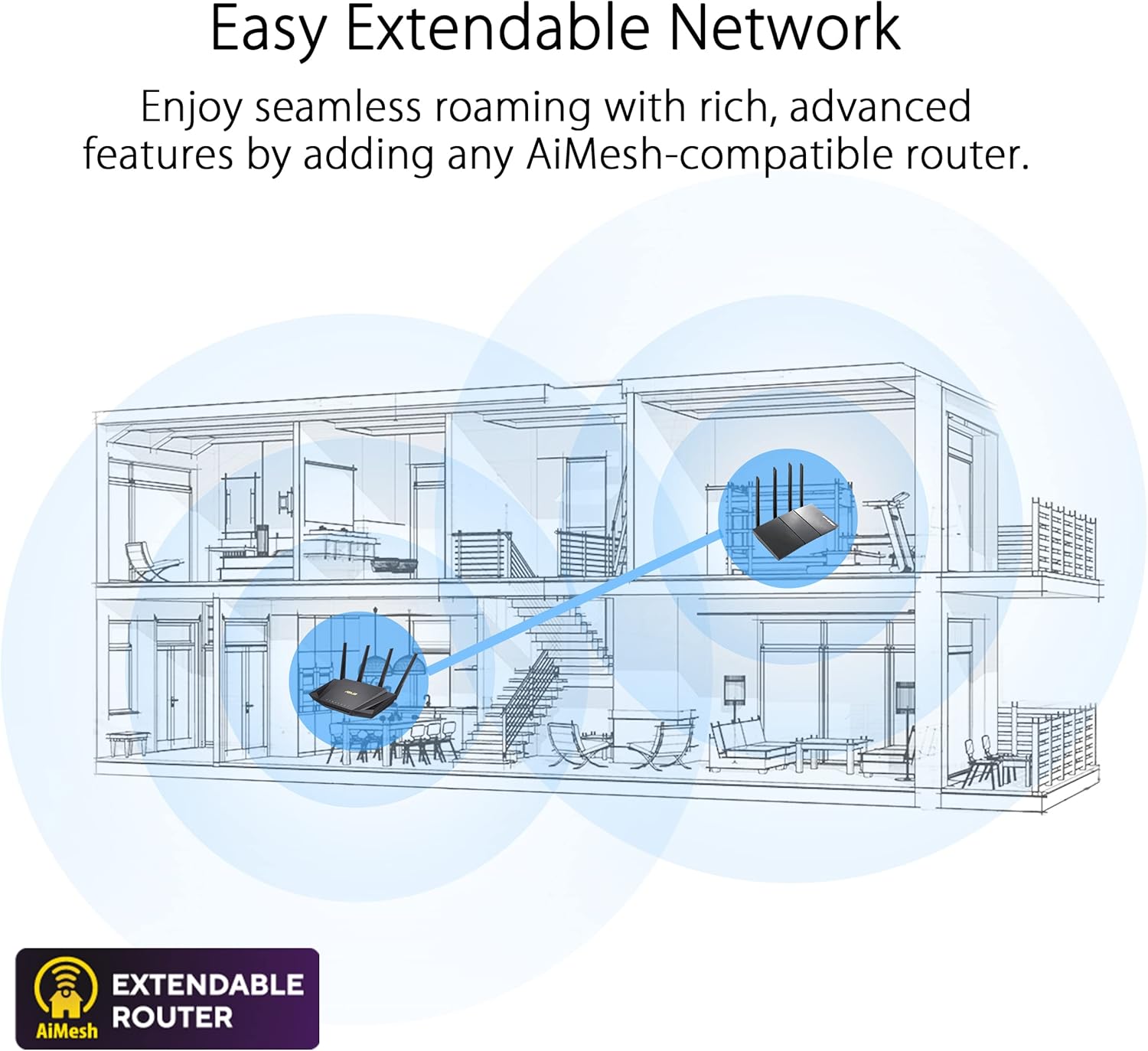
Image 4: Diagram illustrating an easy extendable network using ASUS AiMesh technology to cover multiple rooms.
4. Instrukcja obsługi
Aplikacja ASUS Router
Manage your RT-AXE7800 router conveniently using the ASUS Router mobile app. The app allows you to:
- Monitoruj ruch sieciowy i podłączone urządzenia.
- Configure Wi-Fi settings.
- Manage security features.
- Skonfiguruj kontrolę rodzicielską.
- Access VPN features.

Image 5: Screenshot of the ASUS Router app displaying the AiMesh WiFi system topology.
Funkcje bezpieczeństwa
The RT-AXE7800 includes robust security features to protect your network:
- AiProtection Pro: A free lifetime subscription powered by Trend Micro, offering commercial-grade network security, including malicious website blocking, two-way IPS, and infected device prevention and blocking.
- ASUS Safe Browsing: Blocks unwanted content with a single tap, helping to protect against malicious websites and inappropriate content.

Image 6: Illustration of the ASUS Safe Browsing feature, showing options to block malicious websites, inappropriate content, and advertisements.
Kontrola rodzicielska
Manage and monitor your family's internet usage with flexible parental controls:
- Schedule internet access times for specific devices.
- Filter content categories to block inappropriate webwitryny.
- Grant temporary internet access as a reward.

Image 7: Screenshot of the ASUS Router app showing parental control settings for screen time scheduling.
Funkcje VPN
The RT-AXE7800 offers comprehensive VPN support:
- Natychmiastowa Straż: Provides a one-click sharable secure VPN for public Wi-Fi, allowing you to protect your data when away from home.
- Supports various VPN protocols including WireGuard, OpenVPN, PPTP, and L2TP/IPsec.

Image 8: Visual representation of the router's VPN capabilities, supporting various protocols.
5. Konserwacja
Aktualizacje oprogramowania układowego
Regularly check for and install firmware updates to ensure your router has the latest security patches and performance enhancements. Firmware updates can typically be performed through the ASUS Router app or the router's web interfejs.
Restarting the Router
If you experience network issues, a simple restart of the router can often resolve them. You can schedule automatic restarts through the router's settings for consistent performance.
6. Rozwiązywanie Problemów
If you encounter problems with your ASUS RT-AXE7800 router, consider the following basic troubleshooting steps:
- Brak połączenia z internetem: Check all cable connections (modem to router, router to devices). Restart your modem and router. Verify your internet service provider (ISP) connection.
- Niska prędkość Wi-Fi: Ensure your devices are connected to the appropriate band (6GHz for compatible devices, 5GHz for others). Check for interference from other electronic devices. Consider optimizing router placement or adding AiMesh nodes for better coverage.
- Nie można uzyskać dostępu do ustawień routera: Ensure your device is connected to the router's network. Try clearing your browser's cache or using a different browser. Verify the router's IP address (usually http://router.asus.com lub 192.168.1.1).
- AiMesh Node Connectivity Issues: Ensure nodes are within optimal range of the main router. Check the signal quality in the ASUS Router app and reposition nodes if necessary.
7. Specyfikacje
| Funkcja | Szczegół |
|---|---|
| Wymiary produktu | 8.27 x 9.49 x 2.44 cala |
| Waga przedmiotu | 2.28 funta |
| Nazwa modelu | RT-AXE7800 |
| Klasa pasma częstotliwości | Trójpasmowy (2.4 GHz, 5 GHz, 6 GHz) |
| Standard komunikacji bezprzewodowej | 802.11a, 802.11ac, 802.11ax, 802.11g, 802.11n |
| Technologia łączności | Ethernet, USB, Wi-Fi |
| Cechy specjalne | Alexa Compatible, Guest Mode, Internet Security, Parental Control, QoS |
| Kompatybilne urządzenia | Konsola do gier, komputer osobisty, telewizor Smart TV, smartfon, tablet |
8. Co znajduje się w pudełku
Your ASUS RT-AXE7800 package includes:
- ASUS RT-AXE7800 Router
- Kabel RJ-45
- Zasilacz
- Szybki przewodnik
- Karta gwarancyjna
9. Gwarancja i wsparcie
The ASUS RT-AXE7800 router comes with a manufacturer's warranty. Please refer to the included Warranty Card for detailed terms and conditions. Registering your product with ASUS allows for faster product support and access to exclusive benefits.
Video 2: This video provides instructions on how to register your ASUS router using the ASUS Router app, enabling quick access to customer support and product services.
For technical assistance, visit the official ASUS support website or contact ASUS customer service. Ensure you have your product's serial number readily available for support inquiries.


