Wstęp
Thank you for choosing the Aigo Q38 USB Wired Gaming Mouse. This manual provides detailed instructions for setting up, operating, maintaining, and troubleshooting your new gaming mouse. Please read this manual carefully before use to ensure optimal performance and longevity of your device.
Organizować coś
The Aigo Q38 gaming mouse is designed for easy plug-and-play installation. Follow these steps to get started:
- Podłącz mysz: Locate an available USB port on your computer. Insert the USB connector of the Aigo Q38 mouse firmly into the USB port.
- Instalacja sterownika: For most operating systems (including Windows XP and Linux), the mouse will be automatically detected, and the necessary drivers will be installed without user intervention. Wait a few moments for your system to recognize the device.
- Funkcjonalność testu: Once installed, move the mouse and click the buttons to ensure it is functioning correctly.

Obraz: góra-przód view of the Aigo Q38 USB Wired Gaming Mouse, showing its ergonomic design and the attached USB cable. This view highlights the primary left and right click buttons, the scroll wheel, and two side buttons.
Instrukcja obsługi
The Aigo Q38 mouse features 7 buttons and an optical sensor for precise control. Its ambidextrous and ergonomic design ensures comfortable use for extended periods.
- Lewy przycisk myszy: Primary action button, typically used for selecting items, opening filei potwierdzanie działań.
- Przycisk prawego przycisku myszy: Secondary action button, typically used for opening context menus or accessing additional options.
- Kółko przewijania: Służy do przewijania dokumentów i web pages. It also functions as a clickable middle button for various actions depending on the application.
- Przyciski boczne: The mouse includes additional buttons, typically located on the side, which can be programmed for various functions in games or applications. Refer to your game or software settings for customization options.
- Regulacja DPI: The Aigo Q38 mouse features adjustable DPI (Dots Per Inch) settings, allowing you to change the cursor sensitivity on the fly. The available DPI settings are 800, 1200, 1600, and 2400. A dedicated DPI button (often located near the scroll wheel or on the underside) allows you to cycle through these settings.
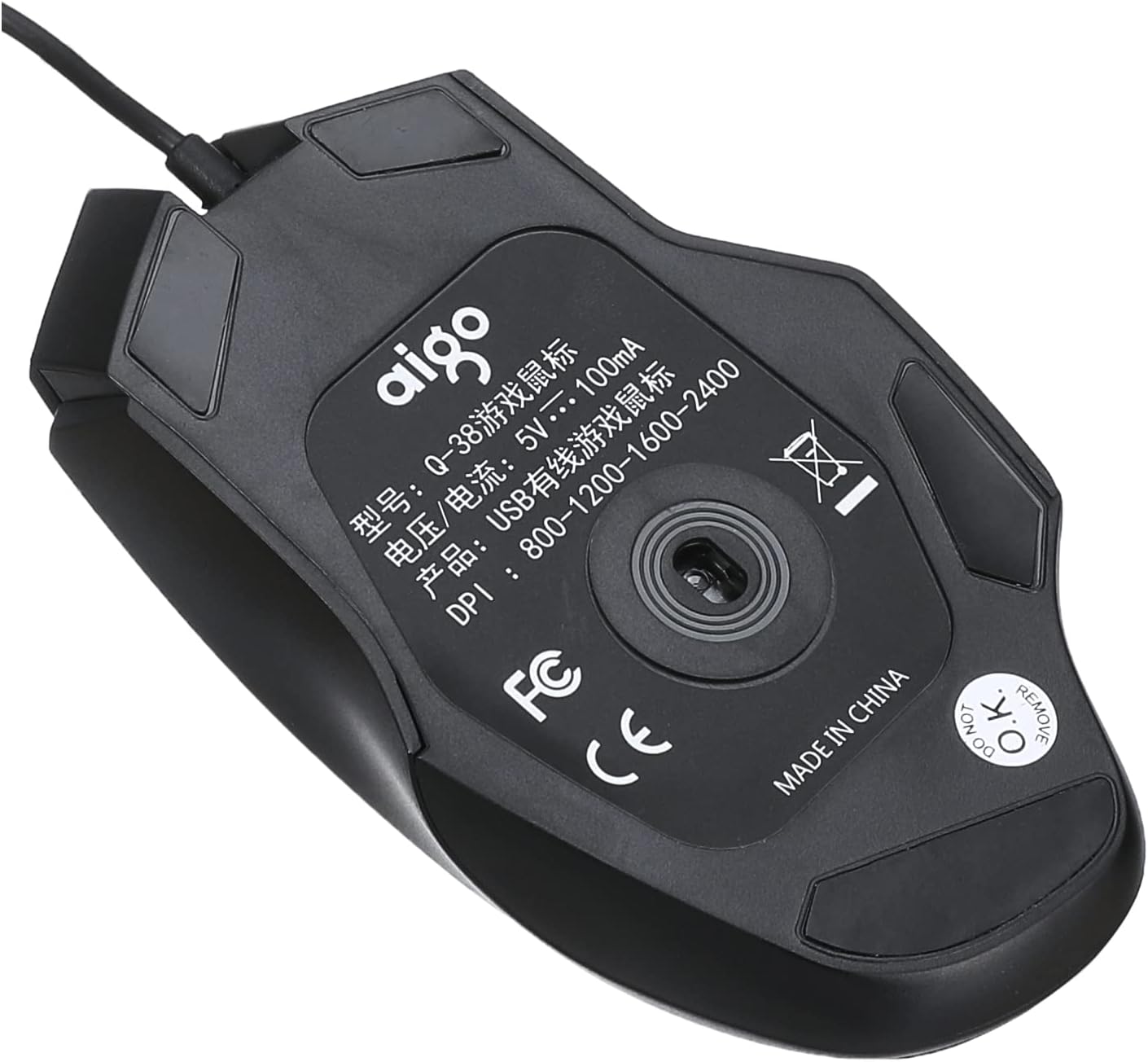
Obraz: Dół view of the Aigo Q38 USB Wired Gaming Mouse, showing the optical sensor, product model (Q-38), power specifications (5V --- 100mA), and DPI settings (800-1200-1600-2400).
Konserwacja
Proper maintenance ensures the longevity and performance of your Aigo Q38 gaming mouse.
- Czyszczenie: Do przecierania powierzchni myszy użyj miękkiej, suchej ściereczki. W przypadku uporczywych zabrudzeń delikatnie przetrzyjampPrzetrzyj ściereczkę wodą lub delikatnym środkiem czyszczącym. Unikaj stosowania silnych środków chemicznych i materiałów ściernych.
- Czyszczenie czujnika: Czasami wokół czujnika optycznego na spodzie myszy może gromadzić się kurz lub zanieczyszczenia. Delikatnie wyczyść obszar czujnika wacikiem lub sprężonym powietrzem.
- Składowanie: Jeśli mysz nie będzie używana przez dłuższy czas, należy przechowywać ją w czystym i suchym miejscu, z dala od bezpośredniego światła słonecznego i ekstremalnych temperatur.
Rozwiązywanie problemów
If you encounter issues with your Aigo Q38 gaming mouse, try the following troubleshooting steps:
- Mysz nie odpowiada:
- Sprawdź, czy kabel USB jest prawidłowo podłączony do portu USB komputera.
- Spróbuj podłączyć mysz do innego portu USB.
- Uruchom ponownie komputer.
- Przetestuj mysz na innym komputerze, aby ustalić, czy problem dotyczy myszy czy komputera.
- Nieregularny ruch kursora:
- Wyczyść czujnik optyczny znajdujący się na spodzie myszy, usuwając z niego kurz i zanieczyszczenia.
- Ensure you are using the mouse on a suitable surface. Highly reflective or transparent surfaces may interfere with optical tracking. A mouse pad is recommended.
- Przyciski nie działają:
- Check for any physical obstructions preventing the buttons from clicking properly.
- Ensure no software conflicts are present. Try testing the mouse in a different application or after restarting your computer.
Specyfikacje
Below are the technical specifications for the Aigo Q38 USB Wired Gaming Mouse:
| Model | Pytanie 38 |
| Marka | Aigo |
| Technologia łączności | Przewodowy USB |
| Wykrywanie ruchu | Optyczny |
| Ilość przycisków | 7 |
| Ustawienia DPI | 800 / 1200 / 1600 / 2400 |
| Objętość operacyjnatage/Bieżący | 5 V --- 100 mA |
| Orientacja dłoni | Oburęczny |
| Cechy specjalne | Ergonomiczna konstrukcja |
| Zalecane zastosowania | Hazard |
| Kompatybilne urządzenia | Laptop, komputer osobisty |
| System operacyjny | Linux, Windows XP |

Obraz: Bok view of the Aigo Q38 USB Wired Gaming Mouse, illustrating its approximate length of 5.1 inches (12 cm).
Gwarancja i wsparcie
For warranty information and customer support, please refer to the documentation provided with your purchase or contact the retailer where you purchased the Aigo Q38 USB Wired Gaming Mouse. You may also visit the official Aigo webAby uzyskać dalszą pomoc i informacje o produkcie, odwiedź naszą witrynę.


