1. Wprowadzenie
This manual provides detailed instructions for the safe and efficient use of your PeriPage A40 Portable Thermal Printer. The PeriPage A40 is an inkless, portable printer designed for various printing needs, including documents, web pages, photos, and specialized papers like tattoo transfer paper. It offers wireless connectivity via Bluetooth and is compatible with Android, iOS, Windows, and Mac OS devices.
Przed przystąpieniem do użytkowania urządzenia należy uważnie przeczytać instrukcję, aby mieć pewność, że będzie ono działać prawidłowo i uniknąć uszkodzeń.
2. Informacje dotyczące bezpieczeństwa
- Nie wystawiaj drukarki na działanie wody ani nadmiernej wilgoci.
- Avoid extreme temperatures, direct sunlight, or dusty environments.
- Use only the specified thermal paper for optimal performance and to prevent damage to the print head.
- Trzymaj urządzenie poza zasięgiem dzieci.
- Nie próbuj samodzielnie demontować ani naprawiać drukarki. Skontaktuj się z obsługą klienta, aby uzyskać pomoc.
- Ensure the printer is charged using a compatible power adapter.
3. Zawartość opakowania
Po rozpakowaniu sprawdź, czy znajdują się w nim wszystkie wymienione poniżej elementy:
- PeriPage A40 Portable Thermal Printer
- Kabel do ładowania USB typu C.
- Instrukcja obsługi (ten dokument)
- Thermal Paper Roll (1 additional roll included)
- Paper Width Adjustment Clips (2 clips)

Image: The PeriPage A40 printer shown with a sample document being printed. This illustrates the compact design and printing capability of the device.
4. Koniec produktuview
The PeriPage A40 is a versatile, inkless thermal printer designed for portability and convenience. It utilizes thermal transfer technology to produce crisp, monochrome prints without the need for ink cartridges, toner, or ribbons.
Główne cechy:
- Druk termiczny bez użycia atramentu: Environmentally friendly and cost-effective, requiring only thermal paper.
- Wysoka rozdzielczość: Delivers clear black and white prints at 300 x 300 dpi.
- Multi-Size Paper Support: Accommodates thermal paper widths of 210mm (A4/US Letter), 107mm, 77mm, and 56mm, supporting both roll and folded paper.
- Połączenie bezprzewodowe: Connects via Bluetooth to Android and iOS smartphones/tablets.
- Szeroka kompatybilność: Supports printing from Windows and Mac OS computers via USB.
- Przenośna konstrukcja: Compact and lightweight (1.45 pounds) for easy travel.
- Długa żywotność baterii: Equipped with two 2600mAh lithium batteries, capable of printing up to 360 A4 sheets on a full charge.
- Dodatkowa funkcjonalność: Includes basic scanning capabilities.
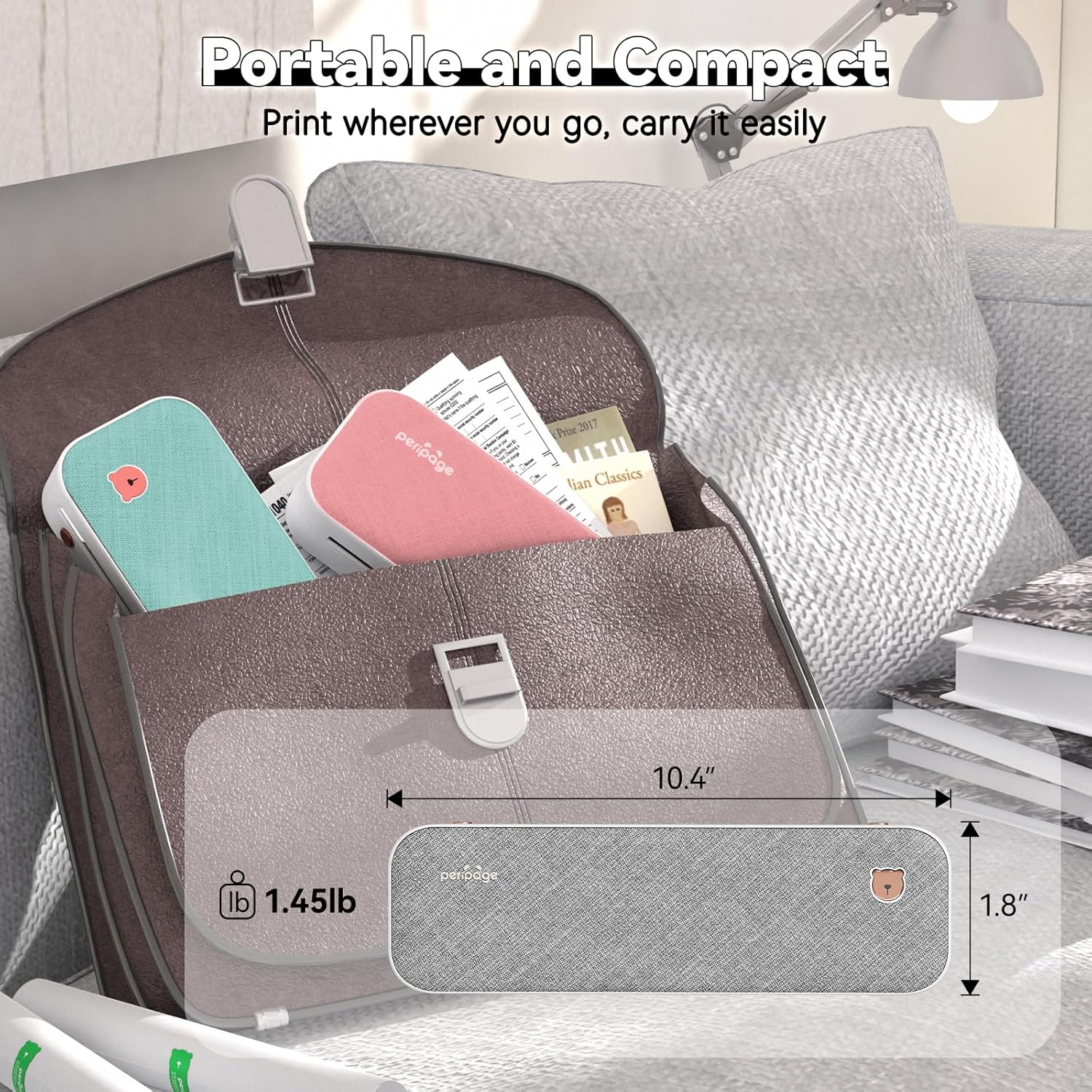
Image: The PeriPage A40 printer shown inside a bag, demonstrating its compact size and portability for travel or mobile use.
5. Konfiguracja
5.1 Ładowanie drukarki
Before first use, fully charge the printer. Connect the included USB Type-C cable to the printer's charging port and the other end to a compatible USB power adapter (not included) or a computer's USB port. The indicator light will show charging status.
5.2 Włączanie/wyłączanie
To power on the printer, press and hold the power button for approximately 2 seconds until the indicator light illuminates. To power off, press and hold the power button again until the indicator light turns off.

Obraz: Zbliżenie view of the PeriPage A40 printer's power button, indicating the action required to turn the device on.
5.3 App Download (for Mobile Devices)
For mobile printing, you must download the official "PeriPage" application. Szukaj "PeriPage" in your device's app store (Google Play Store for Android or Apple App Store for iOS) or scan the QR code provided in the physical instruction manual.

Image: A smartphone displaying the PeriPage application download page, illustrating where to find the app for mobile printing.
5.4 Łączenie z urządzeniami mobilnymi (Bluetooth)
- Ensure the PeriPage A40 printer is powered on.
- Open the "PeriPage" app on your smartphone or tablet.
- Within the app, navigate to the device connection section (usually indicated by a Bluetooth icon or "Connect Device").
- The app will search for available PeriPage printers. Select "PeriPage A40" from the list to establish a Bluetooth connection.
- A successful connection will be indicated within the app.

Image: A smartphone screen displaying the Bluetooth connection process to the PeriPage A40 printer within the application.
5.5 Connecting to Computers (Windows/Mac OS)
- Ensure the PeriPage A40 printer is powered on.
- Podłącz drukarkę do komputera za pomocą dołączonego kabla USB typu C.
- For Windows and Mac OS, you may need to install the printer driver. Visit the official PeriPage webStrona (www.ileadtek.com) to download the appropriate driver for your operating system.
- Aby dokończyć instalację sterownika, postępuj zgodnie z instrukcjami wyświetlanymi na ekranie.
- Once the driver is installed, the printer will be recognized by your computer and ready for use.

Image: The PeriPage A40 printer connected to a laptop using a USB-C cable, demonstrating the wired connection method for computer printing.
6. Instrukcja obsługi
6.1 Ładowanie papieru
The PeriPage A40 supports both thermal roll paper and folded thermal paper. It can accommodate various widths (210mm, 107mm, 77mm, 56mm).
- Otwórz pokrywę drukarki.
- If using roll paper, place the roll into the paper compartment. Ensure the paper feeds smoothly from the bottom and extends slightly out of the printer's paper exit slot.
- If using folded paper, stack the sheets neatly and insert them into the paper compartment. Ensure the leading edge is straight and aligned.
- Use the two included paper width adjustment clips to secure the paper in place, matching the width of your thermal paper.
- Close the printer cover firmly.

Image: An illustration demonstrating the two methods of loading thermal paper into the PeriPage A40: using a roll of paper or folded sheets, with clips for width adjustment.
6.2 Drukowanie z urządzeń mobilnych
- Ensure your PeriPage A40 is powered on and connected via Bluetooth to the PeriPage app.
- Otwórz aplikację PeriPage.
- Select the document, image, web page, or other content you wish to print from within the app. The app supports various formats including PDF, JPG, PNG, Word, Excel, and PowerPoint.
- Adjust print settings such as density, size, and orientation as needed.
- Aby rozpocząć drukowanie, naciśnij przycisk „Drukuj” w aplikacji.

Image: A smartphone screen showing a document open in the PeriPage app, ready to be sent to the printer for mobile printing.
6.3 Drukowanie z komputerów
- Ensure your PeriPage A40 is powered on and connected to your computer via USB, with the necessary drivers installed.
- Otwórz na komputerze dokument lub obraz, który chcesz wydrukować.
- Przejdź do "File" > "Print" (or use the print shortcut, e.g., Ctrl+P on Windows, Command+P on Mac).
- Select "PeriPage A40" as your printer.
- Adjust print settings as required (e.g., paper size, orientation).
- Kliknij „Drukuj”, aby wysłać zadanie do drukarki.

Image: A laptop displaying an image being printed, with the PeriPage A40 printer actively producing the output, illustrating computer printing functionality.
6.4 Obsługiwane rozmiary papieru
The PeriPage A40 is designed to be versatile with paper sizes. It supports the following thermal paper widths:
- 210 mm: Equivalent to A4 or US Letter/Legal length.
- 107mm
- 77mm
- 56mm
Ensure you use thermal paper specifically designed for thermal printers. The maximum diameter for thermal roll paper is 30mm.

Image: Two PeriPage A40 printers illustrating the use of different thermal paper sizes (A4, 4-inch, 3-inch, 2-inch) and types (folding paper and thermal roll paper).
7. Konserwacja
7.1 Czyszczenie drukarki
- Ensure the printer is powered off and disconnected from any power source before cleaning.
- Przetrzyj zewnętrzną część drukarki miękką, suchą ściereczką.
- To clean the thermal print head, gently wipe it with a cotton swab lightly dampNasączyć alkoholem izopropylowym. Przed użyciem pozostawić do całkowitego wyschnięcia.
- Nie należy używać środków czyszczących o właściwościach ściernych ani rozpuszczalników.
7.2 Przechowywanie papieru
Przechowuj papier termiczny w chłodnym, suchym miejscu, z dala od bezpośredniego światła słonecznego i ciepła, aby zachować jego jakość i trwałość wydruku.
7.3 Pielęgnacja baterii
- Unikaj częstego całkowitego rozładowywania akumulatora.
- If storing the printer for an extended period, charge it to about 50% and recharge every few months to maintain battery health.
8. Rozwiązywanie Problemów
8.1 Drukarka się nie włącza
- Ensure the battery is charged. Connect the printer to a power source and allow it to charge for at least 30 minutes before attempting to power on again.
- Verify that the power button is pressed and held for the required duration (approx. 2 seconds).
8.2 Nie można połączyć się przez Bluetooth
- Make sure the printer is powered on and within range of your mobile device.
- Upewnij się, że Bluetooth jest włączony w Twoim urządzeniu mobilnym.
- Close and reopen the PeriPage app.
- Uruchom ponownie drukarkę i urządzenie mobilne.
- Check if the PeriPage app has Bluetooth permissions enabled in your device settings.
8.3 No Print Output or Blank Pages
- Verify that thermal paper is loaded correctly and not upside down. Thermal paper has a specific side that reacts to heat.
- Check if the paper compartment cover is fully closed.
- Ensure the printer is connected and selected as the active printer in your app or computer settings.
- The print head might be dirty. Refer to the "Cleaning the Printer" section.
8.4 Słaba jakość wydruku
- Upewnij się, że używasz wysokiej jakości papieru termicznego.
- Clean the print head as described in the "Maintenance" section.
- Adjust the print density settings within the PeriPage app or printer driver.
- Check if the thermal paper is old or has been exposed to heat/light, which can degrade its printing capability.

Image: A visual comparison demonstrating the clear and crisp print quality achievable with the PeriPage A40 printer, highlighting its "Excellent Printing Ability".
9. Specyfikacje
| Funkcja | Specyfikacja |
|---|---|
| Model | A40 |
| Technologia druku | Termiczny |
| Rozdzielczość wydruku | 300 x 300 dpi (Monochrome) |
| Łączność | Bluetooth, USB typu C |
| Kompatybilne urządzenia | Android, iOS, Windows, Mac OS |
| Obsługiwane szerokości papieru | 210mm (A4/US Letter), 107mm, 77mm, 56mm |
| Maksymalna pojemność arkuszy wejściowych | 360 sheets (A4 equivalent, with full battery) |
| Bateria | 2 baterie litowe o pojemności 2600 mAh |
| Wymiary produktu | 2.5" gł. x 10.9" szer. x 4.09" wys. |
| Waga przedmiotu | 1.45 funta (658 gramów) |
| Wyjście drukarki | Monochromia |
| Funkcje dodatkowe | Scan (basic) |
10. Gwarancja i wsparcie
The PeriPage A40 Portable Thermal Printer comes with a limited warranty. For specific warranty terms and conditions, please refer to the warranty card included in your package or visit the official PeriPage webstrona.
For technical support, troubleshooting assistance, or inquiries regarding your product, please contact PeriPage customer service through their official website or the contact information provided in your product documentation. When contacting support, please have your model number (A40) and purchase details ready.
Urzędnik Webstrona: www.ileadtek.com


